


 Chuyển đổi video Ultimate
 Trình ghi màn hình
 Sửa chữa video
Nắm vững nghệ thuật thêm hình mờ trên iMovie với các bước chi tiết
Một trong những trình chỉnh sửa tốt nhất bạn có thể dùng trên Mac là iMovie. Công cụ này cung cấp một giao diện rất trực quan cho người dùng Mac. Mặc dù công cụ này tuyệt vời và dễ quản lý, một số người dùng vẫn tìm kiếm hướng dẫn cách sử dụng. Vì vậy, nếu bạn là người dùng Mac và muốn học cách thêm watermark vào video trong iMovie, bạn có thể làm theo hướng dẫn bên dưới để tận dụng tối đa công cụ này.

Phần 1. Hướng dẫn cách Thêm Hình mờ vào Video trong iMovie trên macOS
Chúng tôi đã giới thiệu iMovie, vì vậy các chi tiết tiếp theo sẽ hướng dẫn bạn cách đặt hình mờ trên video trong iMovie. Để biết cách thêm các bạn có thể làm theo hướng dẫn chi tiết bên dưới, các bạn đọc kỹ để nắm được toàn bộ ý nhé.
Bước 1. Khởi chạy iMovie trên Mac của bạn, và nếu bạn không tìm thấy, bạn có thể nhanh chóng mở Finder và tìm kiếm nó.
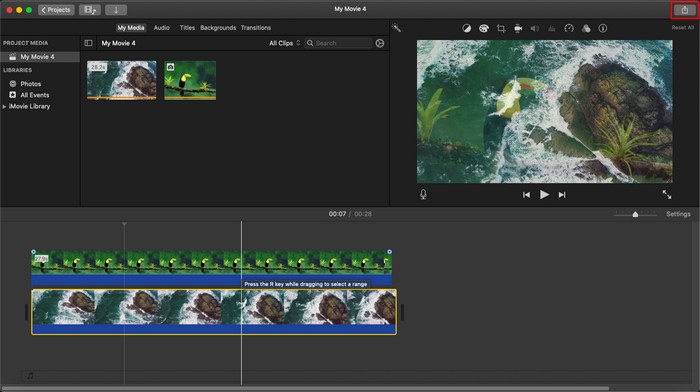
Bước 2. Nhấp vào nút Import để tải video và hình ảnh mà bạn muốn dùng làm watermark. Kéo tệp video và hình ảnh xuống Timeline bên dưới, giống như với hình ảnh. Hãy đảm bảo rằng video nằm trên đầu dòng thời gian video. Thực hiện một số điều chỉnh cho hình ảnh bằng cách kéo, thay đổi kích thước, và hơn thế nữa.
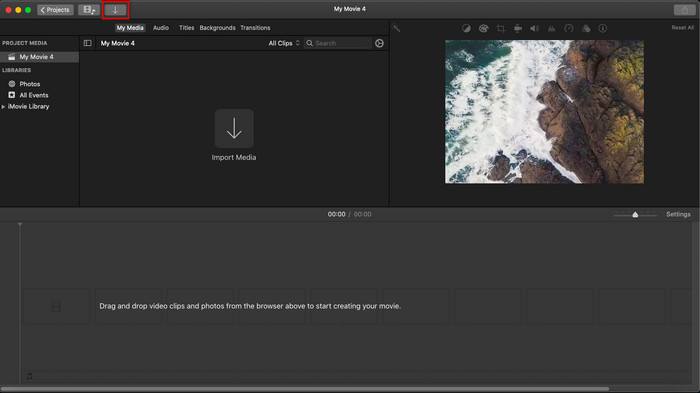
Bước 3. Nếu bạn đã hài lòng với các chỉnh sửa, hãy nhấp vào Export ở góc trên bên phải của công cụ, sau đó chọn Export File.
Ưu điểm
- Nó được sử dụng miễn phí trong bất kỳ thiết bị Apple nào như thiết bị macOS và iOS.
- Chỉnh sửa nhanh các video thô để làm cho chúng trông đẹp mắt.
- Có sẵn các chức năng chỉnh sửa cơ bản cho đến mức trung bình.
Nhược điểm
- Nó hỗ trợ ít định dạng hơn, vì vậy nếu bạn muốn chỉnh sửa video ở đây, bạn phải chuyển đổi nó sang MOV hoặc bất kỳ định dạng nào tương thích với các thiết bị của Apple.
- Ít hỗ trợ chỉnh sửa chuyên nghiệp.
Phần 2. Công cụ tốt nhất để sử dụng và đặt hình mờ trên video trên máy tính Mac với cách xử lý ít rắc rối hơn
Nếu bạn cảm thấy việc thêm watermark trong iMovie là khó, bạn có thể dùng một lựa chọn thay thế tốt hơn là Video Converter Ultimate. Công cụ này cung cấp cách thêm watermark vào video của bạn dễ dàng hơn nhiều. Hãy tưởng tượng thế này: nếu iMovie đã dễ dùng, thì công cụ “ultimate” này còn dễ tiếp cận hơn. Mặc dù dễ sử dụng, nhưng chất lượng đầu ra cuối cùng mà nó mang lại lại rất xuất sắc, và một trong những ưu điểm của nó so với iMovie là nó hỗ trợ nhiều định dạng hình ảnh hơn để bạn tải lên. Muốn biết thêm? Vậy bạn có thể đọc các tính năng mà chúng tôi giới thiệu bên dưới cho bạn.

FVC Video Converter Ultimate
5.689.200+ lượt tải xuống- Cung cấp các tính năng chỉnh sửa toàn diện mà bạn có thể sử dụng để làm cho video của mình nổi bật hơn video khác.
- Nó hỗ trợ các quy trình cực nhanh và tăng tốc phần cứng để nhanh chóng nhập và xuất video.
- Nó hỗ trợ các định dạng video như MOV, MKV, AVI, MP4, FLV, RMVB, v.v.
- Nó có một giao diện rất tương tác để có trải nghiệm tốt nhất.
- Có sẵn trên tất cả các nền tảng máy tính để bàn như Windows và Mac.
Tải xuống miễn phí cho Windows 7 trở lên. Tải xuống an toàn.
Tải xuống miễn phí cho MacOS 10.7 trở lên. Tải xuống an toàn.
Thật tuyệt vời khi có tất cả các tính năng này trên một công cụ phải không? Nếu chúng ta ở trên cùng một trang, hãy cùng tìm hiểu chi tiết về cách tạo hình mờ video trong iMovie nhưng theo cách dễ dàng hơn với công cụ cuối cùng.
Các bước về Cách Chèn Hình mờ trên Video bằng Công cụ Cuối cùng
Bước 1. Tải phần mềm về Mac của bạn, làm theo quy trình cài đặt và nhấn Start Now để khởi chạy công cụ.
Bước 2. Tải tệp video bạn muốn bằng cách nhấp vào nút + hoặc Add Files. Tìm video trong thư mục xuất hiện trên màn hình của bạn và nhấn Open để tải lên.
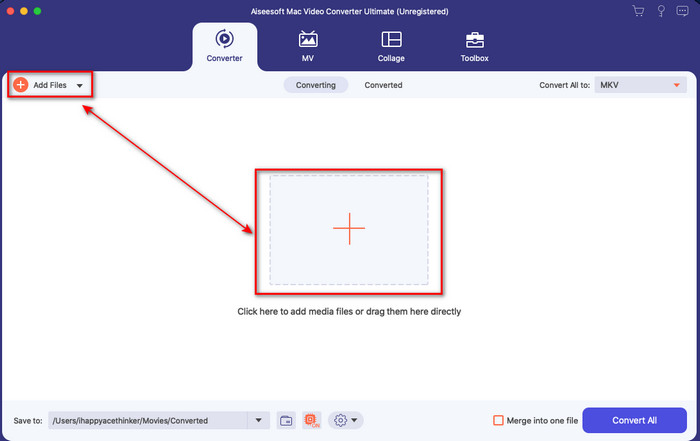
Bước 3. Nhấp vào nút hình wand để mở cửa sổ chỉnh sửa trên giao diện công cụ. Sau đó nhấp vào phần Watermark, chọn Image, nhấn nút + để thêm hình ảnh bạn muốn. Sau đó, điều chỉnh opacity (độ mờ) của hình ảnh hoặc rotate (xoay) nó và nhấp OK để lưu thay đổi bạn đã thực hiện.
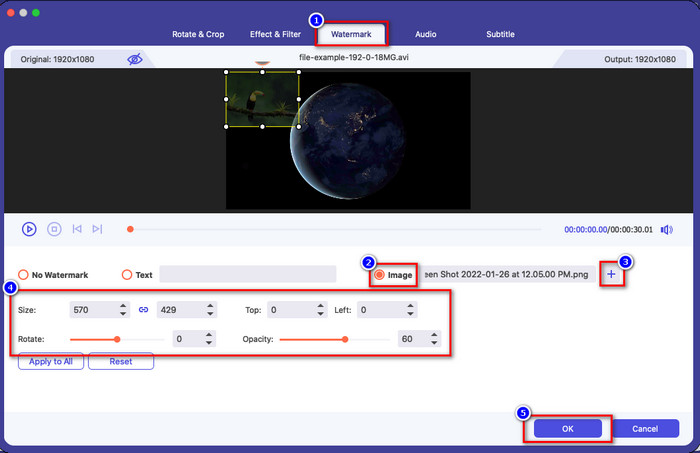
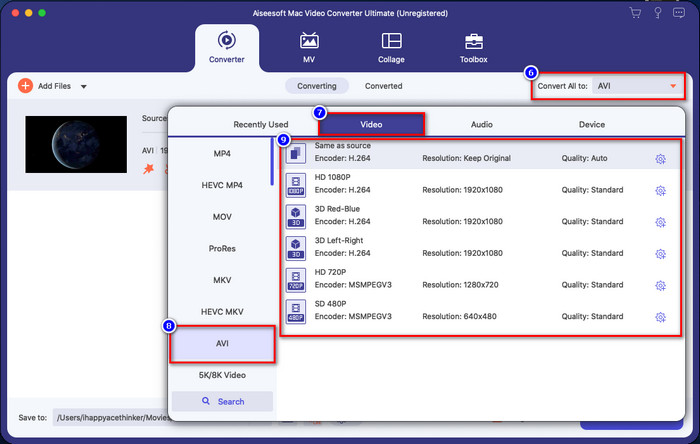
Tùy chọn. Nếu bạn muốn thay đổi định dạng, hãy nhấp vào Convert All to, chọn định dạng có trong danh sách và nhấp vào đó. Nếu bạn không muốn thay đổi định dạng, bạn có thể chuyển sang bước cuối.
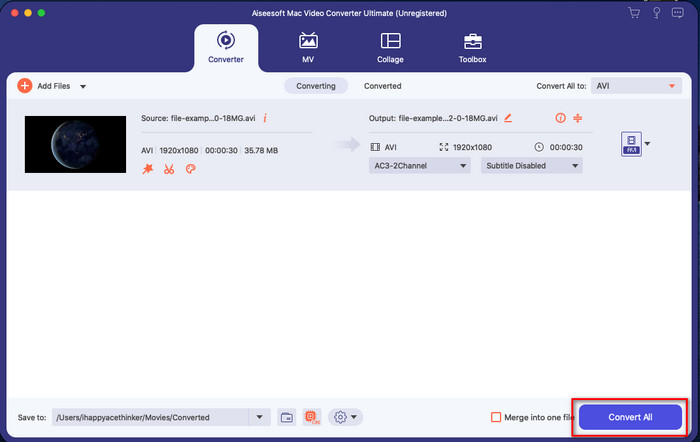
Bước 4. Để xuất video có watermark, hãy nhấp vào Convert All. Bạn không cần phải chờ quá lâu vì công cụ cung cấp tốc độ chuyển đổi siêu nhanh. Như vậy, bạn đã thêm watermark dạng hình ảnh vào video của mình trong chưa đầy một phút.
Ưu điểm
- Đây là sự lựa chọn tốt nhất cho bất kỳ người dùng nào có ít hoặc không biết cách chỉnh sửa.
- Nó hỗ trợ nhiều định dạng video hơn mà bạn có thể tải lên để tiết kiệm thời gian và tránh chuyển đổi nó.
- Có sẵn trên tất cả các nền tảng như Windows hoặc Mac để tải xuống.
Nhược điểm
- Nó không phải là miễn phí để tải về, nhưng nó không quá đắt.
- Tải xuống nó trên ổ đĩa của bạn là cần thiết.
Phần 3. Câu hỏi thường gặp về Thêm Watermark trên iMovie
IMovie có miễn phí để sử dụng không?
Đúng là iMovie miễn phí sử dụng nếu bạn dùng sản phẩm Apple, nhưng bạn không thể tải nó nếu dùng Android hoặc Windows. Lưu ý rằng không có iMovie cho các nền tảng khác. Vì vậy, nếu bạn tải iMovie về máy tính để bàn hoặc điện thoại không phải Apple, hãy chấp nhận rằng nó sẽ không hoạt động hiệu quả như iMovie thật, hoặc tệ hơn, có thể chứa virus. Để tránh điều này, bạn có thể nhấp và đọc bài viết này để biết các lựa chọn thay thế cho iMovie.
IMovie có phải là trình chỉnh sửa tốt nhất trên Mac không?
Chúng tôi có thể nói rằng nó là một trong những tốt nhất, nhưng không phải là tốt nhất, vì các trình chỉnh sửa khác nhau cung cấp nhiều tính năng chỉnh sửa mà bạn không thể tìm thấy trên iMovie. Mặc dù nó thiếu ở một số khía cạnh, nó vẫn là một trình chỉnh sửa hàng đầu mà bạn có thể sử dụng miễn phí trên máy Mac của mình để thực hiện chỉnh sửa video cho vlog, kinh doanh, quảng cáo và hơn thế nữa.
Sau khi xuất video trên iMovie, nó có hình mờ không?
Kể từ ngày này, hình mờ của video không có trong các video đã xuất. Vì vậy, bạn có thể thoải mái thưởng thức các video đã tải xuống mà bạn chỉnh sửa trên iMovie mà không có hình mờ khó chịu.
Tôi có thể sử dụng video .avi trên iMovie không?
iMovie không hỗ trợ nhiều định dạng, nhưng bạn có thể nhấp và đọc bài viết này để tìm hiểu bạn có thể làm gì để tệp AVI của bạn tương thích với iMovie.
Phần kết luận
Bài viết này đã chứng minh bạn có thể dùng trình chỉnh sửa tích hợp sẵn mà Apple cung cấp cho bạn và thêm watermark vào video với các bước mà chúng tôi đã đưa ra, rất dễ làm theo. Mặc dù bạn có thể dùng iMovie miễn phí, chúng tôi vẫn tin rằng Video Converter Ultimate là công cụ tốt nhất cho nhiệm vụ này trong mọi trường hợp. Vì vậy, nếu bạn cần trợ giúp, bạn có thể tải nó về Mac hoặc Windows bằng cách nhấn nút tải xuống được trình bày phía trên.
-
 3 phương pháp chuyển đổi MPEG sang WMV mà không làm giảm chất lượng
 Bạn có muốn xem video của mình trên trình phát ưa thích nhưng trình phát này không hỗ trợ định dạng video không? Đọc bài viết này vì chúng tôi cung cấp cho bạn những cách hiệu quả nhất để chuyển đổi MPEG sang WMV.
-
 2 trong số các Lựa chọn Chuyển đổi Yêu thích để Chuyển đổi F4V sang WMV [2022]
 Bạn có phải là một trong những người dùng đang tìm cách tốt nhất để chuyển đổi F4V sang WMV? Nếu vậy, hãy thử đọc phần viết này để biết rõ hơn về cách thực hiện và các công cụ có sẵn là gì.
-
 Bộ chuyển đổi MXF sang WMV tốt nhất để chuyển đổi MXF sang WMV miễn phí
 Bạn muốn biết cách dễ nhất để thay đổi tệp MXF của bạn thành định dạng WMV? Nếu bạn đã sẵn sàng để khám phá cách làm điều đó, bạn phải đọc kỹ bài viết này.
