


 Chuyển đổi video Ultimate
 Trình ghi màn hình
 Sửa chữa video
3 Hỗ trợ Hiệu quả để Giúp Bạn Thoát khỏi Tình trạng Âm thanh Trễ
Ngày nay, để không thấy chán trong tình hình hiện tại, chúng ta rất thích xem video để giết thời gian. Dù thể loại gì thì chúng ta vẫn xem để khỏi buồn chán khi ở nhà. Thực tế, hầu hết chúng ta đều từng gặp tình trạng âm thanh và hình ảnh bị lệch nhau, rất khó chịu đúng không? Nhưng hôm nay chúng tôi cam đoan với bạn rằng bạn sẽ không còn gặp vấn đề đó nữa. Bởi vì trong bài viết này, chúng tôi cung cấp cho bạn các giải pháp về cách sửa lỗi trễ âm thanh trong video và xác định nguyên nhân gây ra tình trạng đó.

Phần 1. Độ trễ âm thanh là gì
Trễ âm thanh thực sự có thể xảy ra trong nhiều tình huống khác nhau, dù là online hay offline. Có rất nhiều yếu tố khác nhau khiến âm thanh bị trễ. Dưới đây là một ví dụ tiêu biểu trong danh sách. Hãy đọc kỹ để biết đâu có thể là nguyên nhân.
◆ Video trước khi được tải lên trang web hoặc nền tảng đã bị hỏng dẫn đến âm thanh và video không đồng bộ hóa.
◆ Quá trình tải xuống tệp đã bị gián đoạn hoặc không hoàn chỉnh dẫn đến tệp âm thanh và video bị mất hoặc bị chậm trễ.
◆ Sự cố phần mềm chỉnh sửa. Đây có thể là một lý do nếu bạn ghi âm thanh và video riêng biệt và kết hợp chúng với nhau.
Các lý do khác có thể xảy ra chậm trễ trong tình huống này:
◆ Nếu sự chậm trễ xảy ra khi đang xem TV thì có thể do mạng khu vực kém giữa cáp, vệ tinh hoặc ăng-ten của bạn.
◆ Độ trễ xảy ra khi trực tuyến, đặc biệt nếu video của bạn được đặt thành 4k hoặc 1080 px vì chất lượng này sẽ cần nhiều thời gian để tải so với âm thanh hoặc ngược lại.
Và bây giờ chúng ta biết lý do là gì, bây giờ chúng ta có thể khắc phục nó bằng cách đọc văn bản dưới đây. Tuy nhiên, 2 nguyên nhân còn lại không thể khắc phục được bằng phần mềm bên dưới. Nhưng chúng tôi có thể đề xuất nếu video và âm thanh không đồng bộ trực tuyến thì chúng tôi phải giảm chất lượng xuống để tải tốt hơn hoặc chỉ cần tìm một internet khác tốt hơn. Và nếu vấn đề của bạn là trên TV thì việc liên hệ với nhà cung cấp kênh của bạn để kiểm tra và khắc phục ngay lập tức là điều bắt buộc. Vì vậy, bây giờ, chúng ta hãy tiến hành 3 giải pháp hàng đầu dưới đây.
Phần 2. 3 giải pháp hàng đầu về cách khắc phục độ trễ âm thanh
1. Sử dụng Video Converter Ultimate
Nếu bạn đang tìm giải pháp tốt nhất thì đây phải là lựa chọn đầu tiên trong danh sách. Vì phần mềm này có thể dễ dàng đồng bộ âm thanh và hình ảnh chỉ trong 3 phút, đó là Video Converter Ultimate. Phần mềm này đa nền tảng, cơ bản là dù bạn dùng Mac hay PC đều có thể tải về. Hơn nữa, điểm tuyệt vời nhất của công cụ này là tất cả các tính năng chỉnh sửa nâng cao trên PC đều có trên Mac và ngược lại. Hiệu năng của nó đã khiến người dùng phải trầm trồ và trở thành lựa chọn phổ biến nhất cho cả người mới lẫn chuyên nghiệp. Không chỉ vậy, công cụ này còn hỗ trợ xử lý nhanh nên bạn sẽ không bị lãng phí thời gian. Nói như vậy, hãy cùng tiếp tục tìm hiểu cách sửa lỗi trễ âm thanh hiệu quả bằng cách làm theo các bước dưới đây.
Các bước sửa lỗi trễ bằng Video Converter Ultimate:
Bước 1. Nếu đây là lần đầu bạn dùng công cụ này thì trước tiên cần tải nó về. Sau khi tải xong, hãy cài đặt, thiết lập và nhấp vào Start Now để tiếp tục.
Tải xuống miễn phí cho Windows 7 trở lên. Tải xuống an toàn.
Tải xuống miễn phí cho MacOS 10.7 trở lên. Tải xuống an toàn.
Bước 2. Sau khi phần mềm đã được khởi chạy, vào mục Toolbox, bên trong đó có Audio Sync, sau đó nhấn vào.
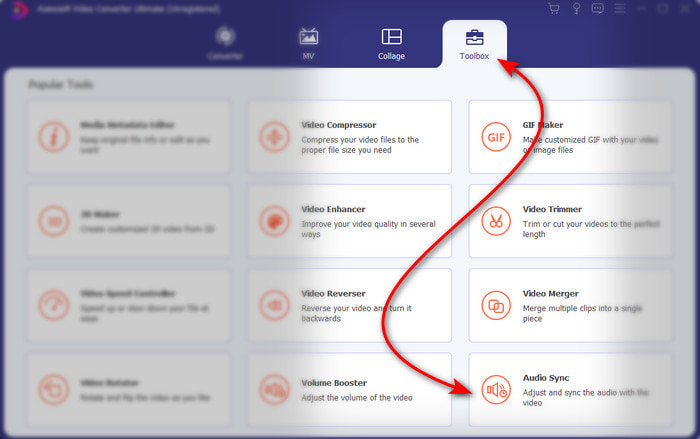
Bước 3. Nhấn nút + để thêm tệp bạn muốn đồng bộ, sau đó một cửa sổ thư mục sẽ hiện ra. Khi đã xác định được video, hãy nhấp Open.
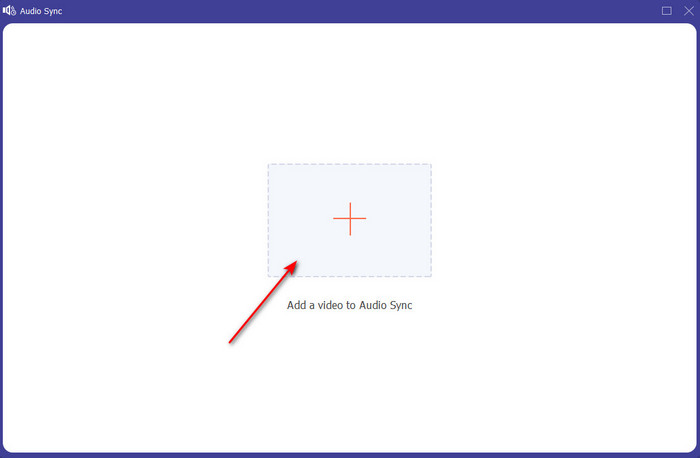
Bước 4. Một giao diện như thế này sẽ hiện ra và đây là lúc bạn di chuyển thanh trượt delay để đồng bộ. Nếu âm thanh và hình ảnh đã khớp, hãy nhấp Export để lưu tệp.
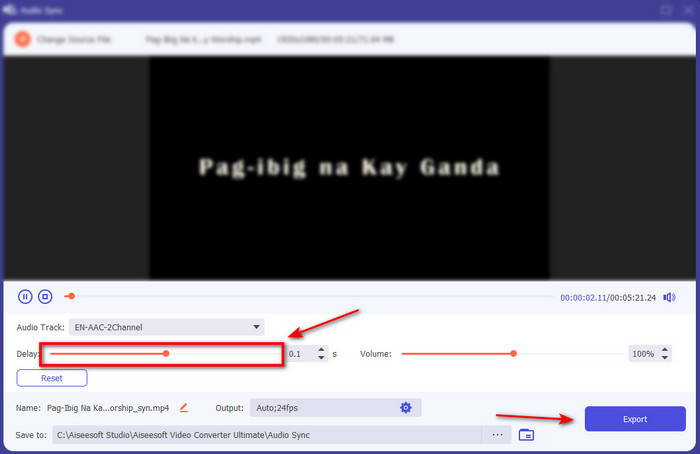
Bước 5. Sau khi quá trình hoàn tất, một cửa sổ quản lý tệp sẽ hiện ra với tệp đã xử lý. Nhấp vào tệp để xem và tận hưởng “phép màu” bạn vừa tạo ra với phần mềm này.
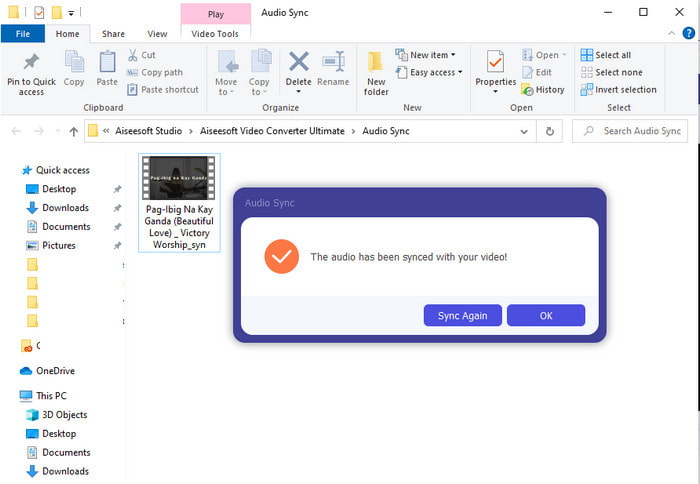
2. Sử dụng Avidemux
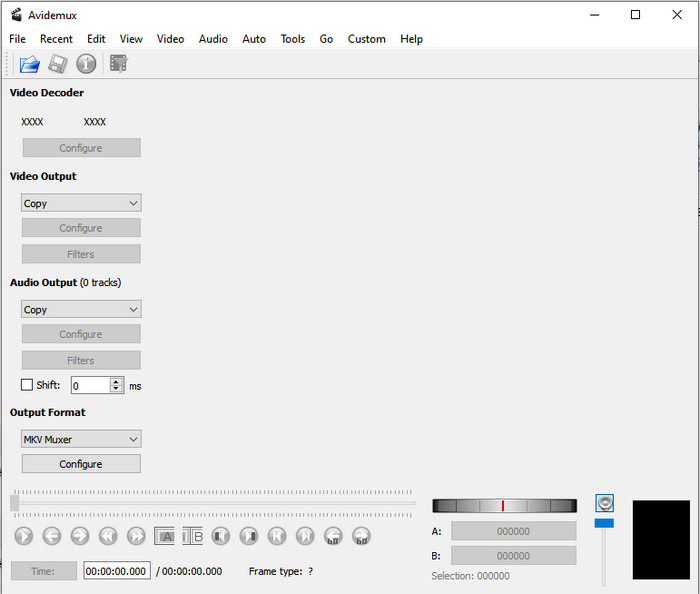
Phần mềm này có thể giúp bạn sửa lỗi trễ âm thanh mà bạn gặp phải. Hơn nữa, nó có mặt trên tất cả các nền tảng khác nhau mà bạn đang dùng. Vì vậy, nếu bạn dùng công cụ này trên PC rồi chuyển sang Mac, bạn vẫn có thể sử dụng nó như trình biên tập cá nhân. Tuy nhiên, một số tính năng trên PC sẽ không có trên Mac hoặc Linux. Ngoài ra, nếu bạn sắp dùng công cụ này thì hãy chuẩn bị tinh thần gặp một vài khó khăn, vì một số tính năng trong công cụ này có thể khiến bạn hơi bối rối. Vậy nên, nếu bạn muốn thử và sửa lỗi trễ trên video của mình thì hãy làm theo các bước mà chúng tôi đã đơn giản hóa. Nhằm giúp người dùng như bạn dễ dàng làm theo hơn.
Cách đồng bộ âm thanh và video bằng Avidemux:
Bước 1. Trước tiên hãy tải phần mềm từ trang web chính thức. Khởi chạy, sau đó nhấp File rồi tiếp theo là Open để chọn một video trong thư mục.
Bước 2. Tích vào ô Shift để việc dịch chuyển được áp dụng tự động. Sau đó nhập giá trị tính bằng ms mà bạn muốn. Chúng tôi gợi ý nên bắt đầu từ - hoặc + 200 trước, nếu âm thanh và hình ảnh vẫn chưa khớp thì hãy thay đổi con số.
Bước 3. Khi video và âm thanh đã được đồng bộ chính xác, đây là lúc xuất tệp bằng cách nhấp nút Save.
3. Sử dụng công cụ chuyển đổi trực tuyến
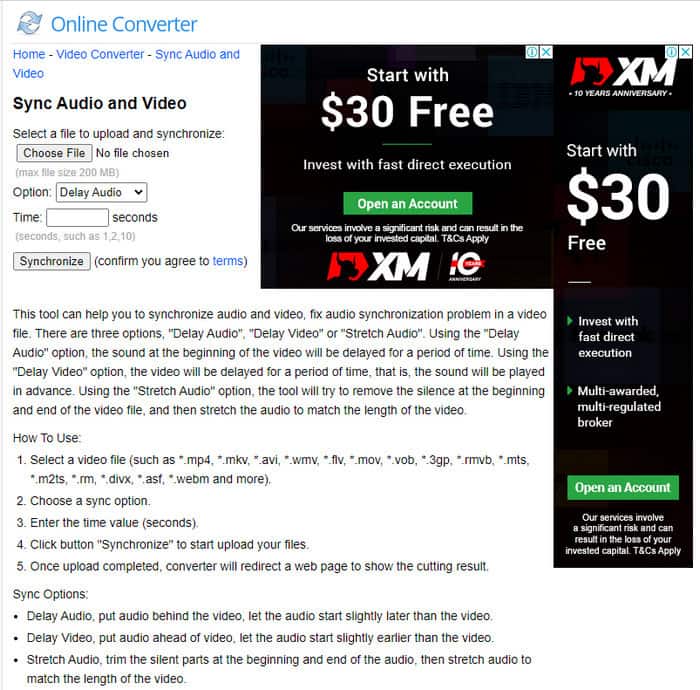
Nếu bạn không muốn tải phần mềm thì nhất định phải thử và dùng Online Converter có sẵn trên web. Giao diện của nó rất đơn giản, ai có kết nối internet ổn định cũng dễ hiểu và dễ sử dụng. Tuy nhiên, công cụ này không phải lựa chọn tốt nhất nếu bạn không có kết nối mạng vì nó phụ thuộc hoàn toàn vào internet. Vậy nên, nếu bạn muốn học cách sửa lỗi trễ âm thanh bằng Online Converter thì hãy làm theo các bước dưới đây.
Cách sửa lỗi trễ âm thanh và video bằng Online Converter:
Bước 1. Tìm trang web chính thức của Online Converter. Sau khi mở website, nhấp vào Choose File để chèn video và tệp âm thanh bị trễ.
Bước 2. Ở phần Option bạn có thể chọn sửa lỗi trễ trên âm thanh hoặc video. Sau đó đặt Time trong ô.
Bước 3. Nhấp Synchronize và đợi quá trình hoàn tất, sau đó nhấp Download Now để lưu video đã được đồng bộ mà bạn vừa tạo.
Phần 3. Câu hỏi thường gặp về Khắc phục độ trễ âm thanh
Tôi có thể sử dụng Premiere pro để khắc phục độ trễ âm thanh không?
Hoàn toàn có thể. Bạn có thể dùng trình chỉnh sửa nổi tiếng nhất do Adobe phát triển. Nếu bạn chưa biết cách thực hiện thì hãy nhấp vào liên kết này để mở một trang web mới để sửa lỗi trễ âm thanh trong Premiere Pro.
Làm thế nào để hợp nhất âm thanh và video đúng cách để tránh bị trễ?
Việc tìm một phần mềm phù hợp để ghép (merge) chuẩn xác có thể hơi khó. Tuy nhiên, chúng tôi có thể giúp việc tìm kiếm của bạn dễ dàng hơn vì đã tổng hợp 4 cách khác nhau để thêm bất kỳ track âm thanh nào vào video một cách dễ dàng.
Nén video có thể dẫn đến độ trễ âm thanh không?
Hiện tại, nếu bạn nén video thì sẽ không ảnh hưởng đến âm thanh hoặc gây trễ. Vì nén là cách làm cho dung lượng tệp media nhỏ hơn chứ không phá hỏng nó. Vậy nên, nếu bạn đang tìm một trình nén video an toàn và bảo mật thì hãy nhấp vào liên kết này để biết 7 cách nén video.
Phần kết luận
Và bây giờ khi chúng ta đã biết các nguyên nhân khác nhau gây ra trễ âm thanh, đã đến lúc sửa nó bằng các công cụ được giới thiệu ở trên. Mặc dù tất cả các công cụ đều có cùng chức năng, nhưng vẫn có một công cụ nổi bật hơn trong số 3 công cụ được trình bày, đó là Video Converter Ultimate. Công cụ tuyệt vời này đã được hàng triệu người dùng và đã giúp họ khắc phục vấn đề. Và nếu bạn cũng muốn cảm nhận được sự nhẹ nhõm khi giải quyết xong rắc rối của mình, hãy tải công cụ này ngay bây giờ.
-
 [Miễn phí & Trả phí] GIF Speed Changer: Những lựa chọn hấp dẫn năm 2025
 Bạn không hài lòng với ảnh GIF bạn tạo trực tuyến vì nó tẻ nhạt và chậm chạp? Đây sẽ là ngày may mắn của bạn vì chúng tôi giới thiệu một bài viết về trình thay đổi tốc độ GIF và các chi tiết giúp bạn sử dụng và thành thạo nó.
-
 Top 4 máy phát video có bộ điều khiển tốc độ năm 2025
 Bạn không nhận thấy tốc độ phát lại của mọi trình phát đa phương tiện bất cứ khi nào bạn phát video? Bài viết này phù hợp để bạn tìm hiểu tất cả về trình phát video có điều khiển tốc độ.
-
 3 cách để tăng tốc độ video trên iPhone [Đã được chứng minh]
 Bạn gặp sự cố khi điều chỉnh tốc độ phát lại video vì bạn đang sử dụng iPhone? Đây là một bài viết tuyệt vời để giúp bạn giải quyết vấn đề của mình.
