


 Chuyển đổi video Ultimate
 Trình ghi màn hình
 Sửa chữa video
 Tải xuống an toàn
Khám phá Cách thay đổi kích thước video trên Android bằng các phương pháp hiệu quả
Dù bạn là một người có ảnh hưởng trên mạng xã hội hay chỉ đơn giản muốn chia sẻ chuyến du lịch mới nhất với bạn bè và gia đình, việc thay đổi kích thước video có thể tạo nên khác biệt lớn. Nó không chỉ giúp tối ưu dung lượng tệp để dễ chia sẻ hơn, mà còn cải thiện trải nghiệm xem cho người xem. Trong bài viết này, chúng tôi sẽ hướng dẫn bạn cách thay đổi kích thước video trên Android, từ điều chỉnh tỷ lệ khung hình đến thay đổi độ phân giải video. Với hướng dẫn đơn giản, dễ làm theo của chúng tôi, bạn có thể chỉnh lại kích thước video như một người chuyên nghiệp và đưa nội dung của mình lên một tầm cao mới.

Phần 1. Hướng dẫn Cách cắt video trên Android bằng Samsung Gallery
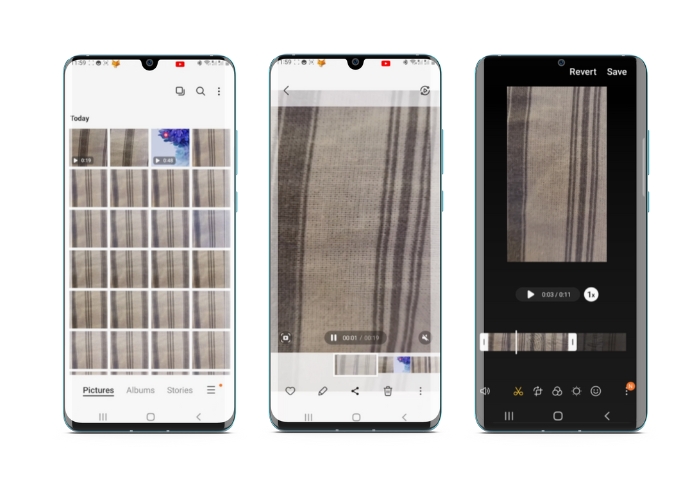
Ứng dụng Thư viện Samsung là ứng dụng phải có để quản lý và chỉnh sửa nội dung hình ảnh của bạn nếu bạn sở hữu một thiết bị Samsung. Một trong những tính năng hữu ích của ứng dụng là khả năng cắt video khi đang di chuyển. Nó cho phép người dùng loại bỏ các phần không mong muốn của video hoặc điều chỉnh tỷ lệ khung hình. Tính năng cắt xén làm cho nó dễ dàng và trực quan. Với Samsung Gallery, bạn có thể dễ dàng tạo và chia sẻ các video chất lượng cao phù hợp với nhu cầu của mình. Xem các bước bên dưới để giúp bạn sử dụng công cụ cắt xén trình chỉnh sửa video Android này.
Bước 1. Mở ứng dụng Samsung Gallery trên thiết bị và tìm video bạn muốn cắt.
Bước 2. Chạm vào video để mở, sau đó chạm nút Edit (biểu tượng cây bút) ở cuối màn hình. Trong màn hình Edit, chọn tùy chọn Crop.
Bước 3. Bây giờ bạn sẽ thấy một hình chữ nhật phủ lên video, với các tay cầm ở mỗi góc. Kéo các tay cầm để thay đổi kích thước hình chữ nhật theo ý muốn để cắt video. Nhấn nút Play để xem trước video sau khi cắt.
Bước 4. Nếu bạn hài lòng với kết quả, hãy chạm nút Save để lưu video đã cắt vào Thư viện (Gallery).
Phần 2. Hướng dẫn Cách cắt video trên Android bằng Google Photos
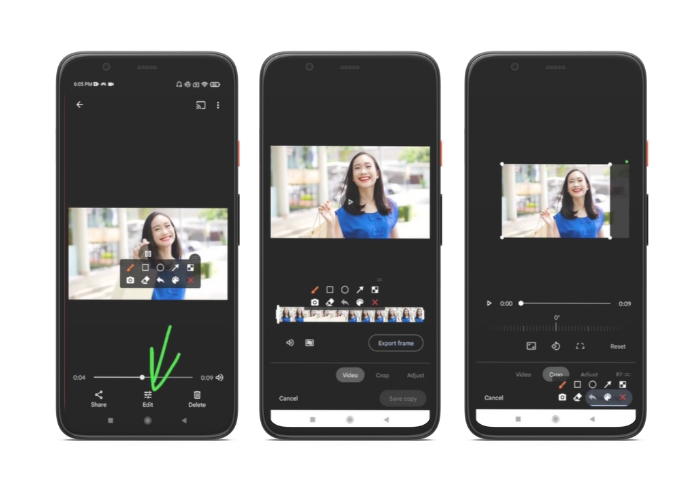
Google Photos là ứng dụng quản lý ảnh và video phổ biến dành cho người dùng Android và ứng dụng này có nhiều tính năng giúp bạn chỉnh sửa và nâng cao nội dung trực quan của mình. Một tính năng tuyệt vời của công cụ này là khả năng cắt video, cho phép bạn loại bỏ các phần không mong muốn và tập trung vào những khoảnh khắc quan trọng nhất. Bạn có thể cắt video chỉ bằng một vài lần nhấn, giúp việc tạo nội dung video bóng bẩy và chuyên nghiệp trên thiết bị Android của bạn trở nên dễ dàng và trực quan. Tại đây, chúng tôi sẽ hướng dẫn bạn cách cắt video bằng Google Photos theo từng bước.
Bước 1. Mở ứng dụng Google Photos trên thiết bị Android của bạn và tìm video bạn muốn cắt. Sau đó, chạm vào nút Edit nằm ở cuối màn hình.
Bước 2. Từ màn hình Edit, chọn tùy chọn Crop & rotate.
Bước 3. Giờ bạn sẽ thấy một khung hình chữ nhật phủ lên video, với các tay cầm ở mỗi góc. Dùng các tay cầm này để thay đổi kích thước khung chữ nhật theo nhu cầu nhằm cắt video.
Bước 4. Cuối cùng, nhấn Save để lưu những thay đổi bạn đã thực hiện đối với video.
Phần 3. Hướng dẫn Cách cắt video trên Android bằng ứng dụng bên thứ ba
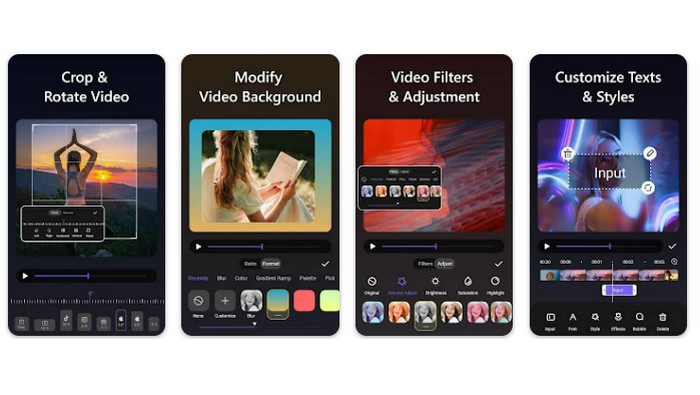
Nhờ Vid.fun, việc tạo và chỉnh sửa video dễ dàng giờ đây nằm trong tầm tay của mọi người dùng điện thoại Android. Ứng dụng này cho phép người dùng chỉnh sửa video theo nhiều cách, bao gồm thêm nhạc, chữ và hiệu ứng, cắt và ghép các đoạn, và còn nhiều hơn thế. Bạn có thể học cách thay đổi kích thước video trên Android bằng cách làm theo các bước hướng dẫn cho ứng dụng này dưới đây.
Bước 1. Tải ứng dụng Vid.fun từ Google Play Store, sau đó bắt đầu một dự án mới.
Bước 2. Từ thư viện hoặc cuộn camera trên thiết bị, chọn đoạn video bạn muốn cắt và thả nó vào timeline.
Bước 3. Chọn đoạn video mong muốn trong timeline bằng cách chạm vào; sau đó dùng nút Crop ở cuối màn hình để chỉnh sửa đoạn này.
Bước 4. Một hình chữ nhật sẽ được chèn lên video, bạn có thể kéo các góc để điều chỉnh. Để cắt video, chỉ cần nắm các tay cầm ở góc và kéo đến vị trí mong muốn. Khi hoàn tất, bạn có thể gửi video cho người thân hoặc đăng lên mạng.
Phần 4. Đề xuất ứng dụng
Tất nhiên, sau khi giới thiệu ứng dụng di động, chúng tôi cũng có một gợi ý cho ứng dụng trên máy tính. Video Converter Ultimate của FVC là một phần mềm toàn diện để chuyển đổi định dạng video, tích hợp nhiều công cụ chỉnh sửa. Tính năng nổi bật là cho phép điều chỉnh tỷ lệ khung hình của video.
Với chương trình này, bạn có thể dễ dàng sửa đổi hình dạng và kích thước của video bằng cách thay đổi tỷ lệ khung hình. Nếu bạn muốn chia sẻ video trên phương tiện truyền thông xã hội với tỷ lệ khung hình cụ thể hoặc nếu bạn chỉ cần làm cho video vừa với kích thước màn hình cụ thể, FVC Video Converter Ultimate sẽ hỗ trợ bạn. Tìm hiểu cách cắt video trên Android với sự trợ giúp của chương trình này.
Bước 1. Tải xuống và cài đặt FVC Video Converter Ultimate
Bạn có thể tải ứng dụng bằng cách nhấp vào một trong các nút Free Download bên dưới. Khi chương trình được tải về, hãy cài đặt và mở nó trên máy tính của bạn.
Tải Miễn PhíDành cho Windows 7 trở lênTải xuống an toàn
Tải miễn phíDành cho MacOS 10.7 trở lênTải xuống an toàn
Bước 2. Nhập video cần cắt
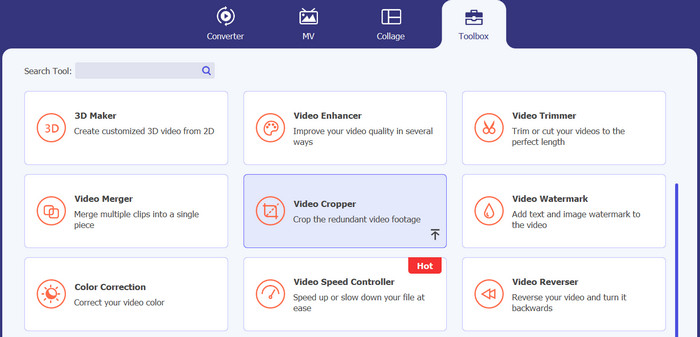
Tiếp theo, chuyển đến thẻ Toolbox nằm ở phần trên của giao diện chương trình. Sau đó, chọn tùy chọn Video Cropper và thêm tệp bằng cách nhấp vào nút dấu plus.
Bước 3. Cắt tệp video
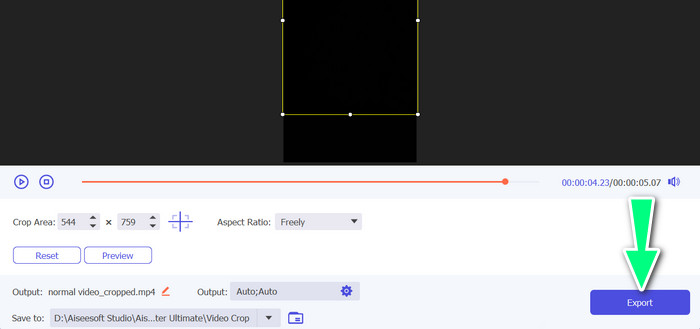
Bây giờ bạn có thể cắt video đã nhập. Sử dụng thanh trượt vùng cắt, điều chỉnh vùng bạn muốn cắt từ video. Bạn cũng có thể chọn một tỷ lệ khung hình cụ thể từ trình đơn thả xuống. Xem trước video đã cắt để đảm bảo rằng phần mong muốn của video đã được cắt.

Bước 4. Xuất video đã cắt
Cuối cùng, nhấn nút Export ở góc dưới bên phải để hoàn tất quá trình cắt và lưu video đã cắt.
Phần 5. Câu hỏi thường gặp về Cắt video trên Android
Làm cách nào để cắt video mà không làm giảm chất lượng?
Một cách để cắt video mà không làm giảm chất lượng là sử dụng công cụ chỉnh sửa video hỗ trợ cắt không phá hủy. Điều này có nghĩa là tệp video gốc không bị thay đổi và chỉ phần đã cắt được lưu dưới dạng tệp mới.
Việc cắt xén video trên Android có ảnh hưởng đến chất lượng hoặc độ phân giải của video không?
Có, việc cắt video trên Android có thể ảnh hưởng đến chất lượng hoặc độ phân giải của video vì quá trình này liên quan đến việc xóa một phần của video gốc. Tuy nhiên, mức độ ảnh hưởng đến chất lượng hoặc độ phân giải tùy thuộc vào nhiều yếu tố khác nhau, chẳng hạn như kích thước của phần cắt, chất lượng của video gốc và phương pháp được sử dụng để cắt video.
Có thể cắt video và thêm hiệu ứng hoặc bộ lọc cùng lúc trên Android không?
Có, bạn hoàn toàn có thể vừa cắt video vừa thêm hiệu ứng hoặc bộ lọc cùng lúc trên Android. Có rất nhiều ứng dụng chỉnh sửa video trên Google Play Store cung cấp cả tính năng cắt và thêm hiệu ứng video, bộ lọc video. Một vài ví dụ phổ biến là FVC Video Converter Ultimate, Filmora, v.v.
Phần kết luận
Việc học cách cắt video trên Android khá đơn giản và có thể thực hiện bằng nhiều ứng dụng, phần mềm khác nhau. Samsung Gallery, Google Photos và FVC Video Converter Ultimate chỉ là một vài ví dụ về các công cụ có thể giúp bạn cắt video trên thiết bị Android.
-
 Hướng dẫn cách sửa video không phát trên điện thoại Android
 Bạn muốn biết những lý do khiến video trên thiết bị Android của bạn không thể phát được là gì? Và nếu có thì có cách nào để tự khắc phục sự cố không? Tiếp tục đọc để biết thêm.
-
 Cách dễ nhất để tăng tốc video trên thiết bị Android của bạn [2023]
 Bạn có biết rằng bạn có thể tăng tốc video trên Android của mình không? Vì vậy, nếu bạn muốn biết cách tăng tốc video trên điện thoại Android của mình thì hãy đọc bài viết này.
-
 3 phương pháp tuyệt vời về cách cắt video trên Android
 Bạn có muốn sử dụng thiết bị Android của mình để cắt video không? Sau đó, bài viết này là dành cho bạn. Chúng tôi sẽ thảo luận về những cách có giá trị về cách rút ngắn video trên Android.
