


 Chuyển đổi video Ultimate
 Trình ghi màn hình
 Sửa chữa video
Các cách đơn giản để thêm hình ảnh vào video trong iMovie một cách nhanh chóng
Thêm hình ảnh vào video đã trở thành một trong những cách tốt nhất để truyền tải thông điệp đến khán giả hiệu quả hơn. Hầu hết các trình chỉnh sửa video đều có thể giúp bạn nhanh chóng chèn (overlay) hình ảnh vào video, và nếu bạn là người dùng Apple thì có lẽ bạn đã từng dùng iMovie. Đây được xem là một trong những trình chỉnh sửa tốt nhất mà bạn có thể sử dụng trên thiết bị Apple của mình. Tuy nhiên, phần lớn người dùng Apple phổ thông lại cảm thấy khó sử dụng iMovie vì họ chưa từng có kinh nghiệm với nó. Vì vậy, nếu bạn cũng là người dùng Apple đang gặp khó khăn khi sử dụng và muốn thêm hình ảnh vào video, hãy đọc bài viết này – việc cách thêm hình ảnh vào video trong iMovie rất đơn giản nếu bạn xem kỹ hướng dẫn bên dưới.

Phần 1. Cách chồng hình ảnh lên video trong iMovie [Mac]
Nếu bạn có iMovie trên máy Mac, bạn có thể sử dụng nó và thêm hình ảnh vào video. Vì vậy, bây giờ, nếu bạn muốn tìm hiểu làm thế nào để đưa một bức ảnh vào video iMovie, các bước dưới đây sẽ giúp bạn.
Bước 1. Tìm iMovie trong Finder, sau đó nhấp vào để mở.
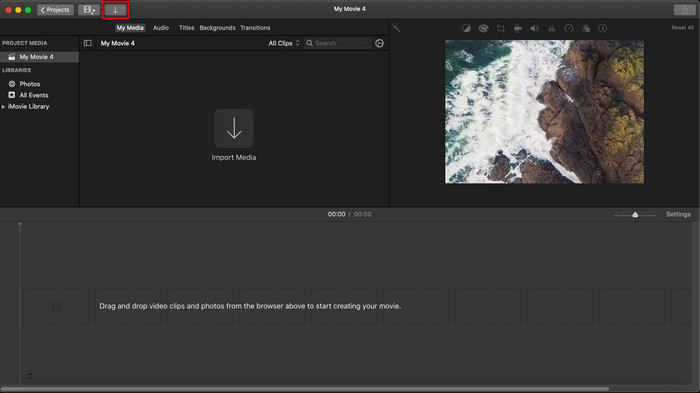
Bước 2. Ở góc trên bên trái của iMovie, nhấp vào nút Import để dễ dàng nhập video và hình ảnh. Kéo và đặt tệp phương tiện bạn vừa chèn vào Timeline.
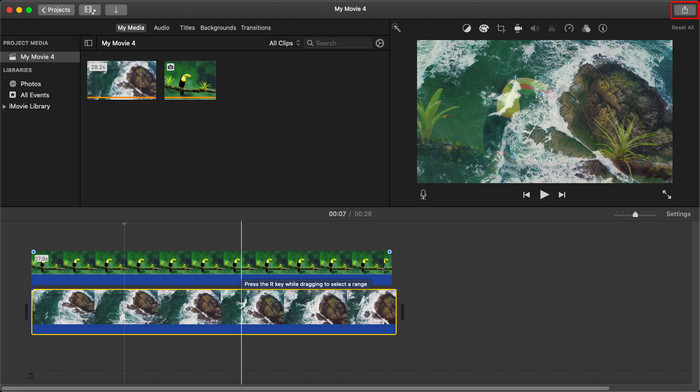
Bước 3. Điều chỉnh hình ảnh bạn đã nhập và thời lượng hiển thị của nó. Sau đó, nhấp Export để tải tệp về máy tính của bạn.
Các bước chúng tôi trình bày ở đây là từ trải nghiệm thực tế khi sử dụng iMovie. Các bước có thể thay đổi nếu có bản cập nhật trên công cụ hoặc một số thay đổi xảy ra trong thời gian ngắn.
Phần 2. Cách Chèn Ảnh vào Video bằng iMovie [iOS]
Điều gì sẽ xảy ra nếu bạn sử dụng thiết bị iOS và muốn sử dụng iMovie làm trình chỉnh sửa để thêm hình ảnh vào video? Nó có khả thi không? Vâng, đúng vậy. Chúng tôi có thể dạy bạn cách đưa ảnh vào video iMovie trên iPhone bằng cách đọc chi tiết bên dưới với các bước chúng tôi cung cấp.
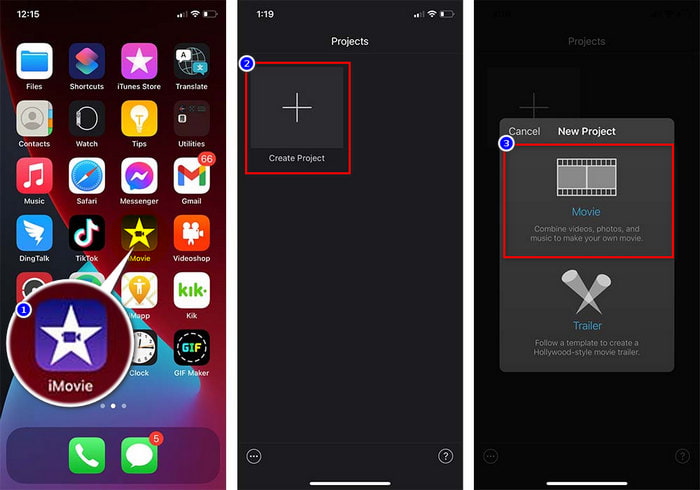
Bước 1. Mở ứng dụng iMovie trên thiết bị iOS của bạn, nhấn Create Project, rồi chọn Movie. Thêm video có trong thư viện của bạn.
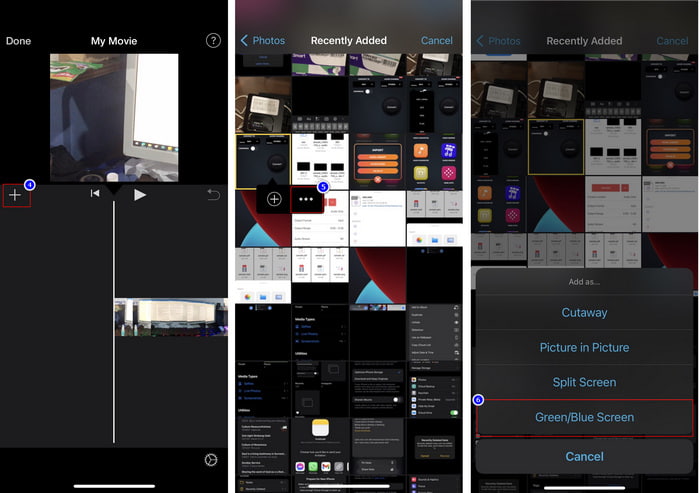
Bước 2. Nhấn nút + để thêm hình ảnh watermark vào video. Tìm hình trong thư viện, nhấn vào, nhấn vào biểu tượng ba dấu chấm, rồi chọn Green/Blue Screen. Chạm vào hình ảnh để tự động xóa nền.
Bước 3. Nhấn Done, nhấn Export, rồi chọn Save Videos.
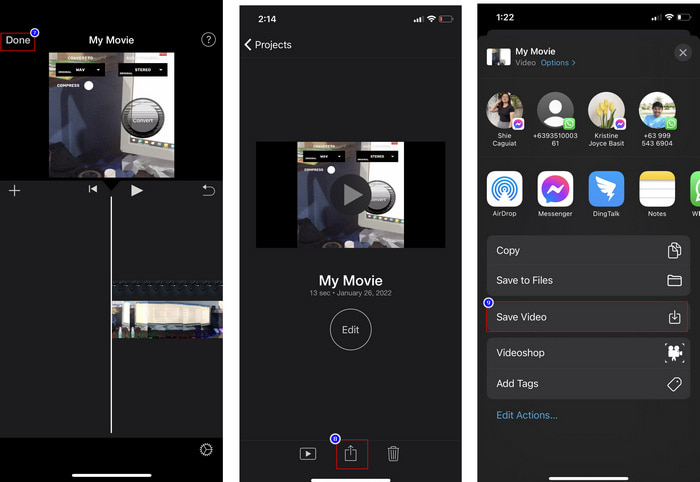
Tất cả các bước chúng tôi trình bày ở đây là từ trải nghiệm thực tế khi sử dụng iMovie trên iOS. Nhưng một số bước có thể thay đổi nếu bản cập nhật sớm xảy ra trên ứng dụng trình chỉnh sửa.
Phần 3. Giải pháp dễ dàng nhất để chèn ảnh vào video bằng phần mềm Watermark Video tốt nhất trên máy Mac
Bạn cũng đang gặp khó khăn khi thêm ảnh lên video trong iMovie? Hãy thử dùng Video Converter Ultimate vì đây là công cụ thay thế tốt nhất cho iMovie. Hiệu năng tổng thể của công cụ này đã được hàng triệu người dùng từng trải nghiệm đánh giá cao. Dù họ gặp nhiều vấn đề khác nhau với video, họ vẫn lựa chọn công cụ Ultimate để giải quyết. Hơn nữa, với công cụ này, bạn hầu như có thể làm mọi thứ liên quan đến video như cắt, thêm hình ảnh, ghép, cắt khung hình, v.v. Bất kể vấn đề của bạn là gì, đây chính là giải pháp “tất cả trong một”. Muốn giải quyết vấn đề? Vậy hãy làm theo các bước dưới đây mà chúng tôi viết để bạn có thể dễ dàng thực hiện.
Tính năng:
◆ Công cụ cuối cùng hỗ trợ nhiều định dạng, vì vậy việc tải lên định dạng của bạn sẽ không khó khăn.
◆ Nó hỗ trợ một giao diện dễ hiểu để nhanh chóng thêm hình ảnh vào bất kỳ video nào trong vòng vài giây.
◆ Nó hỗ trợ các nền tảng khác nhau như Mac và Windows để cho phép người dùng thưởng thức trên tất cả các nền tảng.
Bước 1. Bạn có thể tải công cụ bằng cách nhấp vào nút tải xuống bên dưới, sau đó cài đặt nhanh chóng và mở nó sau khi cài đặt xong.
Tải xuống miễn phí cho Windows 7 trở lên. Tải xuống an toàn.
Tải xuống miễn phí cho MacOS 10.7 trở lên. Tải xuống an toàn.
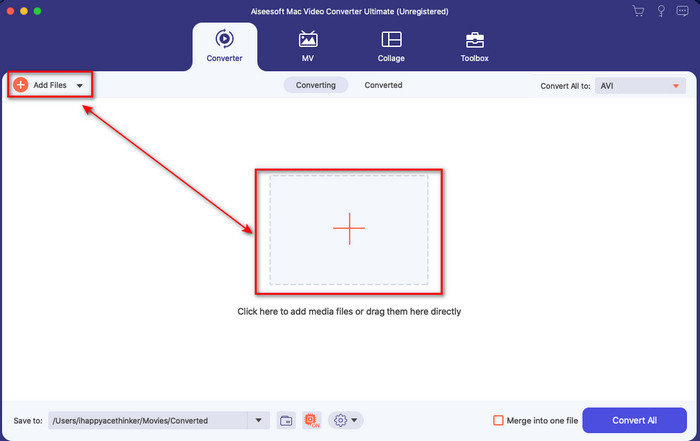
Bước 2. Sau khi mở, nhấn nút + hiển thị để nhập tệp video. Sau đó, một cửa sổ thư mục sẽ mở ra để bạn chọn tệp video rồi nhấn Open.
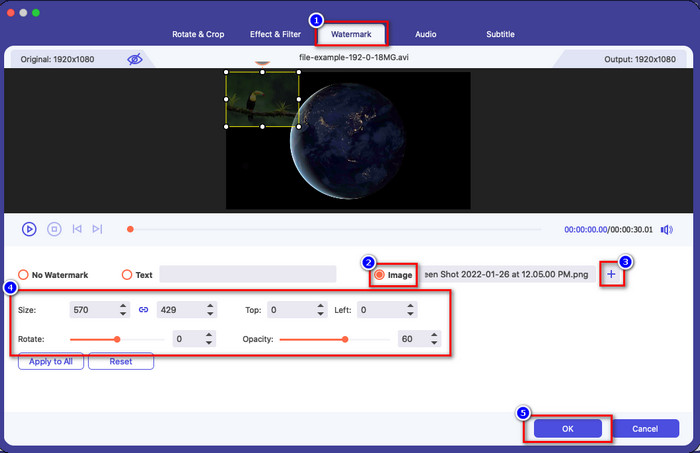
Bước 3. Nhấn nút cây đũa thần để mở cửa sổ chỉnh sửa của trình chuyển đổi. Vào mục Watermark, chọn hình ảnh, rồi nhấn add để tải hình lên. Bạn cũng có thể chỉnh độ mờ (opacity) của hình hoặc xoay (rotate) nó tùy theo nhu cầu, và để áp dụng thay đổi, nhấn OK.
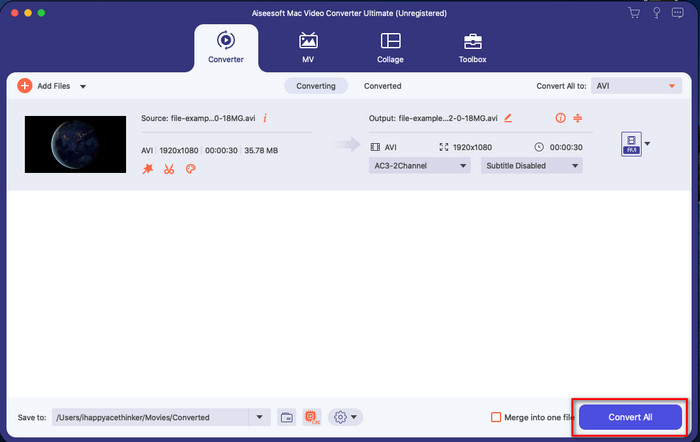
Bước 4. Nhấn nút Convert All để xuất tệp video. Sau khi xuất xong, video sẽ được lưu vào thư mục trên máy tính của bạn, và bạn đã có hình ảnh watermark trên video một cách dễ dàng như vậy. Vậy bây giờ, bạn đã tin vào khả năng của Video Converter Ultimate chưa? Bạn vừa thêm watermark hình ảnh vào video nhanh chóng như thế đó.
Có liên quan:
Phần 4. Câu hỏi thường gặp về Thêm ảnh vào Video trong iMovie
Có giới hạn nào về số lượng hình ảnh được thêm vào video iMovie không?
Cho đến nay, chúng tôi không gặp bất kỳ sự bất tiện nào khi thêm nhiều hình ảnh trên video khi sử dụng iMovie. Tuy nhiên, quá trình xuất sẽ mất thời gian nếu bạn thêm quá nhiều ảnh vào video, nhưng nó sẽ không bị lỗi, theo kinh nghiệm.
Tôi có thể sử dụng các định dạng hình ảnh nào trên iMovie?
Có rất nhiều định dạng ảnh tĩnh mà iMovie hỗ trợ như BMP, PNG, JPG hoặc JPEG, HEIF, PSD, RAW TIFF và TGA, nhưng nếu bạn muốn có một hình ảnh động, bạn có thể sử dụng GIF. Mặc dù các định dạng này rất nhiều, nó vẫn không hỗ trợ tất cả các định dạng hình ảnh như EXIF, WebP, v.v.
Tại sao tôi nên sử dụng iMovie?
Đối với người dùng Apple, iMovie là một trong những lựa chọn tốt nhất để tạo phim ngắn, quảng cáo, vlog, v.v. tất cả đều miễn phí. Trình chỉnh sửa cung cấp giao diện bán nâng cao để giúp người dùng có trải nghiệm thực tế về giao diện hoặc công cụ nâng cao trông như thế nào. Ngoài ra, phần mềm ít kỹ thuật hơn, nhưng nó là chuyên biệt. Người ta không thường thấy một trình soạn thảo cung cấp cách sử dụng ít kỹ thuật hơn, nhưng nó có thể giúp bạn trở thành người chuyên nghiệp và thêm một số công cụ nâng cao có kỹ thuật chuyên biệt.
Phần kết luận
Cuối cùng, có thể nói rằng chúng ta đã có đủ kiến thức để dễ dàng thêm ảnh lên video trong iMovie. Với công cụ chỉnh sửa tốt nhất trên Apple, bạn gần như có thể thực hiện các thao tác chỉnh sửa phức tạp tại đây. Tuy nhiên, không phải tất cả tính năng bạn cần đều có trong iMovie, nhưng bạn có thể sử dụng Video Converter Ultimate để có một trình chỉnh sửa dễ dùng trên mọi nền tảng. Có thể bạn đang thắc mắc: tại sao phải dùng công cụ Ultimate? Thực ra không cần giải thích quá nhiều khi nói về công cụ này, vì chúng tôi đã đưa ra đủ bằng chứng ở trên. Vậy bạn nên làm gì? Hãy nhấp nút tải xuống để trực tiếp trải nghiệm công cụ Ultimate và giải quyết vấn đề này.
-
 5 ứng dụng ghi âm được chọn nhiều nhất trên Android và iOS [Cập nhật năm 2022]
 Không biết bạn nên sử dụng ứng dụng ghi âm nào? Nếu vậy, bài viết này sẽ giúp bạn chọn ứng dụng nào sẽ giúp bạn thực hiện nhiệm vụ ghi âm của mình.
-
 Bản ghi nhớ giọng nói trên iOS - Ưu, nhược điểm, tính năng & 4 thay thế tốt nhất
 Voice Memo là gì? Nó có phải là trình ghi âm tốt nhất trên iOS không? Bạn có tìm kiếm câu trả lời cho câu hỏi đó không? Vì vậy, hãy đọc toàn bộ phạm vi của bài viết này để biết thêm.
-
 7 công cụ chuyển đổi MOD miễn phí mới nhất để thay đổi tệp MOD sang định dạng mới
 Bộ chuyển đổi MOD bạn có thể sử dụng là gì? Suy nghĩ cùng một câu hỏi? Vì vậy, chúng tôi đây, cung cấp bảy công cụ bạn có thể sử dụng để chuyển đổi các tệp MOD của mình.
