


 Chuyển đổi video Ultimate
 Trình ghi màn hình
 Sửa chữa video
 Tải xuống an toàn
Hoàn thành các cách để loại bỏ hình mờ bộ lọc Picsart trên video của bạn một cách hiệu quả
Ngày nay, việc sở hữu một phần mềm chỉnh sửa nội dung trực quan đáng tin cậy trên máy tính để bàn, như Picsart, là một “vũ khí” rất cần thiết. Với nó, bạn có thể tùy chỉnh vài tuỳ chọn để biến một bức ảnh bình thường thành một tác phẩm nhiếp ảnh mà chưa ai từng thấy! Bạn có thể thu hút thêm khách hàng hoặc khán giả bằng những hình ảnh bắt mắt do chính bạn tạo ra. Nhưng có một vấn đề khi dùng Picsart, đó là hình mờ (watermark) được thêm vào sau khi xuất file. Hình mờ này khá khó chịu và có thể gây xao nhãng về mặt hình ảnh nếu không được xóa bỏ. Vì vậy, nếu bạn muốn có phần mềm và hướng dẫn xóa hình mờ bộ lọc Picsart, bạn hãy tiếp tục đọc bài viết này để tìm hiểu thêm!

Phần 1. Làm thế nào để loại bỏ hình mờ bộ lọc Picsart bằng phần mềm miễn phí trên máy tính để bàn
FVC Video Converter Ultimate - Trình xóa hình mờ số một trên Windows và Mac
Hãy bắt đầu giới thiệu phần mềm với lựa chọn số một của chúng tôi, có thể giúp và hướng dẫn bạn cách xóa hình mờ trong Picsart. FVC Video Converter Ultimate là vũ khí không thể thiếu trong “kho vũ khí” của bạn khi cần xóa hình mờ trên video một cách dễ dàng mà vẫn cho ra kết quả chuyên nghiệp. Nhờ hiệu năng và các tính năng không gì sánh được, nhiều người dùng đã thử và công cụ này không làm họ thất vọng. Nếu bạn cần hỗ trợ xóa hình mờ trên video, bạn có thể làm theo các bước bên dưới và thực hiện theo.
Bước 1. Bạn có thể cài đặt phần mềm “ultimate” này trên thiết bị bằng cách nhấn nút tải xuống phù hợp bên dưới. Sau đó, hãy cài đặt phần mềm trên máy tính và nhấp Start Now để mở phần mềm.
Tải xuống miễn phí cho Windows 7 trở lên. Tải xuống an toàn.
Tải xuống miễn phí cho MacOS 10.7 trở lên. Tải xuống an toàn.
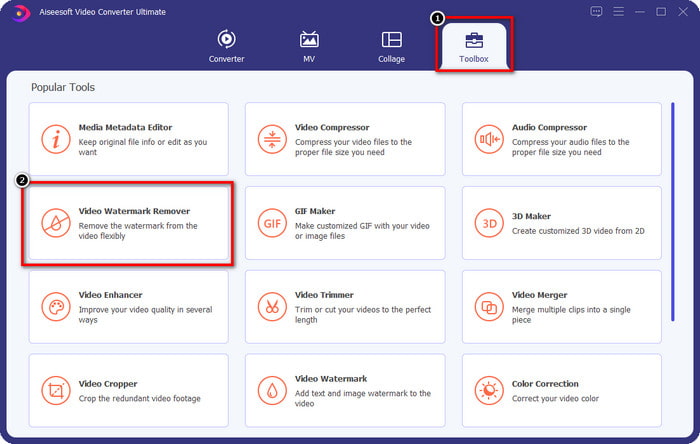
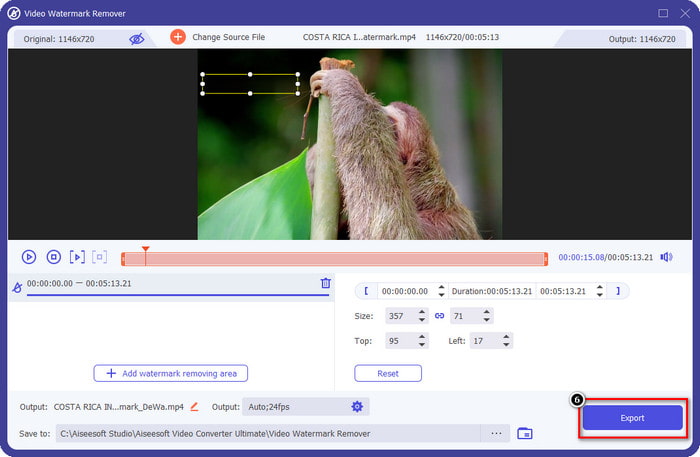
Bước 2. Trong mục Toolbox, bạn sẽ thấy các tính năng khác có thể sử dụng để tạo điểm nhấn cho video của mình. Nhưng hôm nay, hãy nhấp vào Video Watermark Remover.
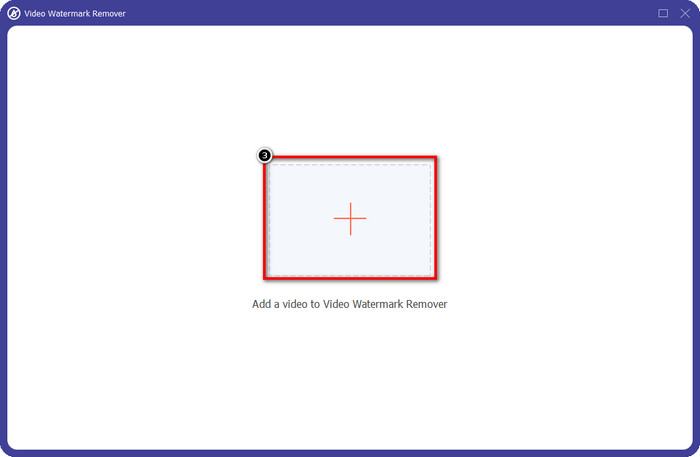
Bước 3. Tải lên video bạn đã chỉnh sửa trên Picsart bằng cách nhấp vào biểu tượng +. Tìm video trong thư mục hiện ra trên màn hình, sau đó nhấn Open.
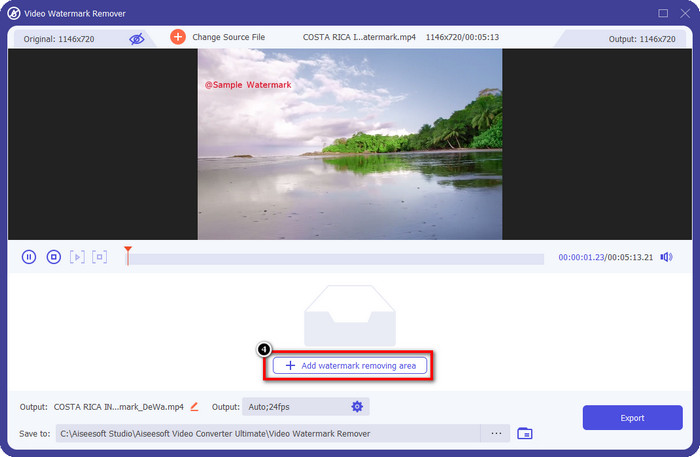
Bước 4. Nhấn Add Watermark Removing Area để thêm vùng xóa hình mờ được nhúng trên video bạn tải lên.
Bước 5. Giữ và kéo hộp lựa chọn đến vị trí hình mờ rồi che nó lại. Bạn có thể kéo giãn hoặc thu nhỏ hộp theo nhu cầu.
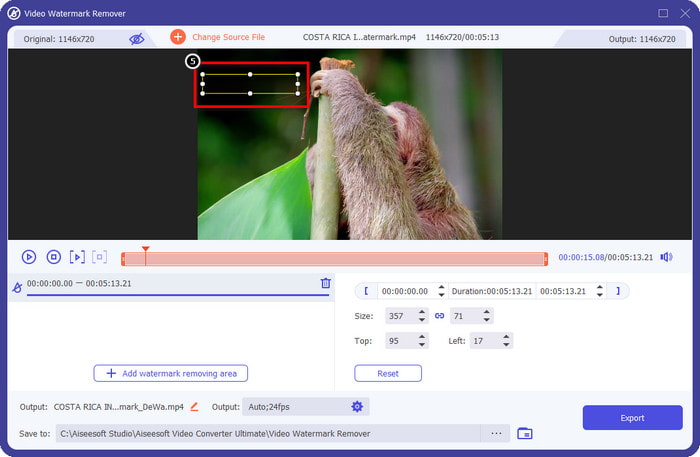
Bước 6. Sau khi đã che xong hình mờ bằng hộp lựa chọn, hãy nhấp Export để lưu video cuối cùng vào ổ đĩa cục bộ.
Ảnh trên Windows- Hình mờ bìa với thiết kế 3D
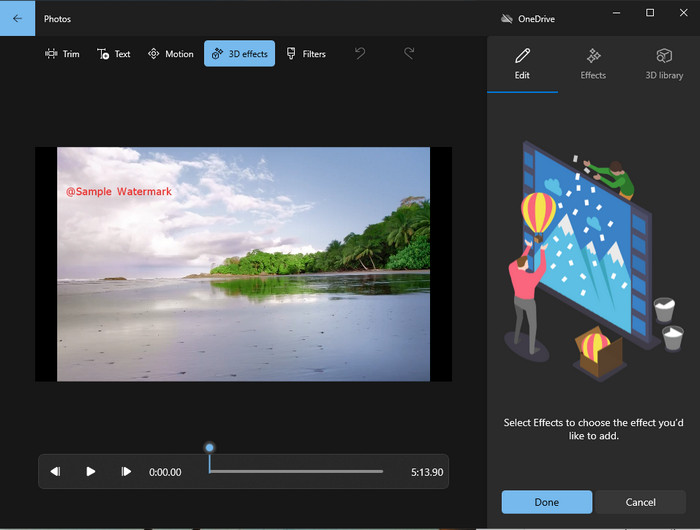
Nếu việc tải phần mềm không phải sở trường của bạn và bạn đang dùng Windows, bạn nên thử dùng ứng dụng Photos để chỉnh hình mờ trên video. Việc học cách xóa hình mờ Picsart với công cụ này sẽ nhanh hơn vì bạn không cần phải qua bước tải ứng dụng. Công cụ này không xóa hẳn hình mờ trên video, nhưng bạn có thể che hình mờ bằng các thiết kế 3D. Dù vậy, hiệu năng của trình xem và chỉnh sửa nội dung trực quan mặc định này vẫn rất ổn. Vẫn còn băn khoăn? Vậy hãy đọc các bước bên dưới và làm theo nếu bạn muốn.
Bước 1. Nhấp nút Windows trên thanh tác vụ và tìm ứng dụng Photos để mở.
Bước 2. Sau khi mở trình chỉnh sửa tích hợp sẵn, bạn phải nhấn dấu + để tải lên video bạn muốn chỉnh sửa tại đây.
Bước 3. Vào mục 3D Effects, nhấp 3D Library, rồi tìm thiết kế bạn muốn dùng để che hình mờ. Đặt thiết kế bạn chọn lên phần có hình mờ.
Bước 4. Nhấn Finish Video để lưu video hoàn chỉnh vào ổ đĩa cục bộ trên Windows.
PickFrom Blur Video trực tuyến
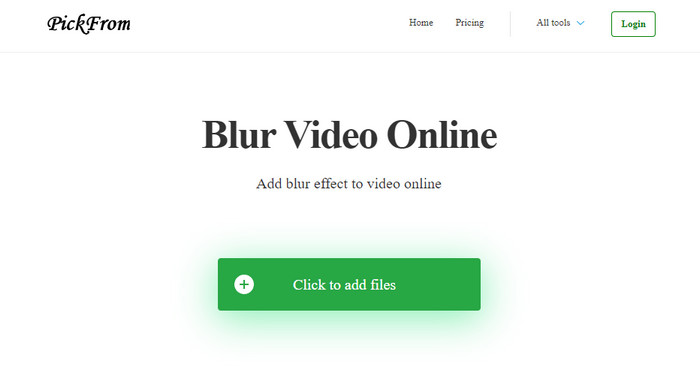
PickFrom Blur Video Online có thể giúp bạn xóa hình mờ PicsArt trên các video mà bạn có trên web. Công cụ này chưa được nhiều người biết đến, nhưng hôm nay chúng tôi sẽ giới thiệu. Chúng tôi đưa phần mềm này vào danh sách vì hiệu quả của nó trong việc xóa hình mờ trên video tải lên. Giao diện của nó đơn giản, dễ hiểu; bạn sẽ không bối rối khi sử dụng. Vậy nếu bạn muốn xóa hình mờ, hãy cùng đi vào quy trình bên dưới.
Bước 1. Mở trình duyệt web, tìm tên công cụ và nhấp vào kết quả đầu tiên để mở trình xóa hình mờ trực tuyến.
Bước 2. Nhấp Click to Add File để tải video của bạn lên đây.
Bước 3. Tích chọn Blur Part of the Video, sau đó đặt hộp lựa chọn vào vị trí hình mờ.
Bước 4. Nhấn Start để tải video về mà không còn hình mờ.
Phần 2. Cách xóa Picsart Watermark bằng cách mua phiên bản cao cấp
Bạn phải mua phần mềm nếu không muốn gặp rắc rối với việc xóa hình mờ vàng Picsart. Bạn sẽ phải trả một số tiền nhất định vì bạn sẽ cần phải trả tiền trước khi có thể sử dụng và sau đó xuất video mà không có bất kỳ hình mờ nhúng nào. Vì vậy, nếu bạn muốn có hướng dẫn từng bước về cách mua Picsart, bạn phải làm theo hướng dẫn tiếp theo mà chúng tôi thêm vào.
Bước 1. Mở trang web chính thức của Picsart và đăng nhập tài khoản của bạn. Nếu bạn chưa có tài khoản, hãy tạo một tài khoản mới bằng cách Sign up tại đây.
Bước 2. Trên trang chính, nhấp Pricing và xem bảng giá cho từng gói sản phẩm hiện có.
Bước 3. Chọn gói bạn muốn, theo tháng hoặc theo năm, rồi nhấp Go to Payment.
Bước 4. Thêm thông tin thanh toán bằng cách điền đầy đủ các trường yêu cầu, sau đó nhấp Purchase Now.
Có liên quan:
Xóa hình mờ khỏi ảnh tốt nghiệp
Phần 3. Các câu hỏi thường gặp về Cách xóa Picsart Watermark
Tôi có thể mua Picsart Gold vĩnh viễn không?
Nó không hỗ trợ cơ sở hoặc gói thanh toán một lần, vì vậy nếu bạn muốn sử dụng Picsart Gold, bạn sẽ cần tận dụng gói hàng tháng hoặc hàng năm. Kiểm tra giá cho mỗi gói bằng cách truy cập trang web chính thức của nó.
Tôi có thể tạo đăng ký tùy chỉnh trên Picsart không?
Có, bạn có thể tạo đăng ký cho một nhóm trên Picsart. Bạn có thể đặt số lượng người sẽ sử dụng ứng dụng.
Tôi có thể truy cập Picsart ở đâu?
Bạn có thể tải xuống Picsart trên Windows, Android và iOS. Rất tiếc, ứng dụng hiện không có phiên bản dành cho Mac nhưng đừng buồn vì bạn có thể sử dụng phần mềm chỉnh sửa phương tiện khác có sẵn trên hệ thống của mình.
Phần kết luận
Hướng dẫn mà chúng tôi đã dạy trước đó cung cấp cho bạn ý tưởng về cách xóa hình mờ bằng PicsArt và những cách xóa hình mờ tốt nhất mà bạn có thể sử dụng. Giờ đây, bạn có thể thưởng thức video mình chỉnh sửa trên Picsart mà không cần bận tâm đến hình mờ sản phẩm mà nó thêm vào kết quả cuối cùng. Vì vậy, nếu bạn vẫn chưa tin tưởng với các công cụ mà chúng tôi giới thiệu, bạn phải thử chúng trước, đặc biệt là FVC Video Converter Ultimate. Nhấp vào nút tải xuống và có nó trên Windows & Mac của bạn miễn phí, sau đó tận hưởng các tính năng và chức năng mà nó cung cấp mà bạn có thể tận dụng.
-
 Cách xóa hình mờ Pond5 bằng các công cụ tối ưu
 Tìm hiểu cách xóa hình mờ Pond5 bằng cách làm theo các bước đơn giản dưới đây. Bạn có thể dễ dàng loại bỏ hình mờ Pond5 trên hình ảnh của mình bằng các công cụ ấn tượng này.
-
 2 cách mạnh mẽ về cách xóa hình mờ Dxtory
 Tìm hiểu Cách xóa Hình mờ Dxtory bằng cách làm theo hai phương pháp tốt nhất. Nếu bạn đang tìm kiếm công cụ phù hợp nhất để xóa hình mờ Dxtory, hãy đọc tại đây.
-
 Loại bỏ hình mờ Arnold Maya nổi bật mà bạn không thể bỏ qua
 Nhiều công cụ xóa hình mờ có thể xóa hình mờ Arnold Maya. Nhưng nếu bạn muốn biết những chất tẩy mờ hình mờ Arnold Maya tốt nhất là gì, hãy đọc trang này.
