


 Chuyển đổi video Ultimate
 Trình ghi màn hình
 Sửa chữa video
 Tải xuống an toàn
Cách xóa hình mờ Viva Video trên Video một cách dễ dàng và hiệu quả
Viva Video là một ứng dụng tạo video và chỉnh sửa video mà bạn có thể tải xuống trên thiết bị di động của mình để tạo ra một video xuất sắc mà bạn không thể đạt được với trình chỉnh sửa video khác. Với điều này, bạn có thể sử dụng phiên bản miễn phí hoặc chỉnh sửa video cao cấp để có lợi cho mình. Do đó, người dùng gặp phải sự cố khi sử dụng phiên bản miễn phí vì nó để lại hình mờ và các tính năng chỉnh sửa khác không giống với phiên bản chuyên nghiệp. Hình mờ được nhúng trong video có thể cản trở hình ảnh và việc loại bỏ nó sẽ tốt hơn.
Tuy nhiên, bạn có thể dùng một vài công cụ để xóa watermark mà bạn có thể tìm thấy trên Play Store và App Store, nhưng công cụ nào là tốt nhất? Hãy tiếp tục đọc bài viết này vì chúng tôi sẽ giới thiệu công cụ mà bạn có thể dùng để xóa watermark cùng với hướng dẫn cách xóa watermark Viva Video trong video của bạn.

Phần 1. Cách xóa hình mờ Viva Video bằng các ứng dụng xóa hình mờ tốt nhất
Video Eraser - Xóa Hình mờ / Biểu trưng khỏi Video [Android]
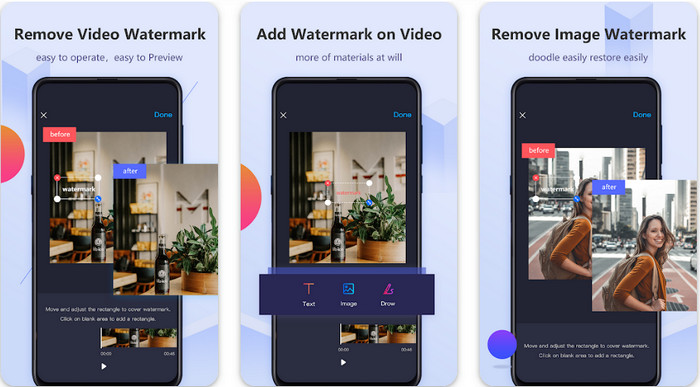
Video Eraser - Remove Watermark/Logo from Video là một trình xóa watermark mạnh mẽ mà bạn có thể tải về trên thiết bị Android để xóa watermark được nhúng trong video. Ứng dụng này có thể giúp xóa mọi loại watermark trong video, chẳng hạn như logo, chữ, con dấu, v.v. Bạn cũng có thể tận dụng ứng dụng này nếu muốn thêm watermark cá nhân, cắt khung, cắt ngắn, tua ngược, nén và thay đổi tốc độ video. Dù có nhiều tính năng phong phú, bạn vẫn có thể tải công cụ này miễn phí. Vì vậy, để xóa watermark Viva Video trên Android, bạn có thể làm theo các bước dưới đây.
Bước 1. Trước hết, hãy tải ứng dụng xuống Android của bạn bằng cách vào Play Store rồi nhấn Tải xuống.
Bước 2. Mở trình xóa watermark, nhấn Remove Watermark from Video, cho phép công cụ truy cập vào video của bạn, rồi tải lên video có chứa watermark.
Bước 3. Đặt hình chữ nhật lên phần watermark để che nó lại.
Bước 4. Nhấn Xong để lưu video mà không còn watermark.
Có liên quan:
Video Eraser - Retouch Removal [iOS]
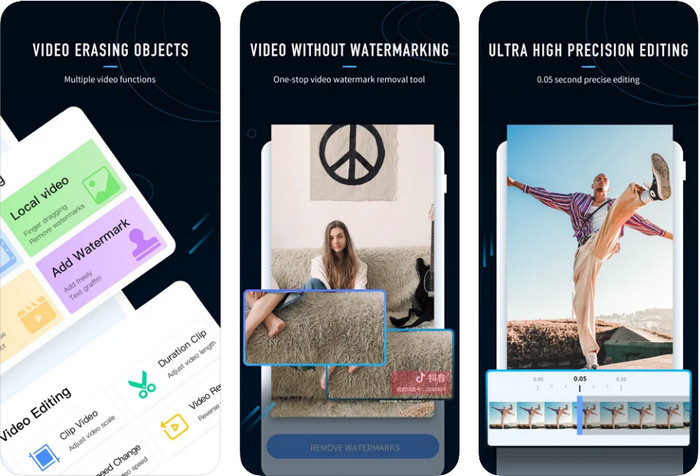
Đối với iOS, bạn có thể tải trên App Store ứng dụng Video Eraser- Retouch Removal. Đây là một trong những trình xóa watermark Viva Video mà bạn có thể tải miễn phí, cho phép bạn loại bỏ dấu mờ trên video một cách hiệu quả. Tương tự trình xóa watermark trên Android mà chúng tôi giới thiệu ở đây, nó cũng hỗ trợ các tính năng chỉnh sửa khác mà bạn có thể sử dụng, như nâng cấp chất lượng video, thêm watermark, cắt, cắt ngắn, nén và lật video. Tất cả đều có trong ứng dụng này. Mặc dù có các tính năng tương tự với ứng dụng Android, nhưng chức năng hoạt động có khác nhau, và trước khi dùng công cụ này để xóa watermark, bạn sẽ cần mua bản quyền. Bạn có thể làm theo các bước dưới đây để biết cách xóa watermark khỏi video Viva Video đã xuất; hãy làm theo các bước hướng dẫn sau.
Bước 1. Tải ứng dụng trên App Store, sau đó mở ứng dụng sau khi tải xong.
Bước 2. Sau khi mở phần mềm, nhấn Local Video/GIF để tải lên video có watermark. Hãy đảm bảo cho phép ứng dụng truy cập Ảnh của bạn.
Bước 3. Chạm vào phần video có watermark; sau đó một hình chữ nhật sẽ xuất hiện trên màn hình.
Bước 4. Nhấn Eliminate Watermark để xuất video và lưu lại mà không còn watermark gây cản trở.
Phần 2. Làm thế nào để loại bỏ Viva Video Watermark trên Windows và Mac [Phần mềm cuối cùng]
Là người dùng Windows và Mac, bạn sẽ cần một phần mềm hiệu quả để xóa watermark trên video một cách triệt để mà không để lại vệt mờ. FVC Video Converter Ultimate có thể hướng dẫn bạn cách xóa watermark Viva Video miễn phí với chất lượng đầu ra chuyên nghiệp. Giống như các ứng dụng xóa watermark mà bạn có thể tải trên Android và iOS, công cụ này cũng hỗ trợ nhiều tính năng và chức năng hơn để bạn tận dụng. Công cụ này cung cấp nhiều thứ hơn hai ứng dụng xóa watermark mà chúng tôi đã đề cập.
Điều gì làm cho công cụ này trở nên ấn tượng? Các tính năng xóa mà công cụ này hỗ trợ tốt hơn so với các tính năng xóa hình mờ khác mà bạn có thể sử dụng trên video của mình. Vì vậy, nếu bạn sử dụng tính năng này, bạn có thể xem video mà không có hình mờ sau khi xóa nó ở đây. Cần một hướng dẫn về cách sử dụng cái này? Các chi tiết tiếp theo sẽ cho phép bạn biết cách sử dụng công cụ này dễ dàng như 1-2-3.
Bước 1. Để tải phần mềm ultimate, bạn có thể nhấn nút tải xuống bên dưới, sau đó cài đặt phần mềm trên thiết bị. Làm theo hướng dẫn cài đặt WinRAR rồi nhấn Start Now.
Tải xuống miễn phí cho Windows 7 trở lên. Tải xuống an toàn.
Tải xuống miễn phí cho MacOS 10.7 trở lên. Tải xuống an toàn.
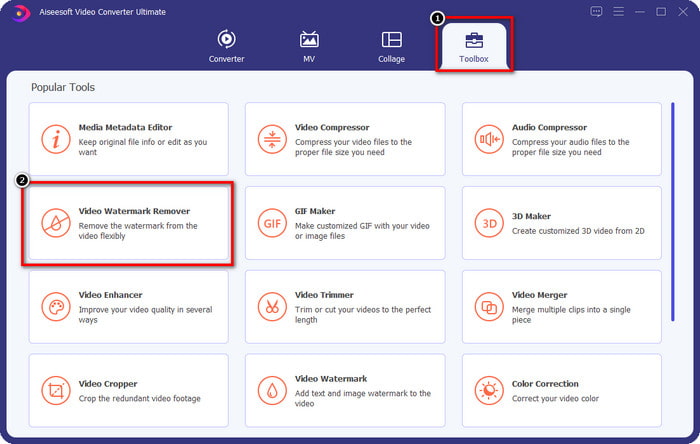
Bước 2. Vào mục Toolbox, rồi nhấn Video Watermark Remover để bắt đầu sử dụng tính năng xóa watermark hiệu quả của công cụ này.
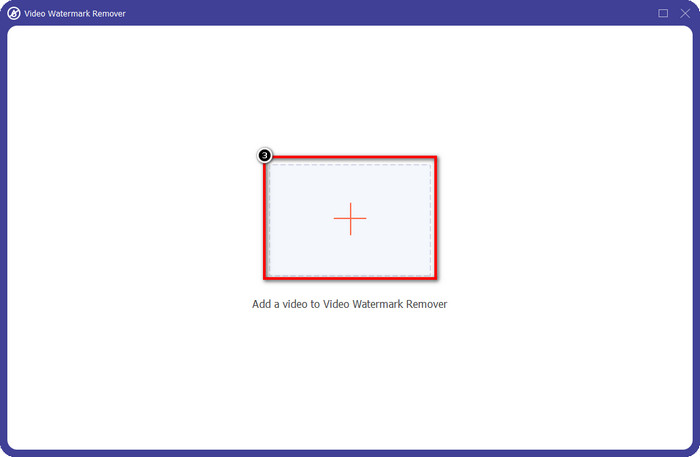
Bước 3. Bạn có thể tải video Viva Video có watermark đã lưu trên máy tính bằng cách nhấn vào biểu tượng +. Tìm tệp video trong thư mục xuất hiện trên màn hình rồi nhấn Open để tải lên thành công.
Bước 4. Nhấn Add Watermark Removing Area để bắt đầu sử dụng chức năng xóa watermark.
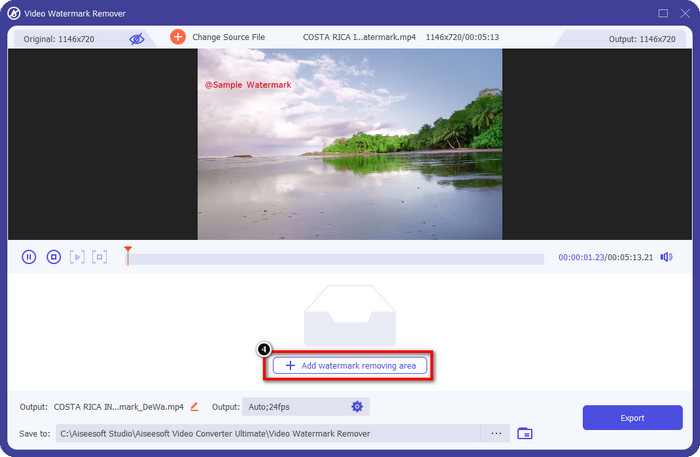
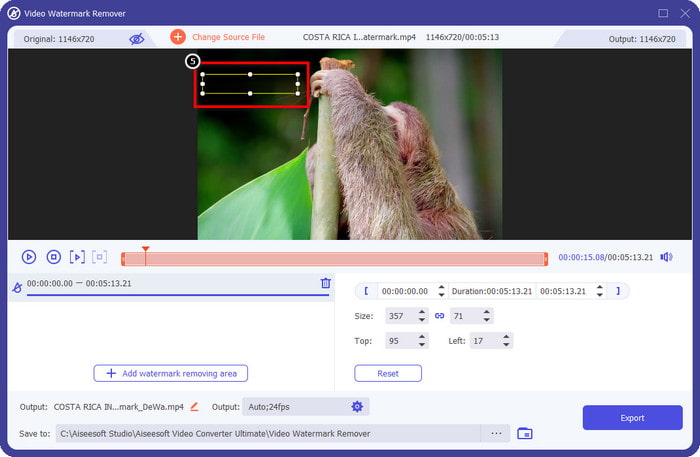
Bước 5. Kéo và đặt hình chữ nhật vào vị trí watermark trên video và che phủ toàn bộ. Việc che phủ toàn bộ rất quan trọng vì nếu không, sẽ còn sót lại dấu vết watermark, và bạn có thể thay đổi kích thước hình theo nhu cầu.
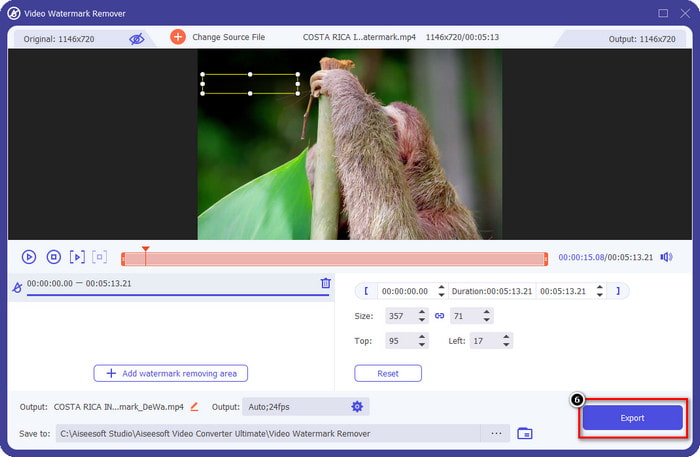
Bước 6. Sau đó, nhấn Export để lưu video không còn watermark. Dễ dàng chứ? Đó chính là mục đích của công cụ ultimate này: dễ dùng nhưng hiệu quả trong mọi tác vụ.
Phần 3. Những câu hỏi thường gặp về Cách xóa Hình mờ Viva Video
Tôi có thể tải xuống Viva Video mà không có hình mờ không?
Có, bạn có thể mua phiên bản chuyên nghiệp của công cụ này để khi xuất video mà bạn chỉnh sửa ở đây sẽ không để lại hình mờ trên video. Ngoài ra, sau khi bạn mua phiên bản chuyên nghiệp của công cụ này, bạn sẽ sử dụng tính năng cao cấp khác mà công cụ này có mà không có sẵn miễn phí.
Viva Video có phiên bản dành cho máy tính để bàn không?
Bạn chỉ có thể tải xuống phiên bản Viva Video trên Android và iOS. Vì vậy, nếu bạn muốn tải xuống phiên bản dành cho máy tính để bàn, bạn sẽ không tìm thấy bất kỳ phiên bản nào, nhưng bạn có thể tìm kiếm các lựa chọn thay thế tốt nhất để chỉnh sửa video như những gì Viva Video cung cấp.
Viva Video có phần mềm gián điệp không?
Vào năm 2017, các báo cáo về ứng dụng này sau đó đã xác nhận rằng nó có phần mềm độc hại. Vì vậy, những người đã tải xuống phần mềm này buộc phải xóa ứng dụng này trên thiết bị của họ để tránh hậu quả về sau.
Phần kết luận
Với công cụ xóa hình mờ Viva Video của bài viết này, bạn có thể loại bỏ hình mờ mà Viva Video nhúng trên video đã xuất. Bạn có thể thử sử dụng các ứng dụng được đề cập ở trên và làm theo hướng dẫn mà chúng tôi bao gồm về cách xóa hình mờ. Nhưng đối với người dùng Windows và Mac có watermark Viva Video, tốt hơn nên sử dụng phần mềm cuối cùng để xóa watermark nhanh chóng, hiệu quả và có kết quả chuyên nghiệp. Bạn còn chờ gì nữa? Nhấp vào nút tải xuống để xóa hình mờ cuối cùng trên thiết bị của bạn ngay bây giờ và sử dụng nó bằng cách làm theo các bước ở trên.
-
 Cách xóa hình mờ Lomotif bằng các công cụ tuyệt vời này
 Bạn có muốn tìm hiểu cách xóa hình mờ Lomotif khỏi video của mình không? Đọc bài viết này để biết các phương pháp nổi bật nhất để loại bỏ nó trực tuyến và ngoại tuyến.
-
 Cách xóa khách du lịch khỏi ảnh bằng công cụ xóa hình mờ
 Làm cách nào để xóa khách du lịch khỏi ảnh? Nếu bạn muốn tìm hiểu cách xóa những thứ không mong muốn khỏi ảnh của mình, những công cụ này sẽ giúp bạn. Đọc bài viết này để biết thêm.
-
 123rf Watermark Removers - Đánh giá kỹ lưỡng về các công cụ tối ưu
 Nếu bạn muốn biết những cách xóa hình mờ 123rf nổi bật nhất là gì, hãy đọc kỹ bài viết này. Bài viết này cung cấp một đánh giá chuyên sâu về các công cụ.
