


 Chuyển đổi video Ultimate
 Trình ghi màn hình
 Sửa chữa video
 Tải xuống an toàn
Cách xóa hình mờ trong SmartDraw với 2 cách khả thi
Nếu bạn cần một cách đơn giản nhưng mạnh mẽ để tạo biểu đồ, bản vẽ và bản đồ rồi trình bày chúng với chất lượng cấp doanh nghiệp, hãy dùng SmartDraw. Bạn có thể dùng trí tưởng tượng của mình và biến chúng thành hiện thực với sự trợ giúp của SmartDraw. Công cụ này có miễn phí không? Bạn có thể sử dụng bản dùng thử miễn phí 7 ngày mà nó hỗ trợ để dùng công cụ miễn phí nhưng sẽ có hình mờ trên đó. Làm việc với tệp xuất ra có hình mờ có thể gây phiền toái cho bạn. Ở đây, chúng tôi giới thiệu đến bạn bài viết này vì chúng tôi chỉ giới thiệu những công cụ tốt nhất trên thị trường, hoạt động hiệu quả trong việc xóa hình mờ. Hãy tiếp tục đọc thông tin dưới đây để tìm hiểu cách xóa hình mờ trong SmartDraw bằng hai cách hiệu quả.

Phần 1. Cách xóa Hình mờ trong Bản vẽ thông minh bằng cách mua Khóa cấp phép [Phiên bản chính thức]
Làm cách nào để xóa hình mờ khỏi SmartDraw? Đây là cách đầu tiên chúng tôi sẽ giới thiệu với bạn và đó là mua key bản quyền cho công cụ này. Nền tảng này cung cấp cho bạn các loại kế hoạch khác nhau mà bạn có thể nhận được sẽ có lợi cho mục tiêu của bạn. Ngoài ra, bạn không thể mua quyền truy cập một tháng vào công cụ này, vì vậy nếu bạn định mua khóa cấp phép của nó, bạn sẽ được lập hóa đơn hàng tháng, nhưng tổng số tiền bạn sẽ trả là trong phiên bản hàng năm của nó. Nếu bạn đánh giá cao hiệu suất của công cụ này và muốn mua nó, bạn có thể làm theo các bước chúng tôi thêm bên dưới.
Các bước về Cách xóa Hình mờ trong SmartDraw bằng Khóa cấp phép:
Bước 1. Mở trang web chính thức của SmartDraw và đảm bảo rằng bạn truy cập đúng trang web để có giao dịch an toàn.
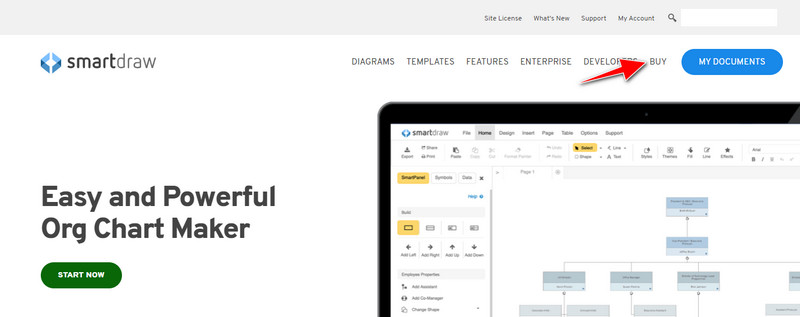
Bước 2. Trên trang web, nhấp vào Buy để xem các gói hiện có.
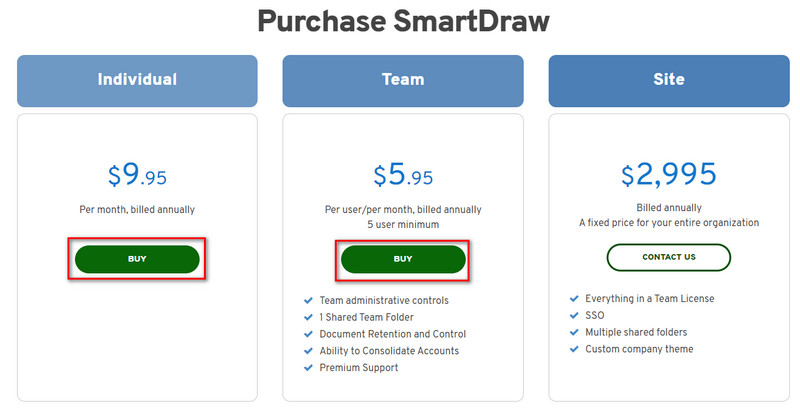
Bước 3. Bạn có thể mua SmartDraw cho Cá nhân, Nhóm hoặc Toàn site. Nhấp vào Buy Now nếu bạn sẽ mua phiên bản Cá nhân hoặc Nhóm.
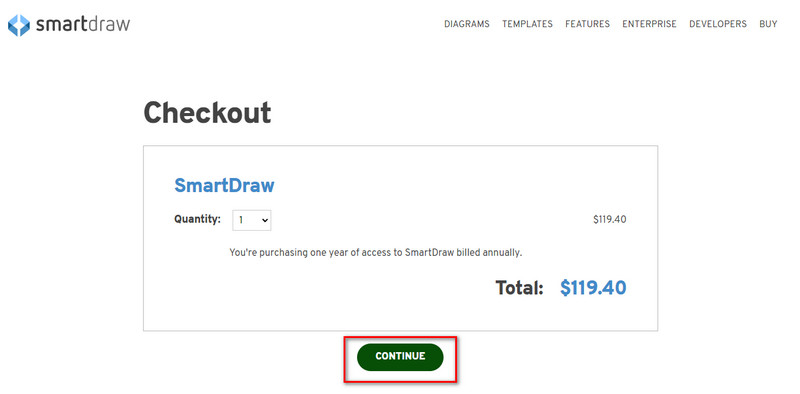
Bước 4. Ở phía bên phải, bạn sẽ thấy tổng chi phí của công cụ theo năm; nhấp Continue để xử lý.
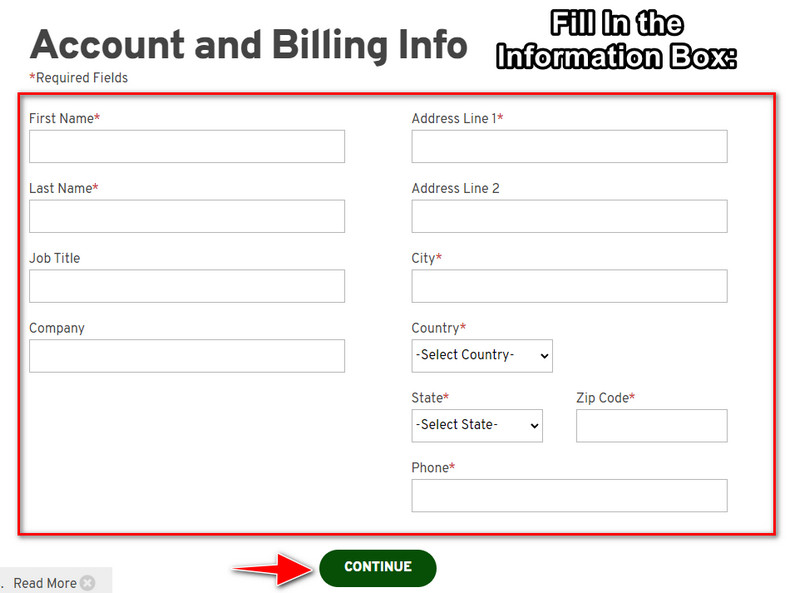
Bước 5. Thêm thông tin tài khoản và thanh toán mà hệ thống yêu cầu, sau đó nhấn Continue để tiếp tục nhận khóa bản quyền.
Phần 2. Làm thế nào để loại bỏ Watermark trong Smart Draw miễn phí bằng cách sử dụng dịch vụ web [Miễn phí]
Làm thế nào để xóa hình mờ từ bản dùng thử SmartDraw mà không cần mua? Khi đó bạn sẽ cần dùng FVC Free Watermark Remover Online. Công cụ xóa hình mờ này đã sẵn sàng để bạn sử dụng. Bạn không cần chuyên môn để xóa hình mờ trên ảnh vì sử dụng công cụ này sẽ không hề khó khăn. Ngay cả khi bạn là người dùng chuyên nghiệp, bạn vẫn có thể dùng phần mềm này để xóa các hình mờ hoặc đối tượng không mong muốn trên ảnh. Với sự trợ giúp của trình xóa hình mờ này, sẽ không còn vết “bẩn” nào trên ảnh mà nó không thể xử lý. Muốn thử phần mềm này thay vì mua khóa bản quyền? Nếu vậy, hãy theo sát hướng dẫn mà chúng tôi thêm bên dưới để xóa hình mờ trên ảnh một cách hiệu quả.
Các bước về Cách xóa Hình mờ của SmartDraw trên Đồ thị hoặc Sơ đồ miễn phí:
Bước 1. Thay vì tìm kiếm công cụ web trên trình duyệt, bạn có thể nhấp vào liên kết này để mở công cụ, nó sẽ mở trong một thẻ mới trên trình duyệt của bạn.
Bước 2. Dùng chuột để kéo và thả biểu đồ hoặc sơ đồ bạn đã tạo trong SmartDraw để tải ảnh lên.
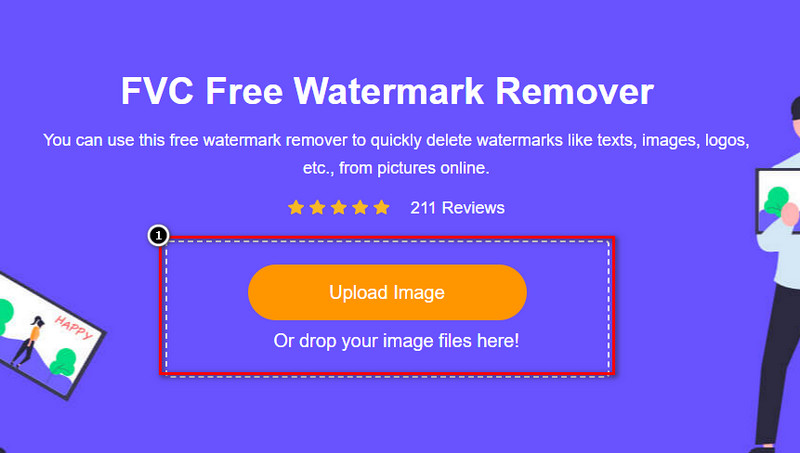
Bước 3. Khi công cụ xóa hình mờ trực tuyến đã mở, hãy chọn công cụ bạn muốn dùng để tô vùng hình mờ trên ảnh.
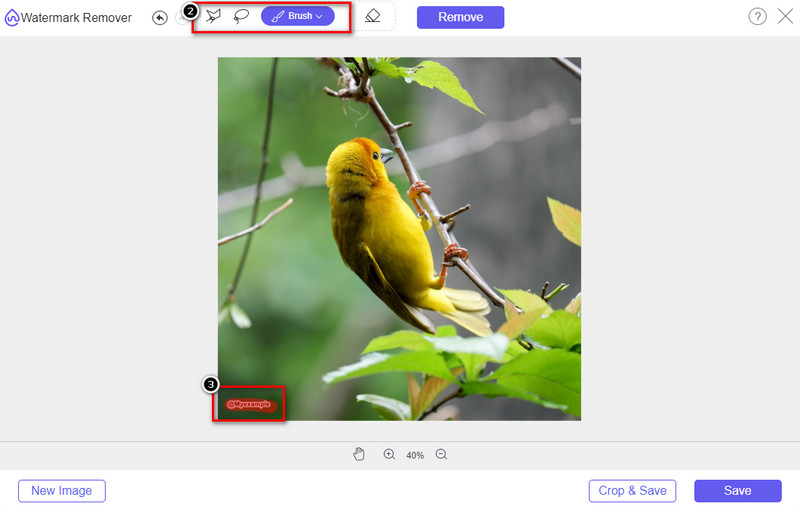
Bước 4. Sau khi tô vùng hình mờ hoặc logo trên ảnh đã tải lên, nhấn Remove.
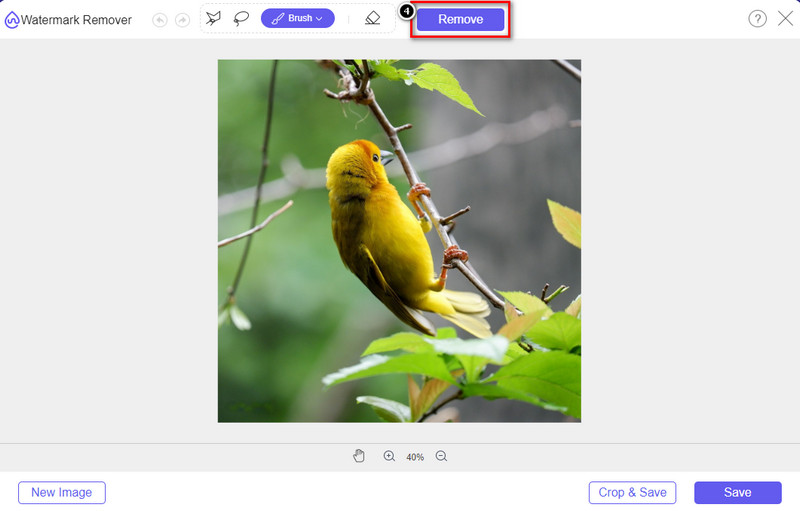
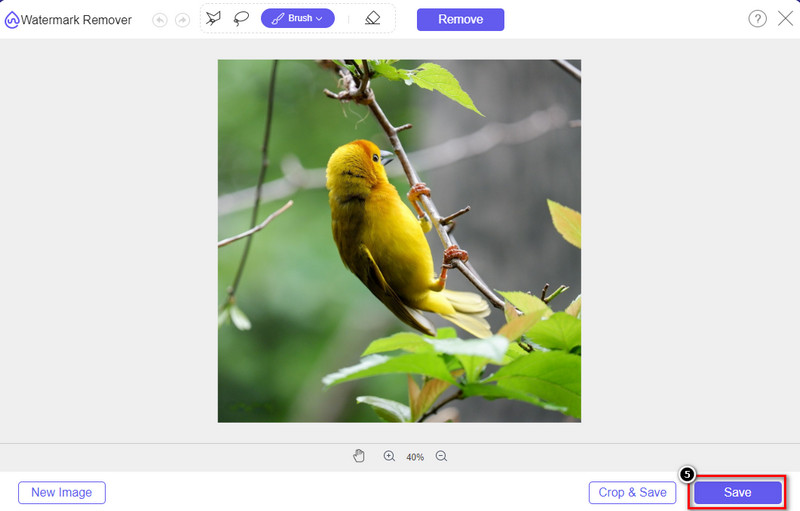
Bước 5. Chờ quá trình xóa hình mờ hoàn tất, rồi nhấp Save để tải về biểu đồ hoặc sơ đồ bạn đã tải lên. Một thư mục sẽ hiện trên màn hình; bây giờ hãy kiểm tra phiên bản biểu đồ hoặc sơ đồ bạn đã tạo mà không còn hình mờ.
Ưu điểm khi sử dụng FVC Free Watermark Remover Online:
◆ Không cần tải xuống ứng dụng vì nó có sẵn trên web.
◆ Hỗ trợ nhiều loại hình ảnh và nó có thể xóa hình mờ một cách hiệu quả.
◆ Đây là một loại bỏ hình mờ chuyên dụng tạo ra sản phẩm chất lượng cao.
◆ Không có hình mờ nào được thêm vào đầu ra cuối cùng sau khi xuất.
◆ Không giới hạn số lần sử dụng và kích thước tập tin.
Phần 3. Phần bổ sung - Cách tạo biểu đồ, đồ thị hoặc sơ đồ trên SmartDraw với các bước chi tiết
Phần trước hướng dẫn bạn cách loại bỏ hình mờ SmartDraw. Trong phần này, chúng tôi sẽ hướng dẫn bạn cách tạo biểu đồ, đồ thị và sơ đồ với sự trợ giúp của SmartDraw; bạn có thể làm theo các bước chúng tôi thêm bên dưới để biết cách thực hiện.
Bước 1. Truy cập trang web chính thức của nó để tạo biểu đồ, đồ thị hoặc sơ đồ.
Bước 2. Sau khi bạn đã mở trang web chính thức, nhấp Start Now và mở tài khoản của bạn.
Bước 3. Ở bên trái, chọn loại mẫu (template) bạn muốn dùng hoặc muốn tạo.
Bước 4. Thêm thông tin cho từng lưu đồ. Sẽ có thêm các tùy chọn khác mà bạn có thể sử dụng ở phần bên trái của trang web.
Bước 5. Nhấp nút Export, chọn định dạng bạn muốn và nhấp để bắt đầu quá trình. Nếu bạn đang dùng bản miễn phí, sẽ có hình mờ; bạn có thể sao chép các bước ở phần 2 để xóa hình mờ.
Đọc thêm:
Cách xóa watermark B612 khỏi ảnh của bạn
Cách xóa watermark WOW Slider miễn phí
Phần 4. Các câu hỏi thường gặp về Cách xóa Hình mờ SmartDraw
SmartDraw có thể xuất ảnh PNG không?
Có, bạn có thể có một biểu đồ trong suốt ở định dạng PNG. Tuy nhiên, nó sẽ thêm hình mờ nếu bạn sử dụng phiên bản miễn phí. Bạn có thể mua phiên bản chính thức, vì vậy sẽ có hình mờ trên hình ảnh được xuất.
Giá của SmartDraw là bao nhiêu?
Nếu bạn sắp mua một gói trên SmartDraw, bạn có thể mua gói của nó bắt đầu từ $ 5.95. Bạn có thể kiểm tra các mức giá khác mà nó cung cấp trên trang web chính thức.
Ưu điểm của việc mua phiên bản cao cấp của SmartDraw là gì?
Bạn có thể đạt được quyền kiểm soát của quản trị viên nhóm, thư mục nhóm, hỗ trợ cao cấp và xuất hình ảnh mà không có hình mờ cho các gói cá nhân. Đối với các lợi thế cao cấp khác, bạn có thể nhận được, hãy truy cập trang web chính thức và xem bạn có thể nhận được những tính năng và chức năng nào.
Phần kết luận
Bây giờ bạn đã biết cách lưu SmartDraw mà không có hình mờ bằng hai cách chúng tôi thêm. Bạn mua nó hoặc sử dụng một công cụ để xóa hình mờ trên tệp đã xuất. Nếu bạn không muốn mua công cụ này, bạn phải sử dụng nó vì nó là công cụ web hiệu quả nhất để loại bỏ hình mờ. Nếu bạn nghĩ rằng bài viết này đã giúp bạn giải quyết vấn đề, thì bạn đánh giá chúng tôi là 5 sao.
-
 4 cách tuyệt vời nhất để xóa hình mờ khỏi GIF [Trực tuyến và ngoại tuyến]
 Bạn cần xóa hình mờ khỏi GIF? Với công cụ trong bài viết này, bạn sẽ tìm hiểu các kiểu khác nhau với các công cụ xóa hình mờ khác nhau có sẵn trên nền tảng của bạn.
-
 5 cách dễ nhất để xóa siêu dữ liệu trong bất kỳ tệp phương tiện nào
 Làm cách nào để xóa siêu dữ liệu? Làm nó có khó không? Tôi có cần mua hoặc sử dụng công cụ miễn phí để xóa thẻ không? Tất cả những câu hỏi này đều có câu trả lời trong bài viết này.
-
 Photobucket Watermark Remover nổi bật trực tuyến và ngoại tuyến
 Tìm hiểu cách xóa hình mờ Photobucket khỏi ảnh của bạn bằng cách sử dụng công cụ xóa hình mờ Photobucket tuyệt vời này. Đọc bài viết này để tìm hiểu các cách.
