


 Chuyển đổi video Ultimate
 Trình ghi màn hình
 Sửa chữa video
Nâng cao kiến thức chuyên môn của bạn trong việc tiếp cận vấn đề như Cách làm chậm video
Bạn là một nghệ sĩ đầy hoài bão và muốn xem các video hướng dẫn thiết kế nghệ thuật để cải thiện kỹ năng. Tuy nhiên, hầu hết các tutorial này đều được tăng tốc để rút ngắn thời lượng và giảm dung lượng tệp khi tải lên. Vì vậy, bạn nghĩ đến giải pháp làm chậm tốc độ video. Nhưng bạn lại không biết cách làm chậm video tua nhanh thời gian giống như đa số video hướng dẫn vẽ. Hãy đọc bài viết này để bổ sung kiến thức về vấn đề mà rất nhiều nghệ sĩ mới vào nghề đang gặp phải này.

Phần 1. 3 Bước Đơn giản để Làm chậm Video [Máy tính để bàn / Máy tính xách tay]
Có rất nhiều cách tiếp cận mà web cung cấp, có thể là trình chỉnh sửa trực tuyến hoặc ngoại tuyến. Một số trong số chúng cần được tải xuống, đặc biệt là khi bạn đang sử dụng máy tính để bàn hoặc máy tính xách tay để chỉnh sửa. Có một sự khác biệt đáng kể giữa việc sử dụng máy tính để bàn về các chi tiết trong cách sử dụng; đó là lý do tại sao bài viết này chọn cách tốt nhất để làm chậm video ngoại tuyến hoặc trực tuyến trên máy tính để bàn. Dưới đây là các cách tiếp cận với các bước của họ được cung cấp:
Cách tiếp cận 1. Sử dụng Video Converter Ultimate
Bạn có thể tải xuống và sử dụng nhiều trình chuyển đổi ngay cả khi không có kết nối Internet. Để làm chậm một video, bạn có thể dùng Video Converter Ultimate, một trong những lựa chọn thay thế tốt nhất. Phần mềm này dễ sử dụng và bạn có thể tải về miễn phí. Bạn không cần lo lắng việc mạng làm chậm quá trình xử lý video trực tuyến, vì phần mềm này giúp chỉnh sửa video rất nhẹ nhàng. Nhờ công cụ ấn tượng là Video Speed Controller, giờ đây bạn có thể điều chỉnh tốc độ phát lại của video chỉ trong chưa đầy một phút. Khi bạn đã tò mò không biết nó hoạt động như thế nào, dưới đây là các bước hướng dẫn để bạn làm theo:
Bước 1: Chỉ cần nhấp vào nút Free Download để tải phần mềm về máy tính. Sau đó tiến hành cài đặt phần mềm và tùy chỉnh thiết lập theo các bước tiếp theo.
Tải xuống miễn phí cho Windows 7 trở lên. Tải xuống an toàn.
Tải xuống miễn phí cho MacOS 10.7 trở lên. Tải xuống an toàn.
Bước 2: Để dùng Video Speed Controller, hãy mở phần mềm ngay sau khi cài đặt và chọn công cụ này trong menu Toolbox.
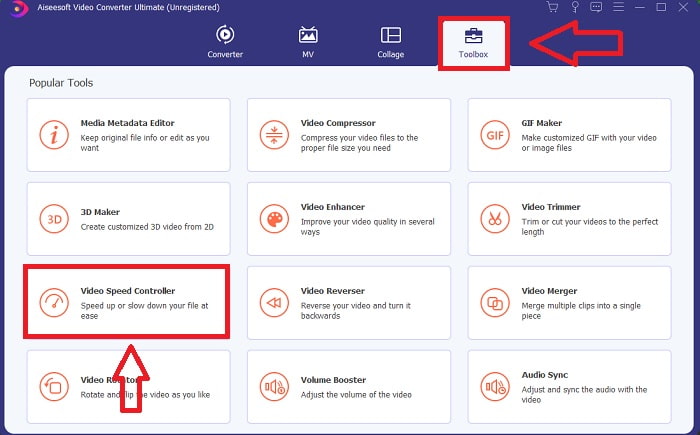
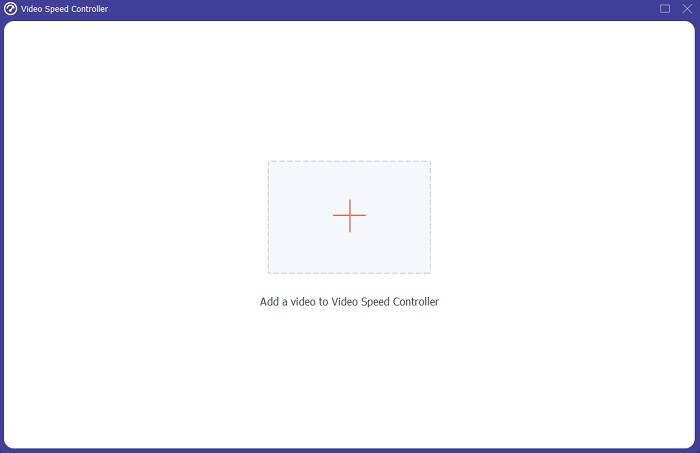
Bước 3: Giao diện của Video Speed Controller sẽ xuất hiện sau khi bạn nhấp vào. Để tải tệp video lên, hãy nhấp vào biểu tượng dấu +.
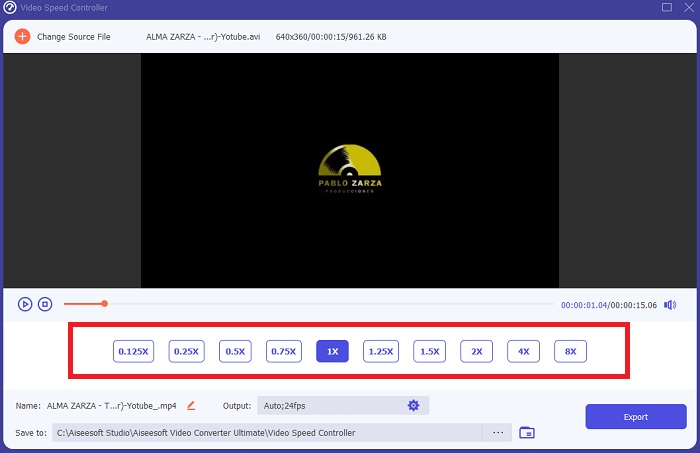
Bước 4: Giờ bạn có thể bắt đầu làm chậm video bằng cách chọn các giá trị nhỏ hơn tốc độ bình thường. Hầu hết các con số này sẽ xuất hiện ở phía bên trái so với tốc độ gốc của video.
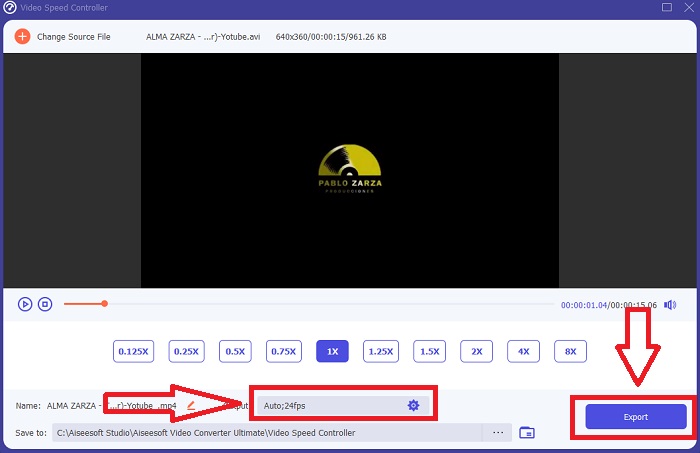
Bước 5: Sau khi hoàn tất việc chỉnh sửa tốc độ phát lại của đoạn video, bạn có thể chọn định dạng xuất, độ phân giải, chất lượng và các tham số khác mà bạn muốn dùng. Khi đã xong, hãy nhấp Export và chọn nơi lưu tệp sau khi mọi thứ được xử lý xong.
Phương pháp tiếp cận 2. Sử dụng VEED
VEED và công cụ web mã nguồn mở của nó được các nhà sáng tạo nội dung trên toàn thế giới dựa vào để sản xuất video cho mạng xã hội và các mục đích sử dụng khác. Đây là một ứng dụng web yêu cầu kết nối ổn định để hoạt động chính xác, nhưng bạn có thể tải lên trực tiếp và thay đổi tốc độ phát lại trong giao diện người dùng của nó. Ngoài ra, nó có nhiều tính năng khác nhau, một trong số đó là giảm tốc độ phát lại video. Giờ đây, bạn có thể làm chậm video mà không cần tải bất kỳ thứ gì xuống màn hình của mình. Bạn chỉ cần một công cụ tìm kiếm và một kết nối mạnh để truy cập công cụ trực tuyến này. Nó có giao diện người dùng đơn giản, thân thiện, có thể mang lại lợi ích cho hầu hết người dùng mới bắt đầu, những người cần làm chậm video mà không cần học các bước phức tạp. Dưới đây là các quy trình mẫu cần thông báo để đạt được các điều chỉnh mong muốn cho video của bạn.
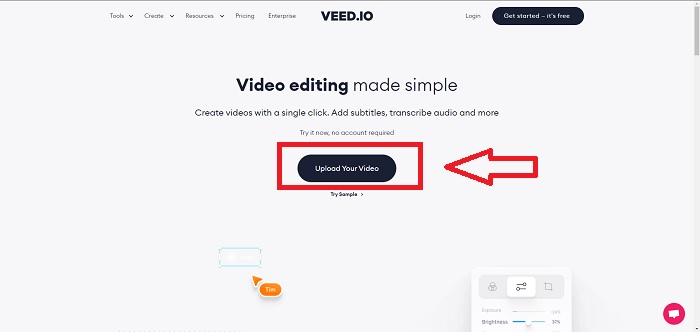
Bước 1: Nhấp vào nút Upload Your Video để tải một tệp video từ máy tính lên máy chủ.
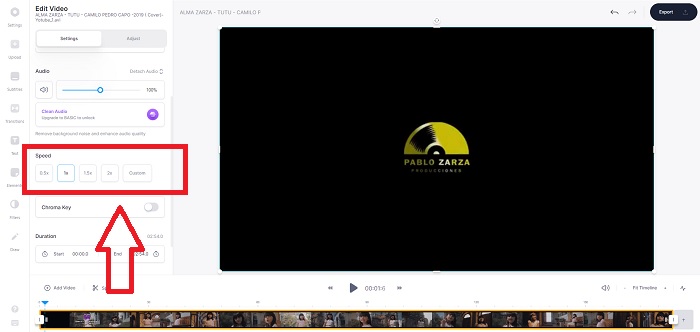
Bước 2: Truy cập giao diện chỉnh sửa của công cụ web bằng cách nhấp vào Video Track ở góc trên bên trái. Tìm tùy chọn Speed và nhấp vào đó để chọn tốc độ phát lại nhanh hơn. Nếu tốc độ bạn muốn không có sẵn, bạn có thể chọn Custom để tùy chỉnh, ghi đè các thiết lập mặc định và phát đoạn video ở tốc độ riêng.
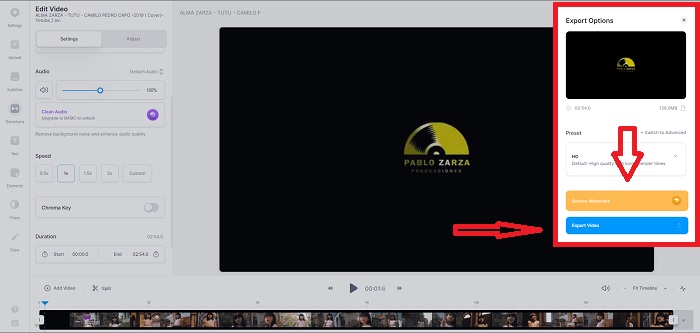
Bước 3: Sau khi chỉnh sửa tốc độ video theo ý muốn, hãy chuyển sang thẻ xuất bằng cách nhấp Export. Đồng thời, bạn có thể chọn chất lượng ưa thích cho video và xóa watermark bằng cách mua gói premium của công cụ web. Khi mọi thứ đã xong, hãy chuyển video đã chuyển đổi về máy tính bằng cách Exporting Video.
Phần 2. 3 Bước đơn giản để làm chậm video [Điện thoại di động]
Bạn có mệt mỏi khi nghĩ ra giải pháp làm chậm video trên iPhone hoặc Android không? Có rất nhiều ứng dụng và công cụ có sẵn trên internet để sử dụng để biện minh rằng có câu trả lời cho vấn đề nhất định. Nhưng đây là những công cụ tốt nhất và dễ tiếp cận nhất mà chúng tôi khuyên bạn nên sử dụng nếu bạn là người chỉnh sửa điện thoại di động và muốn tạo ra một kiệt tác từ thiết bị nhỏ mà bạn có.
Cách tiếp cận 1. Sử dụng iMovie
Giờ đây bạn có thể kiểm soát tốc độ phát lại hoặc làm chậm video trên iPhone và iPad với ứng dụng miễn phí, hữu ích có tên iMovie. Đây là một trong những ứng dụng đáng tin cậy trên các thiết bị dùng hệ điều hành iOS, có thể chỉnh sửa video và đặc biệt là chỉnh tốc độ phát lại. Để hiểu rõ hơn về ứng dụng này, dưới đây là các bước bạn cần thực hiện để giải quyết vấn đề vừa nêu:
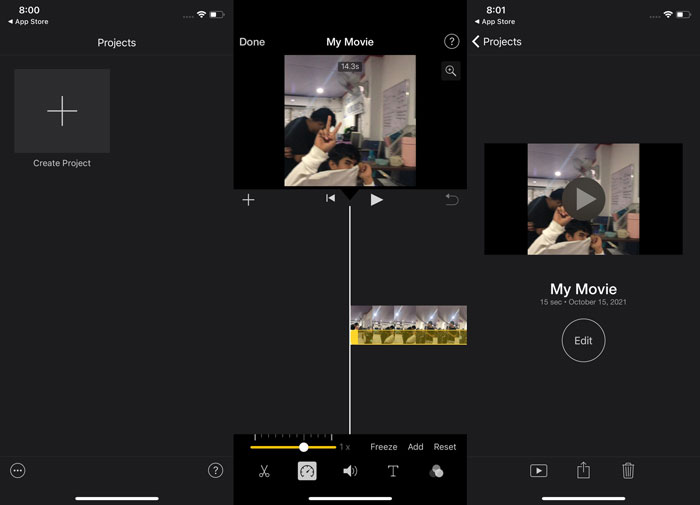
Bước 1: Bắt đầu chỉnh sửa video của bạn trong iMovie trên iPhone hoặc iPad. Trước khi tiếp tục, bạn có thể được giới thiệu sơ lược về giao diện người dùng. Trên trang Projects, nhấp vào dấu cộng để thêm một đoạn video mới, sau đó chọn Movie trong menu New Projects.
Bước 2: Chọn một video trong thư viện (camera roll) trước khi chuyển sang mục Create Movie. Công cụ chỉnh tốc độ có biểu tượng giống một speedometer (đồng hồ đo tốc độ) và có thể tìm thấy bằng cách nhấp vào đoạn video trong timeline, sau đó chờ các công cụ chỉnh sửa xuất hiện. Tua lại hoặc tua nhanh cảnh quay bằng cách kéo thanh trượt màu vàng ở phía dưới. So với tốc độ gốc, bạn có thể tăng tốc lên đến gấp đôi hoặc làm chậm xuống còn 1/8 tốc độ.
Bước 3: Nhấp Done ở góc trên bên trái màn hình khi bạn hoàn tất. Bạn có thể lưu video sau cùng bằng cách chọn nó trong menu Share rồi quyết định nơi lưu trữ.
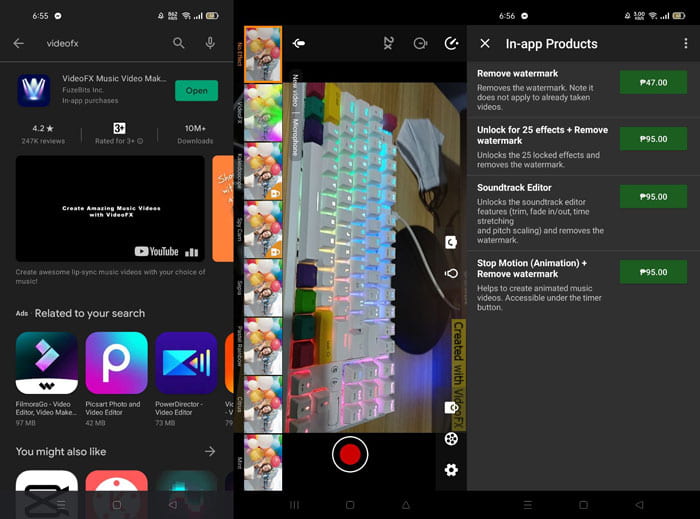
Phương pháp tiếp cận 2. Sử dụng VideoFX Music Video Maker
Hãy tạo video âm nhạc chỉ trong vài giây với công cụ VideoFX Music Video Maker. Tất cả những gì bạn cần làm là quay video với một trong nhiều hiệu ứng có sẵn, chọn một bài hát, rồi lưu lại trong bộ nhớ trong của điện thoại Android. Vì bạn có thể áp dụng bộ lọc trước khi quay, nên ứng dụng này rất dễ dùng. Tuy nhiên, việc chỉnh sửa hậu kỳ gần như không có; bạn chỉ có thể chỉnh trước khi quay. Trước khi bắt đầu quay, hãy chọn một bài hát phù hợp với video. Bạn có thể tăng hoặc giảm tốc độ âm nhạc, nhưng các thay đổi phải được thiết lập trước khi quay. Dưới đây là các bước thực hiện:
Bước 1: Tải và cài đặt VideoFX lên điện thoại Android của bạn.
Bước 2: Vì các hiệu ứng của ứng dụng này chỉ áp dụng khi video thay đổi trong lúc quay, hãy bắt đầu ghi hình bằng cách nhấn nút Record.
Bước 3: Sau đó, nhấn vào 2x để điều chỉnh tốc độ video bạn đang quay. Trước khi mở khóa toàn bộ tính năng của ứng dụng, bạn cần mua quyền truy cập đầy đủ.
Phần 3. Câu hỏi thường gặp về làm chậm video
Làm thế nào để làm chậm video trên iPhone?
Các nhà sáng tạo nội dung và quay phim có rất nhiều công cụ trong tay, và quay chậm (slow-motion) là một trong những công cụ tốt nhất. Video có số khung hình trên giây (fps) cao sẽ mang lại trải nghiệm xem thú vị hơn. Tuy vậy, video làm chậm không phải lúc nào cũng là lựa chọn tốt nhất cho mọi nội dung. Trong một số trường hợp, slow-motion không phù hợp hoặc hoàn toàn không cần thiết. Vì thế, lựa chọn duy nhất của bạn là đưa video quay chậm trên iPhone về lại tốc độ bình thường.
Làm cách nào để làm chậm video trong thư viện?
Điện thoại Android và iOS có các biểu tượng cài đặt cần nhấn để kích hoạt chế độ chuyển động chậm hoặc slo-mo trước khi quay video. Bạn nên quay các cảnh chuyển động chậm của mình thành từng cụm từ 5 đến 10 giây để tránh có quá nhiều cảnh quay.
Tôi có bị giảm chất lượng nếu làm chậm video không?
Không, bạn sẽ không làm giảm chất lượng của video, nhưng bạn sẽ thấy độ phân giải và tốc độ khung hình của video giảm trong mỗi giây mà bạn giảm theo tốc độ trung bình. Khi tốc độ phát lại video của bạn được tăng hoặc giảm, chỉ khung hình sẽ được chia. Tăng nó sẽ có hiệu quả mong muốn. Nhanh gấp 5 lần, tức là 60 khung hình trên 1/120 giây. Nói cách khác, trừ khi video có tốc độ khung hình thấp, nó sẽ không có tác dụng.
Phần kết luận
Vì vậy, thông qua bài viết này, bạn đã tìm hiểu toàn bộ các phương pháp mà từng hệ điều hành có để xử lý vấn đề về những ứng dụng làm chậm video. Bài viết cũng cung cấp các bước dành cho người mới bắt đầu, những người chưa có nền tảng về chỉnh sửa video. Để đề xuất một phần mềm giúp bạn điều chỉnh tốc độ phát lại cũng như sử dụng các công cụ chỉnh sửa khác như một editor chuyên nghiệp, hãy tải phần mềm Video Converter Ultimate để trải nghiệm trọn vẹn nhất việc trở thành một người chỉnh sửa video chuyên nghiệp.
-
 4 trình phát VOB tốt nhất cho điện thoại di động Android cho các tập quán khác nhau
 Khi bạn tải video VOB xuống và muốn xem chúng trên Android, bạn có thể chọn video phù hợp nhất trong số 4 trình phát VOB hàng đầu sau đây trong bài viết này.
-
 5 lựa chọn thay thế Windows Media Player tốt nhất cho điện thoại di động Android
 Vì bạn không thể tải xuống Windows Media Player cho Android, bạn nên đọc bài viết này và tìm hiểu về 5 lựa chọn thay thế tốt nhất cho Windows Media Player.
-
 Top 5 trình phát video tốt nhất cho iPhone mà bạn không nên bỏ lỡ năm 2021
 Để phát video ở mọi định dạng và có trải nghiệm xem tốt hơn trên iPhone của mình, bạn nên đọc bài viết này và tìm hiểu về 5 trình phát video tốt nhất cho iPhone 12/11 / X / 8/7/6.
