


 Chuyển đổi video Ultimate
 Trình ghi màn hình
 Sửa chữa video
Tìm hiểu cách đồng bộ hóa âm thanh và video đúng cách trên iMovie với các bước được cung cấp
Có phải việc xem video mà âm thanh và hình ảnh không khớp thật sự rất khó chịu? Điều này xảy ra với hầu hết chúng ta. Vì vậy, nếu bạn gặp vấn đề này trên máy Mac thì nhất định phải khắc phục bằng iMovie. Bạn cũng không cần lo lắng vì bạn sẽ không mất hàng giờ để học cách đồng bộ âm thanh và hình ảnh trong iMovie. Bạn chỉ cần khoảng 4 phút để tập trung đọc bài viết này và thực hiện trong chưa đầy 3 phút. Vậy nên, nếu bạn đã sẵn sàng làm cho âm thanh và hình ảnh khớp nhau thì hãy tiếp tục tìm hiểu cách dùng iMovie trên iPhone và Mac.

Phần 1. Cách đồng bộ hóa âm thanh và video trong iMovie trên iOS
Với iPhone, bạn gần như có thể tạo ra mọi thứ giống như trên Mac. Một ví dụ tuyệt vời là iMovie, mặc dù giao diện iMovie trên iPhone không giống như trên Mac. Tuy vậy, bạn vẫn có thể đồng bộ được âm thanh và hình ảnh ngay cả khi không có Mac. Vì thế, nếu bạn muốn biết cách đồng bộ âm thanh và video trên iPhone bằng iMovie thì hãy làm theo các bước dưới đây.
Bước 1. Tìm iMovie trên App Store và tải xuống iPhone của bạn. Sau khi công cụ được cài đặt, nhấn vào để mở.
Bước 2. Sau đó nhấn nút + để thêm video rồi chọn Movie. Tìm video bạn muốn đồng bộ rồi nhấn Create Movie.
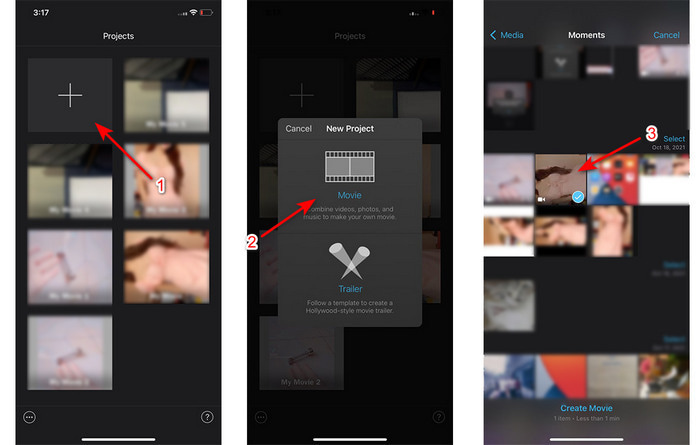
Tiếp theo, nhấn dấu + để tìm lại chính video đó nhưng lần này chúng ta chỉ thêm phần âm thanh. Sau khi tìm được video, nhấn vào ba chấm và chọn Audio Only.
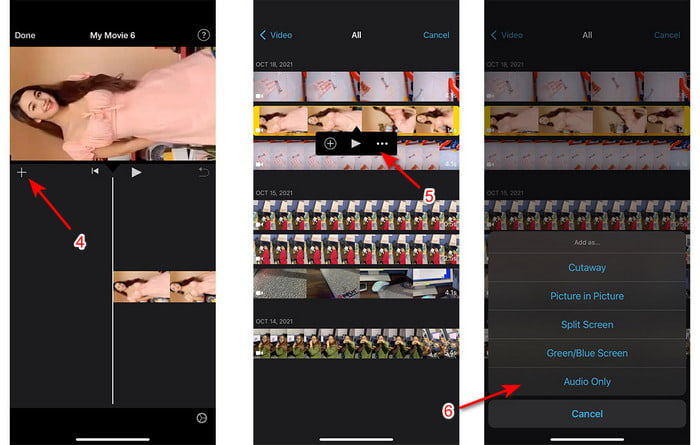
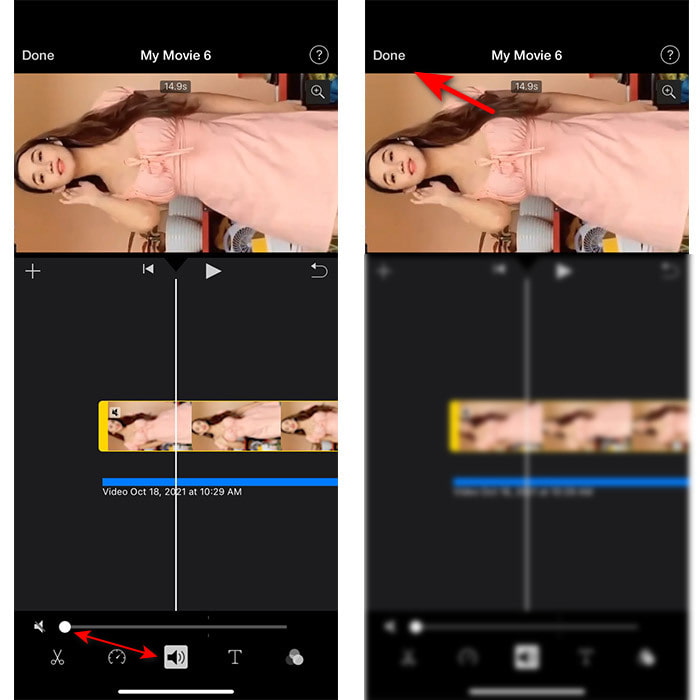
Bước 3. Nhấn vào video trên timeline rồi nhấn biểu tượng Loa và chỉnh âm lượng xuống 0. Sau đó, điều chỉnh file âm thanh để nó khớp với video. Rồi nhấn Done để lưu lại chỉnh sửa bạn đã thực hiện.
Phần 2. Cách đồng bộ hóa âm thanh và video trong iMovie trên Mac
Nếu bạn muốn trải nghiệm đầy đủ các tính năng chỉnh sửa mà iMovie cung cấp thì hãy dùng Mac. Phần mềm này rất tinh tế và hoạt động cực tốt trên Mac. Vì vậy, nếu bạn muốn đồng bộ âm thanh và video thì ở đây bạn có thể thực hiện rất dễ dàng. Tuy nhiên, dùng iMovie trên Mac hơi khó hơn trên iPhone. Do đó, nếu bạn muốn biết cách đồng bộ âm thanh với video trong iMovie trên Mac thì hãy áp dụng 3 bước đơn giản dưới đây.
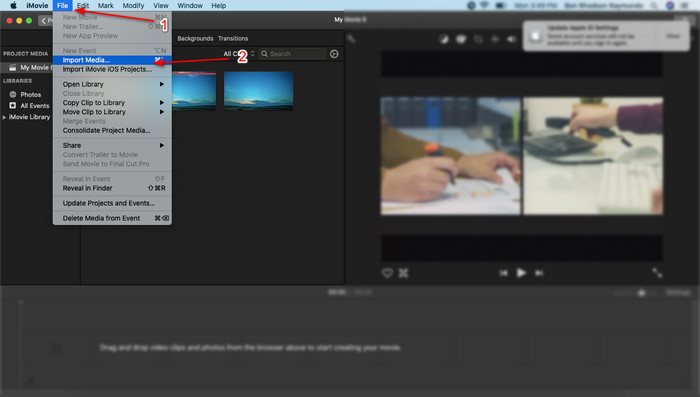
Bước 1. Tìm iMovie trong Finder rồi mở lên. Sau khi công cụ đã khởi chạy, nhấn File rồi vào Import Media. Chọn file trong thư mục rồi nhấn Import Selected.
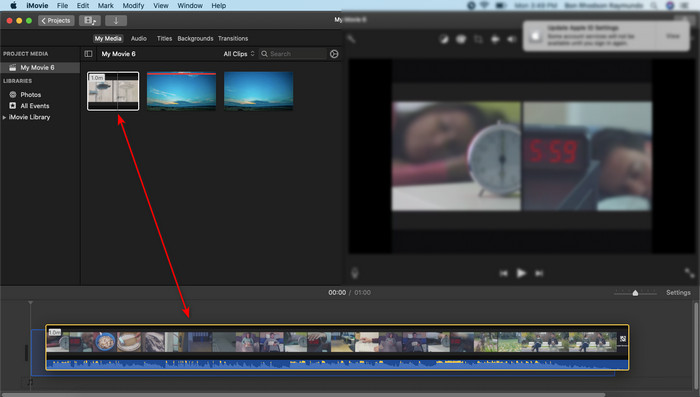
Bước 2. Kéo file vào Timeline, trước tiên là video, sau đó làm tương tự với phần âm thanh.
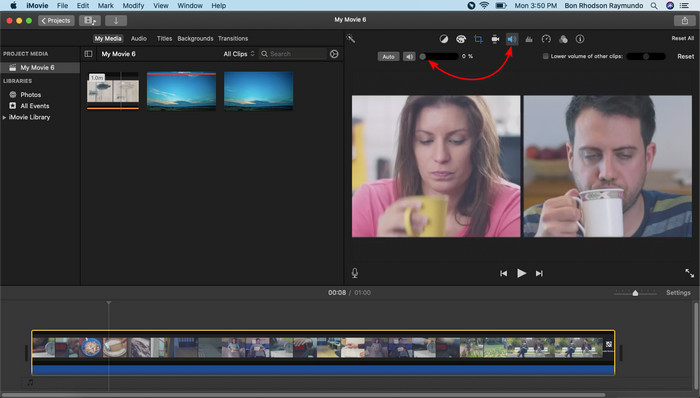
Nhấn vào file video rồi nhấn nút Loa và tắt phần âm thanh gốc trong video.
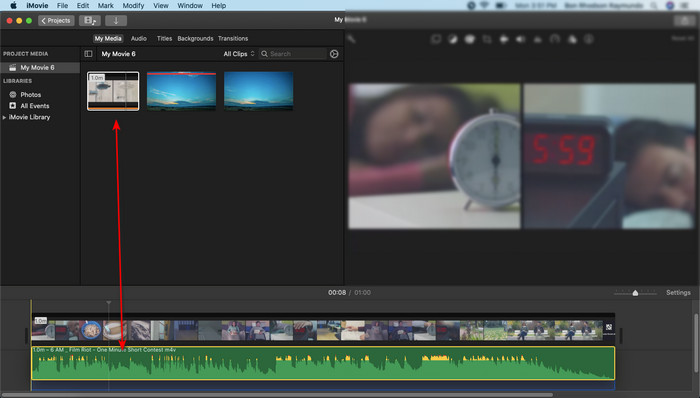
Thêm cùng một tệp nhưng bây giờ vào âm thanh, sau đó điều chỉnh âm thanh để làm cho nó đồng bộ hóa trên video.
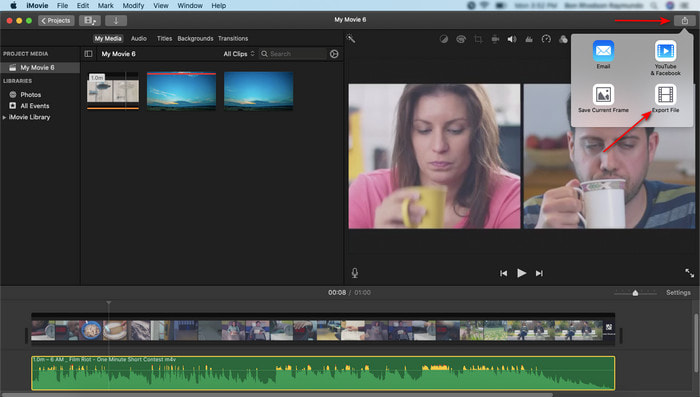
Bước 3. Để lưu video vào ổ đĩa, nhấn nút share và chọn Export File.
Phần 3. Cách đồng bộ hóa âm thanh và video bằng Windows Phenomenal Editor
Nếu bạn không có Mac hay iPhone, bạn vẫn có thể đồng bộ âm thanh và video một cách hiệu quả và dễ dàng hơn với Video Converter Ultimate. Phần mềm tuyệt vời này còn vượt trội hơn iMovie và có sẵn trên mọi nền tảng trừ điện thoại di động. Dù bạn là người mới hay chuyên nghiệp, bạn vẫn có thể tạo ra những video ấn tượng, gây hiệu ứng “wow” cho người xem. Vì vậy, nếu bạn muốn học cách đồng bộ âm thanh và video bằng công cụ thay thế iMovie thì hãy làm theo các bước chi tiết mà tác giả đã chuẩn bị riêng cho bạn và cùng tiếp tục nhé.
Các bước đồng bộ âm thanh và video trên Windows bằng Video Converter Ultimate:
Bước 1. Trước khi có thể sử dụng công cụ, bạn cần tải nó xuống trước. Sau đó cài đặt và nhấn Finish để tiếp tục.
Tải xuống miễn phí cho Windows 7 trở lên. Tải xuống an toàn.
Tải xuống miễn phí cho MacOS 10.7 trở lên. Tải xuống an toàn.
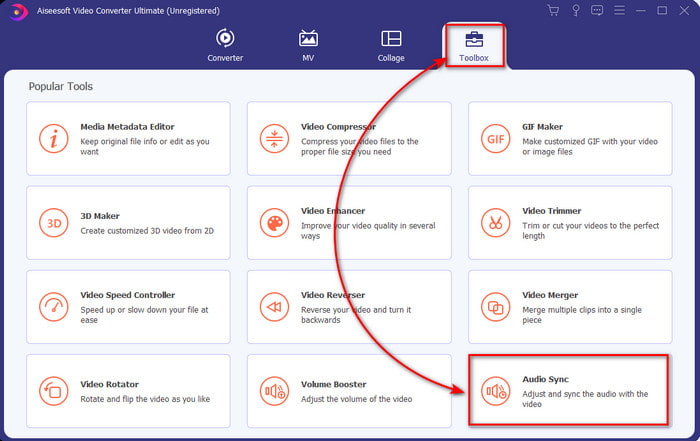
Bước 2. Sau khi cài đặt xong, đến lúc khởi chạy công cụ. Sau đó vào mục Toolbox và chọn Audio Sync.
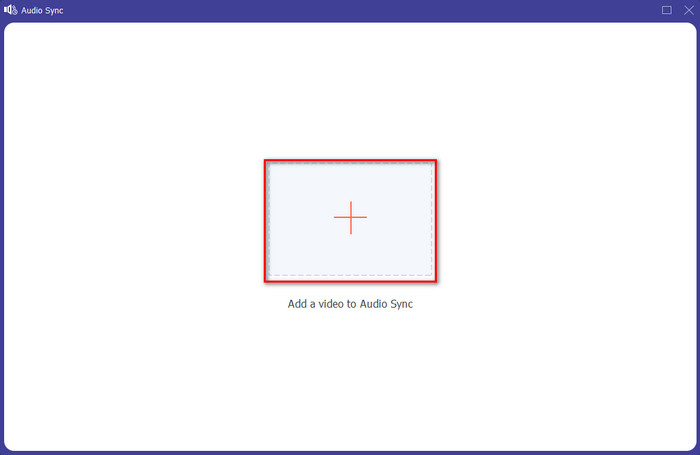
Bước 3. Để thêm file có âm thanh lệch, nhấn nút + và chọn file trong thư mục, rồi nhấn Open.
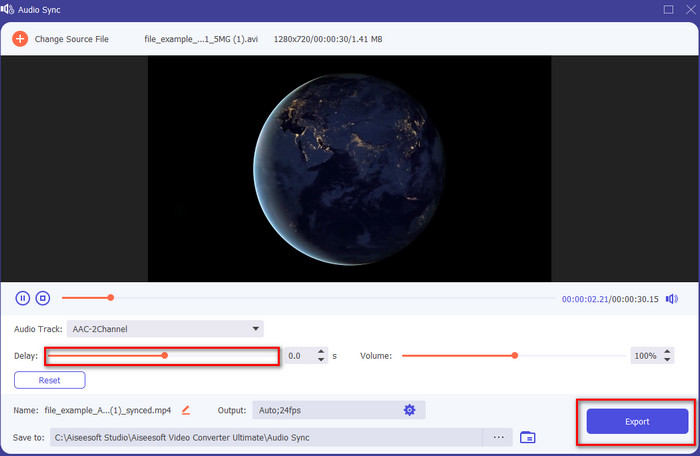
Bước 4. Điều chỉnh thanh trượt độ trễ để khớp với video. Khi đã chỉnh xong âm thanh cho phù hợp với video, nhấn nút Export để bắt đầu xử lý.
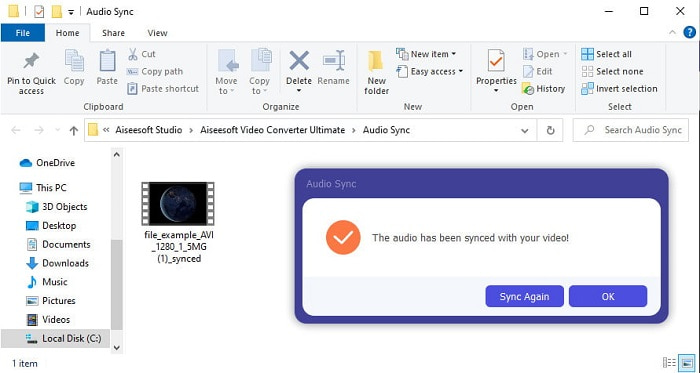
Bước 5. Sau khi hoàn tất, một thư mục sẽ hiện lên trên màn hình với file đã được đồng bộ. Nhấn vào file để thưởng thức video có âm thanh và hình ảnh khớp nhau.
Phần 4. Câu hỏi thường gặp về Đồng bộ hóa âm thanh và video trong iMovie
Tôi có thể sử dụng iMovie trên Windows không?
Rất tiếc, bạn không thể tải iMovie trên Windows. Nhưng bạn có thể tìm các lựa chọn thay thế khác hoạt động tương tự, thậm chí tốt hơn iMovie, như 5 trình chỉnh sửa video giống iMovie này.
Tại sao AVI không được hỗ trợ trên iMovie?
AVI không được iMovie hỗ trợ vì cấu trúc định dạng khá phức tạp. Do đó, cách tốt nhất để chỉnh sửa file video AVI là chuyển nó sang định dạng MOV. Nếu bạn chưa biết cách chuyển AVI sang MOV thì hãy đọc bài viết này để có thêm thông tin.
Tệp đã xuất trên iMovie có hình mờ không?
Mọi dự án bạn xuất trên iMovie đều không có hình mờ cho đến ngày nay. Mặc dù công cụ này miễn phí trên các thiết bị của Apple, nhưng hình mờ không được đưa vào kết quả cuối cùng. Tuy nhiên, bạn có thể thêm hình mờ của riêng mình vào đó nếu bạn muốn.
Tôi có thể sử dụng iMovie để quay video khi bật camera không?
Thực ra bạn cũng có thể quay màn hình rất dễ dàng bằng iMovie. Nếu muốn tìm hiểu, hãy nhấn vào liên kết này để tiếp tục.
Phần kết luận
Và bây giờ chúng ta đã rõ rằng bạn hoàn toàn có thể dùng iPhone hoặc Mac để đồng bộ âm thanh và hình ảnh với sự hỗ trợ của iMovie. Mặc dù giao diện và một số chức năng của công cụ không có trên iPhone, bạn vẫn có thể sử dụng dễ dàng mà không cần chuyên môn cao. Tuy nhiên, nếu bạn muốn thực hiện theo cách đơn giản hơn thì hãy dùng Video Converter Ultimate. Thay vì phải chỉnh sửa phức tạp, bạn có thể xử lý mọi thứ chỉ với vài cú nhấp chuột trên phần mềm này. Vậy nên, hôm nay chính là ngày may mắn của bạn, vì nếu bạn làm theo các bước đồng bộ âm thanh và video trên Ultimate Converter thì chúng tôi đảm bảo bạn sẽ thành công.
-
 Nhập và chuyển đổi AVI sang định dạng được hỗ trợ iMovie [2021]
 Bạn gặp sự cố vì không thể nhập tệp AVI của mình trên iMovie? Nếu bạn đọc bài viết này thì bạn đã chọn đúng phương pháp khắc phục vấn đề này.
-
 Hướng dẫn cụ thể - Cách hợp nhất hai bản nhạc trong Audacity
 Audacity thích chỉnh sửa âm thanh nổi tiếng. Bạn đã tải xuống Audacity nhưng không biết cách ghép các bản âm thanh trong Audacity? Bài đăng này sẽ cho bạn biết cách hợp nhất các bản nhạc trong Audacity.
-
 Cách cắt tệp MP4 mà không làm giảm chất lượng video [2021]
 Tìm hiểu cách Cắt MP4 với các bước đơn giản chỉ dành riêng cho bạn. Vì vậy, hãy bắt kịp tốc độ vì chúng tôi giới thiệu cho bạn những công cụ cắt xén tốt nhất mà bạn có thể sử dụng.
