


 Chuyển đổi video Ultimate
 Trình ghi màn hình
 Sửa chữa video
Hướng dẫn đơn giản về cách đồng bộ hóa âm thanh và video trong Adobe Premiere Pro
Nếu bạn là dân chuyên thì hẳn bạn đã dùng Adobe Premiere Pro như phần mềm biên tập video hoạt động rất hiệu quả. Rất nhiều người dùng Adobe yêu thích phần mềm này vì nó cho ra chất lượng xuất video cực tốt mà bạn sẽ muốn chèn vào tác phẩm của mình. Nhưng bạn có biết là bạn cũng có thể dùng công cụ này để đồng bộ âm thanh với video không? Vậy nên, nếu bạn vẫn chưa biết cách làm thì hôm nay đúng là một ngày may mắn. Hãy tự tay thử thực hiện để xem việc đồng bộ dễ đến mức nào. Từ giờ, bạn không cần đọc cả quyển hướng dẫn sử dụng nữa vì bài viết này sẽ giúp bạn dễ dàng hiểu được cách đồng bộ âm thanh trong Premiere một cách đơn giản và hiệu quả, kèm theo một công cụ thay thế khác.

Phần 1. Cách đồng bộ hóa âm thanh và video trong Adobe Premiere Pro
Trước khi bắt đầu, hãy cùng điểm qua đôi nét về Adobe Premiere Pro. Như đã đề cập ở trên, công cụ này đã được rất nhiều biên tập viên chuyên nghiệp sử dụng, những người yêu thích việc tạo ra những video ấn tượng. Tuy nhiên, công cụ này sẽ tốn khá nhiều thời gian để học vì nó cung cấp rất nhiều tính năng nâng cao mà người mới rất khó hiểu. Mặc dù việc học cách sử dụng nó sẽ chắc chắn tốn nhiều thời gian, nhưng sẽ rất xứng đáng nếu bạn có thời gian rảnh để đầu tư. Hơn nữa, các bước được nêu dưới đây đã được đơn giản hoá để bạn dễ nắm được cách đồng bộ âm thanh và video trong Premiere nếu bạn làm theo lần lượt.
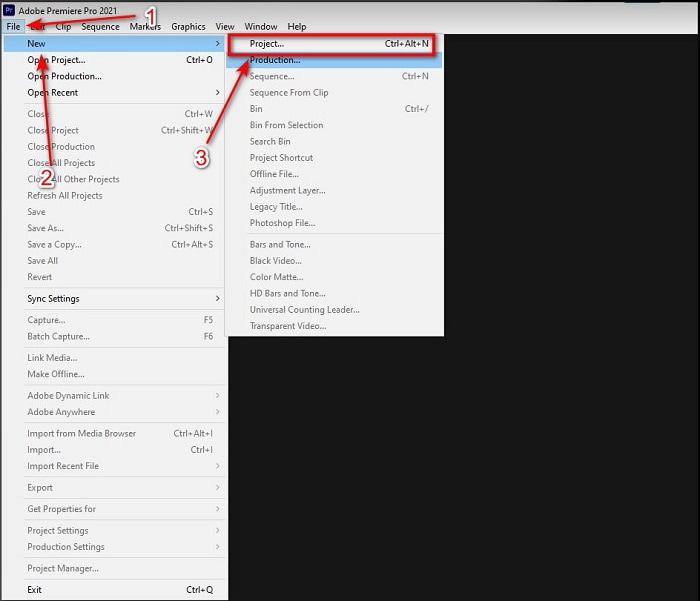
Bước 1. Trước tiên, bạn cần mua phần mềm và tải về ổ đĩa trên máy tính. Khởi chạy chương trình sau khi quá trình tải xuống hoàn tất. Sau đó nhấp vào File, bên dưới chọn New, tiếp tục nhấp vào Project để tạo dự án mới, rồi bấm OK ở giao diện mới xuất hiện trên màn hình.
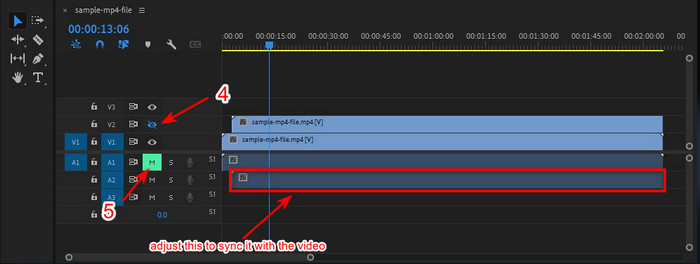
Bước 2. Thêm cùng một tệp video và âm thanh vào Timeline hai lần. Sau đó nhấp vào Toggle Track Output của video thứ hai và tắt tiếng bản thứ hai bằng cách nhấp vào Mute Track. Điều chỉnh đường âm thanh để đảm bảo nó khớp và đồng bộ với video.
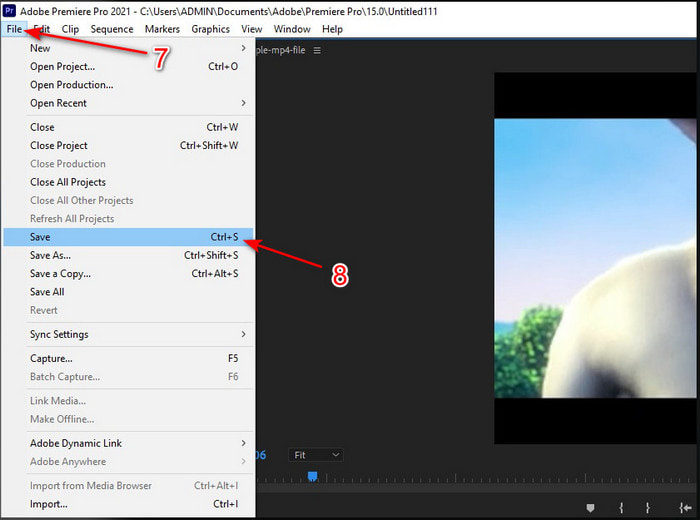
Bước 3. Nhấp lại vào File ở phía trên và tìm đến Save để cuối cùng xuất tệp media về ổ đĩa trên máy tính của bạn.
Ưu điểm
- Công cụ này cung cấp một tính năng chỉnh sửa nâng cao.
- Bạn có thể tải xuống trình chỉnh sửa đầu dòng.
- Lựa chọn tốt nhất để có một đầu ra chuyên nghiệp.
Nhược điểm
- Không phải là lựa chọn tốt nhất cho người mới bắt đầu không có ý tưởng về việc chỉnh sửa.
- Phần mềm này hoàn toàn đắt so với các trình soạn thảo khác cung cấp tính năng gần như tương tự.
Phần 2. Phương pháp dễ nhất để đồng bộ hóa âm thanh cho người mới bắt đầu và chuyên nghiệp với Trình chuyển đổi video Ultimate
Cũng giống như Adobe Premiere Pro, trình chuyển đổi tuyệt vời này cũng mang đến chất lượng cao và các tính năng chỉnh sửa nâng cao mà bạn sẽ rất thích khi sử dụng. Nhưng nó dễ sử dụng hơn Premiere Pro rất nhiều. Video Converter Ultimate là người bạn thân thiết của những biên tập viên thích làm video, nâng cấp, tăng cường chất lượng, tạo GIF và nhiều hơn thế nữa. Phần mềm này hầu như giải quyết được mọi vấn đề thường gặp của người dùng internet, kể cả trong việc đồng bộ. Và vì cách sử dụng quá đơn giản nên đã có hơn một triệu người tải về và yêu thích nó. Vậy nên, nếu bạn muốn cuộc sống nhẹ nhàng hơn thay vì dùng premiere pro sync audio thì tại sao không thử dùng công cụ này? Hãy làm theo các bước dưới đây.
Các bước đồng bộ âm thanh và video với Video Converter Ultimate:
Bước 1. Tải phần mềm về máy tính và chọn phiên bản cho PC hoặc Mac. Sau đó cài đặt, thiết lập theo hướng dẫn và nhấp vào Start Now để tiếp tục.
Tải xuống miễn phí cho Windows 7 trở lên. Tải xuống an toàn.
Tải xuống miễn phí cho MacOS 10.7 trở lên. Tải xuống an toàn.
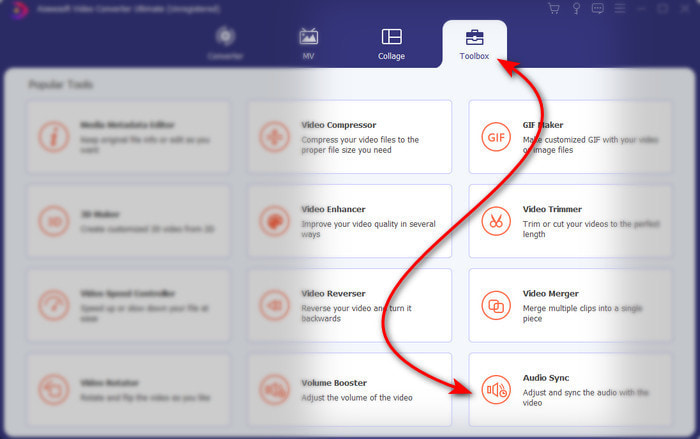
Bước 2. Khởi chạy công cụ sau bước đầu tiên, sau đó chuyển sang phần Toolbox và nhấn vào Audio Sync ở phía dưới.
Bước 3. Nhấn nút + để chèn video và âm thanh bạn muốn đồng bộ. Sau khi tìm thấy trong thư mục, nhấp Open để tiếp tục.
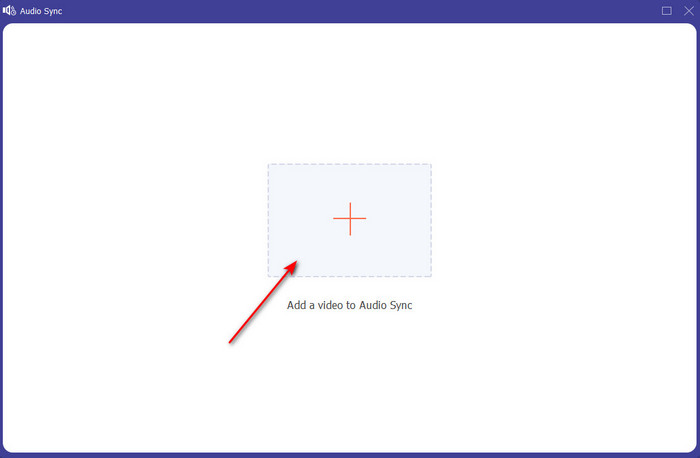
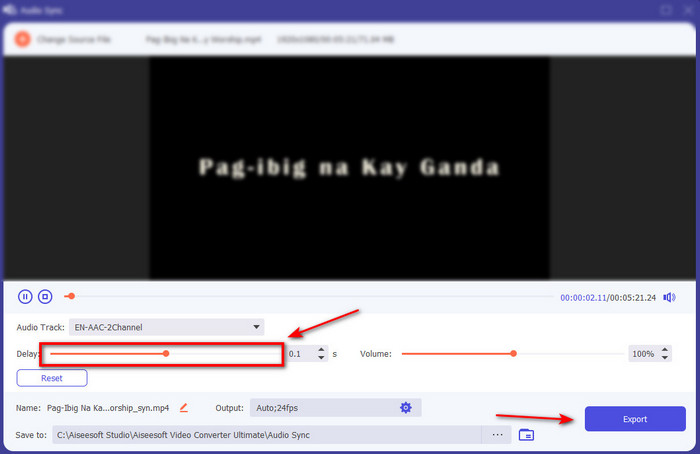
Bước 4. Để đồng bộ âm thanh, hãy điều chỉnh thanh trượt Delay sao cho khớp với video. Ngoài ra, bạn cũng có thể tăng âm lượng ngay tại đây bằng cách chỉnh thanh trượt âm lượng. Khi đã hoàn tất, nhấp Export để lưu lại bản xuất cuối cùng.
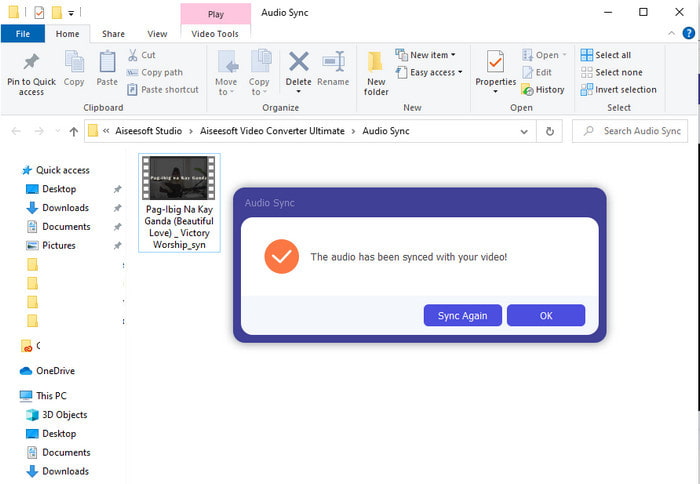
Bước 5. Sau khi hoàn tất, một thư mục sẽ xuất hiện trên màn hình với tệp video có âm thanh đã được đồng bộ. Nhấp vào tệp để xem, phát và thưởng thức video với âm thanh khớp hoàn hảo.
Ưu điểm
- Lựa chọn tốt nhất để làm cho video của bạn trông thật ấn tượng.
- Trải nghiệm tổng thể khi sử dụng công cụ này thực sự là tối ưu và dễ sử dụng.
- Nó có sẵn ở tất cả các nền tảng cho dù đó là PC hay Mac.
Nhược điểm
- Cũng giống như công cụ chiếu chuyên nghiệp, công cụ này được trả phí, tuy nhiên nó rẻ hơn nhiều so với công cụ chiếu chuyên nghiệp.
- Trước tiên, cần tải xuống ổ đĩa của bạn trước khi bạn có thể truy cập.
Phần 3. Câu hỏi thường gặp về Đồng bộ hóa âm thanh và video trong Premiere
Tôi có thể sử dụng Công chiếu làm trình ghi màn hình không?
Nếu bạn đang cố gắng quay màn hình ngay trong Premiere Pro thì tốt nhất nên bỏ ý định đó vì phần mềm này không hỗ trợ chức năng đó. Tuy nhiên, chúng tôi có thể bật mí cho bạn một vài trình ghi màn hình bí mật để lựa chọn. Nếu bạn muốn biết đâu là những Top 5 Screencast tốt nhất mà bạn có thể dùng trên PC, Mac, online, iOS và Android.
Adobe Premiere Pro có miễn phí không?
Trên thực tế, đó là một có, bạn có thể tải xuống công cụ này miễn phí nhưng bạn chỉ có thể truy cập công cụ này trong 7 ngày dùng thử. Vì vậy, nếu thời gian dùng thử đã kết thúc thì bạn phải đăng ký lại Adobe Premiere Pro để tận hưởng toàn bộ khả năng chỉnh sửa mà phiên bản đầu tiên này cung cấp.
Tôi có thể sử dụng trang web khác để tải xuống phiên bản chuyên nghiệp không?
Không, vì việc tải xuống tất cả các ứng dụng bằng trang web khác là bất hợp pháp. Ngoài ra, nếu bạn sử dụng một trang web khác để tải xuống phiên bản chuyên nghiệp thì có khả năng nó sẽ mang phần mềm gián điệp, vi rút hoặc thậm chí tệ hơn nhiều. Vì vậy, nếu bạn muốn đảm bảo sự an toàn của mình thì chỉ tải phần mềm xuống các trang web chính chính thức.
Tôi có thể mua quyền truy cập trọn đời trên Adobe Premiere Pro không?
Mặc dù bạn có thể mua quyền truy cập hàng tháng trên Adobe Premiere Pro nhưng bạn không thể mua quyền truy cập trọn đời trên đó. Tuy nhiên, bạn có thể mua nó bằng một trang web khác, điều đó là bất hợp pháp và sẽ có khả năng tệp bạn sẽ tải xuống bị hỏng, có vi-rút trên đó hoặc là một trò lừa đảo. Vì vậy, nếu bạn muốn sử dụng và mua Adobe Premiere Pro, chúng tôi khuyên mọi người nên mua nó trên trang web chính của nó.
Phần kết luận
Sau 5 phút đọc bài viết này, chúng ta đã biết cách sử dụng Adobe Premiere pro để đồng bộ âm thanh với video. Tuy nhiên, có một cách đơn giản hơn để đồng bộ hóa nó bằng cách sử dụng Video Converter Ultimate. Vì công cụ này cung cấp nhanh hơn nhiều trong việc điều chỉnh video và âm thanh không đồng bộ hóa trong khi có chất lượng tốt nhất. Vì vậy, bây giờ, nếu bạn có nhiều tiền thì hãy sử dụng Adobe Premiere Pro nhưng nếu bạn muốn tiết kiệm nhiều tiền trong khi có cùng chức năng thì lựa chọn của bạn phải là Video Converter Ultimate.
-
 Cách làm chậm video: Mẹo hoàn hảo [Máy tính để bàn / Điện thoại di động]
 Bạn có mệt mỏi khi tìm kiếm các công cụ tốt nhất giúp làm chậm video trực tuyến không? Đọc bài viết cụ thể này để bạn được khai sáng với những phần thông tin được liệt kê bên dưới.
-
 Windows Media Player | Tìm hiểu cách tăng tốc độ video [Đã được chứng minh]
 Bạn muốn làm chậm video clip của mình bằng Windows Media Player, nhưng bạn đang gặp khó khăn về cách thực hiện? Bài viết này rất lý tưởng để đọc và có thể khai sáng quan điểm của bạn về cách tăng tốc video bằng Windows Media Player.
-
 Cách thay đổi video chuyển động chậm thành tốc độ bình thường [Các bước dễ dàng]
 Bạn muốn biết cách hoàn nguyên một video chuyển động chậm mà bạn đã tải xuống từ Internet hoặc vô tình quay được ở dạng chuyển động chậm? Tìm hiểu cách chuyển đổi video chuyển động chậm sang tốc độ bình thường trên Mac, Windows, iOS và Android.
