


 视频转换大师
 屏幕录影大师
 视频修复
视频修复Adobe Premiere:探索慢动作的概念
慢动作这一概念之所以在各种视频中显得自然,并不只是因为视频播放速度被放慢,而是因为它的目的在于突出细节的关键之处。了解某件事将如何发生、是如何完成的所有细节,会让人感觉更充实、更心安。在 Adobe Premiere 的帮助下,你可以掌握剪辑和制作慢动作的基本思路,但对每一位初学者来说,这款软件的上手难度都比较大。继续往下阅读,你将了解与 Adobe Premiere 相关的所有详细内容。

第 1 部分。 如何在 Adobe Premiere 中制作慢动作视频
像 Adobe Premiere Pro 这样的影片剪辑软件在 Mac OS 和 Windows 电脑上都被广泛使用。使用 Premiere Pro CS6 或更高版本,可以对视频、广告片、各类电影、电视节目以及在线视频项目进行剪辑。它是一款功能十分强大的视频编辑软件,也可以作为 Adobe Creative Cloud 软件套装的一部分使用。在创意项目中,Premiere Pro 经常与 After Effects、Photoshop 等软件搭配使用。Adobe Premiere 也以其强大的画面剪辑能力而闻名,尤其是在调整视频播放速度方面。它可以用多种方式制作出效果出色的慢动作视频,并生成非常优秀的成片。但正如前文所说,像 Adobe Premiere 这样的 Adobe 产品在制作慢动作视频时,对新手剪辑师而言可能是较为复杂的软件。下面是关于如何在该软件中制作慢动作视频的一些步骤示例教程。
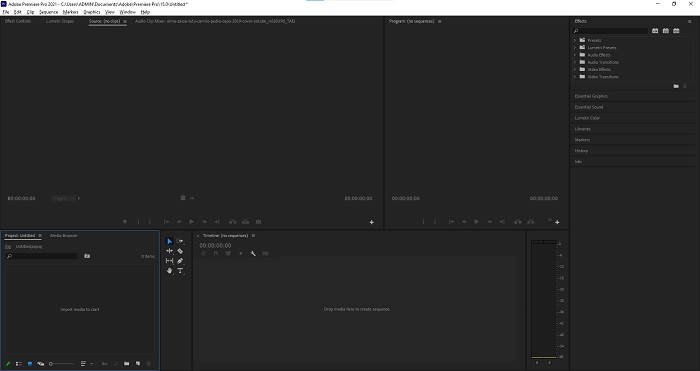
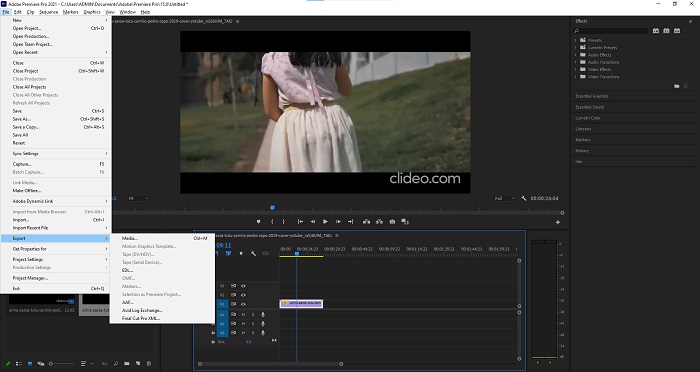
步骤 1: 打开 Adobe Premiere,然后点击界面左下角的 Import media to start(导入媒体以开始),将电脑中的视频文件导入软件,也可以直接将视频文件拖入。另一种方法是,在左上角找到 File(文件) 菜单选项卡,然后选择 Import(导入)。
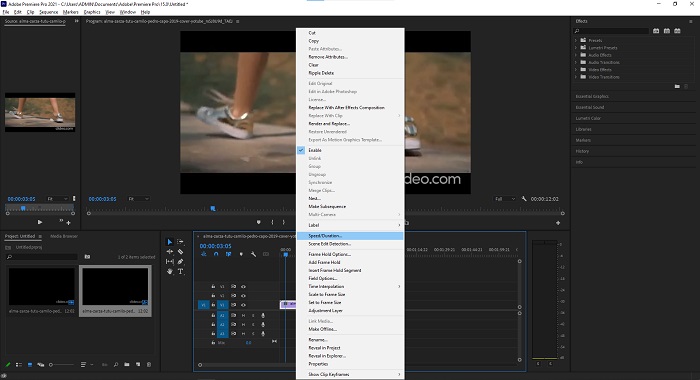
步骤 2: 双击导入好的文件,或直接将其拖入视频轨道。要调整视频文件的速度,在视频轨道上右键点击该视频文件,找到 Speed/Duration(速度/持续时间) 并点击。随后,通过将默认的 100% 正常速度调低,即可实现慢动作效果。
步骤 3: 要保存转换后的视频,点击左上角的 File(文件) 菜单选项卡,然后选择 Export(导出),再选择你希望视频文件转换成的输出格式。
第 2 部分。 如何使用 Video Converter Ultimate 离线制作慢动作视频
与工具繁多、界面复杂、对初学者来说较难上手的 Adobe Premiere Pro 不同,Video Converter Ultimate 是一款人人都能轻松使用的、非常友好的软件,同时还提供强大的视频编辑工具。其中一项特色功能 Video Speed Controller(视频变速控制器),可以在不到一分钟的转换时间内制作出高画质的慢动作视频。为了让你亲自体验这款能够真正帮你解决问题的实用软件,下面是你需要遵循的操作步骤:
步骤 1: 点击 Free Download(免费下载) 按钮下载 Video Converter Ultimate。下载完成后,在桌面上找到该程序并将其启动。
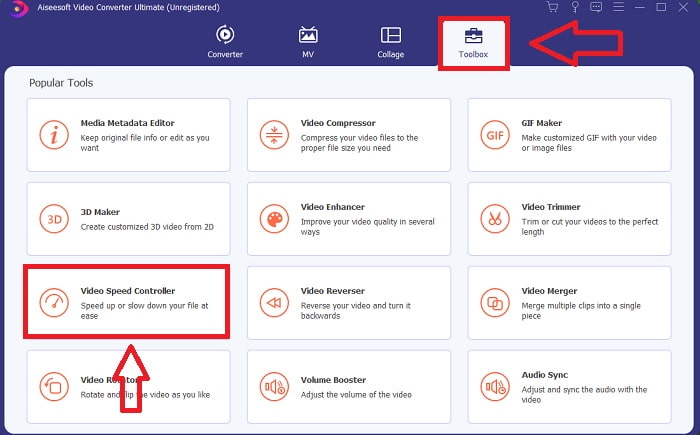
步骤 2: 安装完成后,你需要运行这款软件。首次运行时会显示程序的主界面。在界面中切换到 Toolbox(工具箱) 选项卡,然后选择 Video Speed Controller(视频变速控制器)。
步骤 3: 若要更改视频片段的播放速度,只需在添加文件时点击或拖动 + 按钮,从电脑中选取你的视频文件。
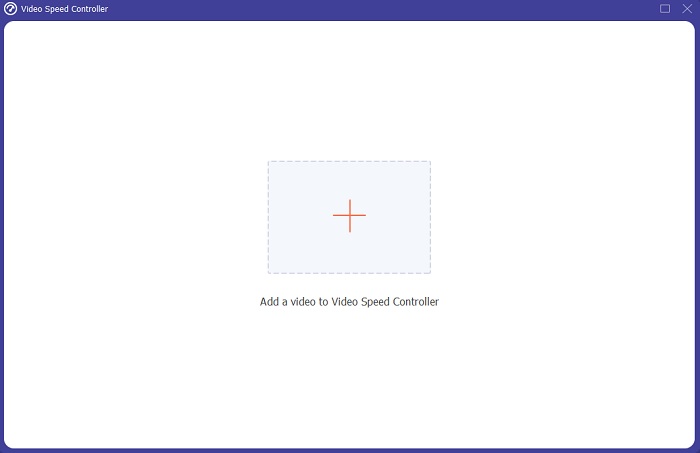
步骤 4: 选择你想要使用的变速倍数,通过调整播放速度来编辑你的视频片段,或将原本正常速度的视频制作成慢动作视频。
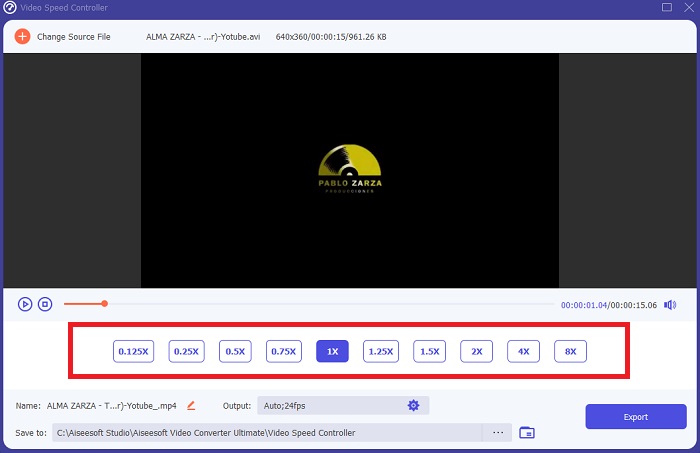
步骤 5: 当你调整好视频的播放速度后,文件就已经可以导出了。在导出之前,你可以通过调整分辨率、帧率等参数来改变输出质量。如果一切设定完毕,点击 Export(导出) 即可。
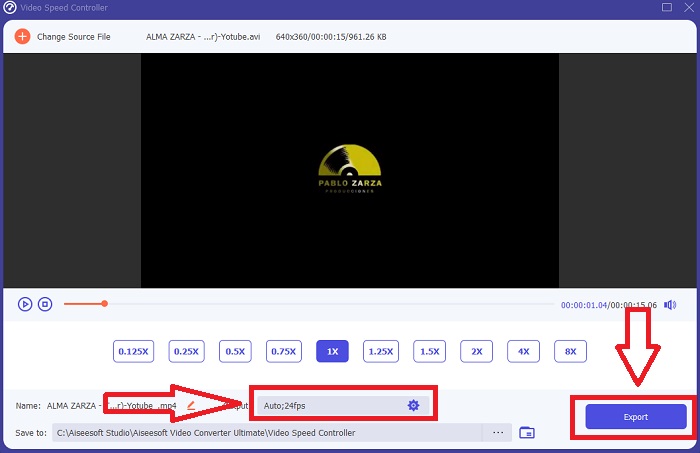
相关内容:
第 3 部分。 如何使用 Kapwing 在线制作慢动作视频
使用这款免费的在线视频加速器,你可以快速加快或放慢视频速度。即使没有太多视频剪辑经验,也能轻松制作出适合上传到 YouTube 或社交平台的慢动作(slo-mo)、延时(time-lapse)和超高速(hyperspeed)视频。上传一个视频或输入视频链接即可开始。除了 AVI 和 MP4,Kapwing 还支持 MP4、MOV 和 3PG 等视频格式。慢动作最低可以设置为 0.25 倍速,最高可达 4 倍速。在你阅读下面这份在线工具使用步骤的同时,不妨放松坐好。
步骤 1. 打开任意浏览器并搜索 Kapwing。在其页面界面上,你可以先点击 Get Started(开始使用)。也可以直接点击 Upload File(上传文件) 选择你的视频片段。另外,你还可以粘贴来自其他网站的视频链接,然后继续进行编辑。
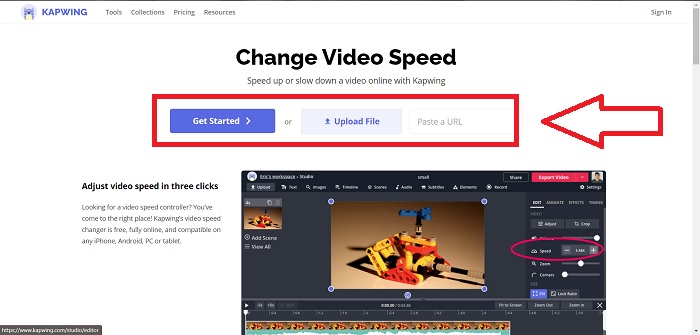
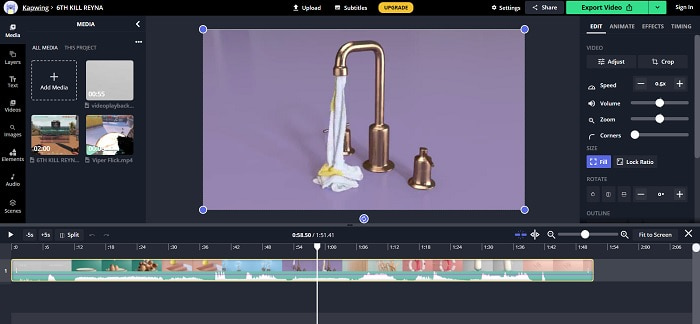
步骤 2. 点击时间轴上的视频,在编辑区域中找到 Speed(速度) 选项卡,通过点击减号(-)来实现慢动作。每点击一次,视频速度会以 0.25 的幅度降低。
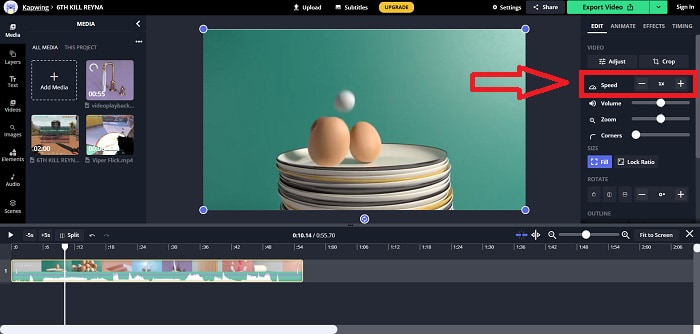
步骤 3. 要导出已转换好的视频,点击 Export Video(导出视频),然后将其保存到电脑中你想要的位置。
第 4 部分。有关在 Adobe Premiere 中制作慢动作视频的常见问题解答
Adobe Premiere Pro 支持哪些格式?
使用 Adobe Premiere Pro,您可以处理多种视频格式,例如 MP4、AVCHD/H.264/H.265、MPEG-1 和 MPEG-2、MOV、FLV 和 AVI。
60fps 适合慢动作吗?
影响视频整体观感的一个重要因素是其帧速率,这也会影响视频的逼真程度。这个想法与我们自然感知宇宙的方式有很强的联系。创建慢动作视频或录制视频游戏画面需要大于 30 fps 的帧速率。随着技术的进步,现在越来越多的智能手机能够以每秒 60 帧的速度录制视频。
如果 Adobe Premiere Pro 不工作怎么办?
Premiere Pro 首选项可以重置为其默认值以修复崩溃,这是 Adobe 经常推荐的。当您这样做时,您的偏好将被“破坏”。这会将您的设置恢复为原始出厂设置。您可以通过在启动 Premiere Pro 时按住 Alt 键来执行此操作。
结论
综上所述,我们了解到,无论 Adobe Premiere Pro 有多好,它都不能成为一些没有编辑背景的用户的推荐软件。我们建议使用 Video Converter Ultimate 其可访问的功能工具,可以修剪、剪切、放置过滤器、合并等。视频速度控制器中提供的有用工具之一是它可以制作慢动作视频或调整播放速度该视频。在线工具可能是比 Adobe Premiere Pro 更易于使用的平台。但是,它无法产生比 Video Converter Ultimate 更好的输出质量。
-
 6 个最佳 AVI 合并:如何在 Windows 和 Mac 上加入 AVI 视频文件
 当您想加入 AVI 视频以制作 DVD 时,您可以了解前 6 名最佳 AVI 加入者的功能,包括免费在线工具,以及文章中的桌面程序。
-
 [指南] 2 种从 Sony X70 加入 MXF 视频的终极方法
 如果您从 Sony X70 中拍摄了一些 MXF 视频,那么加入 MXF 文件的最佳方法是什么?以下是将视频与高质量相结合的 2 种有效方法。
-
 如何在线剪切和合并歌曲——您应该知道的 4 种最佳方法
 当您想在线剪切和合并歌曲以创建一段音乐时,您可以从文章中详细了解 4 种最佳在线工具来剪辑歌曲和合并文件。
