


 视频转换大师
 屏幕录影大师
 视频修复
视频修复如何在 Mac 上轻松更改 MOV 文件元数据
众所周知,MOV 是在 Apple 设备上进行视频播放和剪辑时理想使用的顶级格式之一。但 MOV 的独特之处在哪里?它支持一种专业人士常用的视频压缩方式。虽然 MOV 能在单个文件中存储多种元素,但标签也有可能出现混乱,从而引发问题。若要立即修复,就需要对其进行适当编辑,确保元数据正确无误。借助合适的工具,这项任务简直易如反掌。所以今天,我们将为你介绍几种可以立即编辑MOV 文件元数据的最佳方法。

第 1 部分。如何在 Mac 上使用 Ultimate Tag Editor 编辑 MOV 元数据
FVC Video Converter Ultimate 是解决元数据问题的一站式工具,在 Mac 和 Windows 上支持超过 1000+ 种格式。使用该工具,你可以立即删除、编辑或添加 MOV 文件中的元数据。更棒的是?你还能对 MOV 进行多种编辑操作,例如剪切、裁剪、合并、裁边等上千种功能,即使你不是专业剪辑人士也能轻松上手。能拥有这样一款工具非常令人惊喜,只需几次点击,你就能解锁更多强大功能。下面是我们为你准备的详细步骤说明,按照这些步骤即可成功编辑 MOV 文件的元数据。
步骤 1. 你可以通过点击下方的下载按钮,在 Mac 或 Windows 上获取这款 Ultimate 转换器。点击已下载的安装文件进入安装流程,然后点击立即开始,即可马上启动工具。
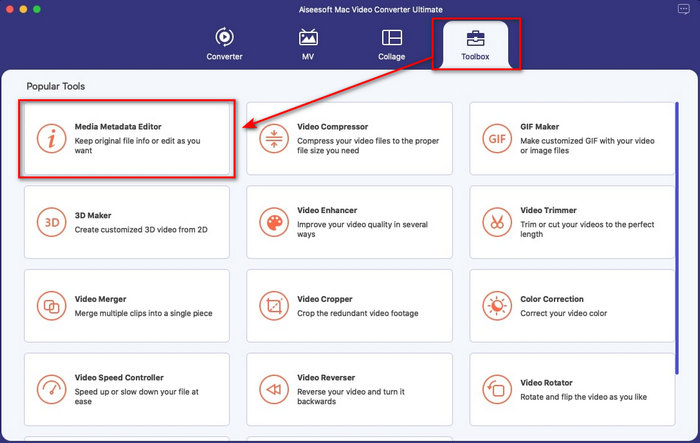
步骤 2. 工具的主界面会显示在屏幕上;前往工具箱栏目,并打开媒体元数据编辑器。
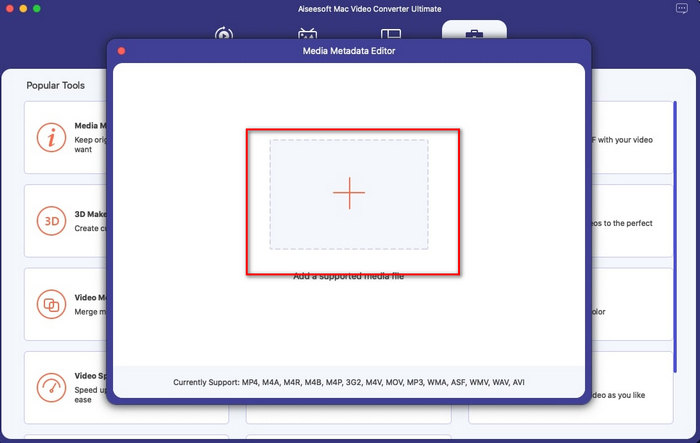
步骤 3. 打开编辑器后,会弹出一个小窗口;点击 + 按钮打开文件夹,找到你的文件,然后点击打开将其导入。
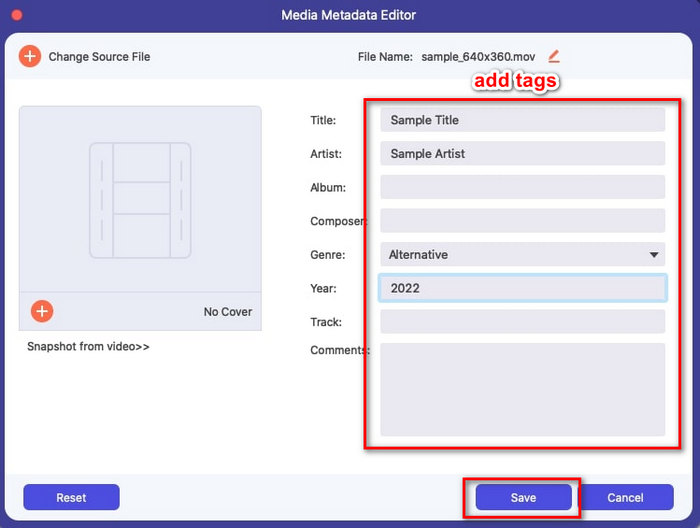
步骤 4. 现在,你就可以在文本框中为 MOV 文件添加、编辑或删除标签。如果已经全部完成,点击保存按钮。如此一来,你就已经快速完成了 MOV 文件元数据的编辑。
相关内容:
第 2 部分。更改 MOV 元数据的最佳 MOV 标签编辑器的 3 个
VLC媒体播放器
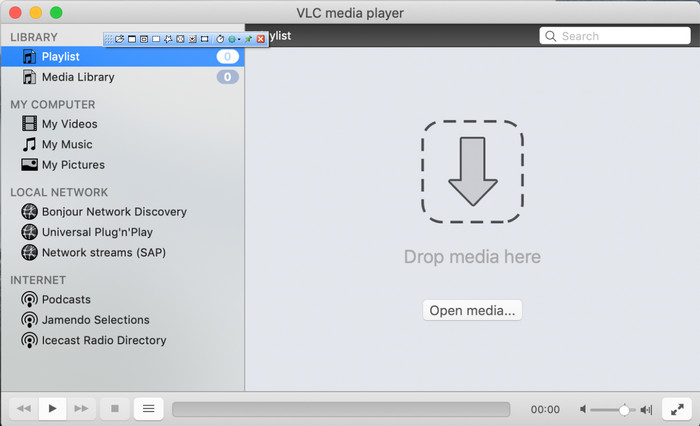
VLC Media Player 是一款在 Mac 和 Windows 上都很知名的媒体播放器。它不仅能播放多种视频格式,还可以修改媒体文件(如 MOV)的元数据。此外,如果你只是想查看文件的元数据,也可以轻松地通过它来实现。不过,与专门的元数据编辑器相比,它在这方面的功能并不算强大。但即便如此,依然可以通过这款播放器来编辑 MOV 文件的元数据。
步骤 1. 在 VLC 官方网站上下载该媒体播放器,然后打开。
步骤 2. 在键盘上按Command + I,屏幕会显示媒体信息窗口,你可以在其中添加或删除 MOV 文件的元数据。
步骤 3. 完成标签设置后,点击保存元数据。
的iTunes
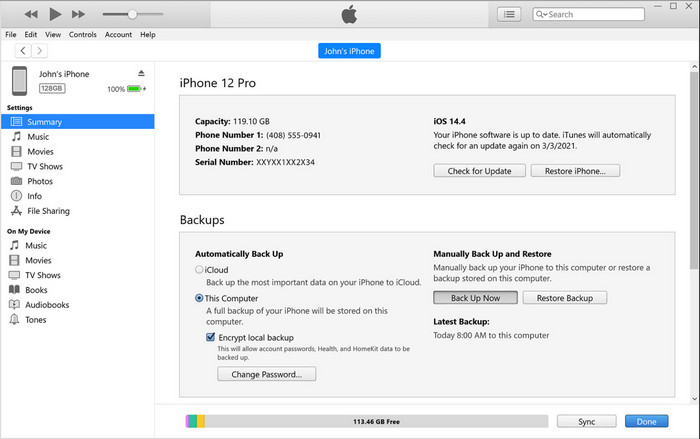
iTunes 是你在任何 Apple 设备上都能使用的最佳内置流媒体应用。它集成了多种功能,如音乐播放器以及用于音乐、电影、播客等内容的商店,并通过 DRM 保护,避免版权问题。尽管 iTunes 是一款出色的内置应用,但在元数据编辑领域,竞争非常激烈,以致 iTunes 并不算突出。不过我们仍然将其纳入考虑范围,因为它在 Mac 上同样可以修改 MOV 的元数据。
步骤 1. 打开 iTunes,然后将 MOV 文件导入资料库。
步骤 2. 右键点击你添加的 .mov 文件,选择显示简介(Get Info)。点击后,你会看到多个可以修改元数据的选项,如“详细信息”“插图”“歌词”“选项”“排序”“文件”等,根据你的需要进行调整。
步骤 3. 按好(OK)保存更改。
元Z
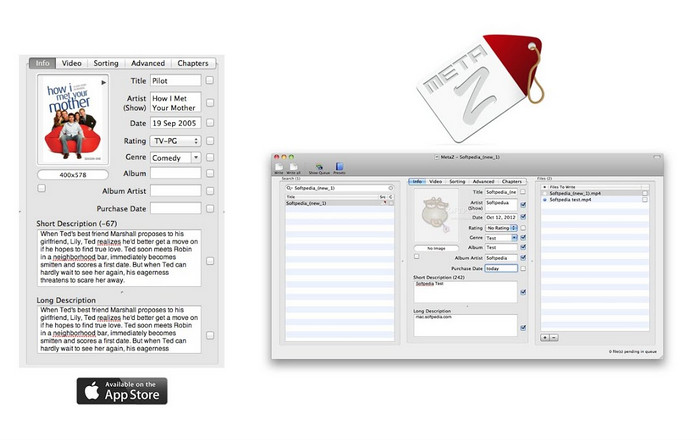
对于 macOS X,您可以免费下载 Metaz 以轻松更改文件的元数据。此元数据编辑器可以帮助您更改大多数格式的视频标签,例如 MOV。使用此应用程序,您可以轻松完成任务并在您的库中组织 MOV。但是,该应用程序最近发生了许多报告;用户在使用应用时会遇到很多麻烦的问题。即使可能会出现问题,它仍然是您可以在 Mac 上下载的最受欢迎的 MOV 元数据编辑器之一。
步骤 1. 在 Mac 上下载并启动该应用,接着屏幕上会显示工具界面的三个区域,分别用于添加文件、编辑标签和搜索标签。
步骤 2. 将 MOV 文件拖放到左侧区域;在其右侧你会看到,应用会根据标题自动为你的 MOV 文件搜索标签,但如果你愿意,也可以在中间区域对这些标签进行修改。
步骤 3. 点击Write,标签就会写入 MOV 文件中。
第 3 部分。有关 MOV 元数据编辑器的常见问题解答
我可以使用 QuickTime 元数据编辑器更改标签吗?
不幸的是,你不能,因为这个工具只能播放媒体格式、编辑视频和录制。但是您可以按照这些简单的步骤在 Quicktime 上自由查看文件的元数据。首先,在 Quicktime 上打开 MOV 文件并播放。您将在上部看到不同的选项;单击窗口,然后在其下单击查看检查器,然后屏幕上将显示一个新窗口,以查看有关 MOV 文件的少量信息。
更改 MOV 标签会影响质量吗?
幸运的是,它不会因为您调整了标签,而不是 MOV 文件的分辨率或质量。因此,如果您担心更改标签后视频分辨率可能会降低,我们会重复一遍;它不会。
在 MOV 上添加元数据会增加文件大小吗?
在任何文件中,一旦您在该文件上添加了元数据,您就会看到没有标签的文件和有标签的文件之间的区别。但是,这些标签没有文件内容那么大。因此,如果您在 MOV 上添加元数据,预计它会增加一点大小,因为您添加了有关视频文件的信息。
结论
现在我们已经介绍完如何修改 MOV 文件的元数据,接下来就轮到你来选择要使用哪种教程了。如果你想在 Mac 上下载免费的工具,可以使用 VLC 和 Metaz 来修复或编辑 MOV 的元数据。如果你不想另外下载安装软件,也可以直接使用 iTunes 来轻松编辑元数据。尽管这些工具都相当好用,但在 Mac 上,仍然没有哪一款元数据编辑工具能在强大功能方面与FVC Video Converter Ultimate 媲美。如果你仍在犹豫该使用哪款工具,我们强烈建议你在这类任务中选择这款 Ultimate 工具,因为它不仅操作简单,而且提供你在日常使用中可能需要的完整功能套装。
-
 什么是元数据:了解元数据的基本信息
 什么是元数据?这很重要吗?元数据的组成部分是什么?你有同样的问题吗?在本文中,您将了解有关元数据的基本信息。
-
 4 个最佳在线和离线元数据查看器 [2022 年更新]
 我可以检查文件的元数据吗?是的,您可以,在这篇文章的帮助下,我们将向您介绍您可以使用的不同元数据查看器。
-
 桌面上最受欢迎的 4 个 WMV 标签编辑器 [2022 年更新]
 需要可靠的 WMV 标签编辑器来编辑 WMV 标签?好吧,这篇文章提供了关于支持 WMV 的工具的足够知识。
