


 视频转换大师
 屏幕录影大师
 视频修复
视频修复轻松编辑和修复 MP4 元数据的简单技巧
你是想编辑或修复 MP4 元数据吗?幸运的是,这类问题只要用对工具,就能轻松解决。别再为此苦恼!今天我们将为你介绍一款最适合处理此类问题的工具。如果你正需要帮手,那你就来对地方了。认真读完这篇文章后,你在面对这个问题或将来再次遇到类似情况时,都不用再犹豫退缩。我们已经为你整理并完善了解决问题所需的关键信息,并用通俗易懂的方式呈现给每一位读者。

第 1 部分。在 Windows 和 Mac 上轻松编辑或修复 MP4 元数据的最佳标签编辑器
没有 FVC Video Converter 无法解决的具有挑战性的视频相关问题,例如修复 MP4 元数据。使用此工具,设置 MP4 的标签并不像您想象的那么难。除此之外,您还可以上传 1000 多种格式,并在需要时更改或修复它们的标签。很神奇吧?嗯,这就是我们选择终极工具来帮助您编辑标签的原因。
此外,用户往往会遇到其他与视频相关的问题,如剪切、修剪、裁剪、合并等。因此,用户倾向于在其驱动器上下载多个工具,这对存储不友好。如果您拥有此工具,则无需下载各种工具,因为您需要的所有主要和高级功能都已在工具箱中。如果此工具引起了您的注意,那么您可能想知道如何使用此工具轻松地编辑 MP4 文件上的元数据。
步骤 1. 在编辑或修复标签之前,你需要先将软件下载到电脑本地,并选择你使用的是 Windows 还是 Mac。按照安装向导完成安装,然后点击“立即开始”(Start Now)启动工具。
步骤 2. 打开工具箱,在可用功能列表中找到并点击媒体元数据编辑器。
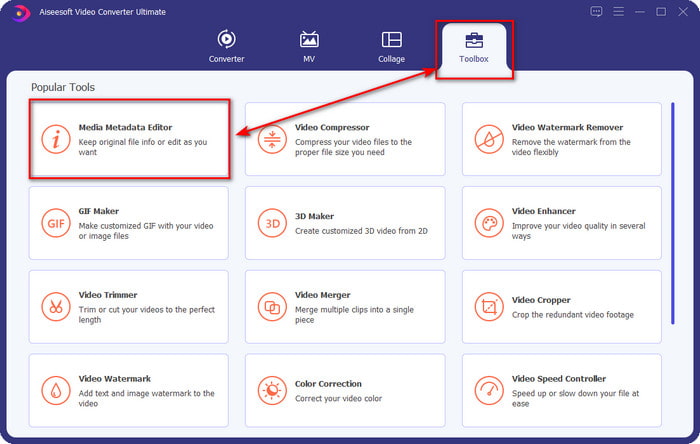
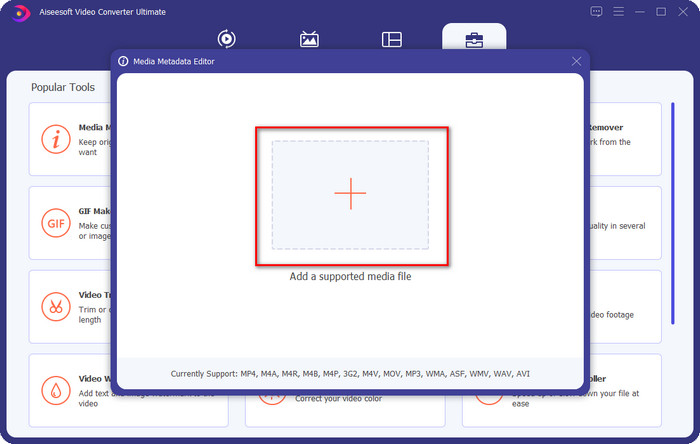
步骤 3. 点击+打开电脑文件夹,找到你想要修复或编辑元数据的 MP4 文件,然后点击打开继续。
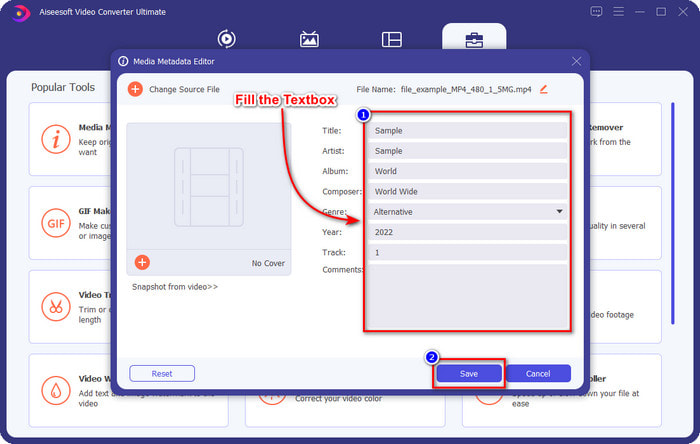
步骤 4. 通过修改显示在屏幕上的信息来修复标签,依次点击每个文本框并进行相应调整。完成并对修改结果满意后,点击保存按钮。这样一来,你就能在不到一分钟的时间内修复好 MP4 标签。
第 2 部分。修复无法在桌面上打开的 MP4 视频文件的原因和解决方案
尽管大部分软件,无论是内置的还是第三方的,都支持MP4,但还是会出现一些问题,导致打不开。但是您无法打开 MP4 文件的常见原因是什么,修复损坏的 MP4 元数据是否可以解决此问题?如果您不知道我们在说什么,请继续阅读以了解解决此问题的原因和解决方案。
第一个原因:不支持文件扩展名或编解码器
MP4 的扩展名不仅是 .mp4,其文件扩展名还可以是 .m4a、.m4p、.m4b、.m4r 和 .m4v。尽管格式结构与 MP4 相同,但某些软件无法将其识别为 MP4,因此您无法打开它并收到错误消息。此外,文件名是您需要考虑的唯一问题;编解码器是 MP4 文件的一部分。 MP4 编码器对视频使用 MPEG-4 或 H.264,但音频使用不同的编解码器,如 AAC 和 AC3。尽管这获得了广泛的支持,但某些软件不支持上述格式。
第二个原因:下载 MP4 文件被中断
如果下载被中断,则文件可能无法播放。用户在网络上下载 MP4 而网络不稳定或意外电力短缺时,通常会遇到这种情况。一些 MP4 文件可以打开并播放,但由于文件不完整,无法播放整个视频。如果您想欣赏它,修复完成下载是必不可少的,如果文件上没有标签,如果您要遵循第 1 部分,您可以轻松地在 Windows 或 Mac 上编辑 MP4 标签。
第三个原因:重要数据损坏和损坏
碎了的玻璃,想用也用不了;损坏或损坏的 MP4 文件也是如此。您不能使用损坏的 MP4,因为文件已丢失。即使您下载第三方播放器来观看,文件也不会打开,因为它已损坏或损坏。在您的屏幕上,您将收到一条弹出消息或通知,说明文件已损坏并且来自播放器的错误。但是您可以确定文件是否损坏或损坏,您可以在属性中检查它,看看文件大小是否变小,如果有重复,则比较原始文件。然而,损坏的文件或损坏的文件通常文件大小较小。
以上三个原因是您的问题之一吗?嗯,一次处理所有这些是很有挑战性的。下载、访问和尝试不同的解决方案会占用您大量的时间。我们无需阅读另一篇关于如何编辑 MP4 标签和解决所有这些问题的文章,而是结合解决方案来帮助您提高工作效率。阅读以下解决方案,了解有关修复无法在您的设备上打开的视频的更多信息。
第一种解决方案:将文件转换为可播放格式
使用我们上面提到的标签编辑器,您可以使用此软件修复 MP4 的兼容性,使其在不同的媒体软件上可播放或可编辑,无论您使用的是 Windows 还是 Mac。按照以下指示的步骤将 MP4 文件转换为可播放的格式。但在我们开始之前,您必须按照第 1 部分关于下载和安装的第 1 步,然后继续执行以下步骤。
步骤 1. 启动工具后,点击+按钮找到你想要转换的 MP4 文件。选中该文件后,点击打开继续。请记住,你可以一次性添加任意数量的 MP4 文件,因为该工具支持批量转换;不妨尝试同时添加多个文件。
步骤 2. 在全部转换为中选择你想要的输出格式,工具提供了 1000 多种视频和音频格式可选,包含不同的分辨率、质量和编码器,可根据需要选择其一。
步骤 3. 若要将 MP4 文件转换成你所选的格式,点击全部转换即可。
第二种解决方案:在 Web 上重新下载文件
如果下载的 MP4 文件不完整,您最好在同一网站上重新下载。但这一次,请确保您的互联网稳定,并检查是否会出现可能导致相同问题的电力短缺。这个解决方案没什么好说的,但完全下载它。
第三种解决方案:下载第三方媒体播放器
VLC 可以帮助您播放无法播放的格式,因为它支持多种格式,并且可以根据需要帮助您修复 MP4 文件的元数据。虽然这个工具很棒,但今天,我们将介绍 VLC 的最佳替代品:蓝光播放器。该媒体播放器支持与 VLC 相同范围甚至更多的媒体格式,并且其皮肤或 GUI 可自定义以使其外观优雅。如果需要,您可以从视频中截取屏幕截图。无论是什么格式,这都是完美的媒体播放器,您可以使用它来超越 VLC 为您提供的功能。如果您需要有关使用此 MP4 播放器的指南,可以单击此链接并了解有关除 VLC 之外您可以使用的其他替代方案的更多信息。
第 3 部分。有关修复 MP4 元数据的常见问题解答
MP4 仍然是标准视频格式吗?
是的,它仍然被认为是许多消费者使用的标准视频格式。尽管它是标准,但某些格式可以进行更好的压缩并且比 MP4 具有更好的质量。但总的来说,它仍然是下载和流媒体的主要视频格式。
如何使我的 MP4 压缩以使其更小?
出于多种原因,有必要将 MP4 文件的体积压得更小。如果你还没有专门的MP4 压缩工具,可以点击该链接阅读这篇文章。
我可以扩大 MP4 的音量吗?
当然可以!借助这篇文章,你将学会三种简单易行的方法来提高 MP4 音量。
结论
FVC Video Converter Ultimate不仅能教你如何编辑 MP4 标签并修复 MP4 文件中的问题,它还能实现许多令人惊叹的功能,实在让人难以置信。借助这款工具,你可以完成许多有趣的操作,比如剪辑编辑、视频合并、色彩校正、变速控制等诸多功能。那么还在等什么?赶快把这款工具下载到你的电脑中,尽情体验它所带来的全部功能与特性吧。
-
 什么是元数据:了解元数据的基本信息
 什么是元数据?这很重要吗?元数据的组成部分是什么?你有同样的问题吗?在本文中,您将了解有关元数据的基本信息。
-
 4 个最佳在线和离线元数据查看器 [2022 年更新]
 我可以检查文件的元数据吗?是的,您可以,在这篇文章的帮助下,我们将向您介绍您可以使用的不同元数据查看器。
-
 6 最受欢迎的选择 Snapchat 上的 Snapchat 动画 Snapchat 过滤器
 想知道在 Snapchat 视频上添加过滤器的最佳方法吗?好吧,您可以单击它并了解可用于应用于 Snapchat 视频的不同过滤器。
