


 视频转换大师
 屏幕录影大师
 视频修复
视频修复在 iPhone、Android 和计算机上在线为照片添加背景的 3 种方法
在编辑图片时,你经常需要去除原有背景并给它添加一个新的背景。对于带透明背景的图片,你可以很容易地通过图像编辑器更换背景。而在大多数情况下,你必须先移除当前背景,然后再给照片添加一个新的背景。你是否正在寻找一款优秀的图片编辑应用来给照片添加背景?
这篇文章讲述了为照片添加背景的 3 种有效方法。无论您是想直接在线为照片添加白色背景、为 iPhone 上的照片添加背景,还是在 Android 设备上更改图像背景,您都可以按照特定的方法进行操作。

第 1 部分。 如何免费为在线照片添加背景
为了快速给照片添加背景,你可以先尝试一些在线图像编辑器。在这里,我们强烈推荐你使用操作简单的免费在线背景消除工具,来移除图片的原始背景并为其添加不同的背景。这款免费的图片背景更换工具支持所有常用的图片格式,如 JPG、PNG、GIF 等。它为你提供了一种简单的方法来给照片添加白色背景,或者用另一张图片替换当前背景。
步骤 1. 打开 Chrome、Safari、Yahoo、IE 或 Firefox 等网页浏览器,进入这个免费的照片背景更换网站。当你进入页面后,只需点击上传人像按钮,选择并添加你的照片,以便后续编辑。

步骤 2. 借助先进的 AI 技术,它会自动选中你上传图片中的主体。然后你可以使用保留或擦除功能进行进一步编辑。
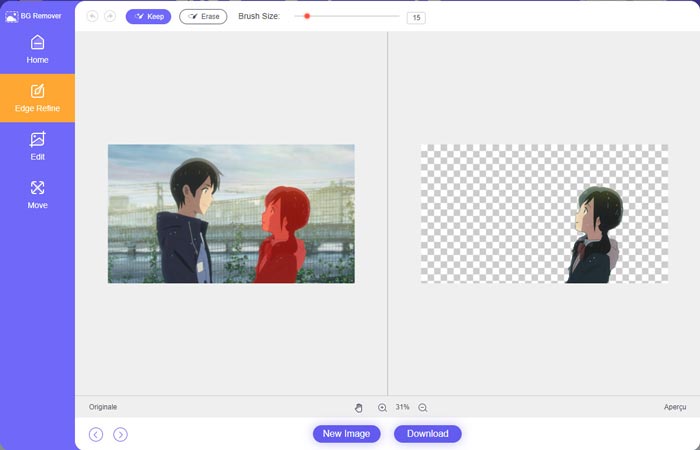
步骤 3. 点击左侧的编辑选项,然后你就可以选择更换背景颜色,或给照片添加背景。在此步骤中,你还可以依靠其裁剪功能,根据需要自定义图片尺寸。
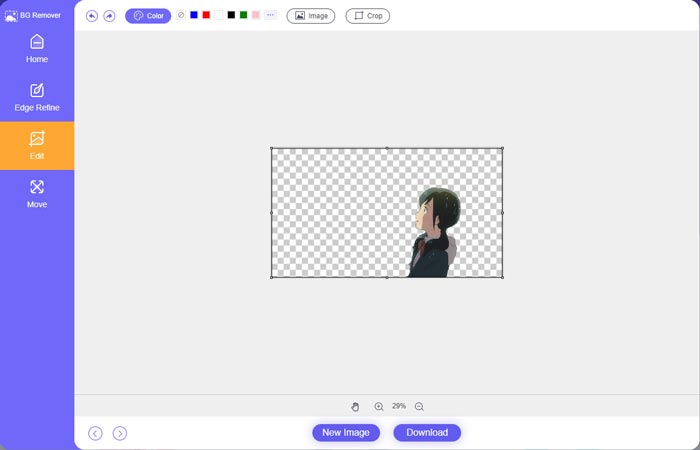
步骤 4. 在为照片添加合适的背景后,你可以点击下载按钮,将其保存到电脑上。编辑后的图片文件默认会以 PNG 格式保存。
第 2 部分。如何使用 Adobe Photoshop 为照片添加背景
Adobe Photoshop 是最著名的图像编辑器之一,它具有许多功能供您编辑图片、自定义效果和执行其他操作。如果您的计算机上安装了 Photoshop,则可以选择在 Photoshop 中为照片添加背景。
步骤 1. 在电脑上打开 Photoshop 软件,并将你的照片添加进去。你可以从 Adobe 官方网站免费下载最新版本的 Photoshop。请注意,Adobe 仅为 Photoshop 提供 7 天的免费试用期。
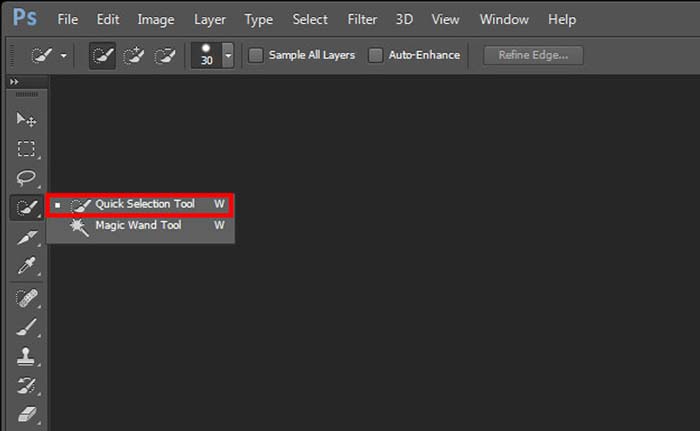
步骤 2. 当照片加载到 Photoshop 后,你可以点击左侧工具箱中的快速选择工具或魔棒工具图标,选中你想要更换的背景。
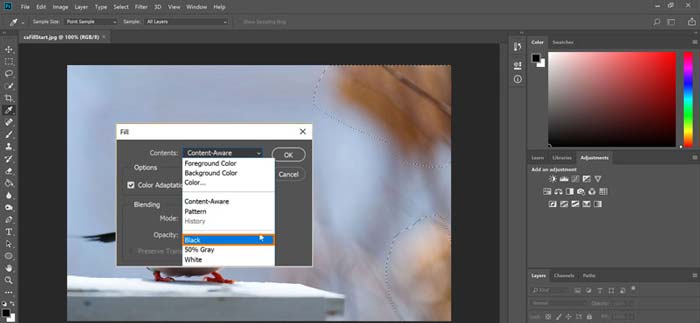
步骤 3. 选中照片背景后,你可以在其上点击右键并选择填充选项。现在你可以直接给照片添加白色背景,或者将背景更改为黑色、蓝色、灰色或其他你需要的颜色。
步骤 4. 如果你想添加一张新的图片作为背景,则需要先删除选中的背景。你可以按键盘上的 Delete 键来移除当前背景。然后将新的图片文件添加到 Photoshop 中,并将其图层拖到背景图层下方。通过这种方式,你就可以轻松地用新图片替换原有背景。
步骤 5. 在 Photoshop 中为照片添加背景后,你可以点击顶部的“文件”菜单,然后从下拉列表中选择“另存为”选项。为该照片选择合适的图片格式,并将其保存到电脑上。
第 3 部分。 如何在 iPhone 和 Android 手机上为照片添加背景
当您想为 iPhone、iPad 或 Android 手机上的照片添加背景时,您需要找到一个好的图像背景编辑器应用程序。
LightX 是一款功能全面的照片编辑应用,适用于 iOS 和 Android 用户。它提供了一种方便的方式,让你可以直接在手机上去除不需要的背景、为照片添加新背景、添加各种特效、制作高质量自拍等。LightX 应用内还设计了许多高级图像编辑工具,例如颜色混合、自定义照片饱和度、对比度、色调、曲线等。你可以从 App Store 或 Google Play 商店下载它。
步骤 1. 在你的 iPhone、iPad 或 Android 手机上安装并打开 LightX 应用。授予此应用访问设备照片的权限。将照片添加到应用中,以便进一步进行背景编辑。
步骤 2. 若要移除当前照片背景并将其更换为其他内容,你可以向左滑动来调出许多不同选项。在创意分类下,你可以选择抠图功能来给照片添加背景。此时,你需要手动选中主体并擦除原有背景。
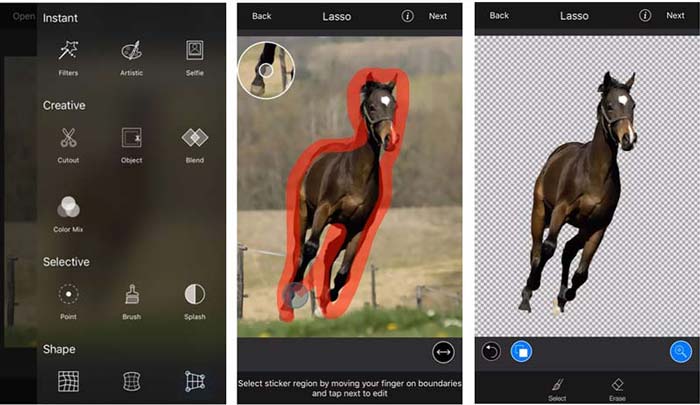
步骤 3. 移除背景后,你可以点击右上角的“下一步”继续。然后可使用其裁剪功能调整图片尺寸。点击完成确认操作。之后,你可以点击底部的背景图片来为照片添加不同的背景。你可以根据需要自由调节新背景的效果。
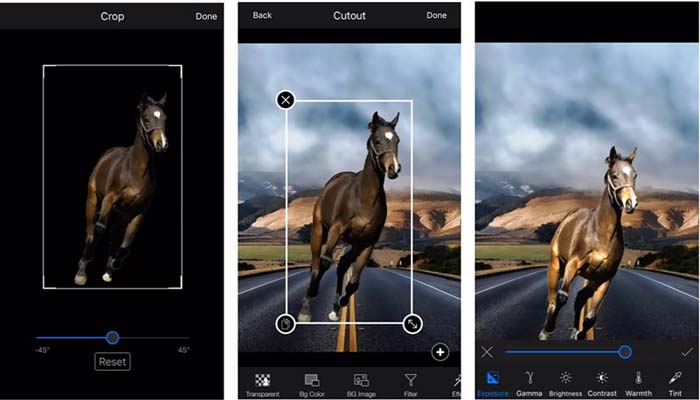
无论您使用的是 iOS 还是 Android 设备,您都可以按照类似的步骤使用 LightX 应用程序为照片添加背景。请注意,作为iOS用户,您需要为此后台添加应用程序支付$3.99。如果您是 Android 用户,您可以从 Google Play 商店安装它。要升级到高级版本,您需要支付相同的价格。
相关内容:
第 4 部分。 如何为照片添加背景的常见问题解答
如何在我的 Mac 上为照片添加不同的背景?
你可以在 Mac 上使用前两种方法来轻松更改照片背景。除了推荐的免费在线背景消除工具和 Adobe Photoshop 外,你还可以借助其他一些图像编辑器,为你的照片添加新的背景。
如何更改 iPhone 上的壁纸?
iOS 提供了一种简单的方法来更改 iPhone 或 iPad 上的壁纸。您可以前往“设置”应用,点击“壁纸”选项,然后点击“选择新壁纸”。
我可以在 iPhone 上为实时照片添加背景吗?
不可以。iPhone 没有为您提供直接更改实时照片背景的方法。您只能裁剪、应用滤镜、调整效果以及将其更改为静止图像。
结论
这篇文章分享了 3 种为照片添加背景的有用方法。当您需要删除原始照片背景并为其添加新背景时,您可以选择您喜欢的图像编辑器来执行此操作。
-
 使用最佳 GIF 编辑器在 GIF 上添加过滤器的前 3 种方法 [收藏夹]
 您想知道如何为 GIF 添加过滤器以使其更好吗?在此博客中,您将轻松学习为 GIF 添加过滤器的不同技术。
-
 在线和离线向 GIF 添加水印的 3 种最简单的方法
 如果您正确使用正确的工具,向 GIF 中添加水印可以像 1-2-3 一样简单。市场上的工具过于广泛,但我们将介绍您可以依赖的三种工具。
-
 将图像更改为动画 GIF 的 5 种最佳方法 [2022 年更新]
 需要将图像转换为 GIF 吗?本文将提供我们可以在市场上找到的五种最佳转换器。因此,让我们通过阅读本文找出这些工具。
