


 视频转换大师
 屏幕录影大师
 视频修复
视频修复
 安全下载
安全下载您可以在 Windows 和 Mac 上使用的最佳 Zoom 会议记录器
在严格执行社交距离管控的情况下,人们开始决定使用软件来沟通交流,并通过 Zoom 等平台参加在线视频会议。我们大多数人已经用它来进行商务会议、授课、研讨会等各种活动,因为目前无法面对面开会。的确,在会议过程中,我们不可能把所有内容都记在脑子里,尤其是在没有把一切都记笔记的情况下。有时一些细节我们会忘了写下来。与其低头记笔记,不如试着用录音或录屏工具把会议录下来,把注意力集中在会议本身上,这比边听边记更方便。如果你还不知道该用哪一款Zoom 录制工具,本文将为你评测几款顶级屏幕录制软件,让你可以轻松完整地记录每一场 Zoom 会议。

第 1 部分。适用于 Windows 和 Mac 的 4 款最佳 Zoom 会议记录器
1. Aisee 屏幕录像机
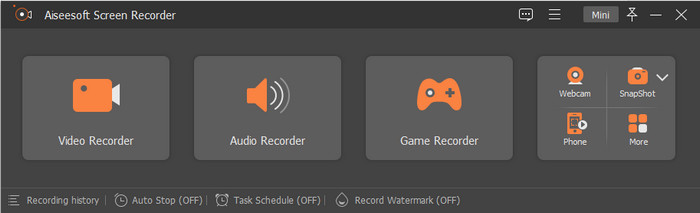
我们要介绍的第一款,是在 Windows 和 Mac 上都可以作为 Zoom 自带录制功能最佳替代品的工具——Aiseesoft Screen Recorder(爱思软屏幕录制)。它允许你在 Zoom 上录制任何会议,不受 Zoom 自带录制功能的种种限制。使用这款录制软件,你可以确保导出录制文件的过程在一分钟以内完成,因为它支持超高速导出。此外,你还能根据需要自定义输出文件格式,而不像 Zoom 那样只支持 MP4。并且,它可以以极其清晰的画面与音频质量记录会议内容。
除了它的录制功能,如果需要,您还可以在屏幕上绘制一些注释。您还可以设置会议时间的计时器,以便在您想要的确切时间自动停止会议;使用热键,您可以在论坛上轻松快速拍摄。将所有这些都放在一个记录器中是不是很神奇?好吧,还有更多我们没有提到的;如果您想了解它具有的其他功能和特性,以下是您购买后可以拥有的惊人物品列表。

Aiseesoft屏幕录像机
4,988,518++ 次下载- 只需点击几下,即可轻松录制视频、音频和游戏。
- 如果需要,您可以使用相机和麦克风进行录制。
- 在不到一分钟的时间内将录音导出到此处。
- 必须期待高质量的视频和清晰的音频录制。
- 可在 Windows 和 Mac 操作系统上下载。
2. VLC媒体播放器
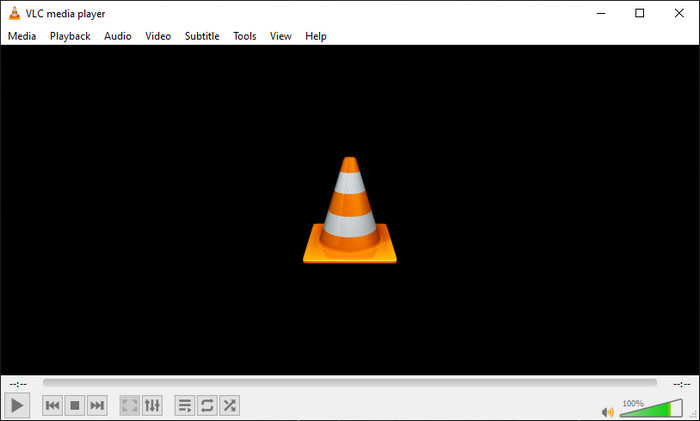
使用像 VLC Media Player 这样的 Zoom 录屏工具,你可以在没有时间限制的情况下自由进行屏幕录制。VLC 作为一款媒体播放器,以顶级播放器之一而闻名,但实际上它还提供包括录制在内的其他功能。尽管这款软件能进行屏幕录制,但严格来说还算不上专业级录屏工具,一些功能,比如标注(注释)、只录制特定目标区域等,它并不支持。
尽管我们在使用它时提到了两个缺点,但还有更多可以让您在将其用作录音机时三思而后行。与其他录像机不同,该工具支持 15 和 30 等低 FPS,略低于其他支持高达 60 FPS 或更高的屏幕录像机。但如果您有媒体播放器或想尝试一下,您可能需要查看他们的官方网站以下载官方软件。
3.分享X
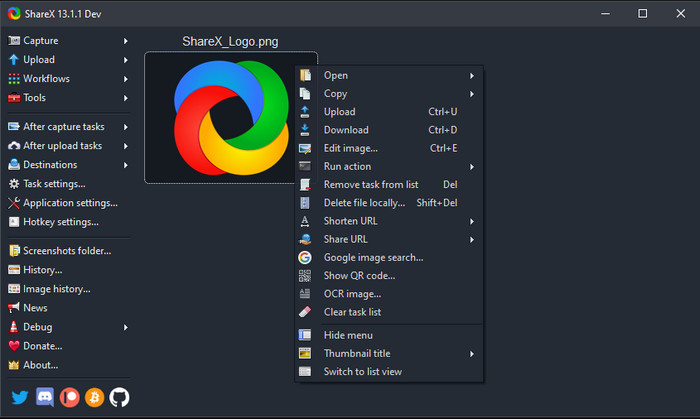
在 Windows 11、10、8.1 和 7 系统上,你可以使用 ShareX 来进行 Zoom 会议的屏幕录制。这是一款开源录屏软件,你可以完全免费使用,无需支付任何费用。借助它,你可以实现多种录制模式,包括全屏录制、选定区域录制、滚动录制等。除此之外,你还可以将录制内容通过该软件一键分享至各类云存储服务或社交媒体网站。
尽管是免费的屏幕录像机,但学习如何使用它比其他录像机更棘手。由于其无组织的界面,您在使用它时可能会遇到很多问题。因此,如果您想在开会时使用该软件进行录音,则需要花一个小时或更长时间来学习如何使用它。尽管如此,该软件对于每个 Windows 用户来说都非常强大且非常棒,但遗憾的是,如果您是 Mac 用户,则该软件在您的系统上不可用。
4. QuickTime 播放器
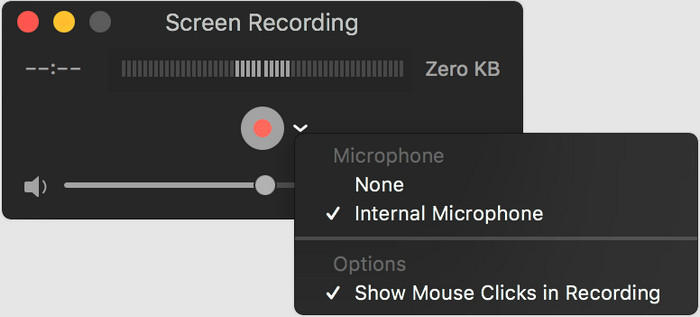
由于 ShareX 不支持 Mac,那么在 Mac 操作系统上,你应该用什么来作为带视频的 Zoom 录音录屏工具呢?如果你不想额外下载软件,那就可以使用 QuickTime Player。与前面提到的四款工具(包括 Zoom 自身)不同,你无需下载 QuickTime,因为它是系统自带程序,这意味着可以为你的电脑节省大量存储空间。而且,你也不必等待下载和安装完成,可以立即打开就用。
如果您将内置播放器用作屏幕录像机,则存在一些缺点。一个重要的缺点是它不如您可以在桌面上下载的其他专用屏幕录像机。如果您需要添加声音,内置播放器可以在使用内置内置麦克风的同时进行最基本的录音。但是对于 Mac 用户,这可能会帮助您解决您遇到的屏幕录制问题。
相关内容:
部分 2. 关于如何使用 Zoom 内置屏幕录像机的提示
Zoom 已成为一种流行的网络会议平台,您可以使用它与人、群组或组织进行虚拟交流。使用这个平台,加入论坛不需要账号,但是如果论坛的主办方有限制,你需要有账号才能访问。此外,如果您是参与者,则在进行录制之前,您需要获得会议主持人的批准才能进行。但是如果你是主持人,如果你使用的是桌面版,你可以免费录制;对于 Android 和 iOS,您需要支付订阅费。因此,如果您想使用缩放通话录音,您可以阅读以下详细信息以了解更多信息。
优点
- 它几乎可以不受限制地免费录制会议。
- 适用于 Windows、Mac、Linux、Android 和 iOS 等附近设备。
- 它支持多种功能,例如会议内聊天、屏幕共享、分组讨论和录音。
缺点
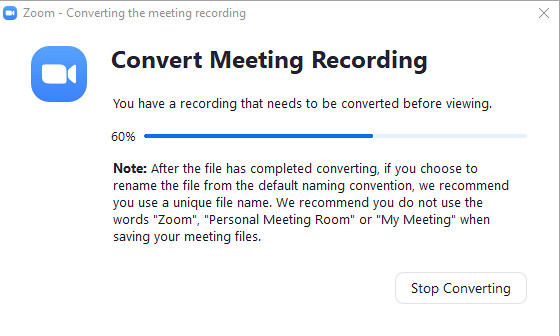
- 中断转换屏幕录制的过程可能会损坏或无法播放。
- 导出录音可能需要将近一个小时或更长时间,尤其是在会议时间很长的情况下。
- 转换过程失败的可能性很高,因此您需要手动导出文件。
步骤 1. 登录 Zoom 后台(网页端)之后,先创建会议。
步骤 2. 然后点击 Record(录制) 开始录制。在主持人界面的左上角,你会看到“正在录制”的指示,说明录制已开启。与会者端的左上角也会看到同样的提示。
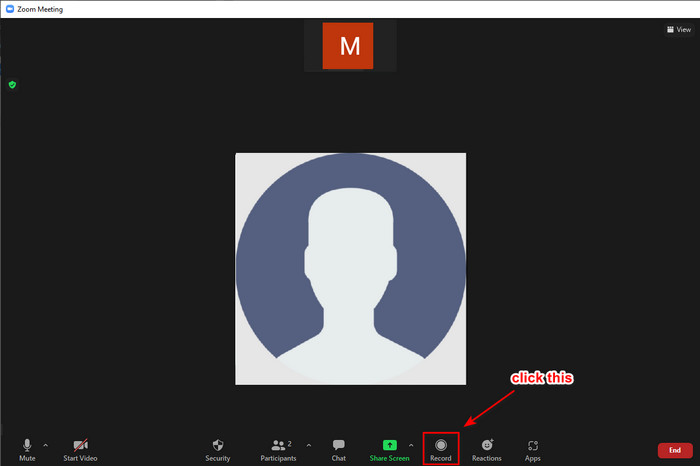
步骤 3. 当你结束会议时,录制会自动停止。等待转换过程完成后,文件会保存到指定的文件夹中;你可以在 Windows 的文件资源管理器或 Mac 的 Finder 中进行查找。
虽然可以自由使用 Zoom 的录制能力,但还是有一定的局限性。为了让我们更容易理解这些是什么,我们使用项目符号列出其所有屏幕录像机的规定。
◆ 不能单独录制当前发言人、与会者显示和共享屏幕。
◆ 不能将录音中的语音转换成文字,称为音频转录。
◆ 使用Android 和iOS 版本时无法录制会议。
◆ 录屏需经主持人同意。
第 3 部分。 关于 Zoom Recorder 的常见问题解答
导出缩放记录有水印吗?
如果您担心导出的录音,如果它有水印,我们会说它没有任何水印。但是,如果需要,您可以在其上设置添加水印。通过转到会议类别,您可以在将录音导出到 Zoom 之前启用或禁用录音上的水印。
为什么在 Zoom 上处理我的录音需要这么长时间?
将录音转换为文件需要一些时间,尤其是如果您将 Zoom 用作录像机。因此,录制后,预计您将需要等待很长时间才能导出屏幕录制并保存到驱动器。但是,如果您录制了很长时间的录音,这可能就是在 Zoom 上导出录音需要时间的原因。
Zoom 上的录制有什么限制吗?
到目前为止,只要您的驱动器上有足够的空间,您就可以进行屏幕录制。如果您的驱动器或存储空间不足,录制将自动停止。您可以删除一些文件或将媒体文件传输到其他云存储,例如 iCloud 和 Google Drive。
结论
随着您对阅读本文的专注,您现在有了可以使用的最佳变焦记录仪的想法。事实上,屏幕录像机具有不同的特性和功能,可以帮助您并利用它们的优势来更好地录制。
尽管这些工具彼此不同,我们仍然可以看到,Aiseesoft Screen Recorder 能够完整记录你会议中的一切内容,无论是全屏录制还是仅录制选定区域。不过,你是否知道,这款软件还有许多本文尚未提及的功能与特色?如果你想了解更多,就把它下载到电脑上亲自体验一下吧。
-
 Android / iOS / Windows / Mac上的5种最佳隐藏屏幕录像机
 当您需要秘密记录设备的屏幕时,以下是本文中Windows,Mac,iPhone和Android设备上的5种最佳秘密屏幕记录器。
-
 首次亮相屏幕录像机–终极评测和最佳选择
 NCH首次亮相视频捕获和屏幕录像机是捕获任何发送到计算机屏幕的视频(包括鼠标移动)的绝佳工具。
-
 4个最佳的免费网络启动记录器,以捕获屏幕视频
 是否在寻找无需花一分钱就能在桌面上录制屏幕上活动的最佳方法?这是4种最常用的免费网络启动记录器。
