


 视频转换大师
 屏幕录影大师
 视频修复
视频修复
 安全下载
安全下载6 个压缩 MOV 文件大小的工具:免费且易于使用
MOV 是一种由 Apple 开发的流行视频格式,可同时存储视频和音频数据,也常被称为 QuickTime 视频格式。用户最常在 Mac 设备上接触到它,不过当前的 Windows 操作系统也已经兼容该格式。MOV 格式可以为我们提供高质量的视频,但如果存储过多 MOV 视频,就会给存储空间带来很大压力。当我们需要在不同设备或平台之间传输视频时,会发现很多聊天应用和社交网站对附件大小有限制,从而导致发送失败。因此,在开始之前,我们需要先将 MOV 压缩 到合适的大小。在这一过程中,工具的选择至关重要。一款优秀的压缩工具可以在不损失画质的前提下,有效减小文件体积。接下来我们将挑选出 6 款适合的视频压缩工具,其中包括 3 款桌面程序和 3 个在线网站。继续往下看,了解哪一款最适合你。每个工具都会配有详细的分步使用指南。

第 1 部分:如何在 Win/Mac 上压缩 MOV
FVC Video Converter Ultimate
我们先从压缩 .mov 最好用、最简单的方法开始——FVC 免费视频压缩器。该平台支持上传 1000 多种格式,当然也包括 MOV,我们可以在工具箱中轻松找到“视频压缩器”功能。我们喜欢这个平台的一个重要原因是:它允许你自定义压缩后文件的大小,因此可以轻松确保压缩后的视频满足特定平台的大小限制。它还支持调整视频的比特率、分辨率和时长。如果你对现有视频的长度或色彩不满意,也可以回到此软件的主界面,按需对其进行编辑。
以下是使用 FVC Video Converter Ultimate 压缩 MOV 文件的方法。
步骤 1: 在个人电脑上下载并安装 FVC Video Converter Ultimate。启动软件并进入主界面后,选择“工具箱”选项卡。在所有选项中找到“视频压缩器”。你也可以通过搜索栏快速定位。
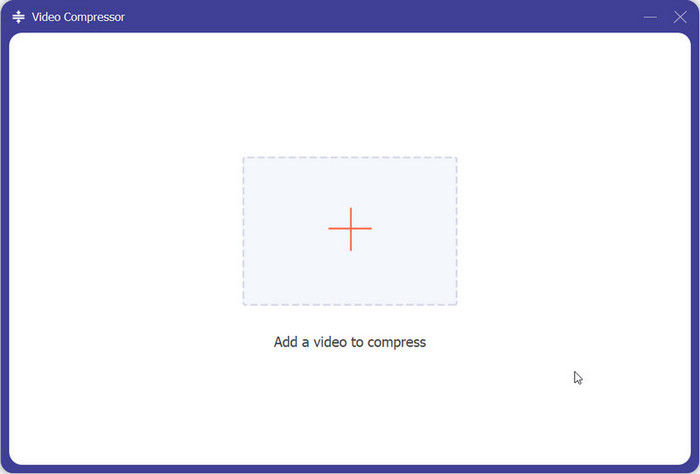
步骤 2: 打开 视频压缩器,点击界面中央的添加图标。然后上传你准备好的 MOV 文件。
步骤 3: 在“大小”选项下设置目标文件大小。这里还提供更多选项供你调整视频质量。最后点击 压缩。
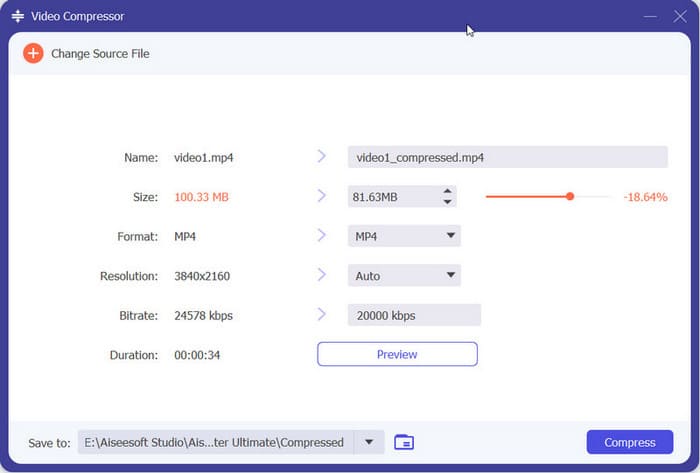
FVC Video Converter Ultimate 使用起来非常简单,所有 MOV 文件压缩步骤只需三步即可完成。它能够精确设置输出文件的大小,非常实用,系统还会计算文件的压缩百分比。不过,该平台只提供五次免费试用机会。免费试用结束后,我们必须订阅才能继续处理文件。
手刹
如果您正在寻找一款完全免费的桌面 MOV 压缩工具,不妨试试 Handbrake。它是一款开源工具,可用于编辑、压缩和转换视频,可在 Windows、Mac 和 Linux 系统上使用。
以下是使用 Handbrake 免费压缩 MOV 文件的方法。
步骤 1: 从官方网站下载并安装 HandBrake。启动软件后,点击 File > Open > Open Source(文件 > 打开 > 打开源文件),选择你想压缩的 MOV 视频。
步骤 2: HandBrake 会默认将输出格式设置为 MP4。然后进入 Dimension(尺寸) 选项,修改 Storage Size(存储大小)。

步骤 3: 转到 Video(视频) 选项卡,将 Video Encoder(视频编码器) 设置为 H.264。最后点击 Start(开始) 启动压缩。
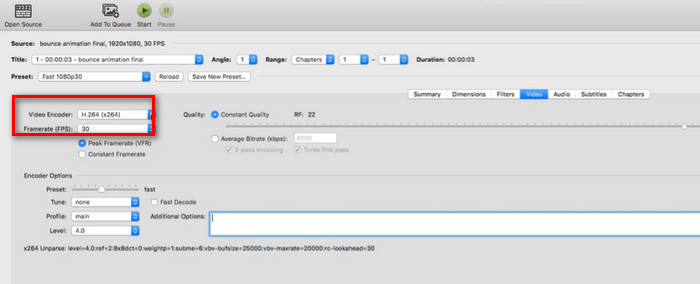
Handbrake 完全免费,可以压缩 .mov 文件,这真是个惊喜。它还提供了许多压缩自定义选项。然而,Handbrake 的界面比较繁琐,一些功能按钮不太醒目。如果我们没有使用经验,就需要借助教程。此外,该平台仅支持本地上传视频,不支持导入在线视频。
VLC媒体播放器
除了 Handbrake 之外,还有一款免费的开源 MOV 压缩工具——VLC Media Player。我们通常用它来播放各种格式的视频和音频,或者转换文件格式。不过,我们也可以在它的界面上找到一个 MOV 视频压缩器。在下一部分中,我们将展示如何通过更改视频编码元素来减小视频文件的大小。
以下是使用 VLC 媒体播放器压缩 MOV 文件的方法。
步骤 1: 在电脑上准备好 VLC Media Player。打开后点击 Media > Convert/Save(媒体 > 转换/保存)。
步骤 2: 将会弹出“文件”菜单。点击 +Add(添加) 上传你的 MOV 视频,然后再次点击 Convert/Save(转换/保存)。
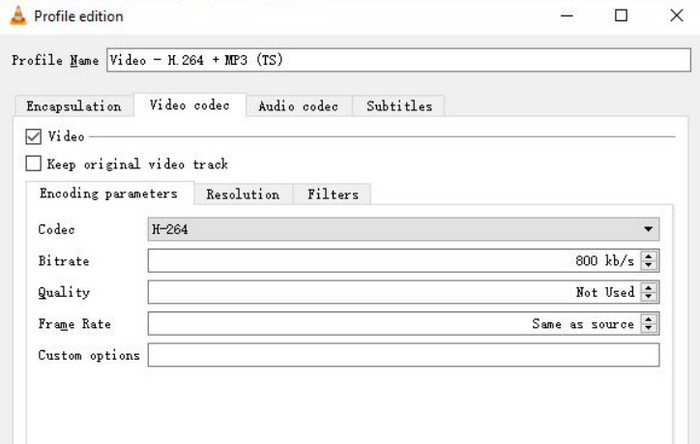
步骤 3: 在 Convert(转换) 面板中,点击 扳手 图标并找到 Profile(配置文件) 选项。进入 Profile Edition(配置文件编辑) 区域,选择 Video codec(视频编解码器)。
步骤 4: 降低视频的比特率、帧率以及画质。完成上述设置后,你的视频文件大小会明显减小。
步骤 5: 选择一个保存路径,然后点击 Start(开始)。
VLC Media Player 和 Handbrake 有同样的问题。它的压缩视频按钮不太好找,操作步骤繁琐。它没有一键完成的选项;我们只能通过手动调整视频参数来间接压缩 .mov 文件。
二、如何在线压缩 MOV 文件
阅读完以上步骤后,您会发现在使用桌面压缩器之前,我们必须执行安装和下载操作。此步骤不仅会耗费大量时间,而且安装包也会占用大量内存。为了解决这两个问题,我们建议您尝试一些在线 MOV 压缩器。
FVC免费视频压缩
我们推荐的第一款在线视频压缩工具是 FVC 免费视频压缩器。它可以轻松将 1GB 的视频免费压缩到 10MB,并能以 30 倍速高效运行。该平台还支持批量压缩多个 MOV 视频,并保证不会在视频画面中附加水印。FVC 免费视频压缩器的网站上没有广告、病毒或恶意软件,因此我们可以 100% 放心使用。
以下是使用 FVC 免费视频压缩器在 Mac 或 Windows 上压缩 MOV 文件的方法。
步骤 1: 在线打开 FVC 免费视频压缩器,点击 Add Files to Compress(添加文件进行压缩) 上传你的 MOV 文件。系统可能会提示你安装一个启动器。
步骤 2: 在“大小”下设置目标文件大小,你也可以修改分辨率和比特率。
你甚至可以在该平台上将 MOV 转换为 MP4,只需选择 Format > MP4(格式 > MP4) 即可。
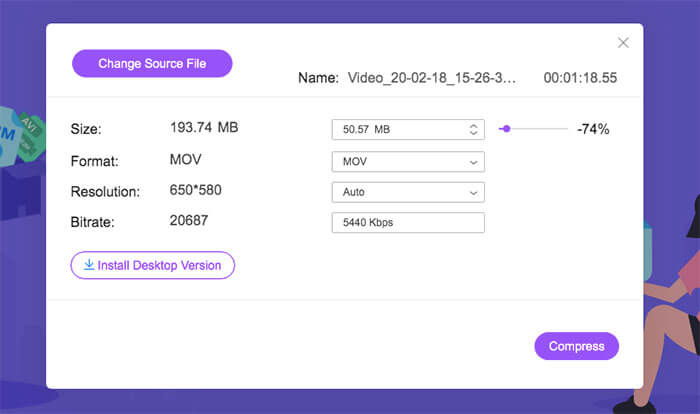
步骤 3: 最后点击 Compress(压缩)。
这个压缩器很完美,但初次使用的用户可能需要下载插件的桌面版本才能正常使用它。
维德.IO
您可以尝试的第二款在线 MOV 压缩器是 VEED.IO。它的页面风格更现代,工作界面中的按钮分布也更符合标准视频编辑器的模板。
以下是使用 VEED.IO 压缩 MOV 的方法。
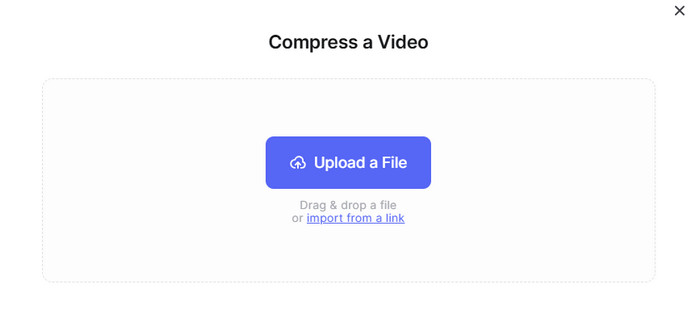
步骤 1: 打开 VEED.IO 在线 MOV 压缩器,点击 Upload a File(上传文件) 添加你的视频。
步骤 2: 设置输出质量和分辨率,然后点击 Compress Video(压缩视频)。
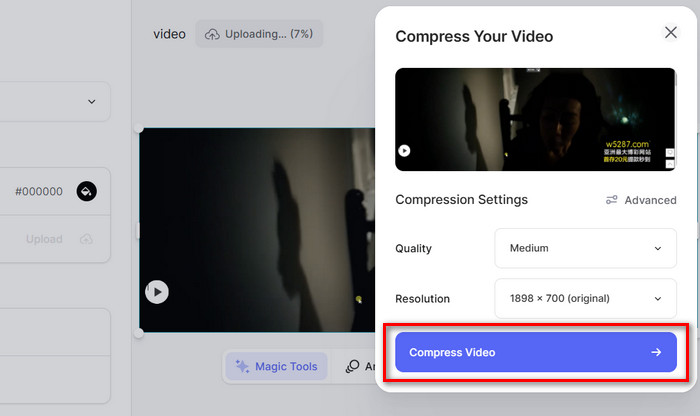
使用 VEED.IO 压缩视频的步骤非常简单。但是,网络环境很容易影响该平台的页面加载,有时上传视频会很卡。
XConvert
我们推荐的最后一个工具是 XConvert 在线 MOV 压缩器。它还允许用户通过更改比特率和分辨率来减小视频大小。
该平台允许用户从本地选择文件并从云端添加要压缩的视频。
以下是如何使用 XConvert 在线 MOV 压缩器。
步骤 1: 使用浏览器打开 XConvert 在线 MOV 压缩器网站。
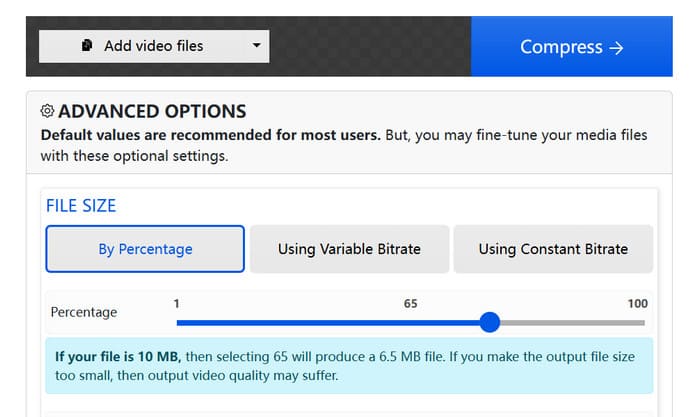
步骤 2: 点击 Add video files(添加视频文件),选择你的原始视频。在 By Percentage(按百分比)、Using Variable Bitrate(使用可变比特率) 和 Using Constant Bitrate(使用恒定比特率) 三种压缩模式中进行选择。
步骤 3: 完成压缩参数设置后,点击 Compress(压缩)。
第 3 部分. 压缩 MOV 的常见问题
如何将 .MOV 文件压缩为 MP4?
Handbrake 可以自动帮您将 MOV 压缩为 MP4 文件。在线压缩器(例如 FVC Free Video Compressor)也支持您在设置视频输出参数时直接选择 MP4 作为目标格式。
如何减小视频文件大小?
可选项很多,例如降低视频的分辨率、帧率、比特率等。剪掉视频中不必要的片段,或将视频格式转换为压缩效率更高的格式,也都能有效压缩视频。
如何在 Mac 上压缩视频?
iMovie、QuickTime Player 和 Handbrake 都是不错的辅助工具。本文介绍的几款在线工具也可以在 Mac 上使用。
部分4。结论
本文详细介绍了如何压缩 MOV,并推荐了 3 款桌面端压缩工具和 3 个在线网站。你可以根据自己的偏好,结合文中的分步指南进行选择。综合对比各种表现,我们始终认为 FVC Video Converter Ultimate 是性价比最高的选择。
-
 如何将MP4视频压缩到较小的尺寸
 MP4视频太大,无法上传?是否要缩小视频尺寸?这是3种无限制地将MP4文件压缩为较小尺寸的有效方法。
-
 在iPhone / Android /在线上压缩电子邮件视频的教程
 无法通过太大的电子邮件发送视频?如果遇到此问题,您可以在此处找到可行的方法来压缩视频以发送电子邮件。本文将详细介绍如何免费缩小大型视频文件。
-
 适合桌面和在线用户的 10 款最佳 GIF 压缩器
 在这篇文章中,您将了解最好的 GIF 压缩器,以帮助您解决大型 GIF 文件的问题。检查它们并获得最好的见解。
