


 视频转换大师
 屏幕录影大师
 视频修复
视频修复
 安全下载
安全下载如何轻松去除毕业照片中的水印
每当您在任何照片中看到水印时,水印都是令人眼花缭乱的,它们会破坏照片的质量。只要创作者不希望他的作品被盗,您就会在照片上看到水印。如果您是学生,您可能会在毕业照上看到水印,标明工作室的名称或拍摄照片的摄影师。
如果你想去除毕业照上的水印,就需要一些工具来帮助你将其移除。本文列出了当前使用最广的三款水印去除工具,你还将学会具体步骤,了解如何去除毕业照上的水印。

第 1 部分。 如何从在线毕业图片中删除水印
您会在互联网上看到许多水印去除工具。然而,并不是所有的都是免费且易于使用的。此外,在这一部分中,您将了解如何方便有效地去除水印。
FVC Free Watermark Remover 是一款在线水印去除工具,可以轻松删除毕业照上的水印。它之所以受欢迎,是因为使用前无需下载或安装任何程序。此外,它支持最常见的图片格式,例如 PNG、JPG、JPEG、BMP 等。即使你已经去除了图片上的水印,在下载图片时,它仍会保持原来的文件格式。
使用此水印去除器,您可以在选择水印区域时从去除器预设中进行选择。您可以在多边形、套索或画笔之间进行选择。此外,您可以使用此工具擦除图像上其他不必要的东西。
优点
- 它有一个快速的操作软件界面。
- 使用安全。
- 100%免费使用。
- 适用于所有网络浏览器,包括 Google、Firefox 和 Safari。
缺点
- 它依赖于互联网。
如何使用 FVC Free Watermark Remover 去除毕业照片上的水印:
步骤 1. 在你常用的浏览器中搜索 FVC Free Watermark Remover。你也可以直接点击这个链接进入其网页。
步骤 2. 在该工具的主界面上,点击 Upload Image(上传图片)按钮。电脑中的文件夹会弹出,此时选择你的毕业照并上传。
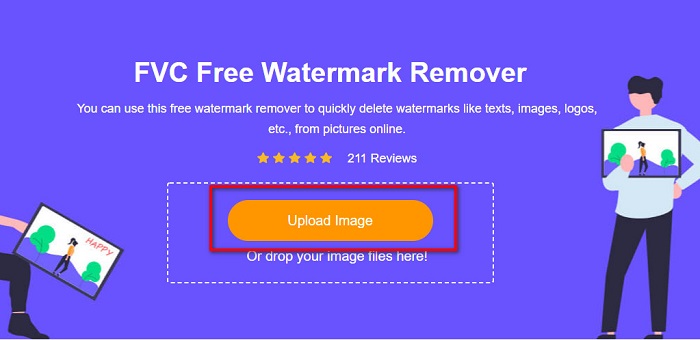
步骤 3. 接下来,选择你想用来去除水印的工具,在 Polygonal(多边形)、Lasso(套索)或 Brush(画笔) 中进行选择。然后框选或涂抹出你要去除的水印区域。
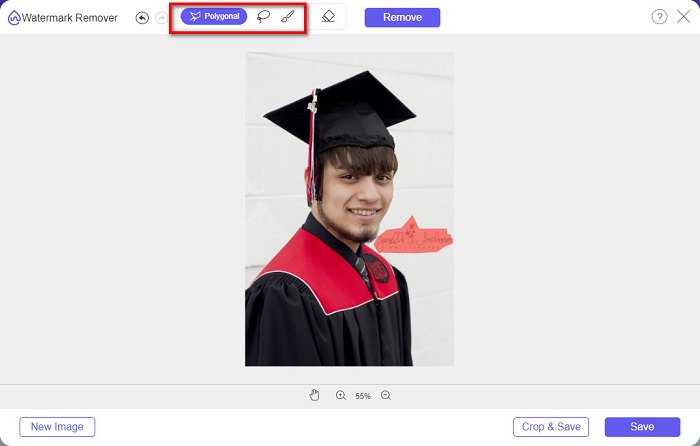
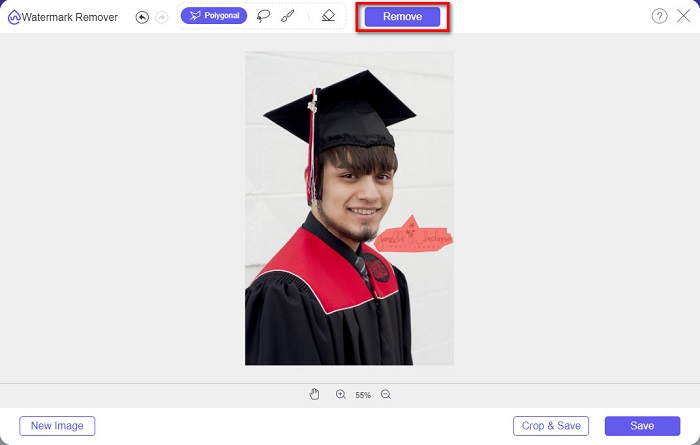
步骤 4. 选定水印区域后,点击 Remove(移除)按钮以擦除水印。
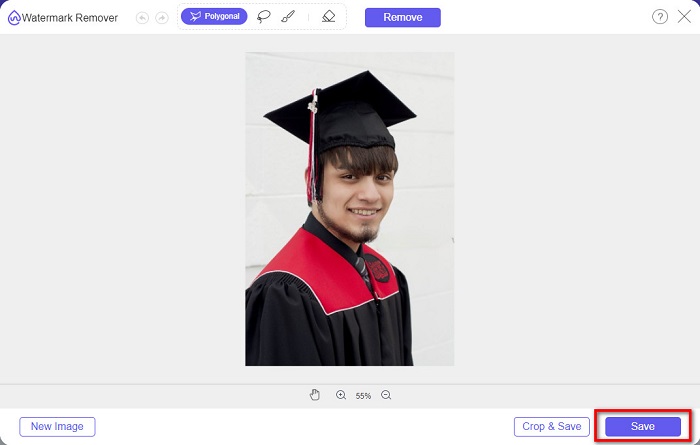
步骤 5. 你会看到水印已经被去除。点击 Save(保存)按钮,将处理后的图片下载到你的设备上。更进一步,这款在线水印去除工具也可用作Photobucket 水印去除工具。
第 2 部分。如何使用 Inpaint 从毕业图片中删除水印
人们有时会修饰水印以使照片恢复原始外观。但是他们是怎么做到的呢?专业人士使用照片编辑器并逐像素绘制标签,从而需要几个工作时间。但是,还有另一种工具可以帮助您轻松生活。在这一部分中,您将学习如何使用 Inpaint 及其优势。
Inpaint 是另一款在线水印去除工具,同样能帮助你清除毕业照上的水印。该在线应用还提供 Windows 和 Mac 版本的可下载程序。此外,它还能去除照片中不需要的元素,比如标志、文字、物体等。更令人惊喜的是,它具备修复旧照片的功能,可以将老照片恢复至接近原始的效果。它也提供多种选择工具,方便你圈选需要去除的水印区域。
优点
- 它有一个易于使用的软件界面。
- 它允许您进行数字面部修饰。
- 它使您能够填充全景图的黑色区域。
- 几乎可以在所有网络浏览器上访问,例如 Google 和 Firefox。
缺点
- 它依赖于互联网。
如何使用 Inpaint 从毕业照片中去除水印:
步骤 1. 在浏览器中搜索 Inpaint,然后进入其官网页面。随后在软件主界面中点击 Upload Image(上传图片)按钮,上传你的毕业照。
步骤 2. 接着,选择你要用来圈选水印区域的去除工具,可在 marker tool(标记工具)、lasso tool(套索工具)和 polygonal lasso tool(多边形套索工具) 之间选择。
步骤 3. 然后,使用你选定的工具圈选或涂抹出想要去除的水印区域。
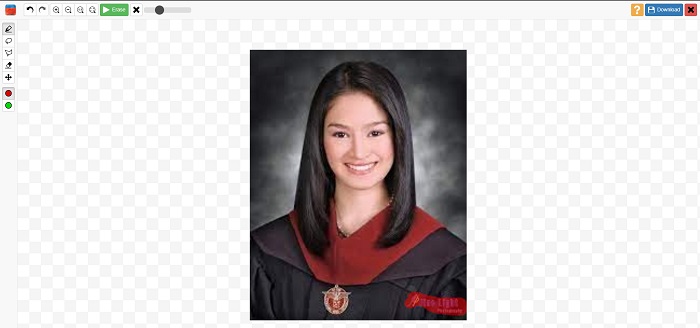
步骤 4. 最后,点击 Erase(擦除)按钮,即可将毕业照上的水印去除。随后点击 Download(下载)按钮,将处理后的照片下载保存。
第 3 部分。 如何使用 Photoshop 从毕业图片中删除水印
Adobe Photoshop 是许多专业人士使用的最著名的编辑软件。但很多用户不知道的是,它不仅仅是一个编辑软件;它还可以删除照片上不需要的水印。要了解如何从照片中删除水印,请全面阅读此部分。
Adobe Photoshop 是最为知名的专业图片编辑软件之一,拥有大量强大的编辑功能。许多专业人士都使用这款应用,因为它可以以多种专业方式对图像进行处理。软件中包含众多精细化编辑工具,能够对图片进行细致调整。此外,它还能输出高质量的图片,方便你分享到任意社交媒体平台。
优点
- 它有许多高级编辑功能可供使用。
- 它包含许多用于编辑的工具。
- 它产生高质量的输出。
- 它使您能够编辑和创建打印和网络图像。
缺点
- 它有一个难以使用的软件界面。
- 您需要购买应用程序才能下载它。
如何使用 Adobe Photoshop 去除照片上的水印:
步骤 1. 在你的设备上下载并安装 Adobe Photoshop,然后运行程序。在主界面中打开你的图片。
步骤 2. 选中水印所在的区域。你可以使用 Pen tool(钢笔工具)、Quick Selection tool(快速选择工具) 或 Magic Wand tool(魔棒工具) 来完成选区。
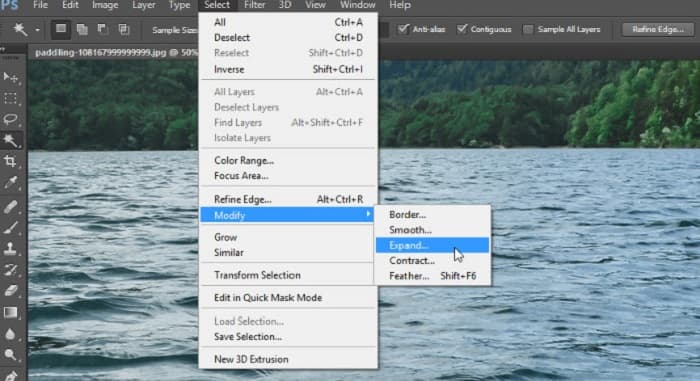
步骤 3. 依次进入 Select > Modify > Expand(选择 > 修改 > 扩展),以便将周围的背景像素一并纳入选区。
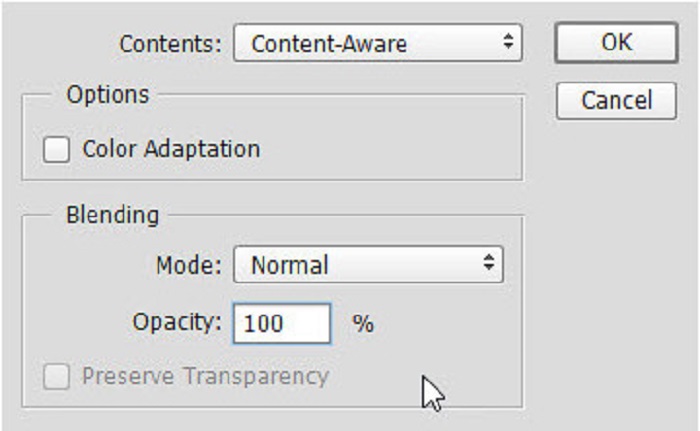
步骤 4. 依次进入 Edit > Fill(编辑 > 填充),然后在“内容”(Contents)选项中选择 Content-Aware(内容识别填充)。
步骤 5. 接着按下 CTRL+D 取消选择。此时你会看到水印位置已经被背景填充。随后使用 Clone Stamp Tool(仿制图章工具) 去除残留的水印轮廓。
步骤 6. 按住 Alt 键 进行取样,然后沿着水印的轮廓进行描绘覆盖。完成所有痕迹的处理后,你会发现水印已经彻底消失。
第 4 部分。关于从毕业图像中去除水印的常见问题解答
从毕业照片中去除水印会破坏质量吗?
从毕业照片中去除水印不一定会破坏质量。但是,当您删除水印时,某些工具仍然会留下痕迹。
Canva 上的水印可以去除吗?
是的。 Canva 有一项功能,您可以免费去除水印。只需单击“删除水印”按钮即可。
你能去除PDF上的水印吗?
通过上面介绍的这些工具,你也可以去除 PDF 文件中的任何水印。
结论
既然你已经学会了如何去除毕业照上的水印,现在就可以自己动手尝试使用上述工具了。使用水印去除工具可以让去水印变得简单高效。不过,许多用户更推荐使用 FVC Free Watermark Remover,因为它使用方便、操作简单。
-
 如何轻松删除 Windows 和 Mac 上的 Lumion 水印
 需要删除 Lumion 水印以进行专业展示吗?好吧,您可以使用一些工具来帮助您摆脱它留下的水印。
-
 如何轻松去除视频和图片上的微博水印
 在导出的视频和图像上删除微博水印时遇到问题?在这种情况下,您必须使用我们在下面列出的可以帮助您的水印去除器。
-
 了解如何免费删除 Movavi 水印 $91;必须拥有!$93;
 在 Movavi 上导出视频或图像会留下水印,但是否可以将其删除?要教如何免费删除水印,请阅读此内容。
