


 视频转换大师
 屏幕录影大师
 视频修复
视频修复
 安全下载
安全下载3种轻松在Windows和Mac上将MP4转换为AMV的有效方法
当您要将一些大型MP4视频(例如大电影)发送到智能手机时,可能没有足够的存储空间。要将MP4转换为AMV文件,可以使用高级压缩算法来获取小得多的视频。无论您是需要在线转换视频,还是需要调整和编辑特定大小的视频,您都可以从本文中了解有关3种最高效的MP4到AMV转换器的信息。

第1部分:如何在线将MP4转换为AMV
如果你只需要轻松地将简单的 MP4 转换为 AMV,FVC 免费在线视频转换器 是一款功能多样的在线视频转换工具,兼容 MP4、AMV、AVI 等多种格式。它还支持调整视频和音频参数,甚至可以无水印、无其他限制地转换文件。
- 1.将MP4转换为AMV, AVI, MKV 以及其他具有原始质量的视频。
- 2.调整帧速率,视频质量,视频编解码器,音频质量等。
- 3.提供简单的用户界面,仅需3个步骤即可转换AMV文件。
- 4.转换没有水印的文件是一种安全,稳定的方法。
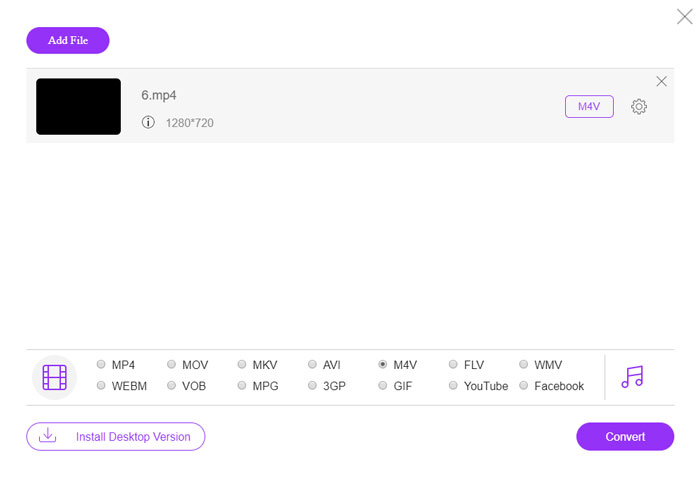
步骤 1: 在任意浏览器中打开这个在线 MP4 转 AMV 转换器,首次使用时,你可以点击添加文件进行转换按钮安装视频转换器。之后也可以将 MP4 文件加载到该程序中。

步骤 2: 在底部选择 AMV 作为输出格式。当然,你也可以调整视频和音频设置,例如视频编码器、视频分辨率、视频比特率、帧率等,以获得理想的视频效果。

步骤 3: 然后点击转换按钮开始将 MP4 转换为 AMV。只需几秒钟即可得到所需文件,之后你就可以将该视频传输到智能手机上使用。
第2部分:如何使用VLC Media Player将MP4转换为AMV
VLC媒体播放器是最受欢迎的MP4到AMV转换器之一。它还提供了一些基本的视频转换和编辑功能。此外,您还可以在转换后预览输出的AMV视频。只需查看以下详细过程即可。
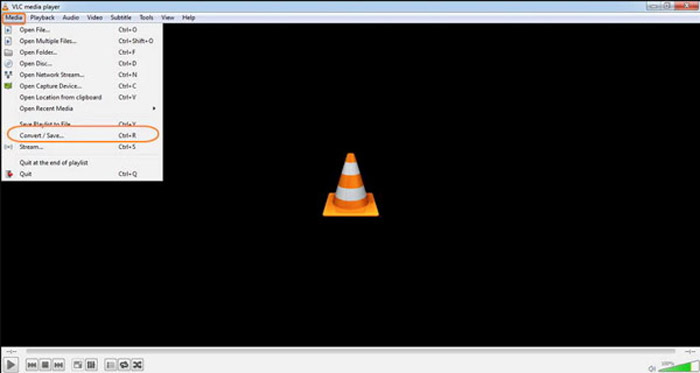
步骤 1: 在电脑上打开 VLC 媒体播放器,进入媒体菜单并选择转换/保存选项。在文件选项卡中,点击文件选择列表右侧的添加按钮,然后浏览并导入 MP4 文件。
步骤 2: 点击转换/保存按钮继续。在弹出的转换窗口中,你可以选择 AMV 作为输出格式。点击编辑所选配置文件按钮来调整视频和音频设置。
步骤 3: 点击'浏览'选项,选择输出文件的保存位置和文件名。之后,点击开始按钮,即可在电脑上将 MP4 文件转换为 AMV。
第3部分:轻松地将MP4转换为AMV的最佳方法
FVC 视频转换大师是一款适用于 Windows 和 Mac 的多合一 MP4 转 AMV 转换器。它不仅能转换视频格式,还可以调整各种视频和音频参数、添加字幕/音轨,甚至可以轻松编辑转换后的视频文件。
- 1.将MP4转换为AMV以及其他具有原始质量的其他视频格式。
- 2.调整帧速率,视频质量,比特率,视频编解码器等。
- 3.提供多种视频编辑功能,以旋转,剪辑,调整滤镜等。
- 4.先进的硬件加速功能,可将视频转换速度提高70倍。
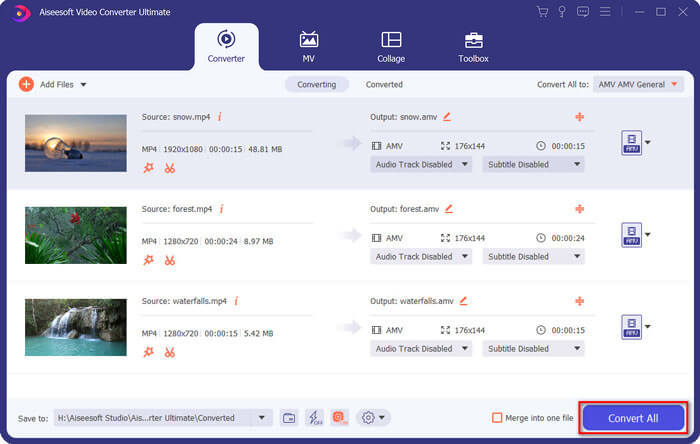
步骤 1: 下载并安装这款 MP4 转 AMV 转换器,在电脑上启动程序。选择转换功能,然后点击添加文件选项导入 MP4 文件,或者直接将多个 MP4 文件拖入程序窗口。

步骤 2: 点击视频文件右侧的格式图标,选择 AMV 作为输出格式。你也可以点击齿轮图标来调整视频和音频设置,或对视频进行编辑/滤镜调整等操作。

步骤 3: 当你对输出的 AMV 文件(例如视频大小等)感到满意后,点击全部转换按钮开始 MP4 转 AMV 的转换。完成后,你就可以将 AMV 文件传输到其他设备中使用。
第4部分:有关将MP4转换为AMV文件的常见问题解答
1.什么是AMV文件格式?
AMV文件被称为动漫音乐视频文件。它通常是来自和来自中国的便携式媒体播放设备使用的。 AMV视频格式具有低分辨率特性,视频分辨率在94x64和160x120之间。将MP4转换为AMV时,可以轻松地将更多视频发送到智能手机。
2.如何在智能手机和计算机上播放AMV文件?
将MP4转换为AMV文件时,如何在智能手机或计算机上播放视频文件?实际上,您可以简单地将AMV作为AVI格式的一种变体,它在大多数媒体播放器上都可以使用。如果需要在iOS设备上播放AMV文件,则可以改用VLC Media Player或其他媒体播放器。
3. AMV和MP4有什么区别?
MP4是可用于在线流服务和设备的最常用的视频格式之一。 AMV是Motion JPEG的一种变体,具有固定而不是可变的量化表。将MP4转换为AMV时,可以压缩视频并节省更多的存储空间,尤其是将视频传输到设备时。
结论
将MP4转换为AMV的最佳选择是什么?只需从本文中了解有关最佳方法的更多详细信息即可。如果您需要在线转换和压缩视频而无需其他软件,FVC Free在线视频转换器是您可以考虑的最终解决方案。
-
 AVI VS MP4 –哪个更好(质量/压缩/文件大小…)
 哪种视频格式更好,AVI或MP4?如果要获得详细的比较,可以查看此AVI VS MP4文章。您可以了解AVI和MP4在许多方面的异同。
-
 适用于Windows和Mac的十大MP4播放器软件(免费和付费)
 从10种最新的MP4视频播放器软件的建议中阅读并获取最佳MP4播放器。您可以在Windows和Mac上流畅播放MP4视频文件而不会出现延迟。
-
 如何在Mac / Windows上将MP4转换为WMV
 这篇文章分享了如何在Mac或Windows上将MP4视频转换为WMV格式。我们还将为您提供多种选择,包括桌面软件和基于Web的在线转换器。准备知道最好的MP4到WMV转换工具了吗?
