


 视频转换大师
 屏幕录影大师
 视频修复
视频修复
 安全下载
安全下载如何使用 3 种有效方法在 iPhone 上调整图像大小 [免费]
并不是你在网页上保存到 iPhone 里的所有图片都适合作为壁纸或主屏幕背景,这通常是因为它们的长宽比和尺寸不匹配。有时,当你把尺寸不合适的照片设为壁纸或主屏幕后,画面会变得模糊,两侧还会出现黑边,而不能完全铺满屏幕。是不是很麻烦?好在你可以在 App Store 下载图片缩放应用、使用捷径(Shortcut),或者直接利用系统自带的图片编辑功能。想要快速在 iPhone 上调整照片尺寸,只需花几分钟读完这篇文章,就能更好地了解操作方法,解决你设备上遇到的尺寸问题。

第 1 部分。如何在 iPhone 上调整图像大小的 3 种有效方法 [可下载和内置]
使用快捷方式[内置]
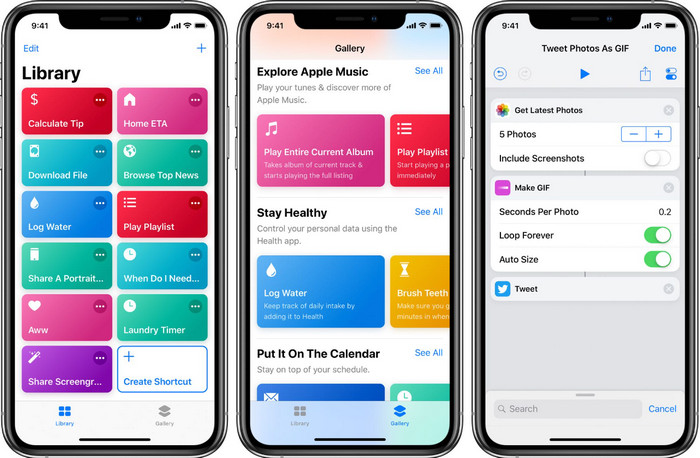
快捷指令(Shortcut)允许 iOS 用户创建许多实用功能,其中就包括调整本地文件中图片尺寸。所有 iOS 13 及以上版本都预装了这款应用。由于这款应用推出时间较晚,旧版系统中并没有这样功能强大的应用,但你可以在 iPhone 或 iPad 的 App Store 中免费下载安装。要学习如何用它来调整 iPhone 图片尺寸,可以按照下面的步骤操作。
步骤 1. 在 iPhone 上打开该应用,然后点击顶部的加号按钮,为你的设备添加一个用于调整尺寸的快捷指令。
步骤 2. 点击三条线的圆点按钮,给这个快捷指令命名;例如,你可以将其命名为 Resizing Photo。开启在共享菜单中显示(Show in Share Sheet),这样当你分享图片时,只要选择这个快捷指令,就会自动调整图片尺寸。
步骤 3. 在共享菜单类型中取消勾选「Anything」,只保留Images(图像)。然后点击完成(Done)保存你所设置的选项。
步骤 4. 在使用此功能前,需要先点击加号图标,选择媒体(Media),然后点选调整图像大小(Resize Image)。根据你的需要设置长宽尺寸,并点击完成(Done)保存。此后,每次你分享图片时,都可以通过这个快捷指令自动调整图片大小。
使用照片应用程序 [内置]
另一款在任何 iPhone 版本上都可以免费使用的系统自带应用是照片 App。多年来,它一直是 iPhone 用户可靠的图片编辑和增强工具,如果不提到它就不完整了。有些用户已经知道如何用它来调整尺寸,而有些人可能还不清楚。所以,对于还不知道如何在 iPhone 上调整照片尺寸的用户,这份教程可以帮到你。
步骤 1. 打开照片 App,点选你想要调整尺寸的照片。
步骤 2. 选定要调整的图片后,点击编辑。
步骤 3. 点击右上角的裁剪图标,然后点击那个类似方格的按钮。
步骤 4. 在这里会出现不同的长宽比预设供你选择,选好后点击完成(Done)保存更改。
使用图像尺寸 [可下载]
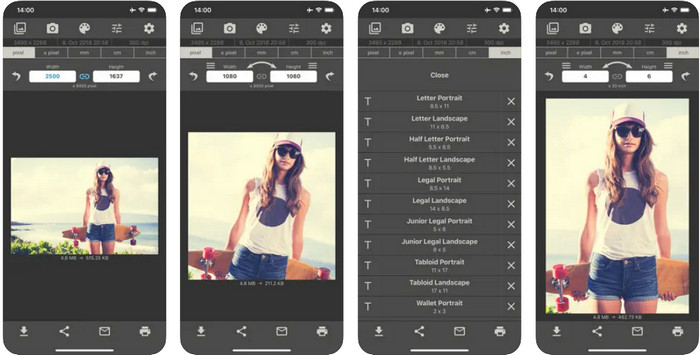
Image Size是一款第三方应用,你可以在 iOS 上下载安装,用来轻松将照片调整为适合作为 iPhone 壁纸的尺寸。与前面介绍的两种方法不同,你需要先在 App Store 下载这款应用才能使用。它不是 iOS 的预装应用,但在大多数 iOS 版本上都可以直接下载安装。由于这款应用免费使用,过程中会出现不少弹出广告。如果你不介意广告,可以继续阅读下面的步骤,在 iPhone 上使用这款图片尺寸调整应用。
步骤 1. 在你的 iOS 设备上安装这款图片尺寸调整应用,然后打开它。
步骤 2. 点击图片图标,上传你想要由该应用调整尺寸的图片。
步骤 3. 在上方你会看到当前图片的尺寸参数显示,把它修改为你想要的高度和宽度。
步骤 4. 点击下载按钮,保存你已调整尺寸的图片。
第 2 部分。在线调整图像大小的最佳方法,无需广告或安装过程
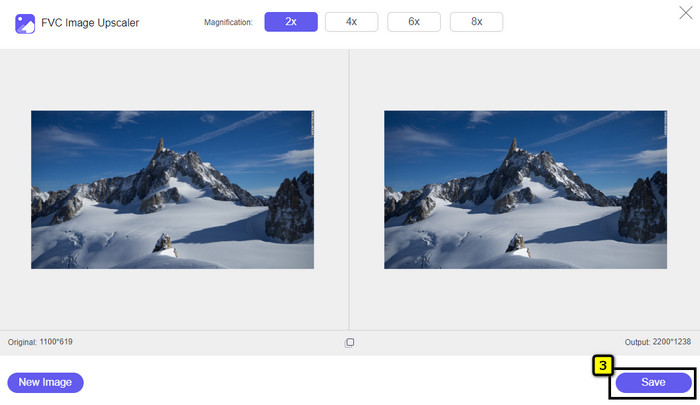
借助FVC 免费图片放大器(Free Image Upscaler),你可以在 AI 的帮助下自动调整每张图片的尺寸。你无需具备长期的图片缩放经验,也能轻松上手使用这款工具。数以百万计的用户使用它来一次性调整尺寸、放大、增强并提升图片质量。更棒的是,这款工具完全免费使用。是不是很棒?确实如此。这款应用为你提供了一站式图像编辑功能。要用它来调整照片尺寸,可按照下列步骤操作。
步骤 1. 点击这个链接打开该网页版工具,一个新标签页会在你的屏幕上弹出。
步骤 2. 若要添加你想调整尺寸的图片,点击添加图片(Add Image)。在弹出的文件夹中找到图片并点击打开(Open)将其导入。
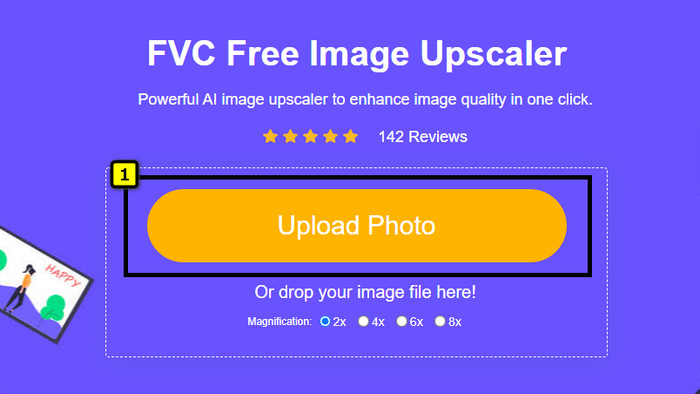
步骤 3. 应用会加载你上传的图片,然后选择你想应用在图片上的放大倍数。它会自动将这张照片调整为新的尺寸。
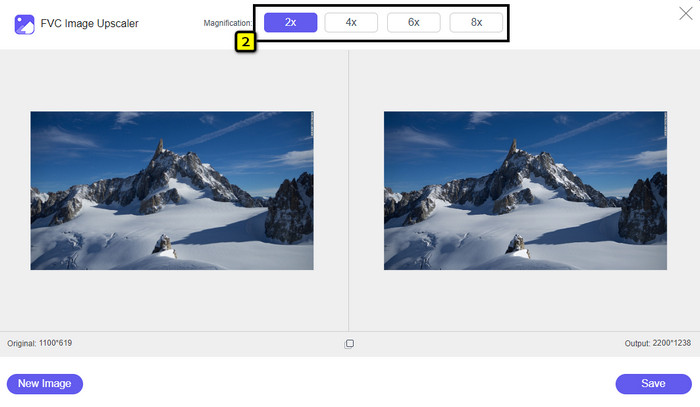
步骤 4. 当你完成对图片的调整后,点击保存(Save),将调整尺寸后的版本下载到本地存储。
第 3 部分。有关如何在 iPhone 上调整图像大小的常见问题解答
在 iPhone 上用作壁纸的最佳尺寸是多少?
对于 iPhone SE、6、6 plus、7、7 plus、8、8 plus 的用户,用作壁纸的图像的标准尺寸必须介于 1136 x 640 和 1920 x 1080 像素之间。它是您想在 iPhone 设备上用作墙纸的图像的标准长度和高度。但对于使用 iPhone XR、11 和 13 的用户,您现在可以使用 828 x 1792 或大至 3073 x 1420 像素作为显示尺寸。
在 iPhone 上裁剪而不是调整图像大小的缺点是什么?
裁剪图像时,您会看到它会切掉它的尺寸。是的,图像大小会改变,但它的整体外观与调整大小不同。在调整大小时,您可以自由更改图像的高度和长度,而无需削减边缘或某种形式。因此,如果您想将照片用作壁纸并使其适合,您最好调整它的大小而不是在 iPhone 上裁剪它。
为什么在 iPhone 上调整大小后图像变大变得模糊?
因为我们在本文中介绍的这些应用程序和方法不会创建 PPI,它们会在您的 iPhone 上拉伸调整大小的图像。因此,如果您不喜欢遇到此类问题,那么当您在 iPhone 上调整图像大小时,您必须使用我们在此处提供的在线工具来创建 PPI。
结论
你可以放心使用我们在 iPhone 上找到的这些工具,来轻松在 iPhone 上调整照片尺寸。即使不下载额外应用,你也可以使用设备上预装的系统应用。如果你想设定更具体的尺寸参数,可以使用并下载我们上文提到的那款应用。但如果你希望在不影响画质的前提下调整图片尺寸,那么可以使用我们介绍的在线工具。继续阅读第 2 部分,我们还会提供它的详细使用教程。
-
 5 个可在所有平台上使用的最佳 GIF Resizer [2022]
 想知道您可以使用的 GIF 大小调整器吗?在这种情况下,下面提供的信息将讨论您可以在所有平台上的 GIF 上使用的大小调整器。
-
 如何调整图像大小 - Adobe 调整图像大小 [在线和离线]
 如果您正在搜索 Adobe 调整图像大小,那么我们可以为您提供解决方案。彻底查看这篇文章,了解如何在您的 PC 上使用 Adobe 调整图像大小。
-
 如何为 Facebook 调整照片大小 [快速简单的步骤]
 如果您在 Facebook 上传大尺寸图片时遇到问题,我们可以为您提供解决方案。完成本文以了解如何为 Facebook 调整照片大小。
