


 视频转换大师
 屏幕录影大师
 视频修复
视频修复
 安全下载
安全下载关于如何在计算机上进行加速的演练指南
你正在寻找一种进行速度渐变(Speed Ramping)的方法吗?许多人都在找可以帮助他们逐步改变视频或电影播放速度的工具。对很多视频剪辑师来说,给视频做速度渐变非常受欢迎,因为它会对画面效果产生极大的冲击力。不过,并不是很多应用程序都自带可用的速度渐变功能。但不用担心,因为有一款非常知名的视频编辑软件可以帮助你完成速度渐变。继续阅读本指南,了解如何进行速度渐变(speed ramping)。

第 1 部分。什么是速度斜坡
视频速度斜坡在许多视频编辑器中很受欢迎,尤其是在制作电影时。但是到底什么是加速?
速度斜坡正在逐渐调整视频的速度,以对您的视频产生出色的电影效果。此外,您可以将其作为视频的加速和减速。想象一个反派试图拍摄电影中的英雄的场景。您可以在子弹被射出时进行速度斜坡,这样它会产生显着的电影效果。
简而言之,速度斜坡可以通过更好地控制关键帧来改变视频的速度,从而创造出强大的效果。此外,它是您可以对视频执行的标准视频编辑功能。因此,如果您想了解如何对视频进行加速,请全面阅读下一部分。
第 2 部分。如何在 Premiere 中进行加速
Adobe Premiere 是最优秀的视频编辑软件之一,如果您想加快视频速度,可以使用它。 Adobe Premiere 具有许多可用于编辑或增强视频文件的编辑功能。此外,它可以产生具有高分辨率和质量的强大输出。更重要的是,它提供了无限的多机位角度,如果您加快视频速度,这将是有益的。并且由于最新更新,将视频导入和导出到您的设备更易于管理。
此外,如果您想要一个具有响应速度的程序,Adobe Premiere 是一个很棒的应用程序。许多专业人士更喜欢使用 Adobe Premiere 来编辑视频或电影,因为它具有许多视频编辑所需的组织工具。此外,该程序可以在所有跨媒体平台上下载,包括 Windows 和 Mac。
如何在 Adobe Premiere 中进行加速:
步骤 1: 在电脑上下载并安装 Adobe Premiere。安装完成后,在设备上打开该程序。你首先要做的是导入想要进行速度渐变的视频文件。你可以直接从电脑文件夹中将视频拖拽到项目窗口中进行导入。
步骤 2: 接着,把素材拖到时间轴(Timeline)上,从而生成一个序列。然后,Adobe Premiere 会自动创建一个带有速度渐变所需设置的序列。
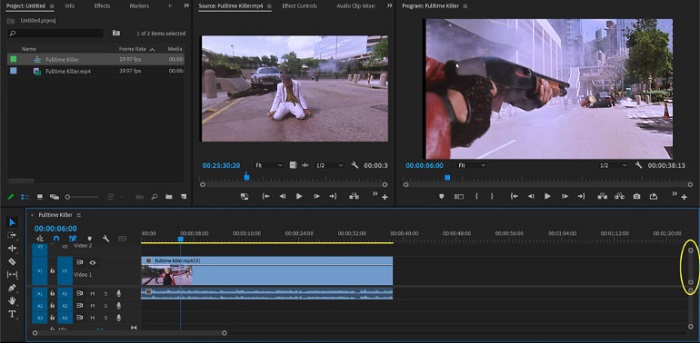
步骤 3: 然后,选择你想要进行速度渐变的那一段。你可以通过设置入点和出点来单独选取要做速度渐变的部分,按下 Command + K 来剪切该位置。另一种方法是使用剃刀工具(razor blade tool)将素材分割成若干段。
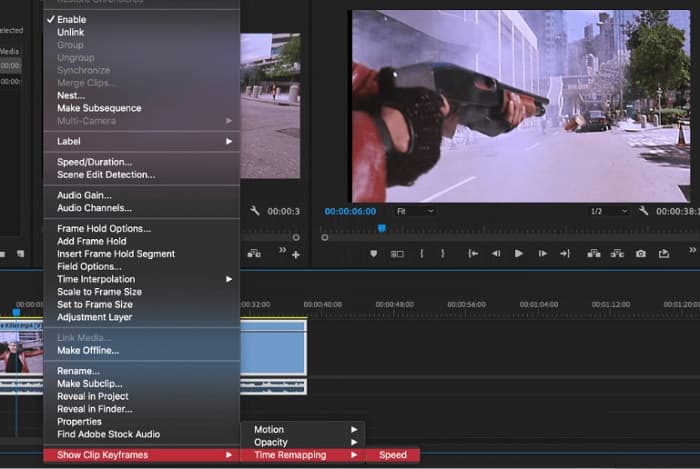
步骤 4: 下一步我们要创建关键帧。但在设置关键帧之前,需要先确保关键帧是可见的。右键单击你的视频片段,选择 Show Clip Keyframes > Time Remapping > Speed(显示片段关键帧 > 时间重映射 > 速度)。
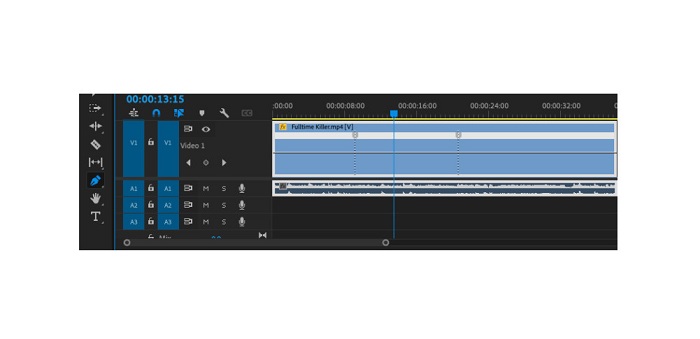
步骤 5: 在工具栏(Toolbar)中选择钢笔(Pen)工具。然后,单击视频片段上的白色线条来创建一个关键帧。要完成一次速度渐变,你需要两个关键帧。将第一个关键帧设置在你想开始速度渐变的位置,另一个设置在你想结束渐变的位置。
步骤 6: 现在我们来调整你想进行速度渐变那一段的播放速度。单击你刚刚设置的关键帧之间的白线,然后向上或向下拖动。向上拖动可以加快速度,向下拖动可以减慢速度。
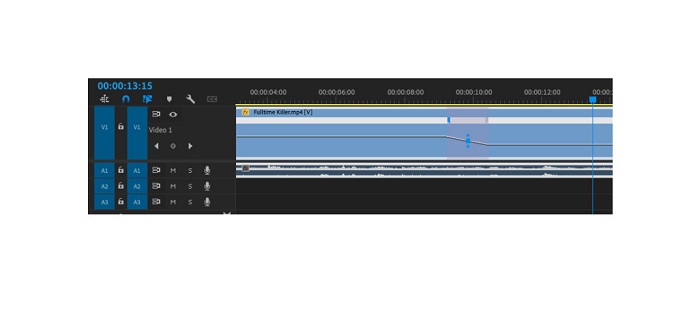
如果您想在 Adobe Premiere 中加速视频,这就是您需要了解的教程。
第 3 部分。 更简单的加速方法
尽管 Adobe Premiere 可以产生令人惊叹的高质量输出,但它并不是一个适合初学者的工具。因此,如果您不熟悉速度斜坡,最好寻找另一种方法。幸运的是,我们发现了这个很棒的应用程序,您可以使用它来加速视频。要了解有关此应用程序的更多信息,请阅读以下说明。
Video Converter Ultimate(终极视频转换器)是一款功能强大的软件,拥有许多高级编辑功能。如果你想给视频做速度渐变,也可以使用这款软件。此外,它具有易于上手的操作界面,非常适合初学者使用。同时,它支持几乎所有视频格式,如 MP4、AVI、MOV、MKV、VOB、WMV、M4V、WebM 等,以及其他 1000 多种格式。它的工具箱中还包含许多编辑功能,例如视频变速器、视频合并、视频水印去除、色彩校正等。
此外,当使用其视频速度控制器来加速视频时,您可以在其速度预设中进行选择。 Video Converter Ultimate 的优势在于其快速的处理界面,方便许多用户使用。您可以在所有平台上下载此应用程序,包括 Windows、Mac 和 Linux。如果您想使用 Video Converter Ultimate 的视频速度控制器,请按照下面的简单指南进行操作。
如何使用 Video Converter Ultimate 加速视频:
步骤 1: 首先,点击下方的下载(Download)按钮,在电脑上下载该软件。下载并安装完成后,在设备上运行它。
步骤 2: 然后,在软件主界面中,进入工具箱(Toolbox)面板,选择视频变速器(Video Speed Controller)功能。
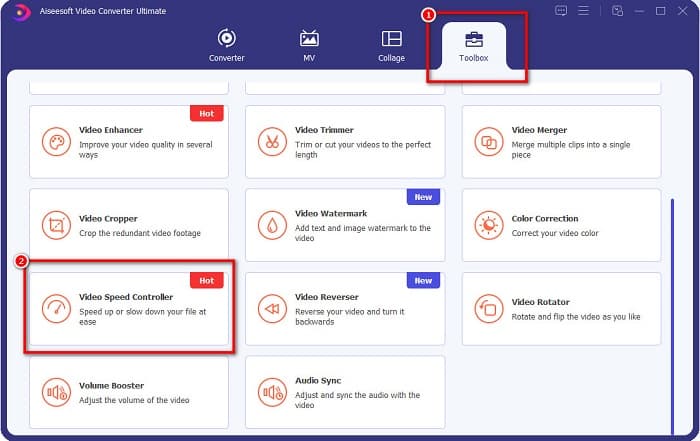
步骤 3: 若要上传你想进行速度渐变的视频,单击加号(+)按钮,或将文件拖拽到加号区域中。

步骤 4: 在接下来的界面中,选择你希望为视频设置的播放速度。你可以在0.125x、0.25x、0.5x、0.75x、1x、1.25x、1.5x、2x、4x 和 8x之间进行选择。
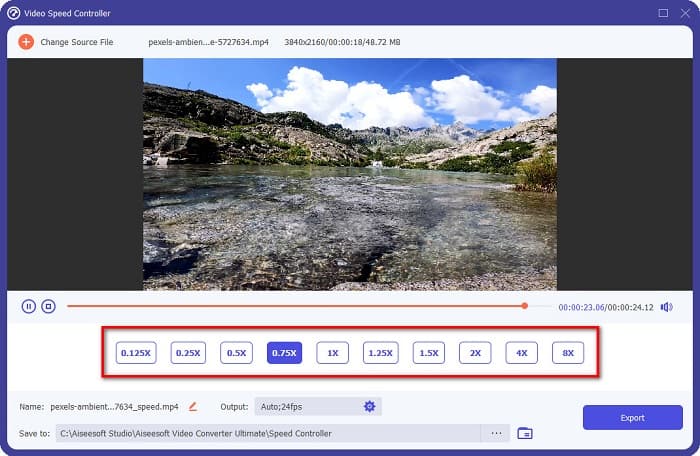
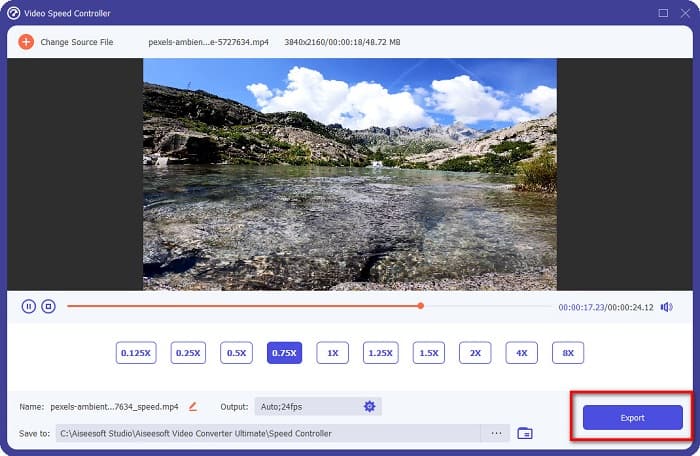
步骤 5: 最后,当你完成视频速度调整后,单击导出(Export)按钮,将输出文件保存到你的设备中。
相关:
如何在 After Effects 中加速视频【最佳加速工具】
第 4 部分。关于速度斜坡的常见问题解答
您可以加快 iPhone 上的拍摄速度吗?
是的。如果您想在 iPhone 上进行加速,您可以使用 iMovie 应用程序。 iMovie 是一款知名的 iPhone 视频编辑应用程序,可让您加速或减慢具有多个范围的视频。
Adobe Premiere 是免费的吗?
不可以。Adobe Premiere 不是免费应用程序。如果您想使用它,您必须每月购买 US$20.99 的应用程序。但是,您可以通过 7 天的免费试用免费下载它。
我可以在 CapCut 中加速斜坡吗?
CapCut 是一个视频编辑应用程序,您可以在其中加速视频。使用它的速度曲线工具,您可以通过加速或减速来编辑视频的速度。
结论
速度渐变(Speed Ramping)是为视频打造独特电影感效果的绝佳方式。而且,如果你是专业的视频剪辑人员,Adobe Premiere 是进行速度渐变的最佳工具。不过,如果你想下载一款免费的应用来实现视频速度渐变,那么Video Converter Ultimate会是一个不错的选择。
-
 如何在 Premiere Pro 及其替代方案中加速视频
 您想知道如何使用 Premiere Pro 来加速视频吗?那么您是在正确的文章中,因为我们提供了步骤和其他负担得起的替代品。
-
 在 Windows Movie Maker 中制作慢动作视频的简单方法
 您想在您的视频上添加戏剧效果以强调或至少通过慢动作使剪辑从其余部分中脱颖而出,而您不知道如何做?继续阅读本文以了解更多信息。
-
 关于如何在 TikTok 上加速视频的 2 种轻松方法
 你想知道抖音视频加速的秘诀吗?然后阅读这篇文章,了解如何做到这一点,并了解其他 2 个可以帮助您的工具。
