


 视频转换大师
 屏幕录影大师
 视频修复
视频修复
 安全下载
安全下载如何在计算机上的 Illustrator 中调整图像大小
许多复杂的编辑方式已经变得十分普遍,尤其是随着像 Adobe Illustrator 这类专业图片编辑应用的出现。不过,使用这些功能强大的编辑应用仍然可以进行简单的编辑。例如,如果你只是想调整图片的尺寸,仍然可以使用 Adobe Photoshop。你知道吗?在 Illustrator 中有两种方法可以调整图片大小。一种是手动缩放你的图片,另一种是输入你想要的精确数值。在本指南中,我们将向你展示这两种在 Illustrator 中调整图片大小 的方法。

第 1 部分。如何在 Illustrator 中调整图像大小
Adobe Illustrator 是专业人士最常用的照片编辑软件。此应用程序允许您使用其复杂的数字绘图工具创建出色的输出。它非常适合创建基于矢量的插图、图标、排版、徽标等。此外,它还具有高级颜色选项,可用于创建调色板、渐变配色方案以及混合不同颜色以实现惊人的图像输出。
您可以使用 Adobe Illustrator 做很多事情。上述功能只是 Illustrator 提供的众多功能中的一部分。如果您问 Adobe Illustrator 是否可以调整图像大小,那么答案是肯定的。继续阅读本部分以了解如何在 Illustrator 中调整图像大小的步骤。
如何使用图像缩放器在 Illustrator 中调整图像大小
步骤 1. 首先,你需要在电脑上下载并安装 Adobe Illustrator。安装完成后,在你的设备上运行该程序。然后通过 File > Open(文件 > 打开) 来打开你的图片。你也可以将图片复制并粘贴到你已经打开的画板上。
步骤 2. 然后,点击 Selection Tool(选择工具)(键盘快捷键 Cmd + V),再点击你的图片将其选中。选中后,图片的四个角会出现控制手柄。这些手柄看起来像带有蓝色描边的小白方块。使用这些手柄,你可以缩放/调整图片大小、旋转以及扭曲图片。
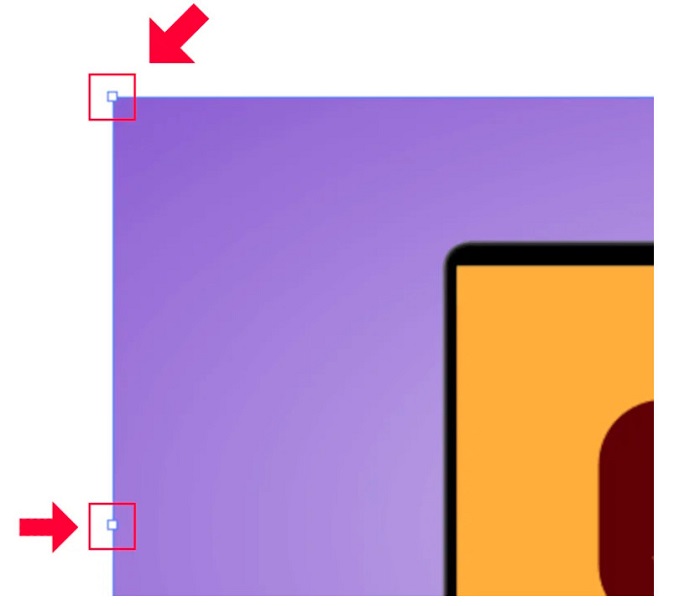
步骤 3. 若要通过缩放调整图片大小,按住并拖动任意一个控制手柄到你想要的尺寸。同时,你也可以在拖动时按住键盘上的 Shift 键,以锁定图片的纵横比。
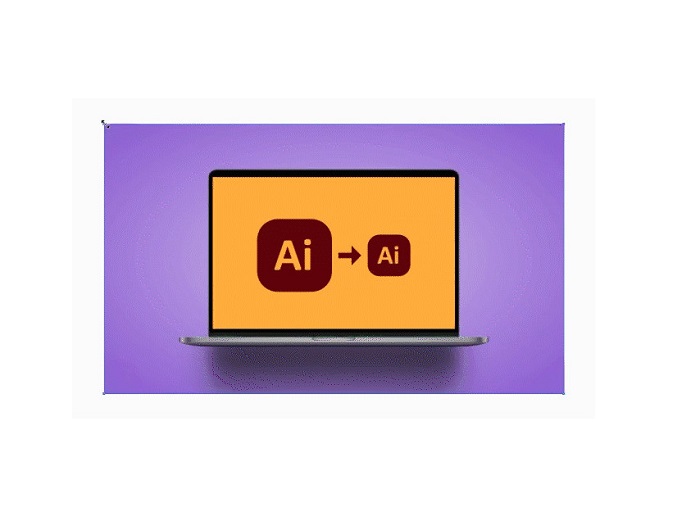
根据您的偏好调整图像大小后,您现在可以释放单击手柄。
如何使用 Adobe Illustrator 通过调整数值来调整图像大小
现在,我们将教您如何通过使用“变换”菜单输入数值来调整照片大小,而不是使用“选择工具”手动缩放图像。
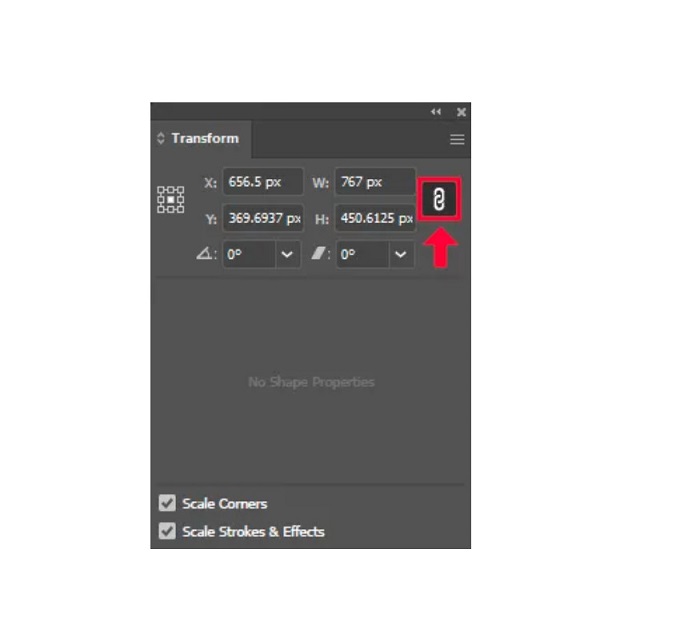
步骤 1. 当 Adobe Illustrator 在你的设备上打开后,通过点击 Windows > Transform(窗口 > 变换) 来打开 Transform(变换)菜单。你也可以通过按下键盘上的 Shift + F8 来调出该菜单。下面是 Transform 菜单的界面示意。
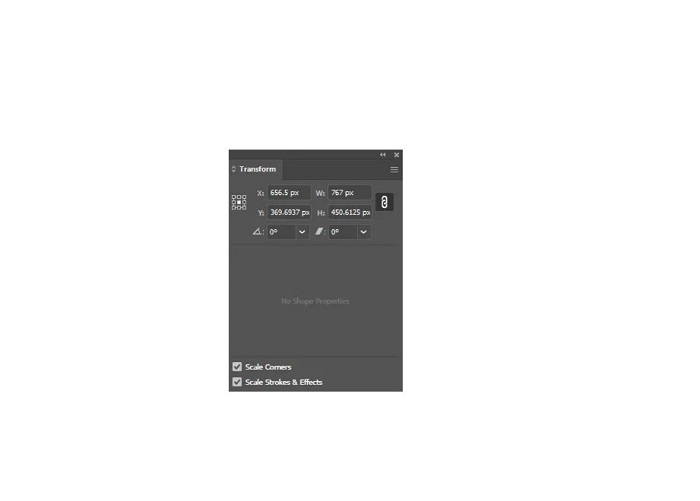
Transform(变换)菜单可以让你根据 X 轴和 Y 轴来改变对象的位置。你还可以通过在此菜单中输入数值来旋转、扭曲以及调整图片大小。
步骤 2. 然后,使用选择工具选中你要调整尺寸的图片。接着,在 Transform(变换)菜单中修改宽度和高度数值,将其调整为你想要的图片大小。字母 W 代表宽度,H 代表图片的高度。
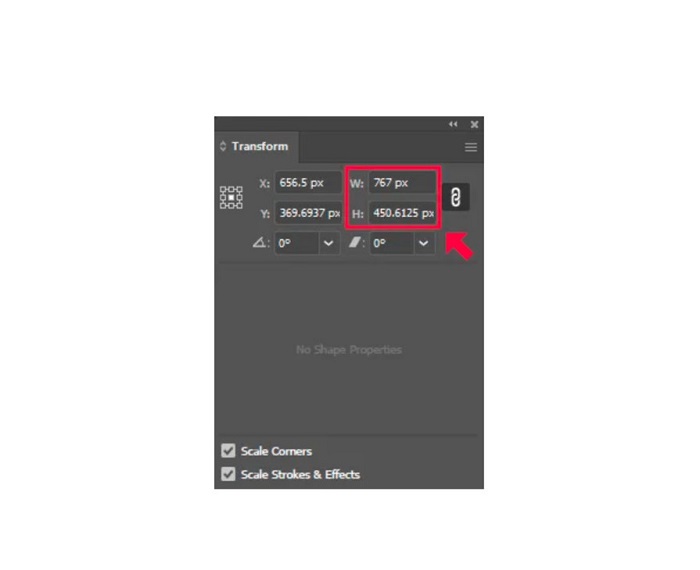
步骤 3. 建议你通过点击宽度和高度旁边的 Chain(链条)图标来锁定图片的纵横比。当你勾选链条图标并修改图片高度时,宽度会自动按比例变化。
提示. 你也可以修改图片的默认度量单位。Illustrator 默认使用 像素(px) 作为度量单位。你可以通过以下方式更改单位:
◆ 厘米 (cm)
◆ 毫米(mm)
◆ 英寸(英寸)
◆ 百分比(%)
要更改图片的度量单位,在输入数值后直接输入对应的单位即可。当你修改好图片的数值和单位后,按下键盘上的 Enter 键确认。
接下来,我们来导出图片。使用 Selection Tool(选择工具) 选中你的图片,右键点击并选择 Export Selection(导出所选内容)。
选择 Export Selection(导出所选内容) 选项后,会弹出 Export for Screens(为屏幕导出) 菜单。通过这个菜单,你可以将调整好大小的图片保存为可用的格式。
在缩略图下方,你可以预览导出效果并将文件名修改为你想要的名称。然后,在 Export to(导出到) 面板中,点击文件夹图标,浏览并选择输出文件的保存位置。同时,确保 Scale(缩放)字段设置为1x。接着,选择导出格式,建议使用 PNG 或 JPG 格式。
最后,点击 Export Asset(导出资源) 按钮,将最终结果保存到你的设备中。
很神奇,对吧? Adobe Illustrator 可让您根据自己的喜好编辑图像。如果您搜索如何在 illustrator 中调整图像大小而不失真,这部分也是答案。但是,此应用程序不是一个用户友好的工具,因为它没有易于使用的界面。因此,如果您想使用易于使用的应用程序调整图像大小/放大图像,请仔细阅读下一部分。
第 2 部分。 Illustrator 的在线替代品
Adobe Illustrator 是一个离线工具,它不是免费的。因此,如果您想使用一款出色的免费图像调整器并帮助您增强图像,请按照我们将在下面介绍的教程进行操作。
FVC Free Image Upscaler 是一款在线图片放大工具,可以帮助你提升低清晰度图片的质量。该在线工具支持将图片放大 2 倍、4 倍、6 倍和 8 倍。此外,它采用 AI(人工智能)技术,能够自动检测图片中的低质量区域并进行增强。它支持所有常见图片格式,包括 JPEG、JPG、PNG 和 BMP。而且,它使用安全,完全免费。凭借简洁明了的用户界面,你可以轻松地调整/放大图片尺寸。
如何使用 FVC Free Image Upscaler 调整图像大小:
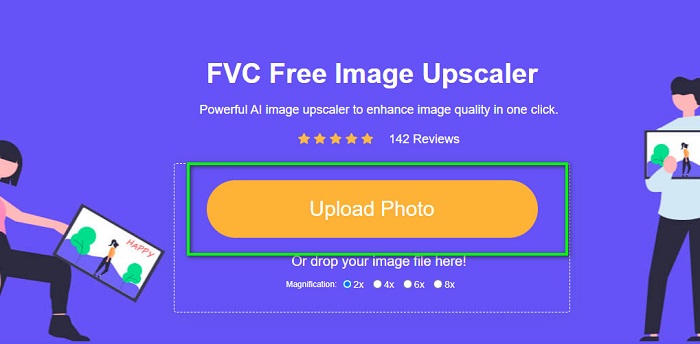
步骤 1. 在浏览器中搜索 FVC Free Image Upscaler,或点击此链接直接进入其主页。在软件的主界面上,点击“Upload Photo(上传照片)”按钮,在你的设备上启动该应用。
步骤 2. 然后再次点击 Upload Photo(上传照片) 按钮,导入你想要放大的图片。
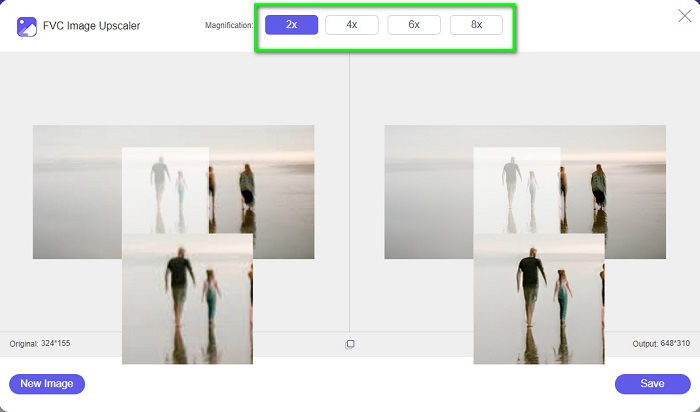
步骤 3. 当图片上传完成后,选择一个你想使用的放大倍数预设。你可以在2x、4x、6x 和 8x之间进行选择。
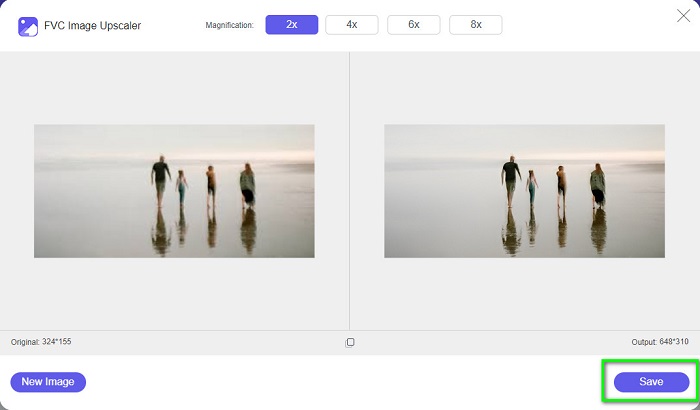
步骤 4. 最后,勾选并点击 Save(保存) 按钮,将放大后的图片保存到你的设备中。
相关内容:
第 3 部分。关于如何在 Illustrator 中调整图像大小的常见问题解答
为什么 Adobe Illustrator 不调整图像大小?
您无法在 Illustrator 中调整图像大小,因为边界框可能未激活。要打开边界框,请转到视图 > 显示边界框。通过激活它,您现在可以在 Illustrator 中调整图像大小。
我可以在 Illustrator 中调整图像大小而不会降低质量吗?
是的。有一种方法可以使用 Adobe Illustrator 调整图像大小。但是,大多数情况下,当您使用缩放器调整图像大小时,图像的质量会受到影响。
Adobe Illustrator 是免费的吗?
不可以。Adobe Illustrator 不是免费的。在使用这个强大的照片编辑应用程序之前,您必须以每月 $20.99 的价格购买它。
结论
通过以上步骤,你已经学会了 如何在 Illustrator 中调整图片大小。虽然操作流程稍微有些繁琐,但非常值得尝试和使用。Adobe Illustrator 的问题在于它不是免费软件,而且界面比较复杂。如果你更倾向于使用更方便、免费的图片尺寸调整工具,可以试试 FVC Free Image Upscaler。
-
 如何调整图像大小 - Adobe 调整图像大小 [在线和离线]
 如果您正在搜索 Adobe 调整图像大小,那么我们可以为您提供解决方案。彻底查看这篇文章,了解如何在您的 PC 上使用 Adobe 调整图像大小。
-
 最佳照片调整器应用程序在线、离线、Android 和 iPhone
 什么是最好的照片调整器应用程序?单击页面了解可用于增强或调整文件大小的前五个最强大的照片调整器应用程序
-
 您必须使用的所有 Web 浏览器的 7 大像素增强器
 如果你想知道最好的像素增强器,你最好看看这篇文章。本文列出了适用于所有 Web 浏览器的七种最佳照片像素增强器。
