


 视频转换大师
 屏幕录影大师
 视频修复
视频修复
 安全下载
安全下载如何在 Word 中调整图片或图像的大小 [2 种方法]
当我们在 Microsoft Word 中插入图片时,它们有时会保留原始尺寸。而在文档中我们往往并不需要原始大小,因为这会破坏版面的整体流畅性。此外,当文档中有一张很大的图片时,它的文件体积通常也会很大,而这并不是我们想要的。因此,本文将教你两种在 Word 中调整图片大小的方法。另外,你也可以使用 FVC Free Image Upscaler 来调整图片尺寸。请放松心情,一边喝咖啡一边阅读本页内容。

第 1 部分。如何在 Word 中调整图片大小
Microsoft Word 是 Microsoft 开发的一种流行的商业文字处理器。使用 Microsoft Word,您可以创建可与他人共享或在不同平台上发布的文档。许多专业人士在他们的工作领域中使用这个程序。有时您需要调整在应用程序中导入的图像的大小。因此,如果您想在 Microsoft Word 中调整图像大小,请继续阅读这一部分。
方法一
通常,我们在 Word 上处理图像时的错误是我们只调整图像的高度或宽度,而不是两者。当我们调整图像大小时,我们一定不能扭曲图像。因此,我们在调整照片大小时,一定要保证对面调整大小的宽度和高度自动调整。这与图像的纵横比有关。
步骤 1. 如果你的电脑上还没有安装 Microsoft Word,请先下载安装。然后打开一个已包含图片的现有文档,或者新建文档并插入图片。要插入图片,请依次点击 插入 > 图片,然后从电脑文件夹中选择并打开一张图片。
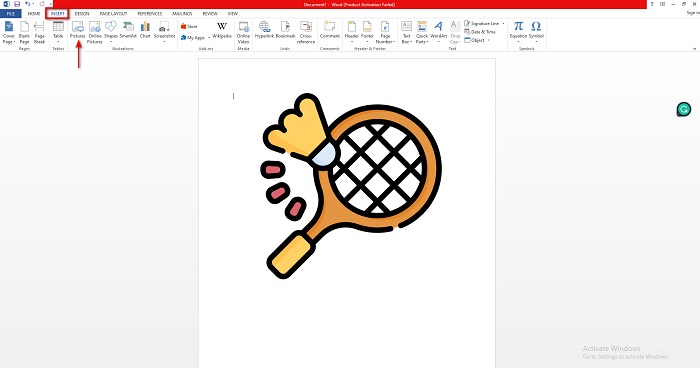
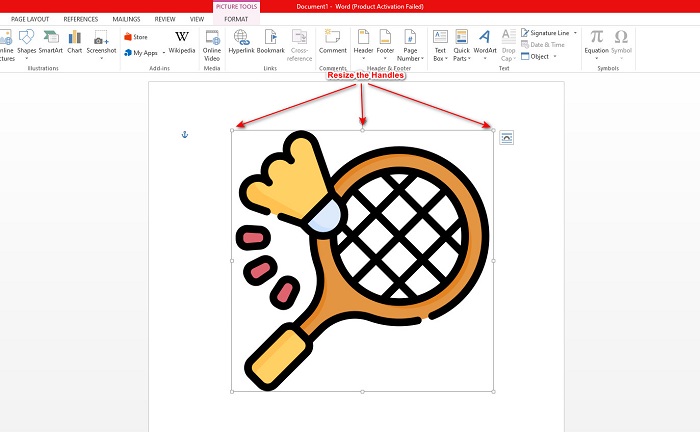
步骤 2. 接着,点击图片,此时会出现图片周围的调整大小控制点。然后,你会在功能区上看到 图片工具 > 格式 选项卡出现。单击它以显示可用的选项。
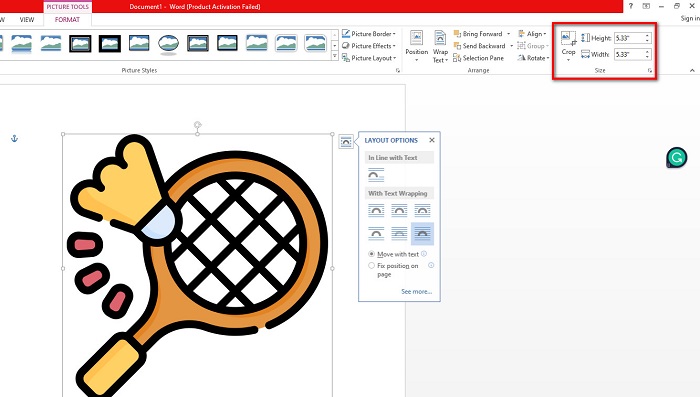
步骤 3. 之后,点击格式后,你就可以使用大小组中的功能,输入图片的精确高度或宽度。你可以点击在高度与宽度旁边的向上和向下箭头,根据个人需求来调节尺寸。
步骤 4. 如果你想手动调整图片大小,可以使用鼠标手动拖动调整控制点。若想缩小或减小图片尺寸,将控制点向图片中央拖动;若想放大或增大图片尺寸,则将控制点朝屏幕边缘方向拖动。
步骤 5. 请务必记住,在 Word 中手动调整图片大小时,最好使用图片四角的调整控制点。这样可以确保图片的高度和宽度同时按比例缩放,从而保持图片的长宽比例不变。
方法二
您可以使用 Microsoft Word 调整图像大小的另一个选项是使用百分比。如果要使用百分比以精确比例调整图片大小,可以使用此方法。
步骤 1. 通过左键单击图片,选中你想调整大小的图片。
步骤 2. 然后转到图片格式选项卡,点击位置,再选择其他布局选项。
步骤 3. 接着,点击大小选项卡。在缩放面板中,勾选锁定纵横比。随后你就可以输入希望应用到图片高度和宽度的百分比。
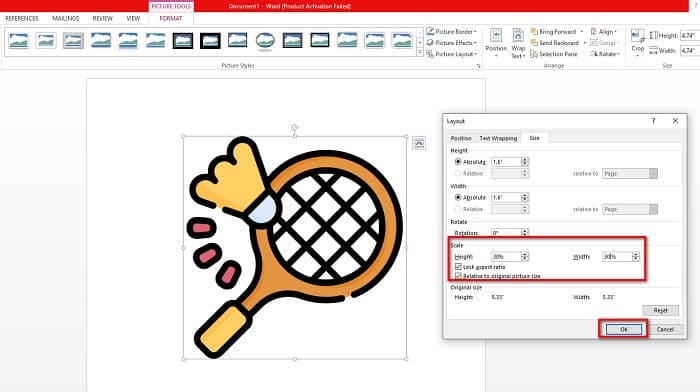
步骤 4. 最后,点击确定以保存你对图片尺寸所做的更改。
第 2 部分。如何在线调整图像大小
如果您想使用在线应用程序调整图像大小,我们会为您提供支持。在这一部分,我们将向您展示最好的在线照片缩放器以及如何使用它来调整照片大小。
FVC Free Image Upscaler 是一款在线图片缩放工具,你可以用它来调整图片尺寸。你可以通过改变或提高图片的放大倍数来调整照片大小。例如,如果你有一张模糊的图片,就可以使用 FVC Free Image Upscaler 对其进行增强。此外,它的 AI(人工智能)技术会检测图片中质量较低的部分并对其进行提升。而且,这款在线工具支持最常见的图片格式,如 PNG、JPG、JPEG 和 WebP。它的界面也非常友好、简单易用,非常适合初学者。
此外,您可以将图像放大 2 倍、4 倍、6 倍和 8 倍。如果您想在保存输出之前检查结果,此工具可让您预览输出。 FVC Free Image Upscaler 的出色之处在于它使用起来很安全,不需要您登录帐户。
如何使用 FVC Free Image Upscaler 在线调整图像大小
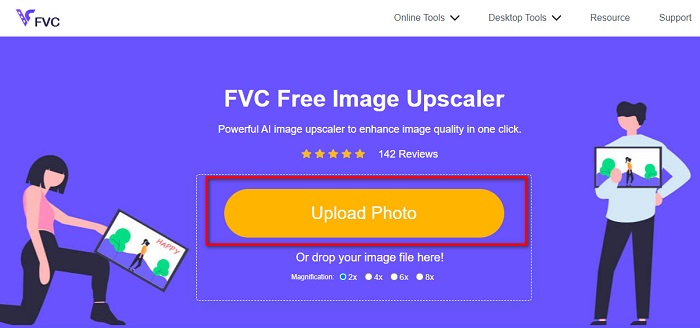
步骤 1. 打开浏览器,在搜索框中搜索 FVC Free Image Upscaler。你也可以直接点击此链接访问其主页。然后点击“Upload Photo”(上传照片)按钮,在你的设备上启动该程序。
步骤 2. 然后再次点击Upload Photo按钮,导入你想调整尺寸的图片。在电脑中找到这张图片,然后点击打开进行上传。
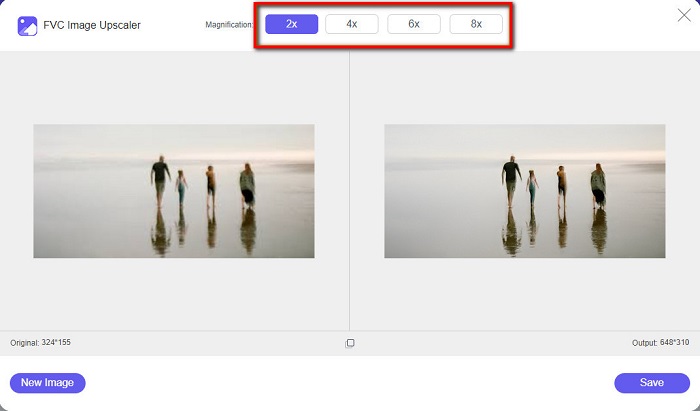
步骤 3. 接下来,选择你希望为图片设置的放大倍数。你可以在2x、4x、6x和8x之间进行选择。请始终记住,放大倍数越高,文件体积就会越大。
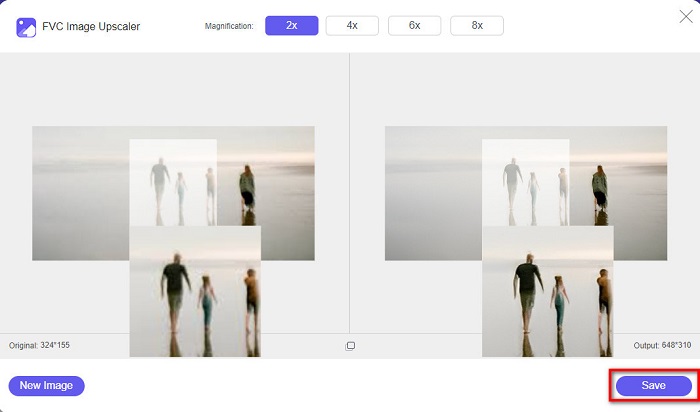
步骤 4. 若要预览输出效果,将光标拖动到图片右侧,以查看画面更改和优化的情况。当你对这款图片缩放工具所生成的结果感到满意时,点击保存按钮。
第 3 部分。有关如何在 Word 中调整图片大小的常见问题解答
在 Microsoft Word 中调整图像大小后图像会模糊吗?
不会。当你在 Microsoft Word 中调整图片大小时,图片质量通常不会受到影响。但如果你确实遇到类似问题,图片发虚或模糊,很可能是由于压缩导致的。
如果我在 Word 中缩小图像,文件大小会减小吗?
是的。如果缩小其中的图像,文档文件的大小可能会减小。导入到文档中的图像可能具有高分辨率。因此,当您调整图像大小时,整个文档的大小都会受到影响。
我可以在 Excel 中调整图像的大小吗?
当然。您可以通过单击图像并调整把手来调整导入到 Excel 中的图像或对象的大小。
结论
在 Word 中调整图片大小非常简单,尤其是在你按照上面的步骤操作时。所以下次当你在 Word 中插入图片并想调整尺寸时,就知道该怎么做了。如果你更倾向于使用在线应用程序来为 Word 调整图片大小,也可以选择FVC Free Image Upscaler。
-
 跨所有平台可用的 5 个最佳 GIF 大小调整器 #91;2022]
 想知道您可以使用的 GIF 大小调整器吗?在这种情况下,下面提供的信息将讨论您可以在所有平台上的 GIF 上使用的大小调整器。
-
 最佳照片调整器应用程序在线、离线、Android 和 iPhone
 什么是最好的照片调整器应用程序?单击该页面以了解可用于增强或调整文件大小的前五个最强大的照片调整器应用程序。
-
 如何在 PowerPoint 中调整图片大小 [更改大小的最快方法]
 学习如何在 PowerPoint 中调整图片大小至关重要,尤其是如果您想在演示文稿中使用它。阅读本文以了解如何操作。
