


 视频转换大师
 屏幕录影大师
 视频修复
视频修复
 安全下载
安全下载VLC快照功能–这是在VLC Media Player中拍摄屏幕快照的指南
在VLC播放器中播放视频教程或电影时,如何在VLC Media Player中截屏?无论您需要将快照捕获为缩略图还是将注释添加到特定帧,您都可以简单地使用VLC的隐藏快照功能。
如何使用VLC Media Player拍摄快照?拍摄完所需的帧后,屏幕快照将保存在哪里?是否可以将快照保存为所需格式?当您想了解有关该过程的更多详细信息以及最佳选择时,可以从本文中找到一些有用的信息。

第1部分:如何在VLC中拍摄快照和查找位置
1.如何在VLC Media Player中截屏
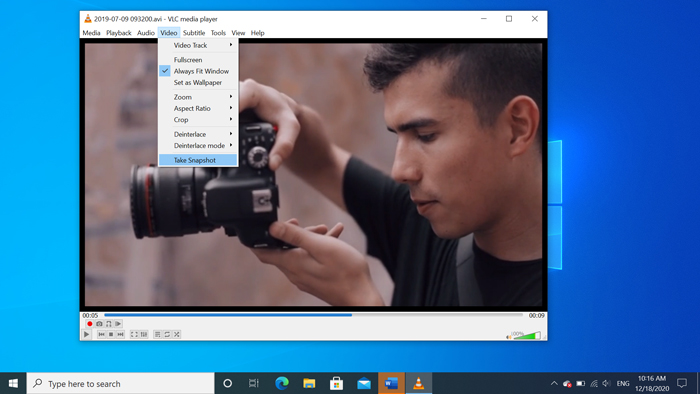
如果您使用的是最新的VLC Media Player,则用户界面底部会显示一个摄像机图标。只需单击摄像机即可在VLC Media Player中截屏。对于其他版本,您可以使用热键或按钮来捕获屏幕截图,如下所示。
Step 1: Once you have installed the VLC Media Player, you can launch the program on your computer. After that, you can import the desired movies into the media player.
Step 2: When you reach the desired frame you want to take a snapshot in VLC, click the Video menu, and choose the Take Snapshot option to save the desired snapshot.
您也可以使用快捷方式在VLC中进行屏幕截图。这是默认值供您参考。对于Windows,为SHIFT + S,对于Mac,则为Command + ALT + S,对于Linux,则为CTRL + ALT +S。
Step 3: Then you can find a popup thumbnail with the snapshot on the top of VLC Media Player, as well as the saved file location and file name. But it will fade within a few seconds.
2. VLC的屏幕快照保存在哪里
如果您无法从弹出的缩略图中获取信息,则这是VLC屏幕截图的默认目标。当然,您可以拍摄多个快照以了解有关快照目标文件夹的更多信息。
Windows 7/8/10:C:Users用户名“我的图片”
Windows XP:C:我的文档我的图片
Mac OS X:快照保存在桌面/
Linux:快照保存在$(HOME)/。vlc /中
3.如何在VLC中为快照设置首选项
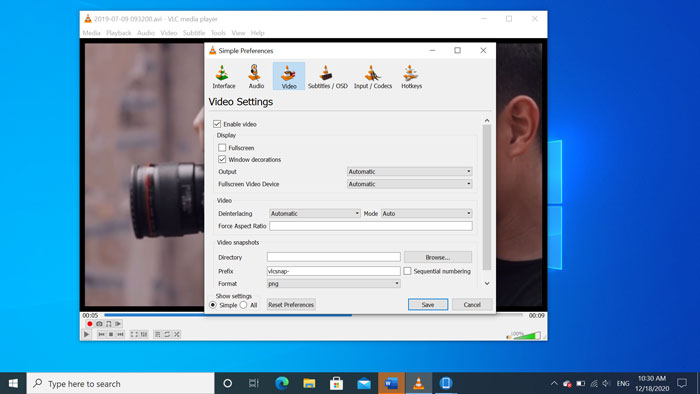
Is it possible to set up the preferences for the snapshots? When you want to change for another format, or destination folder, you can go to the Tools menu and select the Preferences to tweak the settings.
Video Directory: Once you have clicked the Browse button, you can choose the VLC screenshot location as your desktop, or other frequently used destination instead.
前缀:它将为VLC Media Player中捕获的屏幕截图添加一些前缀和后缀。如果要使用数字而不是当前日期/时间,请选中顺序编号框。
格式:您可以选择JPG,PNG和TIFF作为输出照片格式。
第2部分:VLC的在线替代方案以截屏
VLC Media Player is an easy method to capture video screenshots. But when you need to add annotation, tweak the frame to capture, or take any snapshot on Windows and Mac, FVC Free Screen Recorder is a VLC online alternative to take screenshots. It enables you to record any video and audio with high quality in just one click. Moreover, you can also manage the screenshot within the online video recorder.
- 1.在计算机上捕获电影,桌面和更多其他活动。
- 2.调整热键,目标文件夹,视频/音频质量,以及更多其他功能。
- 3.实时编辑屏幕截图,例如线条,文本,突出显示,线条等。
- 4.提供免费的屏幕录制,没有水印和其他限制。
- 5.录制高质量的视频。
Step 1: Go to the online screen recorder, you can click the Start Recording icon to download and install the installer. Then you can launch the online screen recorder to capture any activity on your computer.

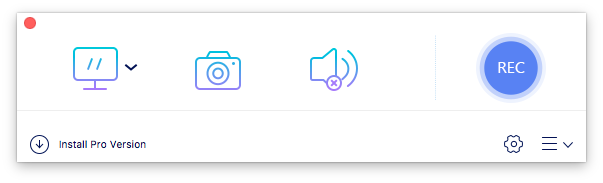
Step 2: Once you have launched the online screen recorder, click the camera icon to take a snapshot online as a VLC alternative. Tweak the capturing area with your mouse to get a snapshot.
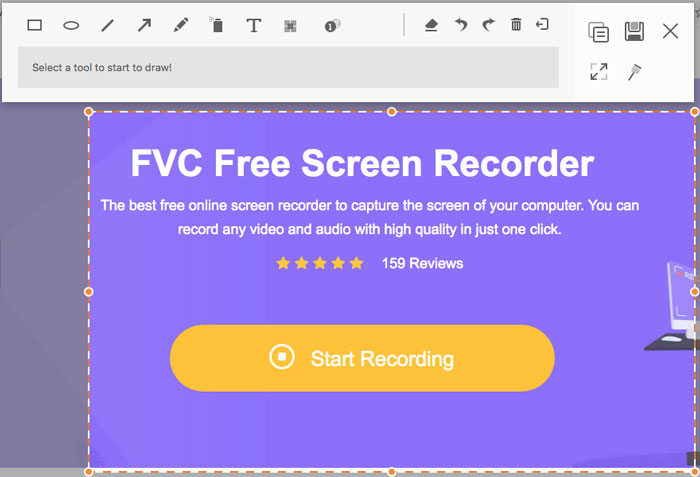
Step 3: After that, you can add annotations, such as watermark, callout, arrow, text, and more other elements into the screenshot. Moreover, you can also manage the screenshot within the program directly.
第3部分。VLCMedia Player的常见问题解答屏幕快照
1.如何调整在VLC中获取截图的热键?
If there is a conflict for the hotkeys, especially when you are doing other tasks, you can go to the Tools menu and choose the Preferences option. Then you can choose the Hotkeys button and enter the snapshot into the search column. Click the Take video snapshot and press the new key or combination for VLC snapshots.
2.如何以最佳质量在VLC中捕获快照?
当您需要在VLC中以原始质量拍摄视频屏幕截图时,可以选择全屏模式,然后将文件格式选择为PNG。为避免图像模糊,您可以在要预先捕获的特定帧处暂停。
3.是否可以在VLC中捕获YouTube电影的屏幕截图?
Yes. To capture screenshots of YouTube movies in VLC, you can stream and play the YouTube movies within the media player. Click on the Media option and choose the Open Network Stream option. Then enter the direct YouTube URL to the video. After that, you can play the video and capture the desired snapshot accordingly. You can also try FVC Free Screen Recorder or other recording tools like DU Screen Recorder to take the snapshot.
结论
在VLC Media Player中拍摄视频快照是一项简单的任务。但是,当您要查找目标文件夹,调整快照设置,甚至选择在线替代方法时,FVC Free Screen Recorder始终是帮助您的最佳选择。
-
 Snagit 2021评论–优点,缺点和最佳选择
 什么是Snagit的最佳替代品?有像Snagit这样的屏幕捕获工具吗?这篇文章将回顾Snagit,并分享Snagit捕获屏幕的最佳替代方法。
-
 QuickTime屏幕录制–在Mac和PC上录制带有音频的视频
 在Mac上带有音频的录制屏幕会派上用场。内置播放器QuickTime Player可以做到。阅读他的文章,并了解如何在Mac和PC上用声音捕获屏幕。
-
 真实球员的公正评价和最佳选择
 如果您选择Real Player来播放媒体播放器,则应阅读我们的简介和公正的评论,并从本文中了解有关最佳选择的更多信息。
