


 视频转换大师
 屏幕录影大师
 视频修复
视频修复快速简单的修复 - 如何在 Photoshop 中裁剪图像
对于初学者来说,Photoshop 的复杂性确实是一大挑战,而且它有许多非常实用的功能值得去了解。裁剪图片绝不只是一个小操作。学会裁剪对于改善构图、突出主体、调整长宽比、优化分辨率、表达创意、增强叙事性、纠正错误,以及为特定平台适配图片都至关重要。所以,如果你正在疑惑如何在 Photoshop 中裁剪图片?那你就来对地方了。本指南将为你提供一份逐步讲解的教程,详细说明如何在 Photoshop 中进行裁剪。无论你是想要简单教程的新手,还是想要探索进阶技巧的用户,这里都能满足你。让我们借助 Photoshop 精准裁剪的强大能力,改变你的视觉作品,把你的创意真正呈现出来。

第 1 部分:如何在 Photoshop 中裁剪图像?
以下是有关如何在 Photoshop 中裁剪图像的分步指南。
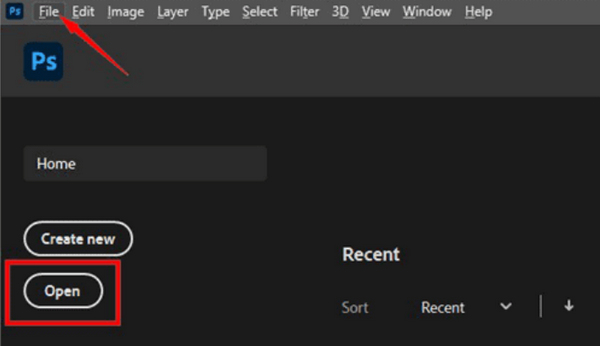
步骤 1: 打开 Photoshop,并通过点击“文件(File)”选项卡导入你想要裁剪的图片。
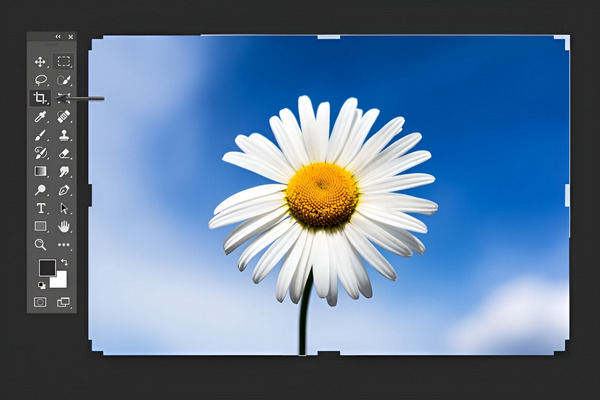
步骤 2: 在左侧工具栏中使用“裁剪工具(Crop Tool)”。
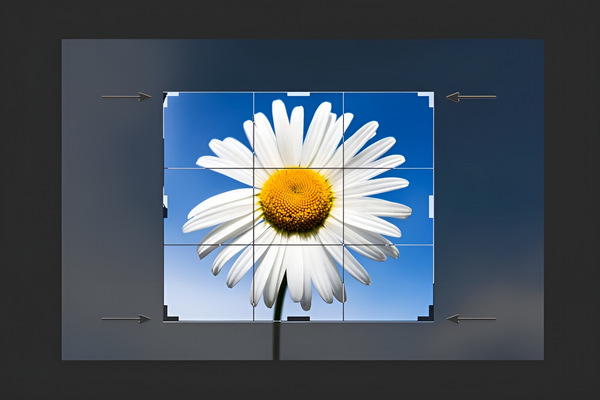
步骤 3: 现在在图片上绘制一个裁剪区域,或者拖动四角和边缘的控制点来确定照片的裁剪边界;另外,在屏幕上方你也可以看到裁剪工具的选项栏,如果有需要,可以在其中输入具体的尺寸或长宽比。
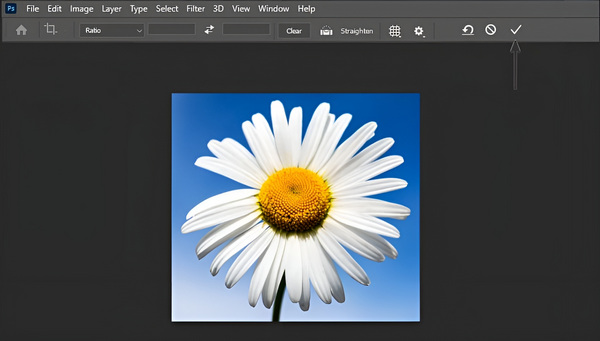
步骤 4: 如果已经达到了理想的裁剪效果,只需点击“勾选(Check)”按钮,然后通过“文件(File)”菜单中的“另存为(Save as)”选项保存已裁剪好的图片。
请记住,Photoshop 的裁剪是非破坏性的,因此您可以随时返回并重新调整裁剪或恢复为原始图像。只需再次选择裁剪工具并根据需要进行修改即可。此外,当您尝试导出图像时,Photoshop 还允许您调整图像大小和压缩图像。
第 2 部分:为什么 Photoshop 中的裁剪部分呈灰色? - 原因及解决方案
由于多种原因,Photoshop 中的裁剪工具可能会显示为灰色。如果您尚未在图层面板中选取图层或者您的图像是背景图层,则裁剪工具可能会保持不活动状态,等等。下表显示了作物显示为灰色的可能原因,以及解决这些问题的可能解决方案。
| Photoshop 中的裁剪工具灰显的可能原因 | 解决方案 |
| 1. 无活动层 | 确保在“图层”面板中选择图层以激活“裁剪”工具。 |
| 2.背景层 | 要解锁裁剪,请双击背景图层并将其转换为常规图层。 |
| 3. 选定文本或形状图层 | 为了使裁剪工具发挥作用,请选择基于像素的图层而不是文本或形状图层。 |
| 4. 锁定层 | 在“图层”面板中检查并解锁图层以启用“裁剪”工具。 |
| 5. 图像是一个智能对象 | 要启用裁剪,请双击智能对象,进行必要的更改,然后保存。 |
| 6. 空层或隐藏层 | 确保图层包含可见内容并且未隐藏以激活裁剪工具。 |
| 7. 某些模式下锁定背景层 | 调整背景图层的混合模式以解锁裁剪工具。 |
第 3 部分:在不在线裁剪的情况下缩小图像的技巧
如果你想在不裁剪的情况下缩小图片大小,就需要使用在线图片压缩工具或缩放工具。目前任何人都可以轻松使用的一款优秀图片压缩工具,就是FVC 免费图片压缩工具(FVC Free Image Compressor)。这个工具非常易于上手,专门用于在不明显降低画质的前提下,减小 JPEG、PNG、SVG 和 GIF 图片的文件体积。此外,它采用了先进的优化和压缩算法,来实现尽可能高的压缩比。
主要特点:
批量压缩: 用户可以同时压缩多张图片,最多支持 40 张,每张图片最大 5MB。该工具可以高效压缩,并将画质损失控制在较小范围内。
自动压缩: 所有上传的照片都会自动进行压缩处理,使整个过程快速高效。用户只需上传、压缩并下载图片,无需手动调整。
广泛兼容性: FVC 免费图片压缩工具支持多种图片格式,包括 JPEG、PNG、SVG 和 GIF。输出格式为 PNG。想要了解如何压缩 GIF,可查看这篇文章:在此压缩 GIF。
无需账号: 与一些工具不同,FVC 免费图片压缩工具不需要注册、登录或创建账号。它是一款完全免费的工具,没有任何隐藏收费,使用起来毫无负担。
隐私保护: 用户可以放心上传图片。该工具通过防止未授权访问来保护上传的图片,保障隐私安全。
用户评价: 用户普遍称赞这款工具压缩速度快、界面简单易用,并且在显著减小文件大小的同时,仍能很好地保持图片质量。
在线裁剪图像的分步指南:
步骤 1: 首先,前往他们的官方网站。
步骤 2: 然后点击“Upload Images(上传图片)”按钮导入你的图片。
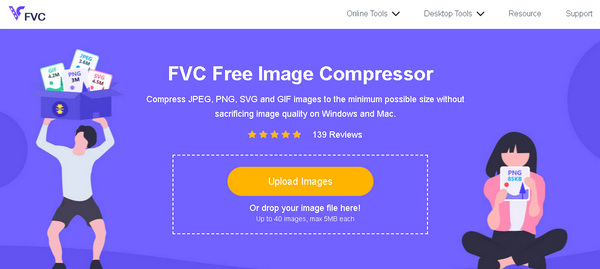
步骤 3: 请等待压缩过程完成。完成后,你会看到状态栏提示压缩完成情况以及新图片大小的详细信息。点击“Download(下载)”按钮即可保存压缩后的图片。
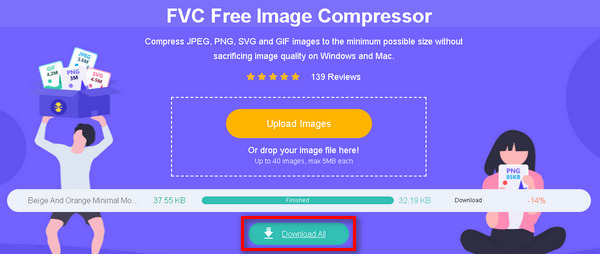
对于寻求出于各种目的(包括提高网站速度、共享图像和节省存储空间)优化图像大小的个人来说,FVC Free Image Compressor 确实是一个可靠的解决方案。它以其用户友好的界面、自动压缩以及对保持高质量输出的承诺而脱颖而出。
第 4 部分:有关在 Photoshop 中裁剪图像的常见问题解答
Photoshop CC 中的裁剪工具在哪里?
在 Photoshop CC 中,您可以在屏幕左侧的工具栏中找到“裁剪”工具。它由一个看起来像裁剪框的图标表示。如果找不到它,请按键盘上的 C 键激活裁剪工具。
如何在 Photoshop 中使用快速选择工具进行裁剪?
快速选择工具(Quick Selection Tool)主要用于进行选区操作,而不是专门用来裁剪。如果要借助该工具来实现裁剪,可按如下步骤操作:
1. 首先使用“快速选择工具(Quick Selection)”选中你想要保留的区域。
2. 选取完成后,进入“选择(Select)”菜单,选择“反选(Inverse)”来反转选区。
3. 在 Windows 上按 Ctrl + Shift + I,在 Mac 上按 Cmd + Shift + I 进行反选。
4. 最后,进入“图像(Image)”菜单,选择“裁剪(Crop)”,图像就会根据你的选区自动完成裁剪。
如何在 Photoshop 中剪切和移动选区?
要在 Photoshop 中剪切并移动一个选区,可按以下步骤操作:
1. 使用任一选区工具(如矩形选框工具、套索工具等)创建选区。
2. 在 Windows 上按 Ctrl + X,在 Mac 上按 Cmd + X,将选中的区域剪切。
3. 将光标移动到图像中你想要放置该内容的位置。
4. 在 Windows 上按 Ctrl + V,在 Mac 上按 Cmd + V,即可在新位置粘贴被剪切的选区。
我可以在 Photoshop 中一次裁剪多个图像吗?
Photoshop 没有同时裁剪多个图像的内置功能。但是,您可以创建一个操作来自动执行一批图像的裁剪过程。在一张图像上记录裁剪操作,然后使用“文件”菜单下的“批处理”命令将其应用到图像文件夹。
有没有办法在 Photoshop 中裁剪图像而不丢失原始分辨率?
是的,在 Photoshop 中,您可以使用内容感知裁剪功能来扩展画布,同时保留原始分辨率。这使您可以在不永久丢弃任何像素的情况下裁剪图像,从而使您可以灵活地在以后重新调整裁剪而不会损失质量。
结论
现在,你已经掌握了如何在 Photoshop 中进行裁剪。无论你是新手还是老手,本指南都为你提供了从基础操作到疑难排查,以及如何在不损失画质的前提下调整图片大小的实用技巧。准备好释放你的创意了吗?赶快动手实践,尽情探索 Photoshop 的无限潜能吧。
-
 如何裁剪 MP4 文件而不损失视频质量 [2025]
 了解如何通过专为您提供的简单步骤来裁剪 MP4。因此,请跟上步伐,因为我们向您展示您可能使用的最佳裁剪工具中的最佳工具。
-
 在 Photoshop 中剪切图像的分步指南
 你在使用 Photoshop 吗?这篇文章可能适合您。了解如何在 Photoshop 中快速轻松地剪切图像。现在阅读并发现一些东西。
-
 如何在 Photoshop 中去除照片水印 [步骤]
 Photoshop 是流行的编辑工具之一。在此处获取使用 Photoshop 去除照片水印的免费教程。此外,发现替代方法。
