


 视频转换大师
 屏幕录影大师
 视频修复
视频修复
 安全下载
安全下载压缩MPEG-4 |如何在不损失质量的情况下缩小MPEG-4文件的大小
你有没有尝试过把一个很大的 MPEG-4 文件发给别人?你可能需要用文件压缩工具来减小文件大小。如果你没有文件压缩方面的经验,可能会想知道哪一款视频压缩工具最适合你的需求。继续往下读,了解如何在不降低画质的情况下压缩 MPEG-4 文件。

第1部分。免费在线免费压缩MPEG-4文件的最佳方法
必须知道MPEG-4文件的大小是有限的。如果文件太大,则很难通过电子邮件发送大文件而不进行压缩。在不必破坏文件质量的情况下,将这种文件大小减小到最小尺寸在我们的日常生活中变得越来越重要。幸运的是,有许多在线工具可用于压缩不同的视频文件格式。
在这里,我们推荐使用免费视频压缩器来帮你在不损伤画质的情况下缩小体积庞大的 MPEG-4 文件。它可以说是当前压缩 MPEG-4 文件最容易、最快速的解决方案。这款在线工具几乎兼容所有 MPEG-4 文件。用户还可以将压缩后的视频保存为任意格式,包括 MOV、AVI、VOB 等。下面是使用这款超快视频压缩器的 4 个简单步骤。
步骤 1. 访问在线视频压缩器网站
下面的链接将带您到正确的地方:
步骤 2. 上传文件
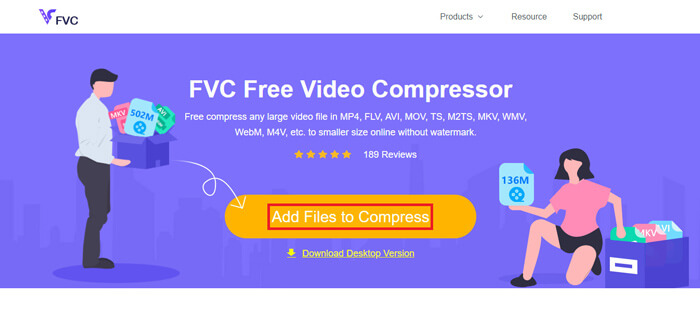
点击添加文件进行压缩按钮。如果你是第一次使用该工具,需要先安装它的启动器。完成后,找到你的 MPEG-4 视频文件,在弹出的窗口中点击打开。
步骤 3. 设置压缩参数
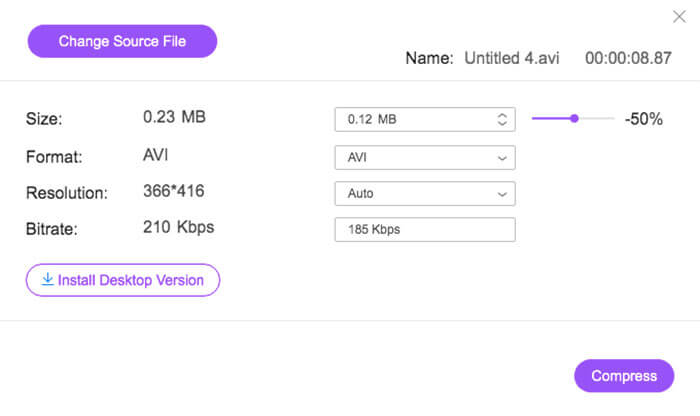
现在,您需要配置压缩设置,例如大小,格式,分辨率和比特率。例如,您可以降低MPEG-4文件的分辨率以缩小文件的大小。
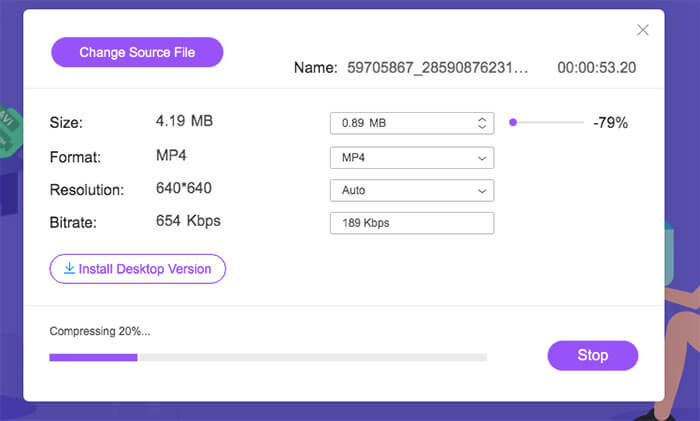
步骤 4. 最后点击压缩以开始压缩过程。完成后,体积减小的视频会自动无水印下载到你的电脑。
除了压缩 MPEG-4 文件之外,该工具还支持压缩 MXF、缩小 WebM 文件以及轻松压缩其他常见视频格式。
第2部分。如何使用MP4Compress缩小MPEG-4文件的大小
您也可以检出MP4Compress-一种简单有效的MPEG-4文件压缩工具。 MP4Compress是免费的在线工具,可让您直接从Web浏览器压缩MPEG-4文件。
步骤 1. 在浏览器地址栏输入 https://www.mp4compress.com,访问其官方网站。
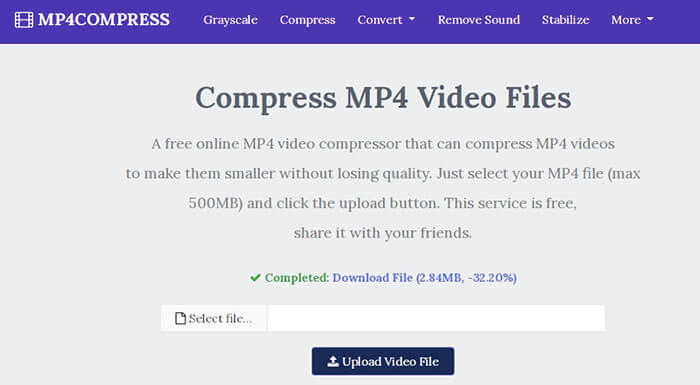
点击选择文件...按钮来选取 MPEG-4 文件,然后点击上传视频文件开始上传。
步骤 2. 文件上传成功后,该工具会开始压缩文件。压缩速度取决于你的网络带宽。
步骤 3. 压缩完成后,你会看到一个下载文件链接,此时就可以将压缩后的视频保存到电脑中。
第3部分。MPEG-4文件压缩的常见问题解答
什么是MPEG-4文件?
MPEG-4是运动图片专家组(MPEG)定义的数字媒体容器格式。它支持几种不同类型的视频和音频编解码器,还可能包含3D对象,子画面,文本和其他类型的媒体。随着MPEG-4的发展,它分为几个部分(每个部分涵盖整个规范的某个方面),包括MPEG-4第2部分(例如XviD视频编解码器),MPEG-4第3部分(例如AAC音频编解码器) ,MPEG-4第10部分(H.264视频编解码器),MPEG-4第14部分(MP4媒体容器)等。
什么是视频压缩器?
视频压缩器是一种可帮助您缩小视频文件大小的工具。压缩率取决于视频编解码器和比特率。由于不同的视频格式可能使用不同的编解码器,因此您可以选择更改文件格式以减小文件大小。
如何在Mac上压缩MPEG-4文件?
上述在线服务可在任何操作系统上运行,因此您可以使用其中之一来减小Mac上MPEG-4文件的大小。
结论
本文介绍了两个主要的有效在线工具,可帮助您完成MPEG-4压缩。现在您知道如何免费在线将MPEG-4文件压缩为较小的尺寸。去测试工具,找到最适合您需求的工具。
-
 如何在Windows和Mac上免费压缩AVCHD视频文件
 阅读并获取2种简单的方法来压缩AVCHD视频文件。您可以使用在线和离线视频压缩器在计算机上免费减小AVCHD视频大小。
-
 2种缩小OGV大文件的快速方法[免费和在线]
 无法将大型OGV文件发送给其他人?好的,本文将向您介绍2种简单的方法来帮助您轻松压缩OGV文件。
-
 100%将M4V文件大小从GB压缩为MB的免费方法
 如果您正在寻找一种减小M4V文件大小的简单方法,则应阅读本文。在这里,我们将与您分享最简单的压缩M4V文件的方法。
