


 视频转换大师
 屏幕录影大师
 视频修复
视频修复
 安全下载
安全下载轻松在 VLC Media Player 中截取屏幕截图
在观看视频时截取屏幕截图,是保存难忘瞬间或提取重要信息的一种便捷方式。它相当于把视频中的某个特定时刻“定格”下来以便保存。VLC Media Player 是一款适用于 Windows、macOS 和 Linux 的用户友好型视频播放器。VLC 提供了内置的精准逐帧截图功能。与许多其他媒体播放器不同,VLC 将操作流程大大简化,只需几次点击或按键即可获取所需图像。只要熟练掌握这一功能,用户就可以快速收集来自自己喜爱视频的一组快照。本文将讲解如何在 VLC 中截图的详细步骤,帮助用户充分利用 VLC Media Player 的截图功能,轻松提升多媒体使用体验。继续阅读,了解如何通过快捷键和菜单截图、VLC 的优点与限制,以及替代软件推荐。

第 1 部分。如何在 VLC 中截屏
使用快捷键或菜单选项,即可轻松在 VLC Media Player 中截取屏幕截图。您可以使用这两种方法轻松截取视频中的帧。只需按几下键,您就可以捕捉并保存您最喜爱的时刻的快照。VLC 的多功能屏幕截图功能可增强您的多媒体体验,让您轻松保存令人难忘的场景。
通过快捷键在 VLC 中截屏的步骤:
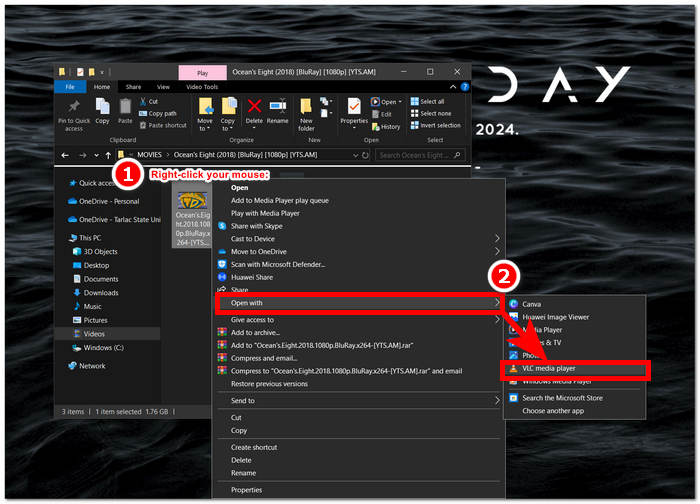
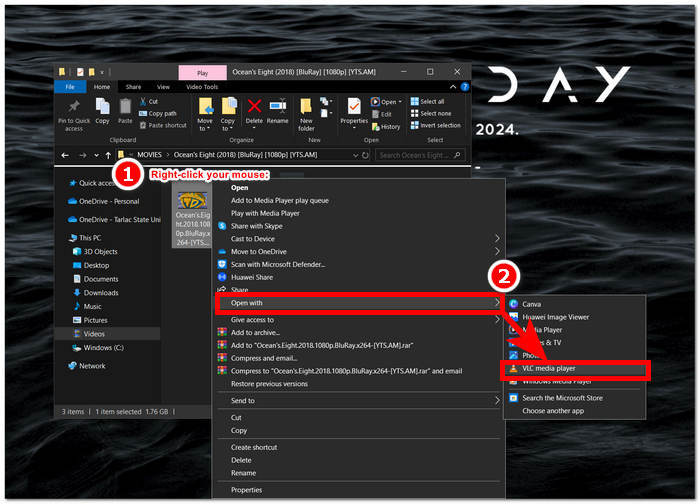
步骤 1: 在桌面上找到要播放的视频,右键单击并选择 VLC Media Player 打开。
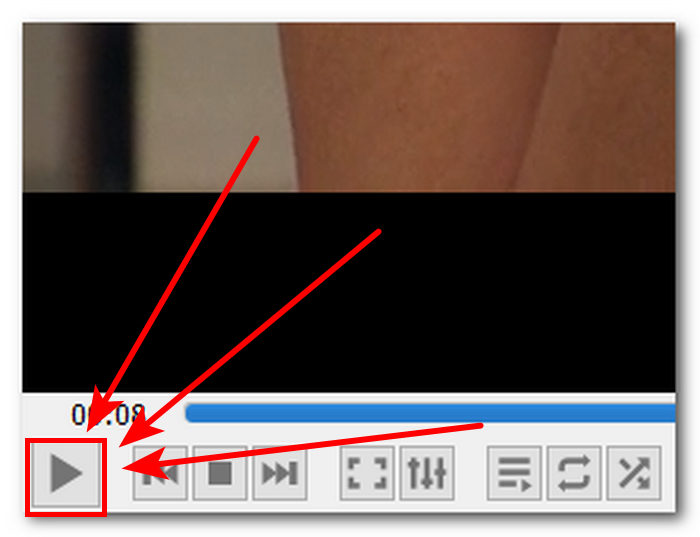
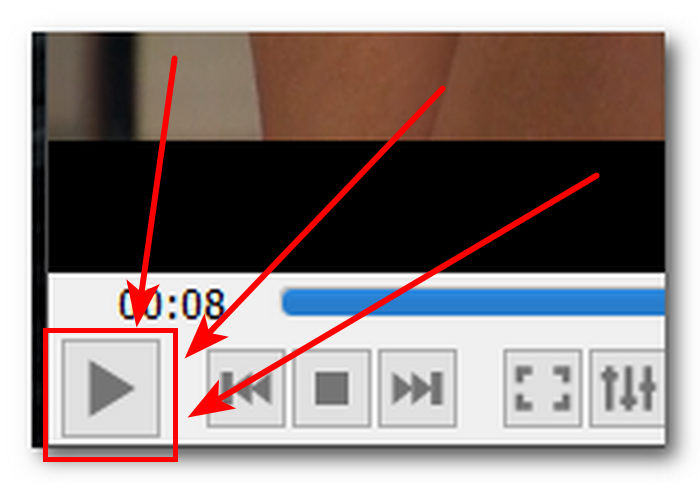
步骤 2: 播放你的视频,或拖动到你想要截图的画面,然后点击暂停(Pause)按钮。
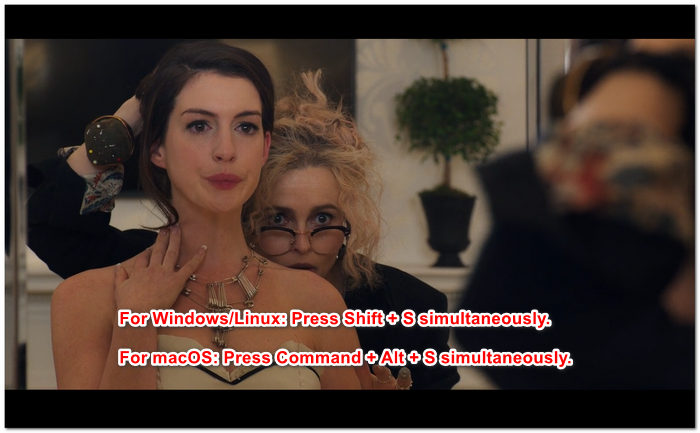
步骤 3: 若要使用快捷键截图,在 Windows/Linux 上同时按下 Shift + S,在 macOS 上则同时按下 Command + Alt + S。
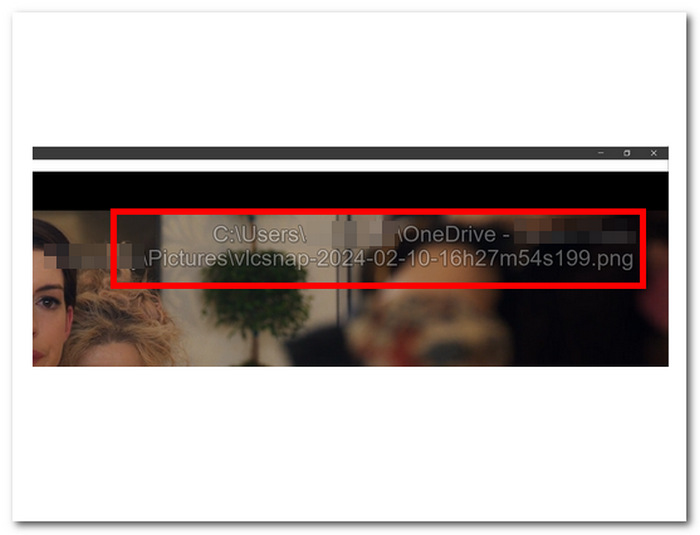
步骤 4: 按下快捷键后,屏幕右上角会出现一行文字,显示VLC 截图文件夹的位置。按照提示路径打开,就可以看到你所有的截图。
通过菜单在 VLC 中截屏的步骤:
步骤 1: 在桌面上使用 VLC Media Player 找到并打开你的视频。
步骤 2: 点击位于播放器左下角的暂停(Pause)按钮,将视频停在你想要截图的画面。
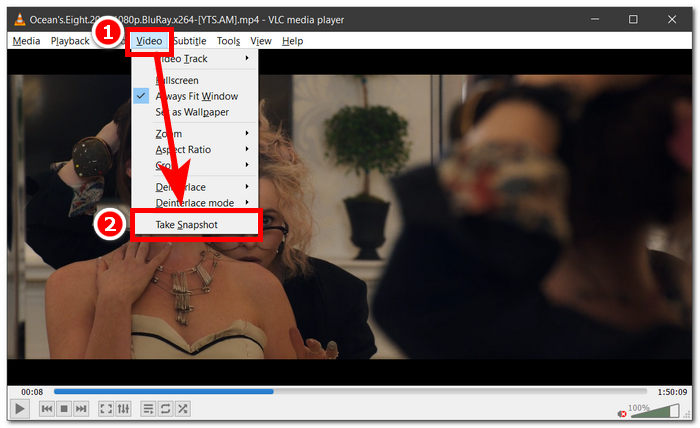
步骤 3: 视频暂停后,点击播放器左上方的“视频(Video)”设置菜单。
步骤 4: 在该菜单中找到“截图(Take Snapshot)”选项并点击,即可对当前视频画面进行截图。
无论你选择哪种方式,VLC 都能让你轻松截图,帮助用户以极小的操作成本保存视频中的精彩瞬间。无论你偏好使用 VLC 截图快捷键还是菜单选项,VLC 都能在捕捉画面快照时提供顺畅的使用体验。
第 2 部分。VLC 截图的优势和局限性
不可否认的是,VLC 屏幕截图提供了两种截取 VLC 媒体播放器中播放的任何类型的视频的方法。VLC 媒体播放器的优势非常明显,可能会让用户怀疑它的局限性。因此,我们在下面列出了 VLC 媒体播放器的一些优势和局限性。
VLC 截图的优点:
◆ 提供易于使用且随时可用的界面来捕获快照。
◆ 提供快捷键和菜单选项,更加方便。
◆ 可自定义设置以调整图像格式和质量。
◆ 轻松保存喜爱的时刻并增强多媒体体验。
VLC 截图的局限性:
◆ 没有提供用于优化捕获图像的高级编辑工具。
◆ 专用的截图软件可能比此工具提供更高的精度。
◆ 由于版权保护,无法对加密的 DVD 或蓝光盘进行截图。
◆ 与专业的截图工具相比,控制和定制功能有限。
◆ 对于更复杂的编辑需求,用户可能需要使用外部软件。
◆ 此工具主要适合于基本的屏幕截图要求,而不是高级编辑任务。
VLC Media Player 截图可能走上了一条只截取屏幕截图的道路,不包括用户可能需要的其他功能。请注意,VLC Media Player 是一个视频播放器,而不是截图软件工具。这就是为什么它只提供基本的截图功能。
第 3 部分。VLC 截图的最佳替代品
Screen Recorder 是一款可以帮助用户截取视频中喜爱画面的软件。该软件功能丰富,可用作视频录制器、音频录制器以及游戏录制器。这款工具在 Windows 和 Mac 电脑上都具备出色的屏幕录制和截图能力。作为一款强大的软件,它提供了许多 VLC 截图功能所不具备的特性,比如“滚动窗口截图”,可以把一整篇很长的帖子在一张截图中完整捕获,对浏览网页和文档的人来说非常实用;还有“弹出菜单截图”功能,可以轻松截取各类菜单窗口。
步骤 1: 访问 Screen Recorder 官网,下载并安装该软件。
步骤 2: 软件安装完成后,在桌面上启动该应用程序。
步骤 3: 在软件界面中,点击“快照(Snapshot)”按钮,对屏幕进行截图。
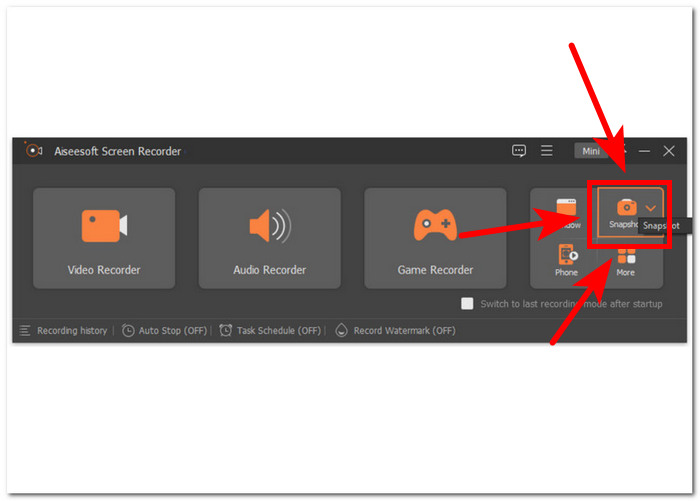
步骤 4: 你可以灵活选择需要截图的区域,无论是活动窗口还是任意框选区域。选定区域后,点击保存(Save),即可将截图以合适的图片格式保存下来。
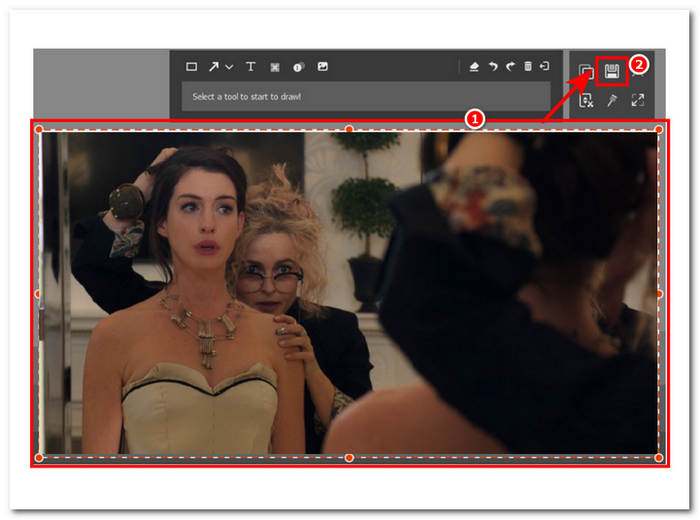
总之,Aiseesoft Screen Recorder 是一款多功能软件,可同时完成屏幕录制和屏幕截图等任务。VLC Media Player 和 Aiseesoft Screen Recorder 提供快捷键控制,只需使用键盘即可轻松截取屏幕截图。两者在截取屏幕截图方面都提供了出色的效果,但 Aiseesoft Screen Recorder 不仅仅是截取屏幕截图,正如软件中的功能所示。
第 4 部分。关于如何在 VLC Media Player 中截屏的常见问题解答
VLC 截图的默认位置在哪里?
VLC 屏幕截图默认保存位置在计算机上的图片文件夹中。要更改此设置,请导航至工具 > 首选项 > 视频,然后选择视频快照目录下的新文件夹。
我可以连续截取多个屏幕截图吗?
是的,您可以通过对每个所需帧重复此过程来捕获多个屏幕截图。但是,没有内置功能可以按指定的间隔自动捕获多个屏幕截图。
VLC 是否支持捕获流媒体视频的截图?
是的,您可以使用上述相同的方法在 VLC Media Player 中截取流媒体视频的屏幕截图。只需在所需的时刻暂停视频并拍摄快照即可。但是,请记住,屏幕截图的质量可能取决于流媒体源和您的互联网连接速度。
VLC 媒体播放器截屏有什么限制吗?
一个限制是,由于版权保护措施,您无法截取加密 DVD 或蓝光光盘的屏幕截图。此外,VLC 的屏幕截图功能可能无法与某些视频编解码器或流媒体源顺利配合使用,从而导致潜在的兼容性问题。
我可以在全屏模式下截取视频截图吗?
是的,您可以在 VLC Media Player 中全屏播放视频时截取视频截图。只需在视频处于全屏模式时按下键盘上的 Shift + S 或从菜单栏转到视频 > 截取快照即可。这样您就可以截取特定帧的截图,而无需退出全屏播放。
结论
总之,在 VLC Media Player 中截图,是从视频中保存精彩瞬间或提取重要信息的一种简单直接的方式。VLC 友好的操作界面,使其在各个平台上都深受用户欢迎。无论是使用快捷键还是通过菜单选项,VLC 都能简化截图流程,让用户轻松捕捉并保存喜爱场景的快照。然而,对于需要更加高级功能的用户,例如精细编辑、滚动窗口截图等,Aiseesoft Screen Recorder 等替代软件则提供了更加全面的解决方案。通过了解 VLC 截图的优势、局限以及可替代的软件,用户可以更好地提升多媒体使用体验,并更高效地管理自己的截图需求。
-
 如何在 Windows 10/11 中轻松截取滚动屏幕截图
 通过学习 Windows 10/11 上的滚动屏幕截图,充分发挥屏幕截图的潜力。了解这些有用的软件和 Web 扩展程序。
-
 如何在几分钟内在 Mac 上截取滚动屏幕截图
 不要满足于只截取部分内容!了解在 Mac 上截取滚动屏幕截图的简单步骤。轻松快速地截取整个网页或文档。
-
 如何在 Windows Media Player 中高效截屏
 发现在 Windows Media Player 中轻松截取屏幕截图的最简单方法。使用我们全面的指南提升您的屏幕截图体验。
