


 视频转换大师
 屏幕录影大师
 视频修复
视频修复
 安全下载
安全下载在东芝笔记本电脑上截屏的 3 种有效方法
Keeping track of all the information you need just got a lot simpler. When you're swamped with data, snapping a quick screenshot can save the day, letting you hold onto crucial bits for later. The great news? Every device out there, Toshiba laptops included, comes with the built-in ability to take screenshots. This article is going to show you how to take a screenshot on a Toshiba laptop. We'll cover using nifty software, keyboard shortcuts, and the Snipping Tool to make the process a breeze. Keep reading to get all the smart ways to take screenshots on your Toshiba laptop.

第 1 部分。如何使用 FVC 精选屏幕录像机在东芝笔记本电脑上截屏
How do I screenshot on a Toshiba Laptop? Fret not, as FVC carefully browses the internet just for you Toshiba laptop users. FVC came up with their picked Screen Recorder that will surely fit and cater to your screenshot demand in your device. This software helps users to take screenshot tasks into a whole new experience as this software makes screenshots of specific areas, long page screenshots, and popup menus screenshots possible through its Snapshot feature located in its main interface. This software gives users the control and freedom to edit, annotate, crop, and highlight their screenshots right away, and you can choose the saving format of your screenshots as JPG, PNG, GIF, etc.
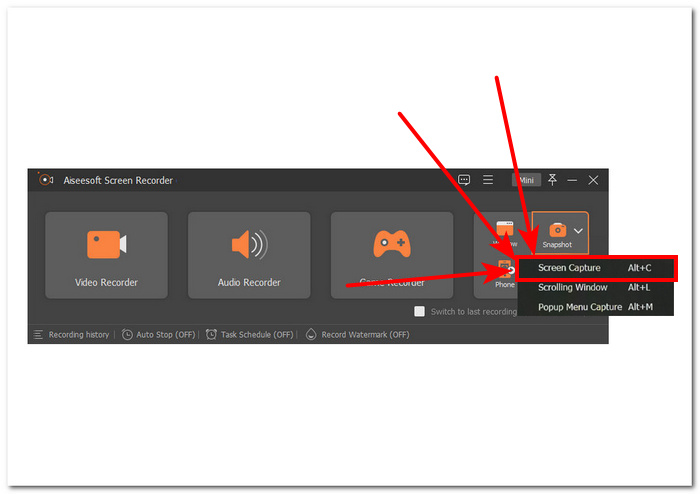
使用此软件截取东芝笔记本电脑屏幕上的快捷键也可以帮助用户节省时间,只需按组合键 ALT + C 进行屏幕截图、按 ALT + L 进行长页面截图、按 ALT + M 进行弹出菜单截图即可。这使用户可以灵活地使用其功能,因为它可以在一个软件中同时完成多项任务。
Step 1. Install the screen recorder software on your computer through their official website.
Step 2. Open the software, and in the main interface, click on the Snapshot arrow down button located on the right side of the software interface.
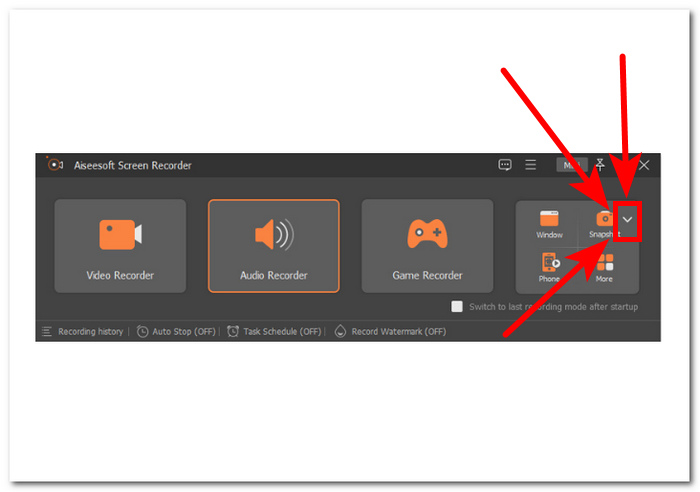
Step 3. Click and choose the Screen Capture option located from your drop-down menu to start taking screenshots on your Toshiba laptop screen.
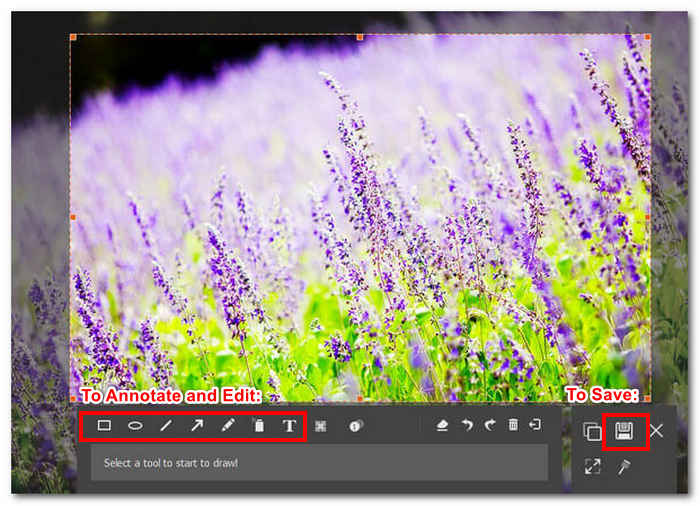
Step 4. You can finally choose the area you want to include in your screenshot by manually dragging the red rectangle field onto your Toshiba screen. To save your screenshot, click on the Save icon located on the lower-right side of your screenshot settings.
您可以利用软件屏幕截图左下角的工具,通过裁剪、添加文本和注释来编辑屏幕截图,然后保存。
In conclusion, the Screen Recorder allows users to perform screen capture on a Toshiba laptop effortlessly. As time passes, older Toshiba laptop models tend to slow down. However, there's no need to worry. FVC-picked software is lightweight and compatible with all laptops that run on Windows 7/8/10/11. With this software, you can use all its features without compromising your laptop's performance or worrying about the size of the software download file. Additionally, it is worth noting that this software isn’t just made for one purpose as it can also be used to take long page screenshots also known as scrolling screenshots, and popup menus screenshots with editing features. What’s more, the FVC-picked Screen Recorder is one of the best screen recorders to capture gameplay, make tutorials, and record online meetings.
第 2 部分。如何使用快捷方式在东芝笔记本电脑上截屏
截取屏幕截图是许多笔记本电脑用户的默认任务。东芝笔记本电脑通过简单易用的快捷键让这一任务变得轻而易举。至于在东芝笔记本电脑屏幕上截取屏幕截图,使用快捷键从未如此简单,因为与其他笔记本电脑一样,它也有专门的截取屏幕截图的键。
Step 1. First, browse and open the content you want to screenshot using your Toshiba laptop.
Step 2. When you open the content or information you want to screenshot simultaneously, press the Win + PrtSc key from your keyboard.
此方法只能截取东芝笔记本电脑屏幕的简单屏幕截图,无法使用滚动屏幕截图和弹出菜单屏幕截图等功能。如果您正在考虑使用其他类型的屏幕截图,则应考虑使用屏幕录像机软件或截图工具。
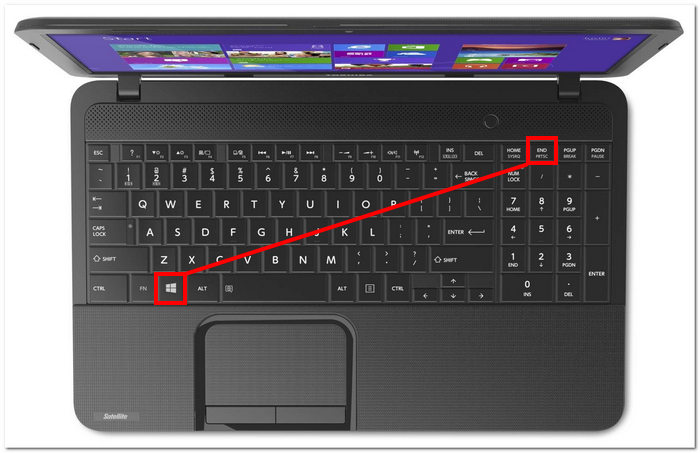
Step 3. Your screenshot will be saved automatically from your Toshiba laptop's local storage. This local storage for screenshots is, by default, located in your Pictures folder in your File Explorer.
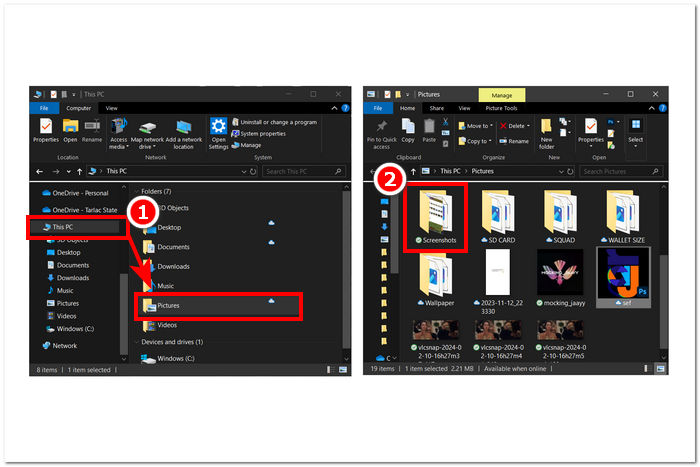
简而言之,东芝笔记本电脑热键是经常需要截取屏幕截图的人的绝佳选择,快捷键使截取过程快速、简单且高效。因此,缺少滚动屏幕截图和弹出菜单屏幕截图等屏幕截图模式是它的缺点,因为当用户需要进行滚动屏幕截图或选择屏幕截图中的特定区域时,他们只能使用一种屏幕截图模式。
第 3 部分。如何使用截图工具在东芝笔记本电脑上截屏
如果您不想下载软件来截取屏幕截图,因为软件可能会浪费您的时间,而且您还不想使用快捷键,结果却发现无法直接从屏幕截图中编辑屏幕截图,那么使用截图工具也是一种截取屏幕截图的方法。或者,截图工具是两种方法的结合。同时,它预装在您的东芝笔记本电脑上;它具有入门级屏幕截图编辑功能,可以在屏幕截图上注释和添加文本。
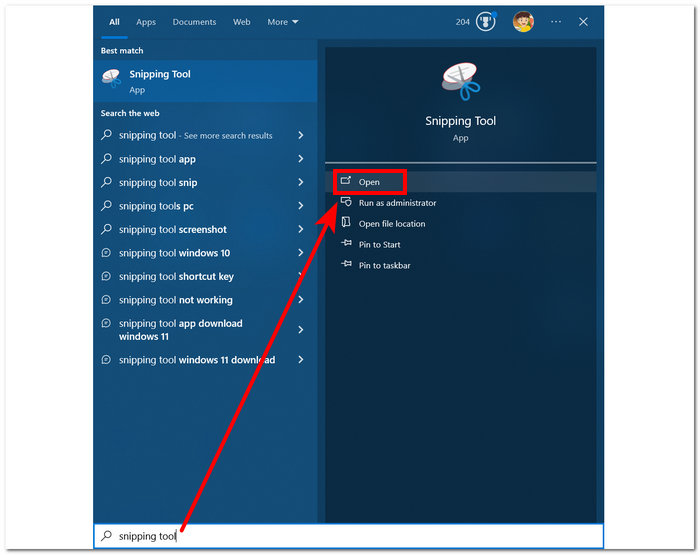
Step 1. Search for the Snipping Tool on your laptop or locate it on your Windows Start Menu.
Step 2. Then, open the Snipping tool from your Toshiba Laptop.
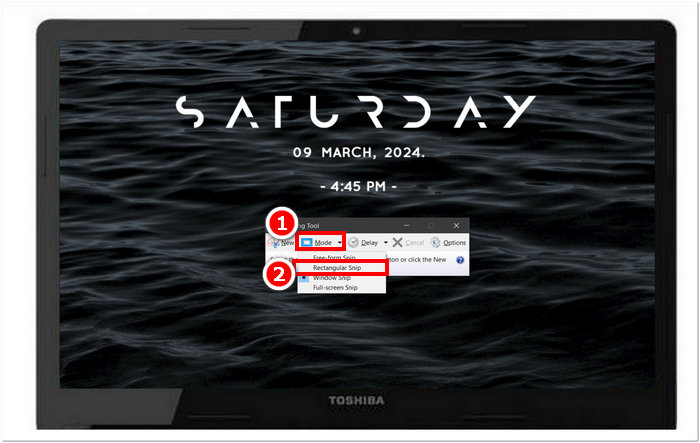
Step 3. Select a Mode located in the upper part of the tool and choose among the available options in the tool.
Choose Free-form Snip if you want a custom-shape area in your screenshot.
Choose Rectangular Snip if you want a rectangular screenshot area.
Choose Window Snip if you want to take a screenshot of a specific window or tab.
Choose Full-screen Snip to take a screenshot of your whole Toshiba laptop screen.
Step 4. After selecting the area you want to capture using the chosen mode, you can save the screenshot by clicking on the Save icon located in the upper part of the tool. This action will allow you to choose the storage location for your screenshots, making it easier for you to locate them later.
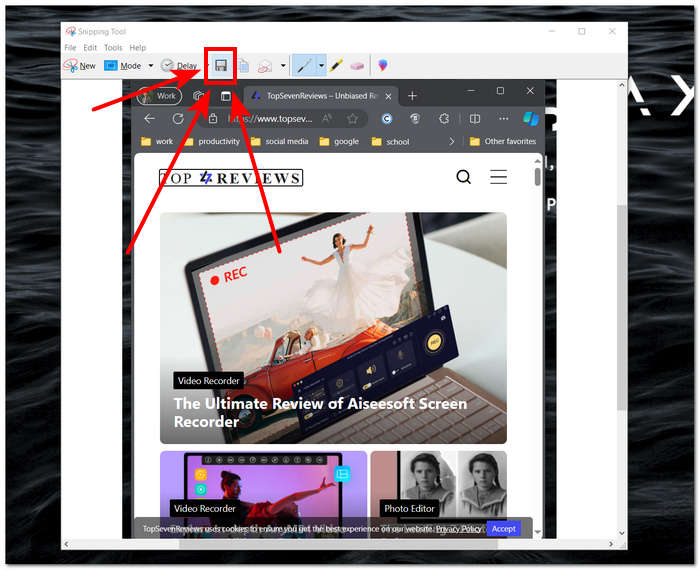
截图工具是结合了前两种方法的功能的工具。但是,与第一种工具相比,它缺少编辑功能,因此其适用性取决于用户的需求和偏好。要确定哪种工具最有效,建议先尝试所有方法。
第 4 部分。在东芝上截屏的最佳方法是什么
| 方法 | 可用性 | 截图编辑 | 其他特性 |
| 屏幕录像机(FVC 精选软件) | – 免费下载。 – 支持 Windows 7 及以上版本。 | - 高级屏幕截图编辑功能(注释、裁剪、突出显示、橡皮擦、添加文本和添加图像。) | – 滚动截图: 这使得用户能够一次性拍摄长页面的屏幕截图。 – 弹出菜单捕获: 此功能使用户可以更轻松地选择特定的弹出窗口或选项卡来截取屏幕截图。 – 视频录制: 这使得用户可以在东芝笔记本电脑屏幕上实时录制视频。 – 声音录制: 它用于在笔记本电脑中录制实时音频或麦克风听到的内容。 – 游戏录制: 它同时使用视频和音频录制,允许用户同时录制屏幕和音频。 |
| 快捷键 | – 无需下载。 – 支持所有 Windows 设备。 | – 没有编辑功能 | – 没有其他特征。 |
| 截图工具 | – 无需下载。 – 预安装在所有 Windows 上。 | - 基本编辑功能(钢笔、荧光笔和橡皮擦工具) | – 自由格式剪辑: 这使得用户可以通过追踪想要截屏的主题,以任何他们想要的形状在东芝笔记本电脑屏幕上截取屏幕截图。 – Windows 截图: 这将捕获屏幕上打开的特定窗口或选项卡。 – 全屏截图: 这直接捕获了东芝笔记本电脑屏幕上的所有内容。 |
综上所述,这三种方法都各有千秋,各显神通。就可用性而言,使用快捷键比这两种方法更胜一筹,因为用户无需下载任何东西即可截取屏幕截图。至于哪种方法最强大,FVC 精选软件无疑更胜一筹,因为它具有丰富的高级功能,甚至提供编辑功能来在屏幕截图上注释、添加文本等,甚至可以拍摄视频和录音,使其成为一款灵活的工具,可满足不同的屏幕截图任务。最后,在这三种方法中,最方便的也是 FVC 精选软件,因为该软件提供的功能远多于这两种软件提供的功能,而且它们都是免费的,但 FVC 精选软件可以最好地完成屏幕截图任务。
第 5 部分。有关如何在东芝笔记本电脑上截屏的常见问题解答
您可以使用其他应用程序在东芝笔记本电脑上截屏吗?
Yes, you can download different apps to help you take screenshots on your Toshiba laptop, such as FVC-picked Screen Recorder, Icecream, Snagit, etc. These apps offer more features like scrolling screenshots, popup menu screenshots, and even audio and video recording, and ways to personalize your screenshots than the standard options.
东芝笔记本电脑有截屏工具吗?
是的,就像任何其他笔记本电脑一样,它们都有自己的工具,或者更确切地说是默认的截屏方式。这是使用键盘上的快捷键,如果您的笔记本电脑带有预装的截图工具,它也可以作为用于截屏的附加内置工具。
如何捕捉东芝笔记本电脑上的某个窗口或屏幕的一部分?
要截取特定窗口的屏幕截图或东芝笔记本电脑屏幕特定部分的屏幕截图,您可以下载 FVC 精选屏幕录像机,使用快捷键 Alt+C,选择要捕获的窗口或区域,然后单击“保存”按钮。
东芝笔记本电脑可以截取滚动屏幕截图吗?
是的,您可以使用截图工具或 FVC 精选屏幕录像机在东芝笔记本电脑上截取滚动屏幕截图。它们提供滚动屏幕截图功能,允许用户通过自动滚动到页面末尾来捕获所有内容,只需一张屏幕截图即可。
你能在东芝笔记本电脑上绘图或更改屏幕截图吗?
不,东芝笔记本电脑通常没有内置选项来绘制或编辑屏幕截图。但是,您可以使用不同的应用程序(如 FVCpicked Screen Recorder、Microsoft Paint)或在线工具(如 Pixlr 或 Canva)来添加注释并更改屏幕截图。
结论
Taking screenshots on your Toshiba laptop can make work easier and help you manage information better. You have the choice to use different software, keyboard shortcuts, or the integrated Snipping Tool. Learning these methods can make your tasks quicker. Try out different options to find what works best for you.
-
 如何轻松在 Firefox 上截取滚动屏幕截图
 学习在 Firefox 上滚动截图以立即捕获整个网页。按照我们简单的分步教程学习如何使用此功能。
-
 如何在 Windows Media Player 中高效截屏
 发现在 Windows Media Player 中轻松截取屏幕截图的最简单方法。使用我们全面的指南提升您的屏幕截图体验。
-
 如何在手掌上截取三星 S23 的屏幕截图
 您需要了解如何在三星 S23 上截屏,从而最大限度地发挥旗舰设备的功能,获得无缝的屏幕捕获体验。
