


 视频转换大师
 屏幕录影大师
 视频修复
视频修复
 安全下载
安全下载2025 年在 Mac 上裁剪屏幕截图的 3 种最佳方法
如果你正在思考或寻找在 Mac 上轻松裁剪屏幕截图的方法,不必担心!我们理解,有时候对截图进行编辑(例如裁剪)会花费不少时间,这在你想高效完成当前工作时就显得不太方便。因此,本文将教你如何在 Mac 上轻松修改截图图片,确保你能快速、高效地将截图裁剪到理想效果。用这些简单易学的方法,告别繁琐的裁剪流程,让工作流程更简洁、更顺畅。

第 1 部分。如何使用屏幕录像机直接在 Mac 上截取和裁剪屏幕截图
使用屏幕录像工具在 Mac 上裁剪屏幕截图既简单又方便,原因如下。首先,屏幕录像工具通常具有直观的界面和简单的控件,即使对于初学者来说,裁剪过程也很简单。其次,这些工具通常提供一系列编辑功能,包括裁剪、调整大小和添加注释,让用户可以轻松自定义屏幕截图。此外,屏幕录像工具使用户能够直接从屏幕录像中捕获屏幕截图,从而节省时间并消除对单独屏幕截图工具的需求。
Mac 用户可以用来裁剪截图图片的工具之一是 FVC Screen Recorder。使用这款工具,调整截图尺寸变得非常轻松。用户只需点击几下,就能轻松截取屏幕任意区域,并将截图裁剪到想要的尺寸。此外,这款屏幕录制工具还提供了更多编辑功能,如添加文字、箭头和形状,以进一步美化和增强截图效果。
要使用此工具,请按照以下步骤操作:
步骤 1: 先下载并安装 Aiseesoft Screen Recorder。
步骤 2: 下载完成后,运行该工具,在右侧角落点击快照按钮。接着选择屏幕截图。
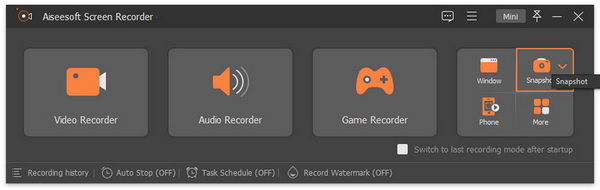
步骤 3: 现在,在 Mac 上拖动光标选取你想要截取的屏幕区域。
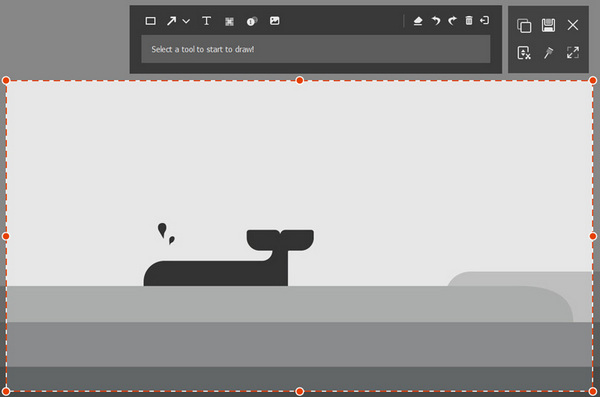
步骤 4: 自定义裁剪区域的大小。同时,你还可以添加文字、绘图等标注。
步骤 5: 完成后,点击保存按钮。
使用 FVC 屏幕录像机确实可以帮助用户在 Mac 上轻松裁剪屏幕截图。除此之外,他们还可以享受此工具的许多功能。
第 2 部分。如何使用内置工具在 Mac 上裁剪屏幕截图
在 Mac 上裁剪屏幕截图的另一种方法是利用其内置工具。为此,请按照以下步骤操作:
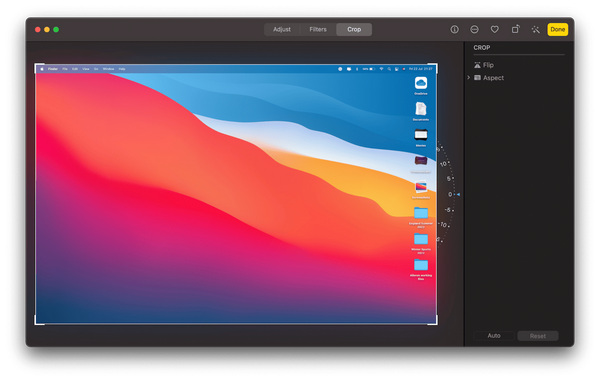
步骤 1: 要截取 Mac 屏幕,只需在键盘上按下Shift + Command + 3,就会对整个屏幕进行截图。
步骤 2: 图片保存到设备后,打开照片 App,找到该截图。
步骤 3: 双击你想裁剪的截图,然后点击编辑按钮。
步骤 4: 在顶部工具栏中选择裁剪选项,并调整选区,以按需裁剪这张 Mac 截图。
步骤 5: 最后,点击完成按钮保存裁剪后的 Mac 截图。
使用 Mac 上的内置工具可以快速有效地裁剪屏幕截图,同时保持系统的安全性和兼容性。
第 3 部分。如何使用预览在 Mac 上裁剪屏幕截图
使用 Preview 在 Mac 上裁剪屏幕截图也是您可以做的最好的事情之一,因为它已经包含在 macOS 中,因此非常方便并且与您的系统兼容。此外,Preview 易于使用且简单易用,任何人都可以轻松快速地裁剪屏幕截图。它还提供其他编辑工具并支持各种图像格式,为编辑和保存裁剪的屏幕截图提供了多功能性和灵活性。
步骤 1: 首先,点击你想查看的截图图像,将其在“预览”工具中打开。
步骤 2: 在预览窗口中,在图片上点按并拖动,选中你想保留的部分区域,同时排除不需要的区域。
步骤 3: 选定所需部分后,打开工具菜单并选择裁剪。
步骤 4: 在关闭预览窗口之前,务必保存已裁剪的图像,以保留你的编辑结果。
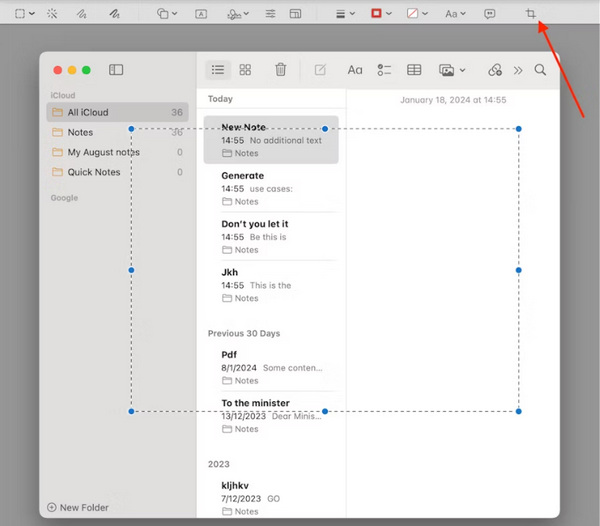
使用预览在 Mac 上裁剪屏幕截图对于 Mac 用户来说确实是一个首选工具,因为它具有可访问性、用户友好性、多功能性以及与 macOS 系统的兼容性。
第 4 部分。三种方法的比较
现在让我们仔细看看这三种在 Mac 上裁剪屏幕截图的方法的优缺点。
| 方法 | 优点 | 缺点 |
| 方法 1:使用屏幕录像机直接在 Mac 上裁剪屏幕截图? | • 具有直观的界面和简单的控制,使裁剪变得简单。 • 提供一系列编辑功能,包括裁剪和注释。 | • 需要下载并安装其他软件。 |
| 方法 2:使用内置功能在 Mac 上裁剪屏幕截图 | • 无需额外安装第三方软件,因为它已经集成到 macOS 中。 • 快速高效地裁剪屏幕截图。 | • 与 Aiseesoft Screen Recorder 等第三方工具相比,编辑功能有限。 • 它可能缺乏高级定制选项。 |
| 方法3:在Mac上使用预览裁剪屏幕截图 | • 包含在 macOS 中,方便且与系统兼容。 • 用户友好界面,具有附加编辑工具并支持各种格式。 | • 仅限于基本编辑功能。 • 它可能不提供像Aiseesoft Screen Recorder等专用屏幕录像工具那么多的功能。 |
在 Mac 上裁剪屏幕截图的每种方法都有各自的优点和缺点。虽然使用屏幕录像工具提供了直观的控制和高级编辑功能,但它需要下载其他软件。另一方面,使用内置工具快速方便,但可能缺乏高级自定义选项。macOS 中包含的预览提供了易于使用的基本编辑功能,但可能没有提供专用屏幕录像工具那么多功能。
第 5 部分。有关在 Mac 上裁剪屏幕截图的常见问题解答
如何截取 Mac 上特定区域的屏幕截图?
要截取 Mac 上特定区域的屏幕截图,请按键盘上的 Shift + Command + 4。光标将变成十字准线。单击并拖动以选择要截取屏幕截图的区域。最后,松开鼠标按钮即可截取屏幕截图。
如何在 Macbook 上编辑屏幕截图?
您可以使用内置预览应用或第三方编辑软件在 Macbook 上编辑屏幕截图。在预览中,打开屏幕截图并单击“编辑”按钮以访问编辑工具,如裁剪、注释和调整大小。或者,您可以使用第三方编辑软件(如 Aiseesoft Screen Recorder)来获得更高级的编辑功能。
我可以在 Mac 上的屏幕截图中添加注释吗?
是的,您可以使用各种工具在 Mac 上为屏幕截图添加注释。在预览中,您可以使用标记工具栏为屏幕截图添加文本、形状、箭头和高亮。此外,第三方屏幕录像工具(如 Aiseesoft Screen Recorder)通常带有注释功能,可进一步自定义屏幕截图。
结论
总之,学习如何在 Mac 上裁剪截图并不是什么难事。通过本指南介绍的三种方法,你可以根据不同偏好和需求进行选择。无论是使用 Aiseesoft Screen Recorder 这类屏幕录制工具获取更高级的编辑功能,还是使用内置工具进行快速便捷的裁剪,亦或是借助“预览”以其简洁和易用性完成操作,你都能轻松达到理想效果。只要按照步骤说明操作,并了解每种方法的优缺点,你就能高效地把截图裁剪得恰到好处。用这些简单易上手的方法,告别繁琐的裁剪流程,让工作更顺畅。多尝试不同方法,找到最适合你工作流的一种,从今天起在 Mac 上轻松裁剪你的截图。
-
 如何在 Windows Media Player 中高效截屏
 发现在 Windows Media Player 中轻松截取屏幕截图的最简单方法。使用我们全面的指南提升您的屏幕截图体验。
-
 如何在手掌上截取三星 S23 的屏幕截图
 您需要了解如何在三星 S23 上截屏,从而最大限度地发挥旗舰设备的功能,获得无缝的屏幕捕获体验。
-
 如何免费轻松截取东芝笔记本电脑的屏幕截图
 了解在东芝笔记本电脑上截屏的三种简单方法,并免费捕获东芝笔记本电脑上所有您喜欢的内容。
