


 视频转换大师
 屏幕录影大师
 视频修复
视频修复
 安全下载
安全下载[已解决] 4 种在 Android 上截屏的方法
截图是我们现在用手机最常做的事之一。当我们在滑动屏幕时,看到想要保存的图片、文字或帖子时,就会对它进行截图。如果你正在使用 Android 设备,并想了解如何充分利用它的截图功能,那你来对地方了!在本文中,你将学到在 Android 上截图的 4 种方法,帮助你充分发挥设备的功能。继续往下看,通过截图来保存对你来说重要的内容吧!

第 1 部分:如何在 Android 手机上截屏
您可能对此感到疑惑,但在 Android 上截取屏幕截图确实因设备制造商和操作系统版本而异。因此,如果您是 Android 用户,并且不知道在要截取屏幕截图时要使用什么方法,请查看以下步骤:
方法 1:使用硬件按钮
在 Android 设备上截屏的最常见方式是使用其硬件或物理按钮。由于其可访问性和便利性,这是在 Android 上截屏的最知名方法。
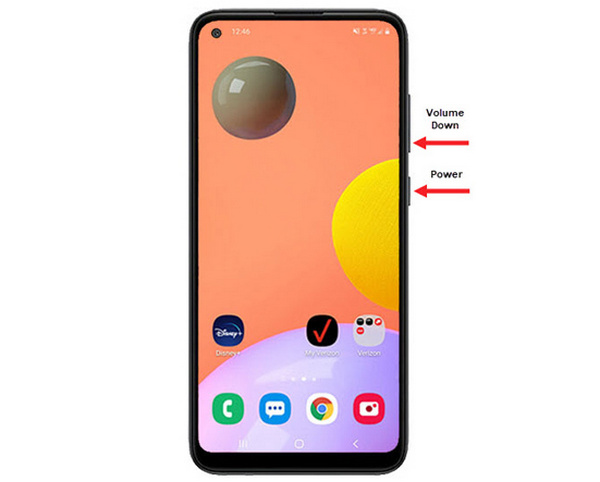
步骤 1。 首先,在你的 Android 手机上,同时按下音量减小键和电源键。按住它们,直到手机完成截图为止。
步骤 2。 然后,在图库应用中找到并查看你的截图。
因此,如果您的硬件按钮正常工作,您可以按照此方法轻松地在 Android 上截取屏幕截图。
方法 2:使用快捷方式
如今,部分 Android 设备的快捷设置面板中内置了截图功能,方便快速截取屏幕截图。
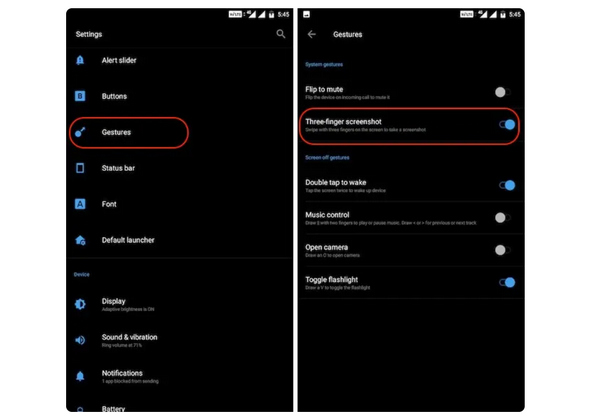
步骤 1。 首先,在你的 Android 手机上进入“设置”。向下滑动一点,选择手势或按键选项。
步骤 2。 接着,在其中查找截屏选项,并将其打开。
步骤 3。 最后,要使用这种方式截图时,只需在想要截取的屏幕上用三根手指向下滑动即可。
如果您不想按下按钮来截取屏幕截图,这种方法是最佳选择。但是,您需要先在设置中设置它。因此,如果您不熟悉它,请按照上述步骤操作。
方法 3:使用 Google Assistant
同时,如果您的 Android 手机有 Google Assistant,您可以使用它轻松截屏。
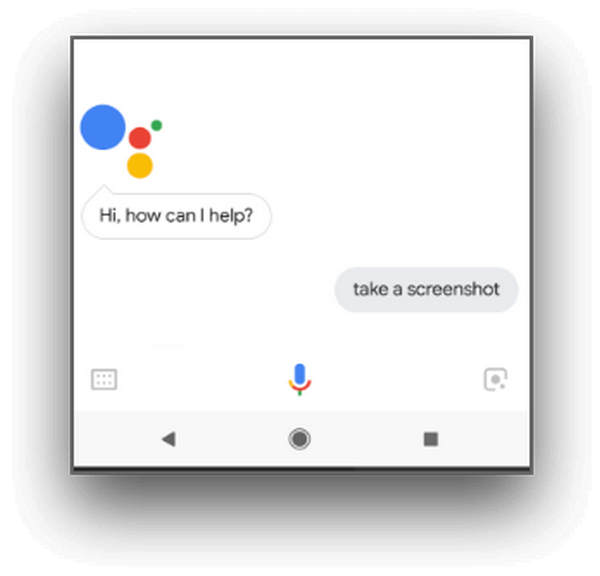
步骤 1。 首先,你需要通过长按主屏幕按钮或语音指令来激活 Google 助理,对它说:OK,Hello Google。
步骤 2。 激活后,对它说:Take a screenshot 或 Screenshot。
注意:屏幕上会出现截图动画,或者你会听到提示音,表示截图已经完成。
步骤 3。 你可以在手机的图库应用中,进入Screenshots(截图)文件夹来访问你的截图。
注意:并非所有 Android 设备都支持此功能。如果你的手机搭载的 Google 助理支持通过语音指令进行截图,那就按照这里的步骤操作即可。
第 2 部分:如何在 Android 平板电脑上截屏
如果您拥有一台 Android 平板电脑,并且想知道如何使用它截取屏幕截图,请按以下步骤操作:
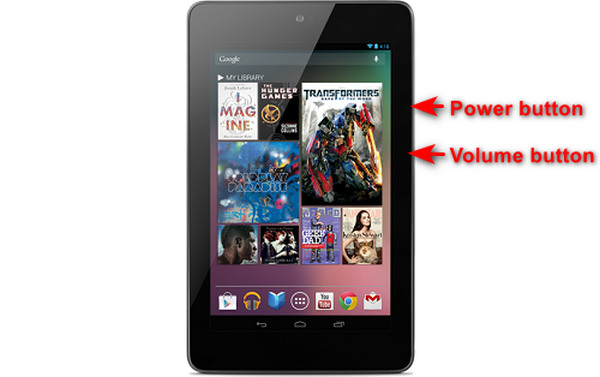
步骤 1。 在你的 Android 平板电脑上,同时按住电源键和音量减小键几秒钟。
注意:截图完成后,你会收到相关提示。
步骤 2。 然后,在平板的图库应用中,打开Screenshots(截图)文件夹来查看你的截图。
如果此方法在您的 Android 平板电脑上不起作用,您接下来需要做的就是使用 Google Play Store 中的第三方应用程序来截取屏幕截图。
第 3 部分:如何使用计算机在 Android 上截屏
如果你想在电脑上对 Android 进行截图,可能是因为前面的任一方法在你的手机上都无法使用,那么最适合你的工具就是FVC Screen Recorder。该工具专为对投射到电脑上的手机画面进行截图而设计,因此与 Android 设备完全兼容。通过使用它的“手机录屏”功能,用户可以在电脑上轻松为 Android 截图。此外,与当下其它第三方工具相比,这款工具拥有非常直观、友好的用户界面,你在使用过程中基本不会遇到困扰。
步骤 1. 首先,在电脑上下载并打开 FVC Screen Recorder。
步骤 2。 现在,点击Phone recorder(手机录屏)选项。你可以在工具窗口右侧与其他 3 个选项一起找到它。
步骤 3。 接着,点击Android Recorder。
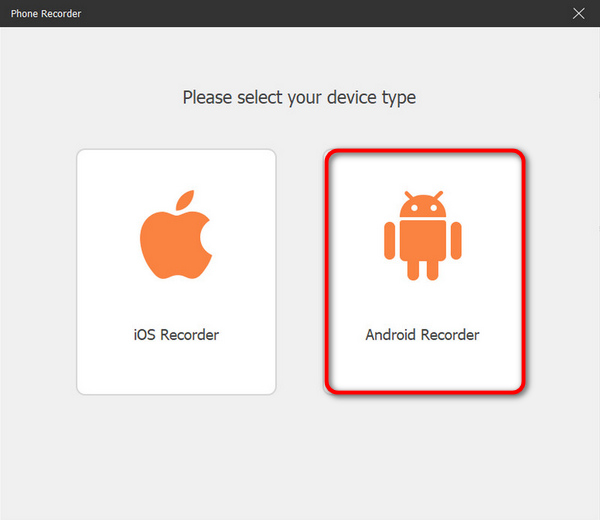
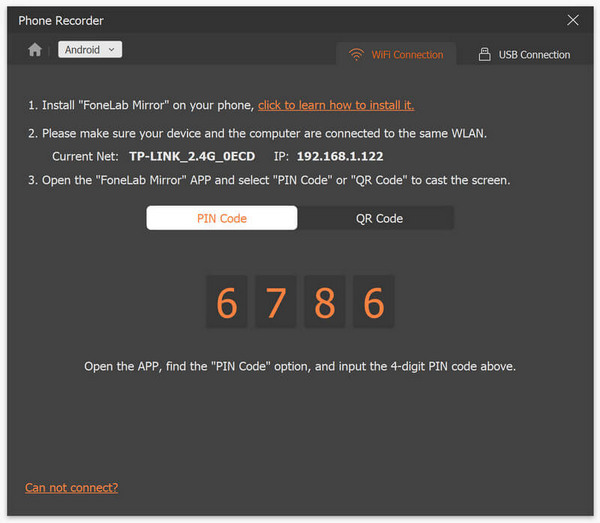
步骤 4。 要将手机屏幕投射到电脑上,你可以通过 WiFi 或 USB 来实现。如果选择 WiFi,你可以通过PIN 码或二维码,轻松将手机投射到电脑上的手机录屏功能中。
步骤 5。 当屏幕投射成功开启后,要在电脑上为 Android 画面截图,只需点击Snapshot(截图)图标即可。
步骤 6。 最后,在 Windows 电脑上进入指定的文件夹,即可直接访问你的截图图片。
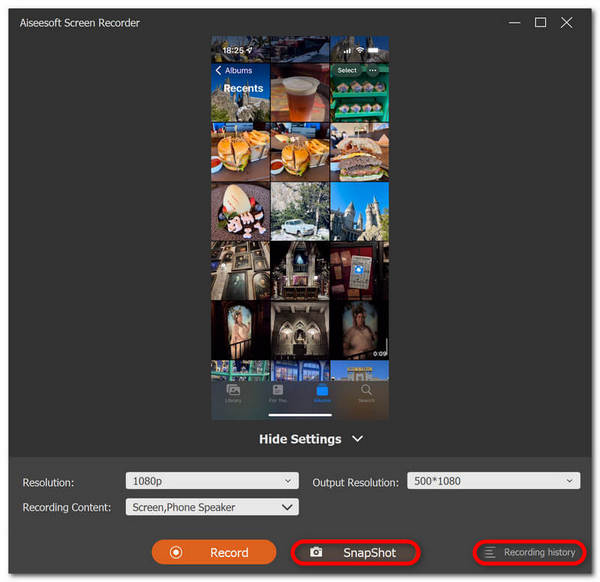
当您想使用电脑在 Android 上截屏时,FVC 屏幕录像机是一款完美的工具。使用其手机录制功能,一切都将变得轻而易举,从设置设备到实际截屏。此工具拥有您需要的一切。
第 4 部分:如何在 Android 上截取滚动屏幕截图
如果您想一次性截取 Android 上的网页或长对话的屏幕截图,而不是截取一堆屏幕截图,请按照以下步骤操作:
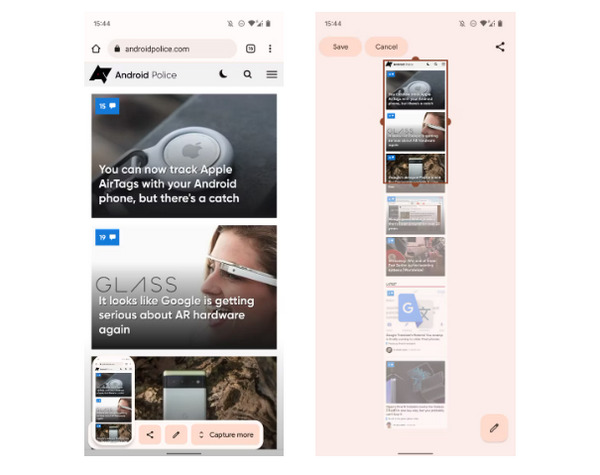
步骤 1。 首先,在你的 Android 手机上先进行一次普通截图。
步骤 2。 然后,点击截图预览,再点选Capture More(更多内容)按钮。
注意:当你使用窗口来扩展截图时,系统会显示放大镜以提高操作精度。
步骤 3。 最后,点击保存以保存你的截图。
您将不再需要截取大量的屏幕截图来显示整个网页或整个屏幕截图对话。
第 5 部分:有关在 Android 上截屏的常见问题
我可以更改 Android 设备上的默认屏幕截图文件夹吗?
是的。您可以根据需要更改默认屏幕截图文件夹。您只需在 Android 手机上创建一个新文件夹或为屏幕截图选择其他文件夹即可。
如果 Android 手机的硬件按钮无法使用,该如何截屏?
首先,如果您想知道如果 Android 手机的硬件按钮无法使用,是否仍可以截取屏幕截图,答案是可以的。因此,在这种情况下,最好使用第三方屏幕录制工具,例如 FVC 屏幕录制,它允许用户通过简单地使用其手机录音机功能在 Android 手机上截取屏幕截图。
我可以在我的 Android 设备上注释或编辑屏幕截图吗?
是的。您可以在 Android 设备上注释或编辑屏幕截图和照片。截屏后,您可以使用内置的编辑功能直接进行注释或编辑。您可以在屏幕截图中添加文本、绘图、箭头和形状,以及裁剪、调整大小和应用滤镜。
结论
就是这样,在你的 Android 上截图现在变得轻而易举。你只需要找出最适合你设备的方式,一切就会顺利完成。所以,选择你的截图方法,马上开始在 Android 上捕捉那些难忘的瞬间吧!
-
 如何使用本指南轻松在 Mac 上截屏
 想要在 Mac 上截屏,但不知道怎么做?我们帮你!我们将向你展示截屏和保存屏幕图像的最简单、最快捷的方法。
-
 如何使用本指南轻松在 Mac 上截屏
 想要在 Mac 上截屏,但不知道怎么做?我们帮你!我们将向你展示截屏和保存屏幕图像的最简单、最快捷的方法。
-
 使用此基本指南轻松截取视频截图 [2024]
 使用这些简单的方法轻松学习如何截取视频截图。按照我们的指南,立即开始截取您最喜爱的视频的截图!
