


 视频转换大师
 屏幕录影大师
 视频修复
视频修复
 安全下载
安全下载如何编辑 WAV 文件以实现快速音频高质量编辑
WAV 文件是最流行的音频文件格式,被认为是包含不同比特率音乐或录音的理想方式。更好的文件格式意味着更好的音质,而对 WAV 文件进行编辑也有助于进一步提升音质。但你如何确保在编辑时不会在不知不觉中破坏 WAV 文件的质量呢?不用担心,本指南会为你解答哪些软件或工具最适合用来编辑 WAV 文件。我们结合实际使用经验,总结出了四种方法。此外,无论你是新手还是有经验的用户,在本指南中都可以一步步学会如何高效地编辑 WAV 文件,而不损害音质。

第 1 部分。使用功能齐全的 WAV 编辑器编辑 WAV 的最佳方法
FVC 已经在网上广泛搜索,帮你找出了适合在本文中推荐的 WAV 编辑方法,让你不必费心查找。出乎我们意料的是,我们发现了这款FVC 精选的 Video Converter Ultimate,它易于使用、界面简洁,同时提供剪切、分割、合并、音量增强等全功能工具。通过这款卓越的软件在 Windows 和 Mac 上编辑 WAV 文件十分方便,其下载量超过五百万次,不仅在 WAV 编辑方面值得信赖,还可用作转换器和视频编辑工具。
主要功能:
• 多功能且易于使用的 WAV 编辑器。
• 特色工具,如音频切割器、合并器、压缩器、噪音消除器、音量增强器等。
• 支持 1000 多种音频/视频格式,例如 MP3、AAC、WMA、WAV 等。
• 上传 WAV 时没有文件大小限制。
步骤 1:在此处下载并安装 FVC 精选的 Video Converter Ultimate。
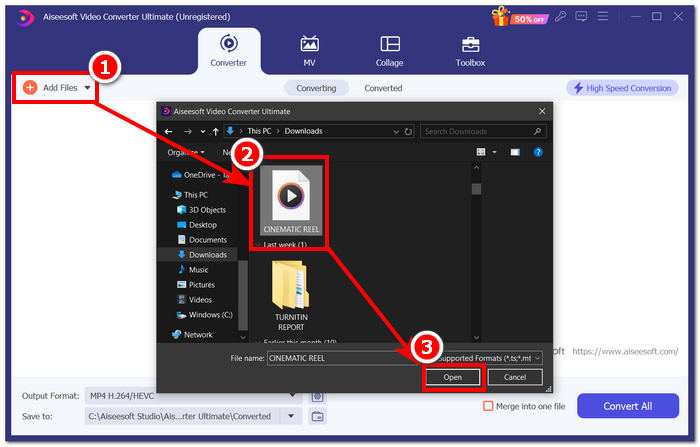
步骤 2:在工具界面中,点击“添加文件”按钮,将你的 WAV 文件添加到软件中。
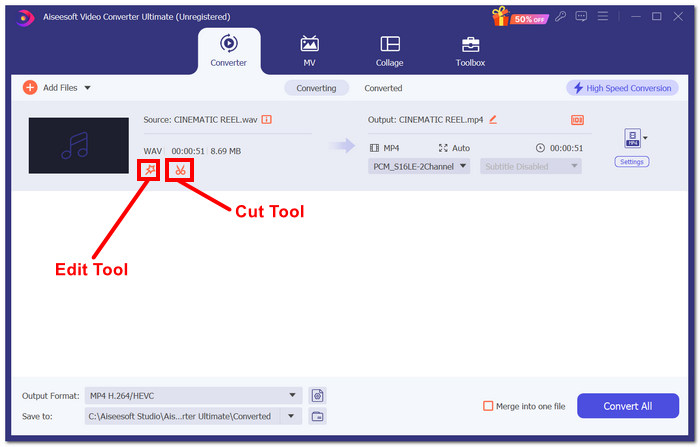
步骤 3:当 WAV 文件导入工具后,你可以点击上传文件右侧的 编辑 和 剪切 工具来对其进行编辑。
注意:
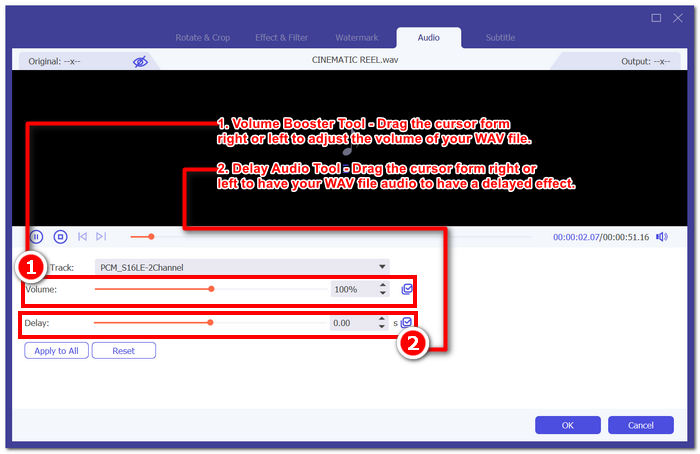
编辑工具是一个魔杖形状的图标,该工具包含音量增强器和音频延迟功能。
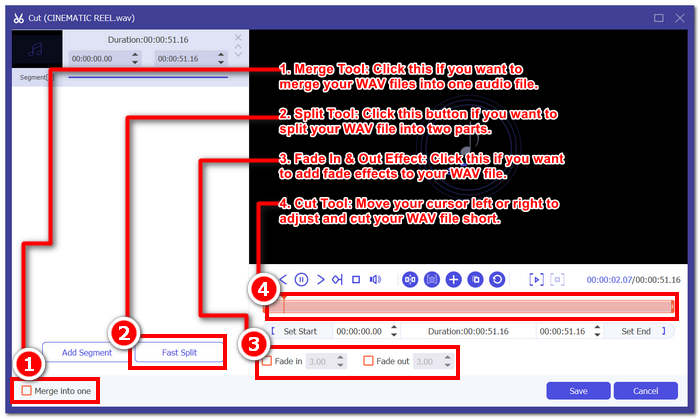
剪切工具是剪刀图标,它包含剪切、分割、合并和添加淡入淡出效果。
步骤 4:若要编辑 WAV 文件的音量,点击看起来像“魔法棒”的图标以打开音量增强功能,然后向左或向右拖动音量滑块进行调节,或直接输入你想要的音量值。如果你想修复音频延迟,可以拖动“延迟”滑块调整音频延迟。完成后,点击“确定”按钮。
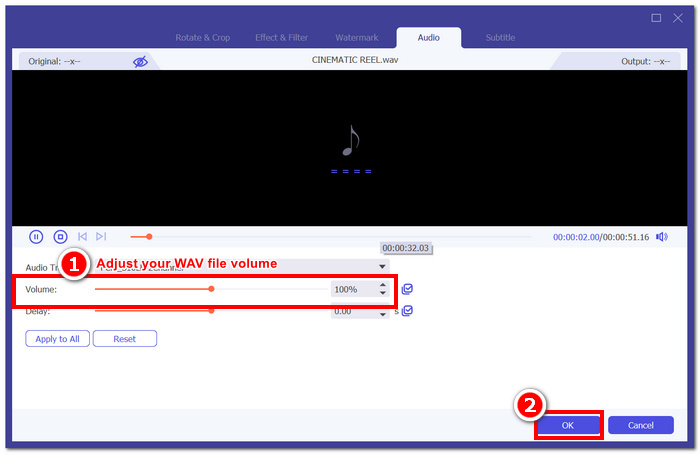
另一方面,要剪切 WAV 文件,请单击剪刀按钮,然后将光标从左到右拖到轨道上即可缩短 WAV 文件。剪切完 WAV 文件后,继续单击“保存”按钮。
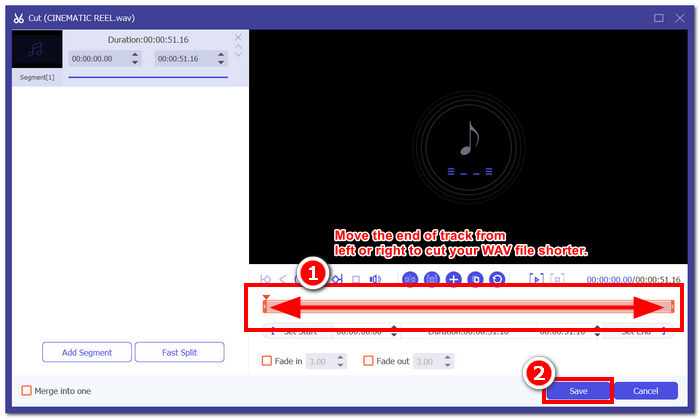
步骤 5:当你按照喜好完成对 WAV 文件的编辑与剪切后,点击“全部转换”按钮,即可将编辑后的文件下载到电脑默认的下载文件夹中。

我们使用 FVC 精选软件编辑 WAV 文件的经验为我们节省了时间,并且得益于它的声誉,因为按照上述步骤可以帮助我们顺利完成任务。此外,在使用该软件时,我们注意到它充满了用于视频和音频编辑的其他功能。总的来说,这为我们提供了多种选择,让我们可以选择如何编辑我们的 WAV 文件。
第 2 部分。使用内置工具在 Windows 7/8/10/11 上编辑 WAV 文件
方法 1. 使用插件在 Windows Media Player 中编辑 WAV 文件
Windows Media Player 是 Windows 设备中的内置媒体播放器,也可以通过使用插件用作 WAV 文件编辑器。为此,您可以在 Microsoft Store 免费下载 SolveigMM WMP Trimmer 插件,以便剪切和编辑您的 WAV 文件。
步骤 1:前往 Windows 的 Microsoft Store,并从中下载 SolveigMM WMP Trimmer 插件。
步骤 2:插件安装完成后,打开 Windows Media Player,点击播放器顶部的“工具”选项,然后点击“插件”,启用 SolveigMM WMP Trimmer 插件。
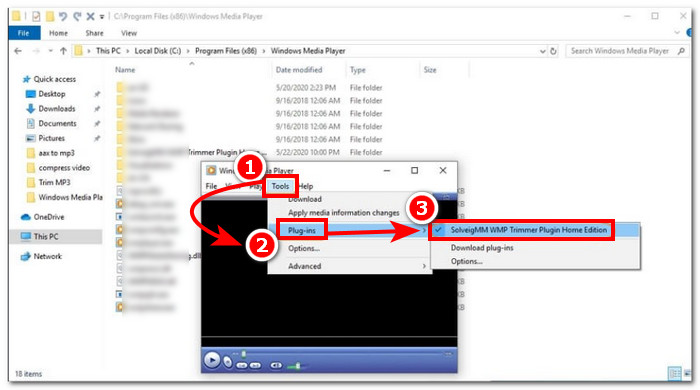
步骤 3:插件启用后,通过点击播放器左上角的“文件”菜单,或点击播放器左下角的“文件夹”图标来导入你的 WAV 文件。WAV 文件载入播放器后,点击“编辑文件”按钮,进入实际的 WAV 编辑界面。
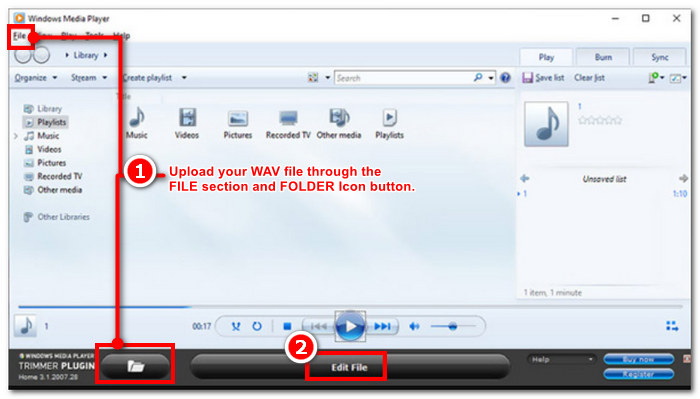
步骤 4:现在你可以进行编辑操作,例如通过左右拖动剪辑条来裁剪 WAV 文件。当你对音频长度满意后,点击“剪辑”按钮,剪辑后的文件会默认保存在与原 WAV 文件相同的位置。
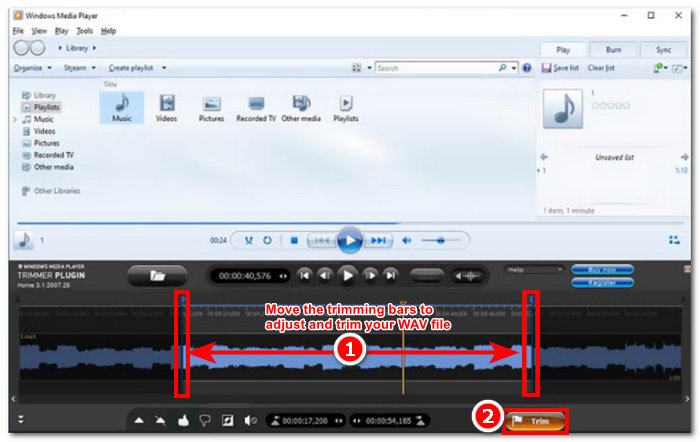
现在您已经编辑了 WAV 文件,在这种情况下,借助插件通过 Windows Media Player 进行修剪。现在您可以通过内置播放器编辑 WAV 文件。插件可能对用户的方便有用,但它们并非完全免费,因为与付费版本相比,它们仅具有有限的编辑功能。
方法 2. 使用文件资源管理器编辑 WAV 文件属性
如果你平时不太擅长使用各类软件,我们也为你准备了在 Windows 7/8/10/11 中利用内置工具编辑 WAV 文件的方法。虽然 Windows 本身并没有内置可自由编辑 WAV 音频内容的软件或功能,但仍然可以通过系统默认方式来编辑 WAV 文件的信息属性。简单来说,这种默认方法是通过修改文件属性来编辑 WAV 文件的信息。因此,我们将在下文列出编辑 WAV 文件信息属性的具体步骤。
步骤 1:打开文件资源管理器,找到你想要编辑的 WAV 文件。
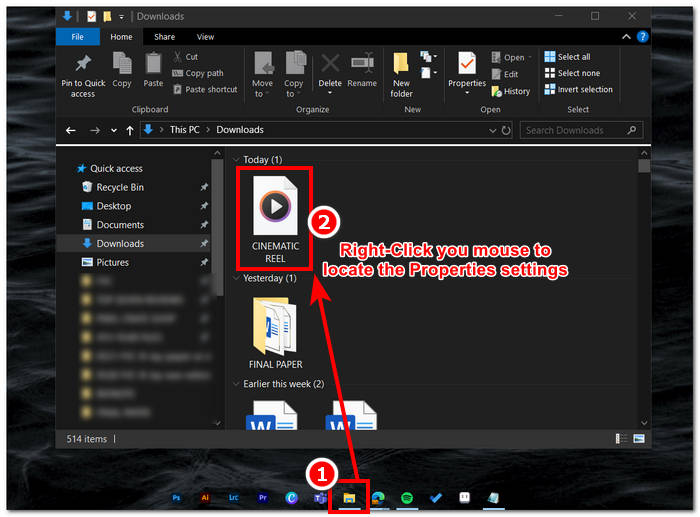
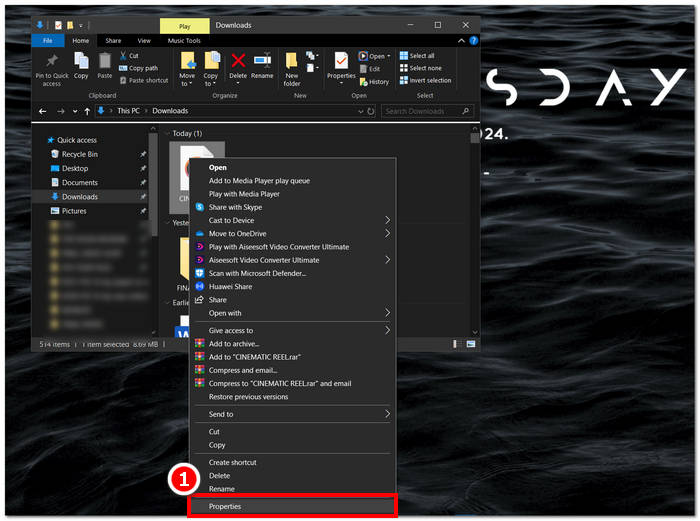
步骤 2:找到“属性”后点击,会弹出一个窗口,显示该 WAV 文件的相关信息。
步骤 3:在新弹出的窗口中,点击“详细信息”选项卡,然后在窗口底部点击“删除属性和个人信息”。
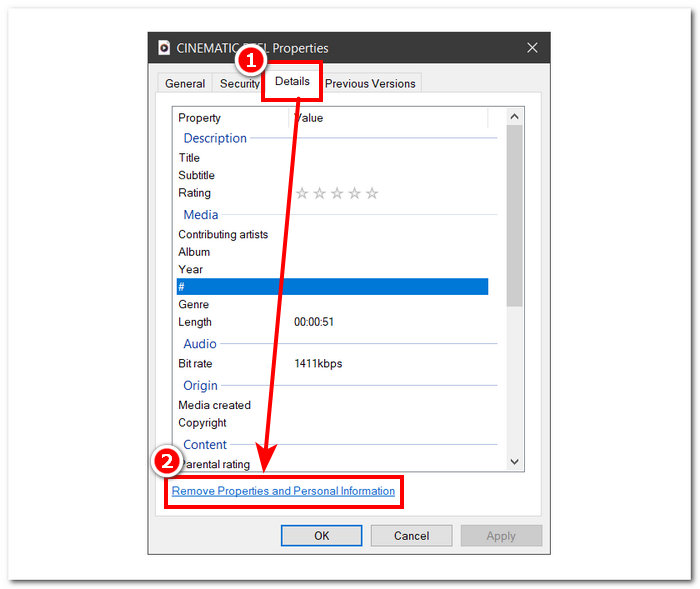
步骤 4:选择第二个选项——“从此文件中删除以下属性”,然后点击“全选”按钮。最后点击“确定”,即可将 WAV 文件的信息重置为默认状态。
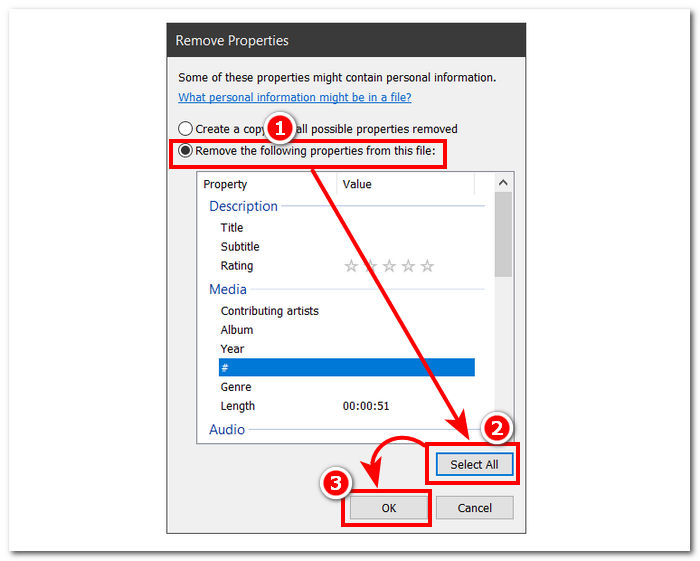
请记住,此方法仅适用于 Windows 用户,不允许用户调整音频文件,而是调整信息属性。总体而言,使用默认方法重置 WAV 文件信息很方便。不过,当您想要填写 WAV 文件的信息详细信息时,除了使用软件之外别无他法,在本例中,就是 FVC 挑选的软件。
第 3 部分。使用 GarageBand 在 Mac 上编辑 WAV 文件
我们偶然发现了一款也有移动应用程序版本的软件。GarageBand 是一款适用于 macOS 和 iOS 设备的流行工具,可提供功能齐全的音频编辑器。该工具提供预制预设并与智能控件集成。此外,我们在下面列出了使用 GarageBand 的简单方法;在这种情况下,我们将使用 macOS 版本。
步骤 1:在你的 macOS 设备上下载 GarageBand,并在安装完成后将其打开。
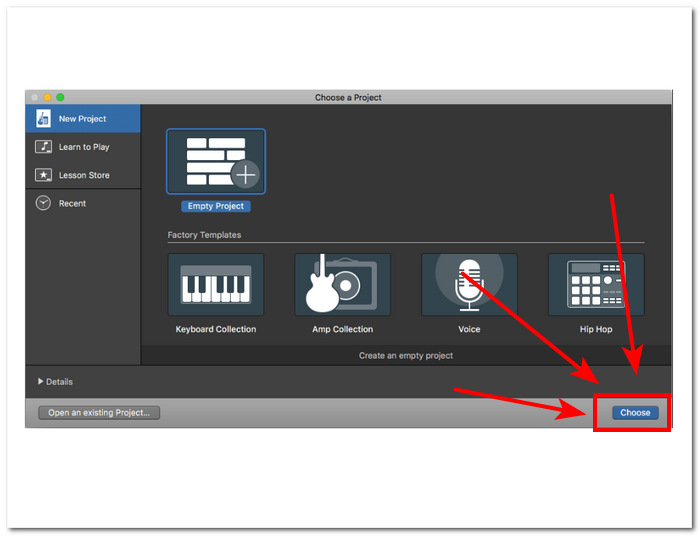
步骤 2:点击“选择”按钮将 WAV 文件导入软件。文件加载完成后,双击轨道,在界面底部弹出“音频编辑器”窗口。
步骤 3:通过界面下方的“轨道”和“区域”部分来编辑你的 WAV 文件。
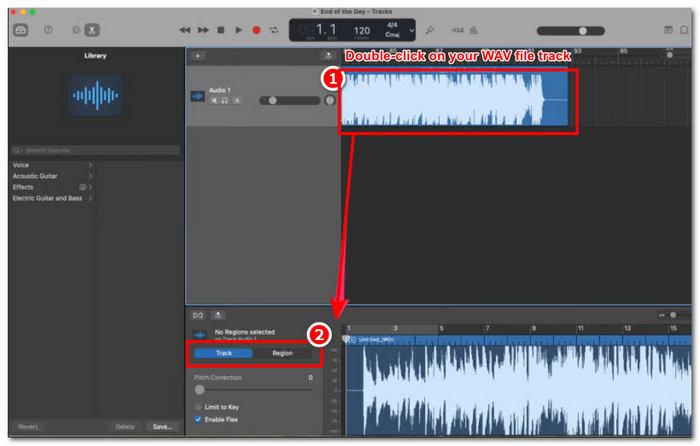
轨道部分负责编辑 WAV 文件的音调并充当校正器。
区域部分包含转调的调整,这可以帮助用户反向播放 WAV 文件。
步骤 4:当你对 WAV 文件的所有修改感到满意后,依次点击“共享”>“导出歌曲到磁盘”,然后选择保存编辑后 WAV 文件的位置。
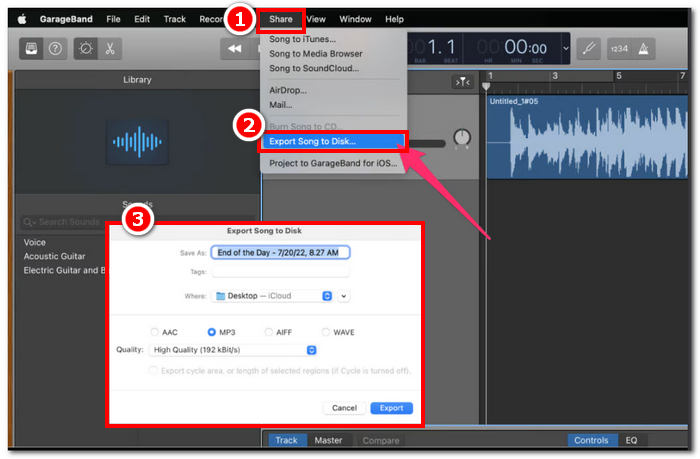
GarageBand 是一款可靠的软件,可用于在 macOS 和 iOS 上编辑 WAV 文件。因此,如果您正在寻找更高级的功能,我们建议您使用 GarageBand macOS 版本。总体而言,这两个版本在基础到中级音频编辑方面都表现出色,但请注意,您需要对该工具的界面有一定的了解,以免造成混淆。
第 4 部分。使用在线编辑器编辑 WAV 文件
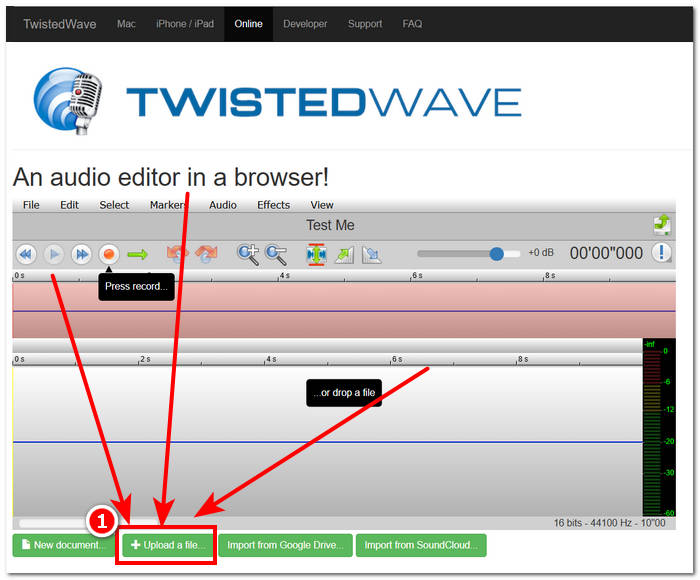
编辑 WAV 文件的另一种方法是使用可以进行基本编辑的在线工具。TwistedWave 是一款基于 Web 的音频编辑器,它不仅可以用作在线编辑器,还允许用户编辑 WAV 音频。此外,尽管界面过时,但它是一款值得信赖的 WAV 工具,并且是我们发现的基于 Web 的 WAV 编辑器工具中设计最简单的工具之一。
步骤 1:前往 TwistedWave 官方网站,点击“上传文件”按钮,从桌面中选择你要在工具中编辑的 WAV 文件。
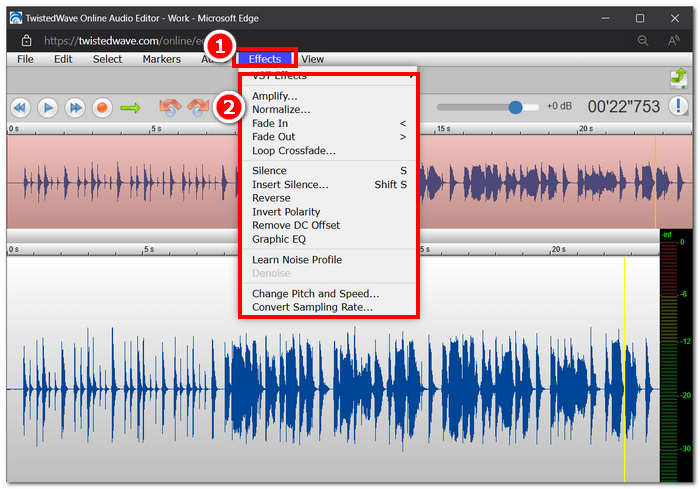
步骤 2:当 WAV 文件载入工具后,点击界面顶部的“效果”选项,选择你想要应用到 WAV 文件上的效果操作。
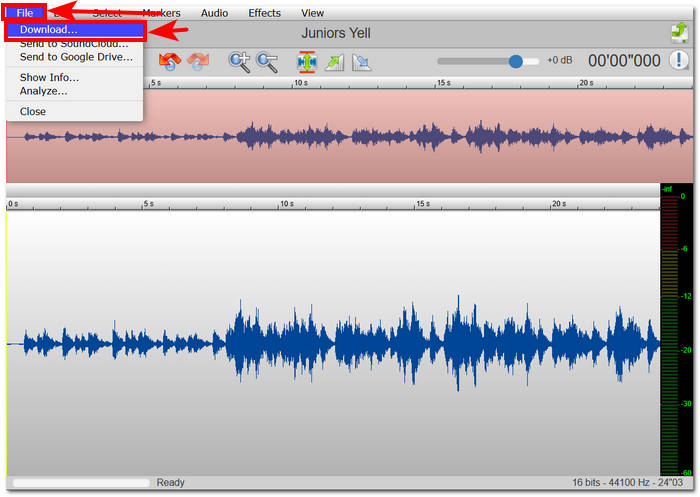
步骤 3:选定好所有想要的效果后,即可下载编辑完成的 WAV 文件。为此,点击工具左上角的“文件”菜单,然后点击“下载”,即可将 WAV 文件导出到你的下载文件夹。
若要在线编辑 WAV 文件,TwistedWave 是在服务器上处理 WAV 文件的最简单方法,因此无需下载软件。尽管使用起来很方便,但它只允许用户在免费帐户中编辑一个文件,最长 5 分钟。
第 5 部分。有关编辑 WAV 文件的常见问题
微软有音频编辑软件吗?
截至撰写本指南时,Microsoft 还没有专门的音频编辑软件,就像 WAV 文件编辑器一样。对于更改音频和应用效果等任务,建议使用 FVC 精选软件和 Audacity。
您可以在 Windows Media Player 中修剪 WAV 文件吗?
不可以,Windows Media Player 本身没有执行此类操作的能力。要在电脑上裁剪 WAV 文件,你需要借助第三方软件,例如适用于 macOS 的 GarageBand,以及适用于 Windows 的 FVC 精选软件。
Mac 上最简单的音频编辑应用程序是什么?
GarageBand 绝对是最简单的,界面设计简单。它在 macOS 用户中广为人知,更不用说音乐爱好者和新手制作人了。此工具提供强大的高级功能,并且已预装在 macOS 上,可立即访问该服务。
WAV 文件通常用于什么用途?
WAV 文件通常用于音频、录制和编辑过程中的专业用途。WAV 以其无损质量和未压缩特性而闻名,是导出 WAV 和其他音频项目的理想格式。
WAV 文件是数字的还是模拟的?
WAV 文件是一种数字格式,用于存储可通过计算机和其他设备共享的声音数据。因此,它包含模拟声波,但采用数字形式。
结论
使用合适的软件和工具编辑 WAV 文件,可以确保音频质量更上一层楼。因此,请根据上述步骤来编辑 WAV 文件,包括推荐的全功能软件、Windows 的内置方法、适用于 macOS 和 iOS 用户的 GarageBand,以及适合网页端用户的在线工具。
-
 WAV Player –适用于Android,iPhone,PC和Mac的前5种WAV Player应用程序
 如何在Android手机上播放WAV文件?哪些玩家可以玩WAV?此帖分享了5个针对Android,iPhone,Mac和PC的最佳免费WAV播放器。
-
 适用于 Windows 和 Mac 的 6 大免费 WAV 录音机
 我们在本文中分享的最好的 WAV 录音软件具有多种实用功能,可帮助您像专业人士一样捕捉音频和语音。
-
 适用于Windows和Mac的5大最佳鼠标和键盘记录器
 这是可以保存鼠标移动和键盘单击并重复事件的前五名最佳鼠标和键盘记录器程序。
