


 视频转换大师
 屏幕录影大师
 视频修复
视频修复如何录制 FaceTime 视频通话【快速指南】
您是否也希望能够直接、轻松地录制 FaceTime 视频通话?很遗憾,FaceTime 本身并没有内置录制通话的功能。但这并非 FaceTime 独有的问题,因为这类功能之所以没有原生支持是有原因的。苹果公司将用户隐私放在首位,因此默认情况下不提供通话录制选项。不过,这并不意味着您就完全束手无策了。
在这篇快速指南中,我们将向你展示如何在 iPhone、iPad 或 Mac 上,使用设备自带的屏幕录制功能来录制 FaceTime 视频通话。此外,千万不要错过一款能够轻松高效录制 FaceTime 通话的新工具。感兴趣吗?继续阅读了解更多内容!

第一部分:可以录制 FaceTime 视频通话吗?
你可能会问:FaceTime视频通话可以录制吗?事实上,FaceTime并没有内置录制功能。苹果公司这样设计是为了保护用户的隐私和安全,确保私人对话的私密性。
不过,需要注意的是,录制 FaceTime 通话涉及法律和道德问题。在许多地方,录制前必须告知对方或征得对方同意。这有助于避免侵犯隐私,并确保通话双方都知晓通话正在被录制。
在下一部分中,我们将向您展示如何在 iPhone、iPad 或 Mac 上录制 FaceTime 视频通话,而不会影响质量或安全性。
第二部分:如何在 iPhone 或 iPad 上录制 FaceTime 通话?
借助内置和外部工具,可以在 iPhone 或 iPad 上录制 FaceTime 通话。虽然 FaceTime 本身没有直接的录制功能,但 iOS 设备内置的屏幕录制功能可以录制 FaceTime 视频通话。
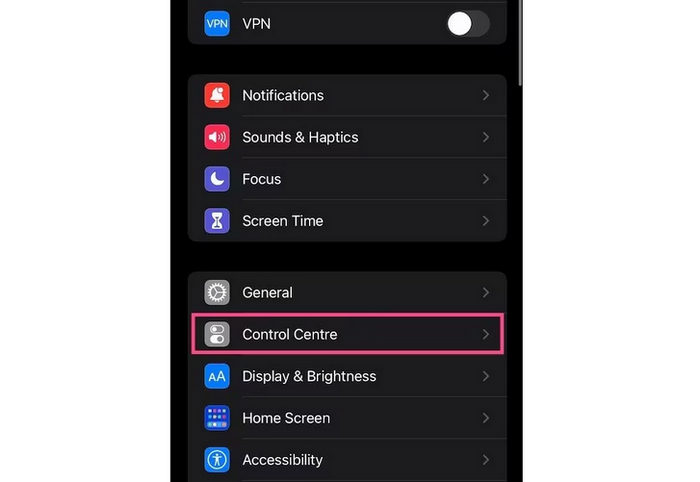
步骤 1:进入「设置」应用并点击「控制中心」。
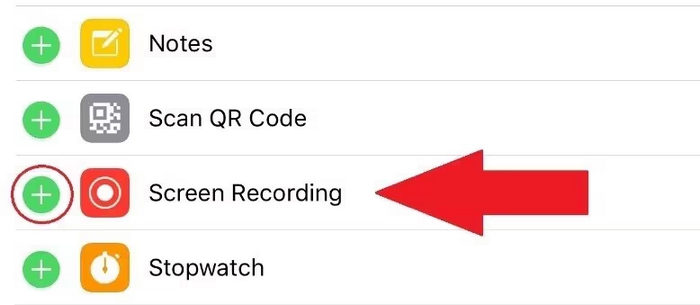
步骤 2:检查「屏幕录制」是否已列在「已包含的控制」中。如果没有,点击其旁边的加号图标将其添加进去。
步骤 3:从屏幕右上角向下滑动,或在较老机型上从底部向上滑动以打开「控制中心」。
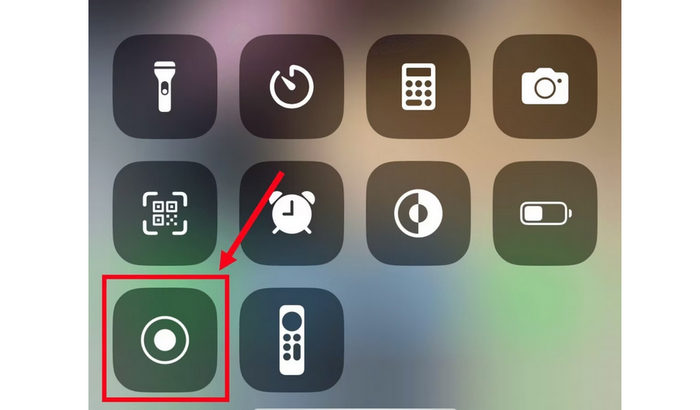
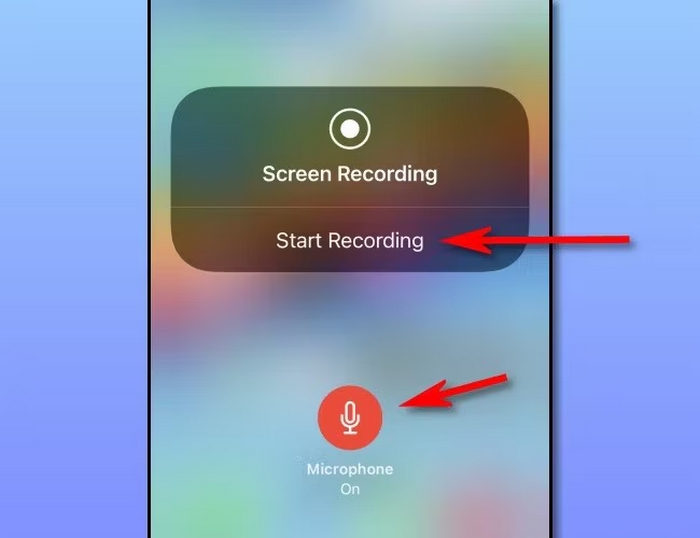
步骤 4:长按「屏幕录制」图标,然后点击「麦克风」将其打开。这样就可以录制 FaceTime 的通话声音。
步骤 5:最后,点击「开始录制」,然后打开 FaceTime 并开始你的通话。你的 iPhone 现在会在对话过程中同时录制视频和声音。
如果您使用 iPad 录制 FaceTime 视频通话,此方法同样适用。此外,使用此方法,您可以直接从设备录制屏幕和音频,无需任何第三方应用程序。只需确保在开始录制前打开麦克风,即可录制 FaceTime 通话的声音。不过,有时这些设备的屏幕录制功能也可能无法正常录制,但即便如此,这仍然是录制 FaceTime 通话的最佳且最简便的方法。
第三部分:如何在 Mac 上录制 FaceTime 视频通话?
在 Mac 上录制 FaceTime 视频通话与在 iPhone 或 iPad 上一样简单。macOS 内置屏幕录制功能,无需安装额外软件即可录制整个屏幕,包括 FaceTime 通话画面。以下是如何在 Mac 上直接录制带声音的 FaceTime 视频通话:
步骤 1:首先,你需要打开 FaceTime 应用,为你的通话做好准备。
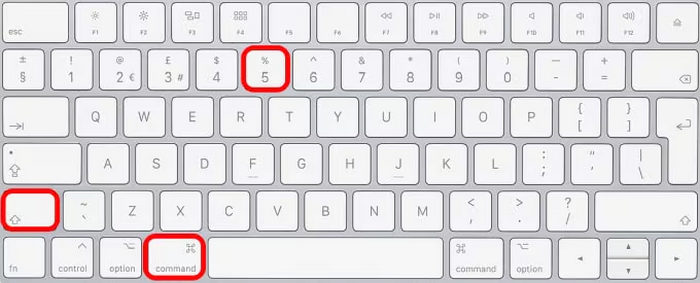
步骤 2:接着,在键盘上按下 Command + Shift + 5,打开 macOS 的屏幕录制工具栏。
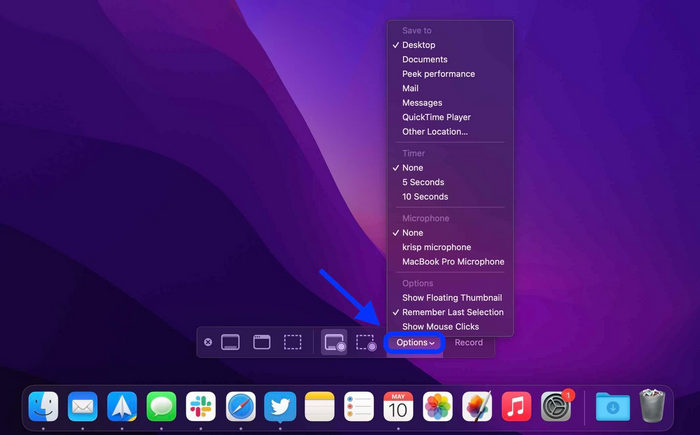
步骤 3:之后,点击「选项」,然后选择一个麦克风,以便在 FaceTime 通话期间录制声音。你也可以根据需要调整其他录制设置。
步骤 4:选择「录制整个屏幕」,然后确保 FaceTime 窗口处于可见状态。
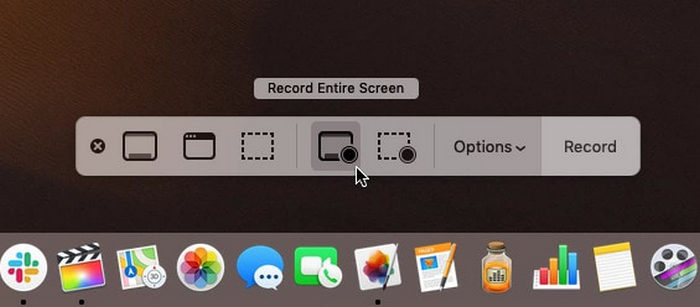
步骤 5:最后,点击「录制」按钮,开始录制带声音的 FaceTime 视频通话。完成后,按下 Command + Control + Escape 停止录制。你的视频会自动保存到你的 Mac 上。
在 Mac 上录制 FaceTime 通话既简单又可靠,因为你可以使用内置的屏幕录制功能同时录制视频和音频,无需额外的应用程序。但是,它仅限于基本录制,因此如果你想在之后编辑或增强视频,则需要其他工具。
第四部分:额外内容:一款可录制 FaceTime 视频通话(包括内部和外部音频)的在线工具
如果你正在寻找一款既能录制内部声音又能录制外部声音的在线工具来录制 FaceTime 视频通话,那么最好的选择就是 FVC 免费录屏工具。它是一款基于网页的屏幕录制工具,可以让你直接在浏览器中录制 FaceTime 视频通话。使用 FVC Free,你可以同时录制系统声音(内部音频)和麦克风(外部音频),从而确保对话录制清晰完整。它操作简单,可在任何设备上访问,非常适合需要兼顾灵活性与录制质量的用户。
主要特点:
• 可录制整个屏幕、特定窗口或您选择的自定义区域。
• 无需安装,即可直接通过网页浏览器使用。
• 非常适合录制视频通话、会议、游戏或在线课程。
• 录制过程中,您可以添加文本、形状、高亮显示和注释。
• 同时录制系统声音和麦克风语音。
• 支持多种视频和音频输出格式,具有灵活性。
• 以高清 (HD) 质量录制视频。
• 可在 Windows 和 macOS 平台上无缝运行。
如何使用 FVC 免费屏幕录像机录制 FaceTime 视频通话:
步骤 1:首先,在浏览器中搜索并打开 FVC Free Screen Recorder。请注意,它同时支持 Windows 和 macOS 系统。
步骤 2:现在,打开 FaceTime 应用并开始通话。然后,在工具的主界面中点击「开始录制」。
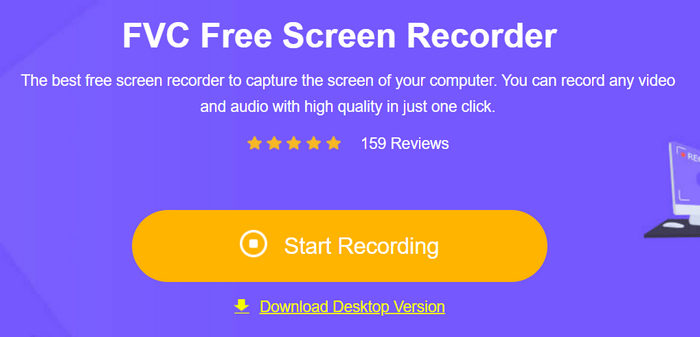
步骤 3:最后,当你准备好正式开始录制时,点击Record(录制)按钮。
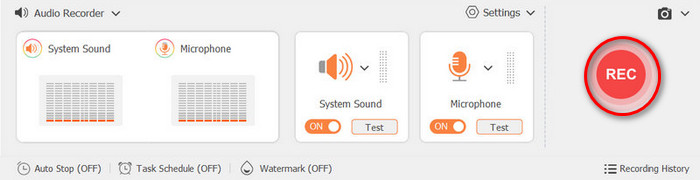
相比设备自带的录屏功能,FVC 免费录屏工具在录制 FaceTime 视频通话方面提供了更多控制权和灵活性。与仅提供基础功能的默认录屏器不同,这款在线工具可以同时录制内部和外部音频,自由选择录制区域,进行 FaceTime 截图,并在录制过程中添加实时标注。它还支持多种格式和高质量输出,非常适合对 FaceTime 录制内容进行保存、分享或后期编辑。
第五部分:关于录制 FaceTime 视频通话的常见问题
我录制的 FaceTime 视频保存在哪里?
在 iPhone 和 iPad 上,录制内容会自动保存到“照片”应用中。在 Mac 上,文件通常会保存到桌面,除非您在录制设置中更改了保存位置。
为什么我的 FaceTime 录制视频时没有声音?
如果录制过程中没有声音,可能是开始录制前麦克风被关闭了。请确保按住屏幕录制图标,并启用“麦克风音频”选项,以便同时录制视频和声音。
对方能知道我是否录制了 FaceTime 视频通话吗?
不,FaceTime 不会在您开始录制时通知对方。但是,为了尊重隐私并遵守法律规定,最好在录制前征得对方的同意。
结论
尽管 FaceTime 本身没有可以直接录制 FaceTime 视频通话的功能,但你仍然可以通过其他方式进行录制。不过,在录制前务必征得双方同意。此外,如果你觉得设备自带的屏幕录制功能效果不佳或功能受限,可以尝试使用 FVC 免费录屏工具。那么还在等什么?立刻拿起你的设备,开始录制 FaceTime 视频通话吧。
-
 如何从 Mac 录制外部音频的 2 种首选方法
 如果您想知道如何从 Mac 录制外部音频,请阅读本文并遵循两种可轻松使用的高质量音频录制工具的指导。
-
 如何在 iPhone 上录制音频的 3 种最佳技术
 由于无法在 iPhone 上正确录制音频而遇到困难?然后阅读本文以了解步骤和可用工具。
-
 QuickTime屏幕录制–在Mac和PC上录制带有音频的视频
 在Mac上带有音频的录制屏幕会派上用场。内置播放器QuickTime Player可以做到。阅读他的文章,并了解如何在Mac和PC上用声音捕获屏幕。
