


 视频转换大师
 屏幕录影大师
 视频修复
视频修复
 安全下载
安全下载如何在 Windows 10 计算机上的 Windows Media Player 中播放 MP4
有时 MP4 文件无法在 Windows Media Player 中播放,但可以在 VLC Media Player 或 KM Player 等其他播放器上播放。由于 MP4 是最流行的视频格式,与所有媒体播放器和多媒体设备兼容。您可能有许多以 MP4 格式保存的视频文件。如果 MP4 文件无法在 Windows Media Player 中播放,这很烦人。那么如何在 Windows 10 中播放 MP4 文件呢?嗯,没有必要担心。以下是修复 Windows Media Player 不播放 MP4 文件的所有解决方案。

第 1 部分。 为什么 Windows Media Player 不播放 MP4
根据微软的说明,并非所有版本的Windows Media Player都支持 MP4 文件格式。Windows Media Player 7、Windows XP 版 Windows Media Player、Windows Media Player 9 系列、Windows Media Player 10/11 都不支持 MP4 文件格式。
如果 Windows Media Player 无法播放 MP4 视频剪辑,则可能是 MP4 视频已损坏或损坏。在这种情况下,您可以尝试在其他媒体播放器中播放无法播放的 MP4 文件。
Windows Media Player 不播放 MP4 的另一个原因是 MP4 文件没有合适的编解码器包。
第 2 部分。 使用 Windows Media Player 的最佳替代品播放 MP4
如果 MP4 视频仍然无法播放,你可以换用其他媒体播放器,例如FVC Free Video Player。它是一款免费的在线视频播放器,可以在 Windows 和 Mac 上播放所有常见的多媒体文件,如 MP4、MKV、FLV、MOV、AVI、3GP、MP3、FLAC、AAC 等。基于 HTML 5 技术,你可以播放任何视频文件,无论是来自本地电脑还是下载的视频。
步骤 1. 访问 FVC Free Video Player 官方网站(https://www.free-videoconverter.net/free-video-player/)。点击Play Now按钮下载并安装启动器。

步骤 2. 点击Open File按钮加载你想播放的 MP4 文件。你也可以点击File菜单并选择Open File来添加 MP4 文件。

MP4 视频上传后,会在你的 Windows 电脑上自动开始播放。如果你想编辑视频效果,可以点击Tools并选择Effects选项,然后调节色调、亮度、对比度、饱和度和伽马值来增强你的视频。

第 3 部分。 转换 MP4 以在 Windows Media Player 中播放
如果 Windows Media Player 无法播放 MP4 文件,一种简单的方法是将 MP4 文件转换为 Windows Media Player 支持的其他格式。你可以使用诸如FVC Video Converter Ultimate之类的视频转换工具,将 MP4 转换为 Windows Media Player 的默认文件格式,例如 WMV、ASF 或 WMA。
步骤 1. 在 Windows 电脑上免费下载、安装并启动 Video Converter Ultimate。点击Add Files按钮添加你想播放的 MP4 文件。

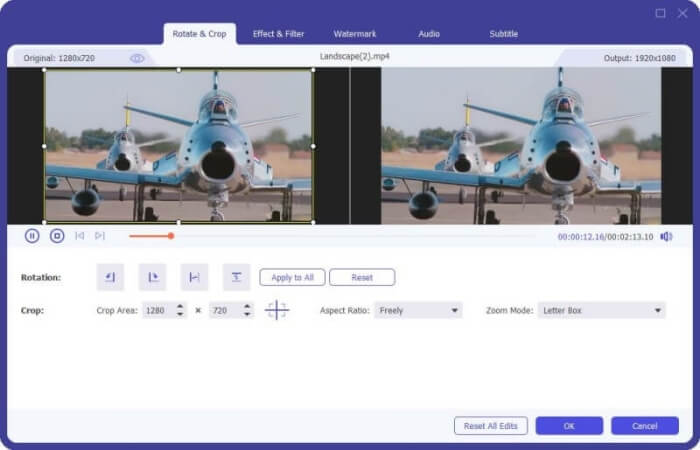
步骤 2. 如果你想为 MP4 文件添加一些效果,可以点击Edit图标进入编辑界面。在这里你可以添加特效、应用滤镜、旋转或裁剪 MP4 文件、添加水印、调节音轨和字幕。
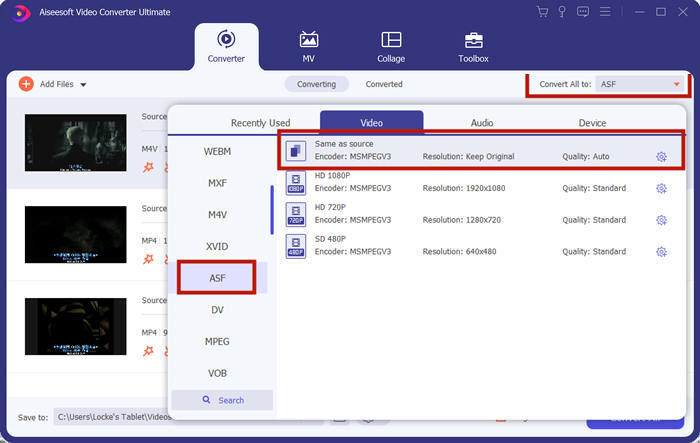
步骤 3. 然后点击Convert All to旁边的下拉箭头,切换到Video标签页,选择 ASF 或 WMV 作为输出格式。
步骤 4. 最后,设置转换后 MP4 文件的输出文件夹。点击Convert All按钮开始转换 MP4 文件。转换完成后,你就可以在 Windows Media Player 中播放转换后的 MP4 文件。

第 4 部分。 在 Windows Media Player 中播放 MP4 的常见技巧
要在 Windows 10 上播放 MP4,你可以先定位到存放 MP4 文件的文件夹。右键点击你想播放的 MP4 文件,选择Open with,然后选择Windows Media Player。虽然操作非常简单,但有时你仍可能无法在 Windows Media Player 中打开 MP4 文件。为了解决这个问题,你可以尝试以下方法。
1. 用其他媒体播放器播放 MP4
如果你的 MP4 文件无法在 Windows Media Player 中播放,你可以尝试使用其他媒体播放器来打开该 MP4 文件。市面上有很多媒体播放器,如 FVC Free Video Player、VLC Media Player、KM Player、Real Player、GOM Player、BS Player、DivX Player 等。
2. 为 Windows Media Player 安装正确的编解码器
如果 Windows Media Player 不播放 MP4 文件,则缺少编解码器。要解决此问题,您需要为 Windows Media Player 安装正确的编解码器。
步骤 1. 打开 Windows Media Player。点击Organize菜单并选择Options。
步骤 2. 切换到Privacy选项卡,并勾选Download usage rights automatically when I play or sync a file选项。
步骤 3. 若要播放 MP4 文件,点击OK按钮保存更改。
3. 在 Windows 上运行疑难解答
如果 MP4 在 Windows Media Player 中无法播放,您可以使用疑难解答工具在 Windows 10 中解决问题。按照步骤解决问题。
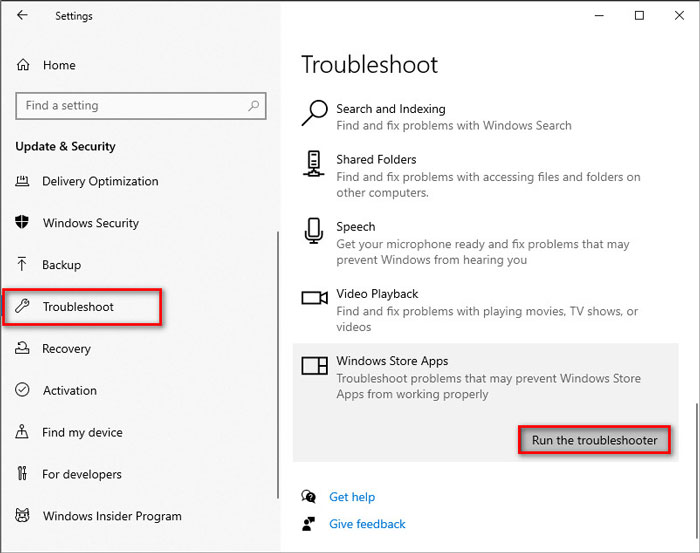
步骤 1. 在 Windows 10 电脑上打开Settings,选择Update & Security。
步骤 2. 进入Troubleshoot区域,然后点击Windows Store Apps。
步骤 3. 点击Run the troubleshooter按钮,排查 Windows Media Player 播放问题。
第 5 部分。 在 Windows Media Player 中播放 MP4 的常见问题
Windows Media Player 的默认视频格式是什么?
Windows Media Player 的默认文件格式是 WMV(Windows Media Video)和 WMA(Windows Media Audio)。它还支持 ASF(高级系统格式)和它自己的基于 XML 的播放列表格式,Windows 播放列表。
什么是最好的 MP4 播放器?
市面上有许多热门的MP4 播放器,包括 FVC Free Video Player、VLC Media Player、KM Player、QuickTime Player、RealPlayer、Media Player Classic、GOM Player、PotPlayer 等。
我可以在 Windows Media Player 中播放 MKV 吗?
Windows 10 中内置的 Windows Media Player 12 不支持 MKV 播放。您需要安装正确的编解码器才能播放。
结论
MP4 是最流行的数字多媒体格式,通常用于存储视频和音频。如果 MP4 文件无法在 Windows Media Player 中播放,这令人沮丧。希望您可以使用我们所有的提示和解决方案在 Windows 10 中流畅地播放 MP4 文件。您可以尝试使用其他视频播放器(如 FVC 免费视频播放器)来播放您的 MP4 文件。
-
 如何在 Google Drive 中播放 MP4 文件
 MP4 没有在我的 Google 云端硬盘中播放?如何在 Google Drive 中播放 MP4 文件?这篇文章讲述了在 Google Drive 中播放 MP4 视频的 3 种方法。
-
 在 Chromebook 2021 上播放 MP4 文件
 您可以在Chromebook上播放视频吗?如何在Chromebook上通过USB播放MP4文件?这篇文章分享了3种在Chromebook上播放MP4的方法。
-
 如何在2021年在Windows Media Player上播放DVD
 为什么我的DVD无法在Windows Media Player上播放?如何在Windows 7媒体播放器上播放DVD?这篇文章分享了有无WMP播放DVD的3种方式。
