


 视频转换大师
 屏幕录影大师
 视频修复
视频修复选择用于录制 GIF 的最佳 GIF 屏幕录像机 [在线和离线]
事实上,GIF 是简单但易于在网络上访问的文件格式。 GIF 的文件大小非常小,以至于它成为通过 Internet 发送视频或运动图像的最有效方式之一。在观看电影时,您发现了有关正在观看的电影的精彩场景,并希望与您的朋友、亲人或家人分享。但大多数屏幕录像机都是 MP4 和 MOV 格式,它们是最大的文件大小格式之一。传输这种类型的文件格式需要一个小时或更长时间对我们来说并不新鲜,而且大多数情况下它们会因为互联网中断而失败,或者在其他情况下格式变得不可用,因为并非所有本地媒体播放器都支持所有格式。
在网上不断查找解决方案时,你会发现很多 GIF 动图。这种文件格式体积更小、便于分享。所以,你可能在想,自己该用什么样的GIF 录制工具来把正在看的电影片段录下来。下面这份清单介绍了一些常见的 GIF 录制工具,其中有的你可能已经在网上遇到过,有的可能还没有。继续往下读,了解这些工具分别是什么,以及如何使用它们来捕获并保存为动图 GIF 格式。

第 1 部分。 GIF 记录器应具备的最佳特性
在一切之前,选择一款合适的屏幕录制工具是前提。但你可能会疑惑:挑选一款GIF 录制工具时,究竟该优先考虑什么?下面的列表可以给你一些参考,让你知道一款优秀录制工具应该具备哪些特点。
● 必须易于上手——选择一款在录制时不会给你添麻烦的产品。
● 价格要亲民——这一条只适用于需要付费使用的工具。相比把钱砸在一些功能一般的高价产品上,选择一款价格合理、性价比高的工具就足够了。确实,付费版工具在输出质量上通常更有优势,不过这只在收费工具之间才有可比性。至于免费线上或线下工具,用户则无需为价格操心。
● 程序的适用平台——考虑到你可能会从 PC 换到 Mac,或从 Mac 换回 PC,你不希望每换一台设备就重新适应一款新的录制软件。因此,最好选择一款GIF 屏幕录制工具,它可以跨平台使用。这样一来,将来工具升级调整时,你也只需适应一些简单的变化,比如名称,而不是完全重新学习整个界面。
● 无恶意软件或病毒——这一点对在线工具和离线工具都适用。任何程序在保证录制效果的同时,也必须提供可靠的安全性,以避免数据丢失和信息泄露。
虽然这些是记录器应该提供的简单特性,但您可以选择的工具的独特性在下面的列表中。找出每个工具之间的差异,然后从列表中选择最好的 GIF 录制器进行录制。
第 2 部分。 网络上最好的 GIF 录制器
1. FVC 免费屏幕录像机
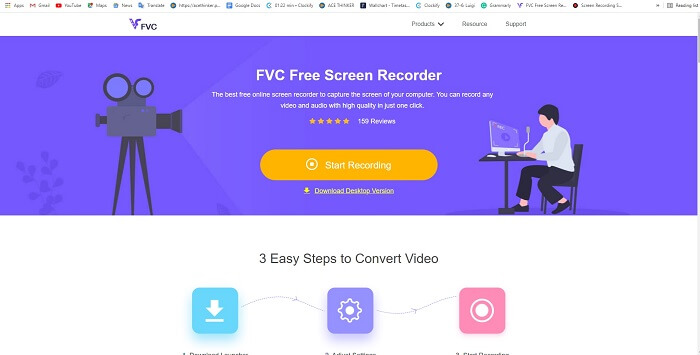
分享精彩瞬间最好的方式是把它录下来,而录制屏幕上某个场景或动作的理想工具,就是FVC Free Screen Recorder。这是一款依托网络运行的开源工具,只要你有网络连接,就可以使用它。此外,它还支持常用文件格式、编码器等功能。尽管它是一款轻量级、适用于 PC 和 Mac 的在线 GIF 录制工具,却能为你提供无限时长、无水印的录制体验。要了解如何使用这款工具,请按照以下步骤操作。
步骤一: 点击本文提供的链接,进入工具的主页面。
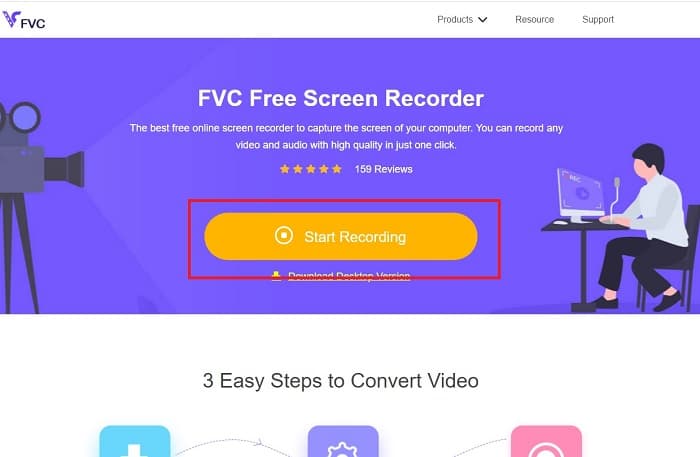
步骤二: 页面加载完成后,你会在屏幕上看到类似这样的界面。点击开始录制(Start Recording)并选择允许(Allow),以启动在线录制工具。
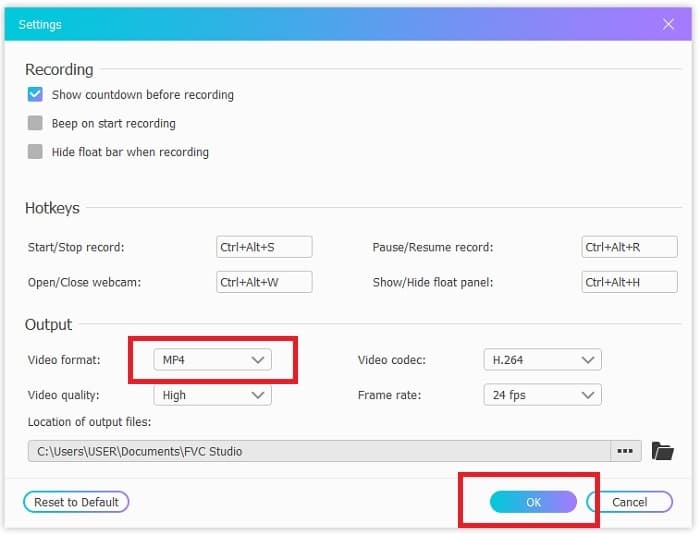
步骤三: 屏幕上会出现一个悬浮工具栏。点击齿轮图标进入设置,按需更改视频格式和其他参数。设置完成后点击OK保存调整。
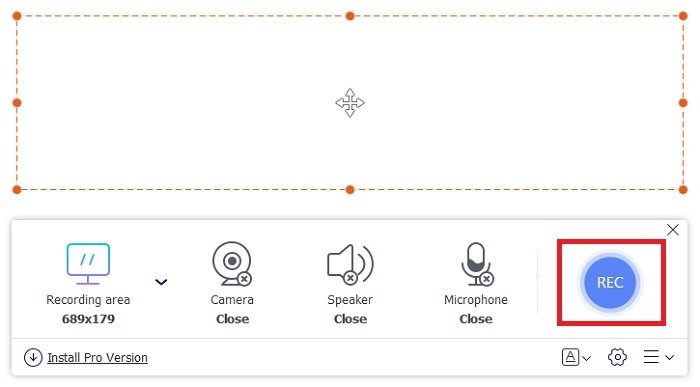
步骤四: 调整录制区域,或直接点击全屏(Full screen)进行全屏录制。由于 GIF 不包含声音,因此录制 GIF 时无需开启扬声器和麦克风。不过你可以打开摄像头(Webcam),把自己的画面加入其中。准备好后,点击REC按钮开始录制。
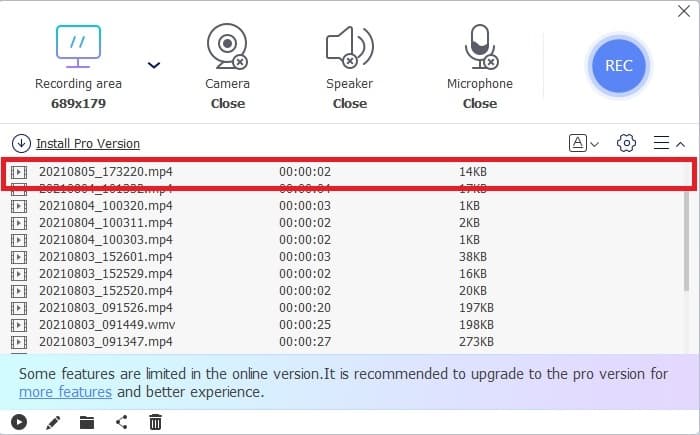
步骤五: 录制结束时,点击方形按钮停止录制。你可以在历史记录列表(history list)中查看刚刚完成的录制文件。
2. FVC 屏幕录像机
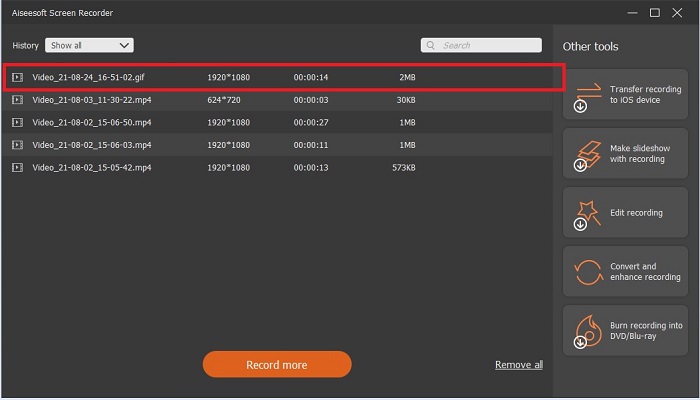
如果 FVC 的免费在线工具已经让你眼前一亮,那么安装这款更强大的 GIF录制软件——FVC Screen Recorder,一定会带给你一直期待的惊喜。这款工具的亮点不止于录制 GIF,它还支持视频和音频录制,以及出色的游戏画面录制功能。不过这些还只是它的基础能力,它还能输出多种不同的格式,比如 MP4、GIF、MOV 等等。
它的另一个特点是锁定屏幕功能,这是该工具的独特功能,即使像Bandicam这样的重量级录音机也无法提供此功能。录制并截图为 GIF 格式,而不显示工具本身。 FVC Screen Recorder 为录音中的磅王提供磅数。因此,无论您在录制什么,此录音机都可以进行录制。要了解如何使用此工具,请按照以下简单步骤成功录制 GIF。
步骤一: 使用文中提供的安装包,先根据自己使用的系统从两个版本中选择一个。将工具安装到硬盘中,根据自身需求调整偏好设置,然后点击完成(finish)保存。
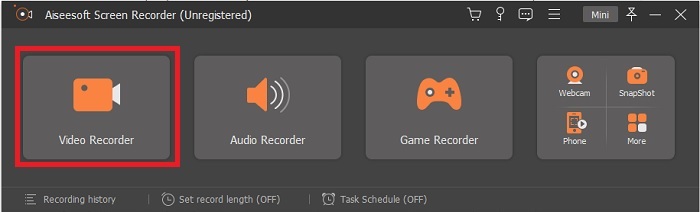
步骤二: 选择视频录制(Video Recorder)功能,用来录制屏幕内容。音频录制和游戏录制等选项也同样可用,你可以在后续根据需要使用。
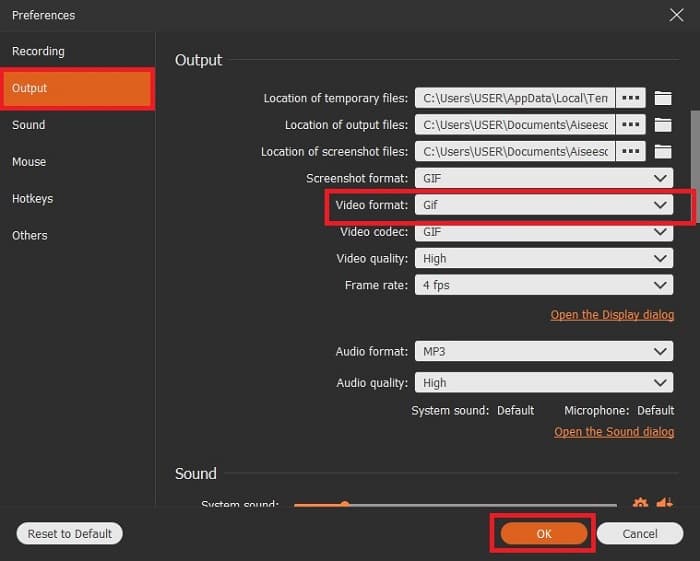
步骤三: 屏幕上将出现悬浮工具栏。点击齿轮按钮进入设置,在输出(Output)选项中将格式改为 GIF 或你想要使用的其他格式。设置完成后点击OK保存。
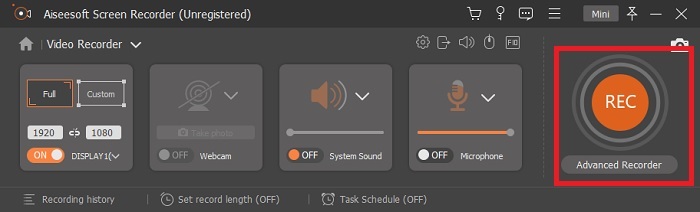
步骤四: 在主工具栏中调整录制画面比例,或者直接点击全屏(full screen)录制全屏内容。录制 GIF 时,系统声音和麦克风并不重要。不过你可以开启摄像头(Webcam),记录自己的表情和反应。准备就绪后,点击圆形按钮开始录制。
步骤五: 录制完成后,点击方块按钮停止录制。再点击保存(Save)和下一步(Next)保存结果。若要回看刚才录制的 GIF,点击三条横线图标,即可在历史记录中找到该文件。
3. ScreenToGif
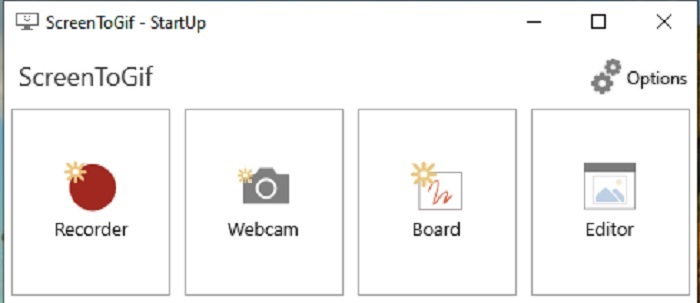
这款可下载的Mac 与 PC 通用 GIF 录制工具提供两种版本:安装版和便携版,你可以根据自己的喜好任选其一。不过,在运行过程中,你可能会遇到一些小 bug。而且该工具最终输出的格式只有 .gif,如果你想导出其他格式,它则无法满足需求。好在它可以免费使用,如果你只是想录制 GIF,它仍然是不失为一个选择的工具。只是它的界面略显单调,白色背景会让整体显得有些乏味,不过基本工作还是能胜任的。
4. Gyazo
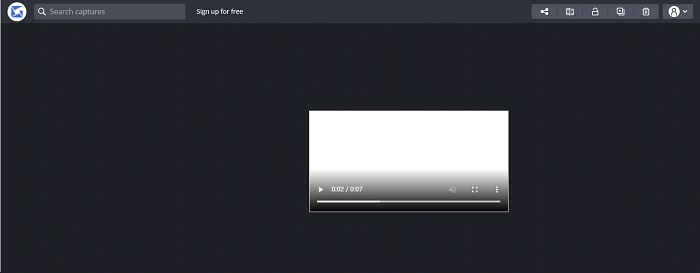
这是 Windows 平台上最优秀的GIF 录制工具之一。Gyazo 是一款专门为录制 GIF 而设计的软件。不过,安装完成后,会有 3 个工具自动下载到你的电脑里。它们同属于这一套工具,但名称和功能各不相同,分别是 Gyazo、Gyazo GIF 和 Gyazo Replay。使用 Gyazo GIF 录制 GIF 时时长被限制在 7 秒以内,如果你需要录制超过 7 秒的内容,它就不太适合。另外,录制完成后的视频不会自动保存到你的本地存储,而是会在浏览器中打开一个新标签页,你需要自己手动下载。下载过程完全依赖你的网络状况,因此要特别留意网速和连接状态。
5.记录它!
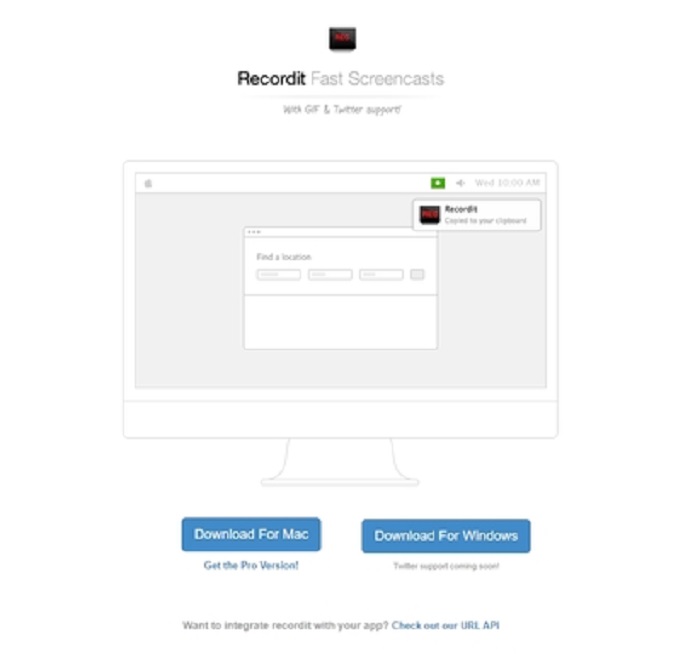
另一个可以用来制作 GIF 的工具是 RecordIt!,被认为是最好的Mac GIF 录制工具之一。这款工具也提供 Windows 版本。不过,它在安装过程中可能会出现一些问题:即使你完成了全部安装步骤,仍有可能遇到无法正常安装的情况。这通常是因为系统中有些应用未更新,导致工具无法成功下载。当然也有一种解决方式,但可能会对电脑带来风险——你可以选择忽略系统提示,强制继续下载并忽略所有警告。因此,使用这款工具需要自担风险。除此之外,工具中还会出现广告,有些广告内容不够规范,也需谨慎对待。当然,它同时提供付费专业版,可以移除广告,并解锁更多功能。
第 3 部分。 关于 GIF Recorder 的常见问题解答
我可以将 GIF 转换为 MOV 格式吗?
是的,您可以借助在线视频转换器(如 FVC 免费在线视频转换器)将 GIF 转换为 MOV 格式。
有哪些不同类型的 GIF?
有 5 个 GIF:回放 GIF、反应 GIF、电影图、完美循环和技术 GIF。所有这些都可以是基于动画的、基于视频的和贴纸。
GIF 的其他替代品是什么?
尽管创建 GIF 已经 30 多年了。网络上有一些竞争对手可以制作电影和 GIF。这些是动画 GIF 的最佳替代品:APNG、WebP、AVIF、MNG 和 FLIF。
结论
文章终于来到尾声,人们常说'精彩的故事总有一个精彩的结尾'。综合以上内容可以看到,GIF 动图是一种极具表现力的媒介,能更加生动地向接收者传达情绪。不过,并不是所有你喜欢的视频都已经有现成的 GIF 可用。与其等待别人制作,不如自己动手。借助最佳的GIF 录制工具——FVC Screen Recorder,你可以自己录制 GIF,并加入个人创意。如果你还在犹豫该选哪一款工具,不妨回头再看看前面总结的“优秀录制工具的关键特性”,你会发现这些特性全部集中在这一款:FVC Screen Recorder。
-
 [2 解决方案] 如何轻松免费将 SWF 文件转换为 GIF 文件
 当您通过Flash软件导出GIF格式失败时,您可以先尝试将文件保存为SWF格式。然后,您可以从本文中学习 2 种将 SWF 转换为 GIF 文件的简单方法。
-
 在Windows / Mac /在线上免费免费合并视频的4种方式
 以下是将视频合并为新视频的 4 种快速方法。没有视频文件大小或格式限制。您可以成功加入 2、3、4 甚至更多不同格式和分辨率的视频剪辑。
-
 (2 解决方案) 如何免费将 WMV 视频转换为 GIF 文件
 如果您想剪辑 WMV 视频的精彩部分并从中制作 GIF,您可以在本文中了解 2 种将 WMV 视频转换为 GIF 的简单方法。
