


 视频转换大师
 屏幕录影大师
 视频修复
视频修复
 安全下载
安全下载如何压缩音频:您需要尝试的 4 个有用工具
尽管你的音频文件具有不可或缺的品质,但如果无法通过互联网发送它们,就再令人失望不过了。除此之外,大型音频文件会占用你设备上过多的空间,迫使你只能保存少数几首喜欢的歌曲而删除其他文件。幸运的是,借助在线和离线音频压缩工具,这些问题都可以轻松解决。在本指南中,我们为你整理了四款最佳软件,帮助你快速压缩音频文件。

第 1 部分:压缩音频的最佳方法
先来介绍几次点击就能压缩音频文件的最佳方法。Video Converter Ultimate 对初学者、普通用户和专业人士来说都是绝佳选择,因为它提供的音频压缩功能远超基础需求。它还能充当格式转换器,让你将一种格式转换为另一种格式。除此之外,Video Converter Ultimate 还配备了一个工具箱,你可以在其中访问丰富的功能列表,例如 GIF 制作、视频增强、音频剪辑等。
除了这个出色的功能外,Video Converter Ultimate 还允许您通过更改比特率、采样率和通道来微调项目的细节。请参阅下面的指南以使用该工具减小音频文件大小。
步骤 1. 启动最佳音频压缩器
作为关键的开始,请选择下面的“免费下载”按钮在您的设备上安装该程序。对于 Windows 操作系统选择右侧,对于 Mac 设备选择左侧。然后,双击该文件并按照安装向导进行操作。
步骤 2. 上传音频
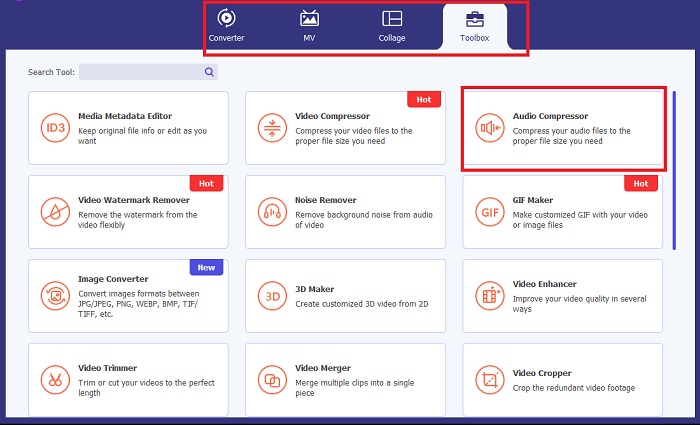
熟悉程序界面后,进入 Video Converter Ultimate 的 工具箱(Toolbox) 区域并选择 音频压缩器(Audio Compressor)。随后会弹出一个新窗口,点击加号图标导入你的音频文件。
步骤 3. 压缩音频
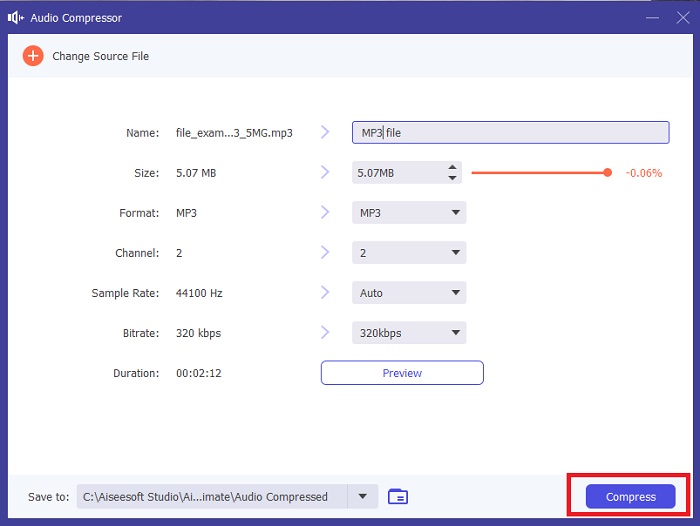
上传文件时,Video Converter Ultimate 会自动压缩您的音频文件。该过程可能需要一段时间,具体取决于其长度。另一方面,您可以根据您喜欢的压缩级别移动滑块。
步骤 4. 保存文件
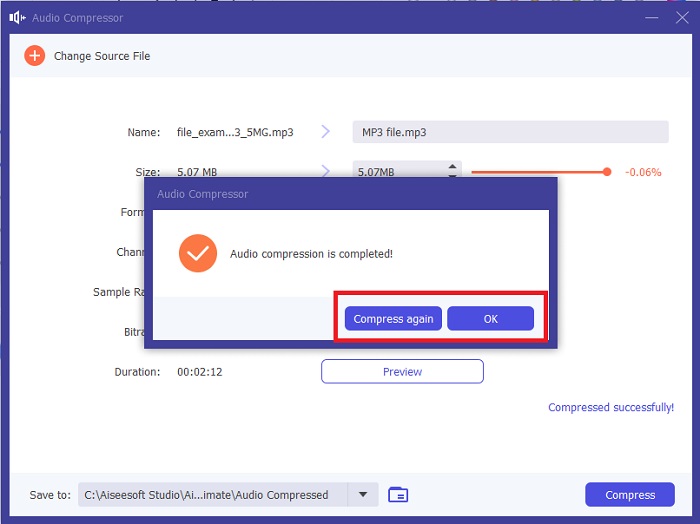
压缩完成后,你还可以根据需要修改格式、声道及其他参数。随后点击压缩(Compress)按钮,开始执行压缩过程。
第 2 部分:如何在 Audacity 中压缩音频
如果您是处理音频压缩的初学者,Audacity 是一个有趣的工具。该程序是一款开源音频编辑软件,可让您编辑曲目和录音。除此之外,Audacity 是一个跨平台工具 - 换句话说,它可以在任何 Mac、Windows 甚至 Linux 设备上完美运行。
在压缩您珍贵的文件之前,该工具可以帮助您混合音频文件,例如特殊音频效果。它还可以编辑录音的语音、节奏和音高。如果您想了解如何在 Audacity 中压缩音频,请按照以下步骤操作。
步骤 1. 首先,通过点击 文件(File) 选项卡并选择 导入(Import),将音频文件加载到程序中。随后,电脑的文件目录会在新窗口中弹出,你可以从中选择需要压缩的音频。
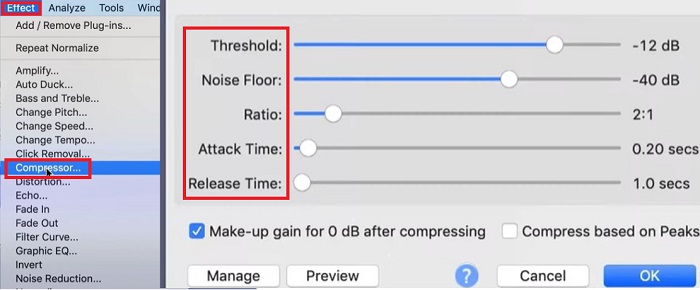
步骤 2. 接着,在时间轴上选中音频以将其高亮显示。然后,展开 效果(Effect) 下拉菜单并选择 压缩器(Compressor)。
步骤 3. 当 压缩器(Compressor) 面板出现后,你可以开始调节压缩音频的各项参数,例如 阈值(Threshold)、噪声底(Noise Floor)、压缩比(Ratio)以及释放时间(Release Time)。
步骤 4. 点击 预览(Preview) 按钮播放预期输出,以便确认最终效果。当你对音频结果满意后,点击 确定(OK) 并将音频导出到本地文件夹。
第 3 部分:Adobe Audition 压缩音频
虽然后一种工具最适合初学者,但 Adobe Audition 软件适合专业人士。该程序可以微调音轨以产生完美的输出。此外,这个专业工具还提供编辑、混合和恢复音频细节的全面功能。
最重要的是,该工具为您提供了减小音频文件大小的余地。现在,我们正在研究如何使用单频段压缩来减小 Adobe Audition 上的音频大小。
步骤 1. 在屏幕上启动工具后,前往程序左上角并点击 打开(Open)。在那里上传你需要压缩的音频文件。或者,你也可以使用拖放方式导入。
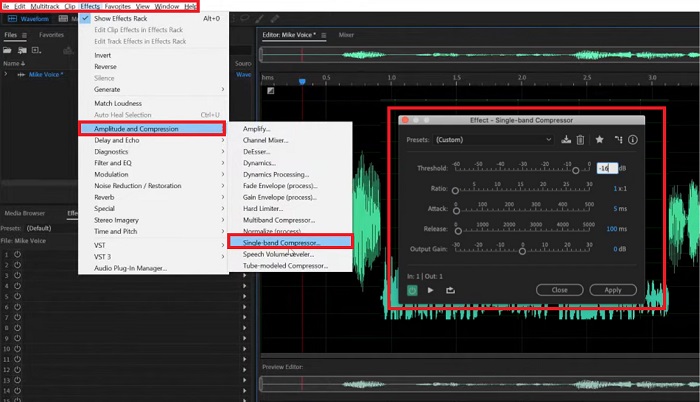
步骤 2. 然后,展开 效果(Effect) 选项卡并选择 振幅与压缩(Amplitude and Compression)。接着,从列表中选择 单波段压缩器(Single-Band Compressor) 来调整音频电平。
步骤 3. 最后,根据你的音频需求手动调节 阈值(Threshold)、起动时间(Attack)和输出增益(Output Gain)。当所有设置符合你的要求后,点击 应用(Apply)。
第 4 部分:Camtasia 中的音频压缩
列表中的最后一个是名为 Camtasia 的多功能工具,它可以满足您的音频和视频操作需求。虽然该程序主要用于视频编辑和屏幕录制,但该程序还可以使您的音频变得非常美妙。
修复音频数据时,Camtasia 提供的工具可帮助您调整音量、消除背景噪音,甚至更改文件的速度和节奏。 Camtasia 可在 Mac 和 Windows 设备上运行。我们在下面提供了有关 Camtasia 中音频压缩如何工作的指南。
步骤 1. 首先,通过点击 文件(File)> 打开(Open) 将音频文件导入程序。文件显示后,点击该音频将其高亮。确保光标位于音频开头的前几秒位置。
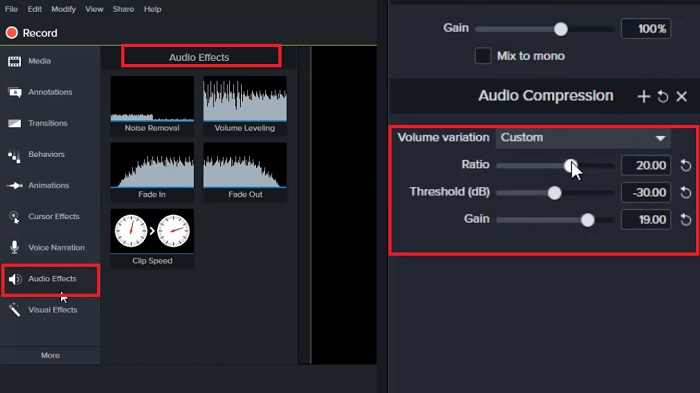
步骤 2. 然后,前往工具左侧并选择 音频效果(Audio Effects)。在该选项下出现的列表中选择 压缩器(Compressor)。选择后,工具会自动对你的音频进行电平调整。
步骤 3. 你可以点击预览面板上的 播放(Play) 按钮检查音频文件。如果满意,点击 应用(Apply)。
步骤 4. 若要将结果保存到本地文件夹,重新打开“文件”选项卡并点击 导出(Export)。
延伸阅读:
音画不同步怎么解决?3 个顶级方法教你修复音频延迟问题 [2023]
第 5 部分:减少音频文件大小的常见问题解答
我可以压缩音频文件 WAV 吗?
绝对是的!波形音频文件,简称WAV格式,是由IBM和Microsoft制作的无损音频文件。由于 WAV 未压缩,您可能必须压缩这样的文件才能满足更多的存储空间。
如何将音频压缩为 MP3?
就获得标准质量的音轨而言,MP3 是最佳选择。要压缩 MP3 文件,您可以使用在线工具或离线程序。对于在线工具,请在在线音频压缩器中上传 MP3。之后,该工具将为您提供目标文件大小及其相应质量的选择。
如何在线压缩音频文件?
许多在线工具可以帮助减小音频文件的大小。您所要做的就是将 MP3 上传到在线音频压缩器。之后,该工具将使用其算法为您提供目标文件大小及其相应质量的选择。
如何发送太大的音频文件?
在社交媒体平台上发送大型音频文件仅限于 25 MB。在这种情况下,最好的办法是为您的文件创建一个 zip 并将其附加到您的电子邮件中。另一方面,您可以将文件保存在 Google 云端硬盘上并与接收者共享链接。
Adobe Audition 是免费的吗?
不可以。只有订阅 Creative Cloud 后才能使用 Adobe Audition。然而,专业编辑选择在他们的设备上安装这个程序,因为它的性能要先进得多、更全面。
结论
借助上述平台,你可以无限制地压缩音频,同时获得相当不错的音质。使用 Adobe Premiere Pro 时,除了压缩功能外,其丰富的编辑工具还能帮助你进一步优化背景噪声。另一方面,如果你的目标只是单纯压缩音频文件,那么 Camtasia 和 Video Converter Ultimate 就足够满足需求。
-
 如何在计算机/电话上免费向视频添加音频和音乐
 本文介绍了4种免费的免费向视频添加音频的简便方法。无论您要将哪种音轨添加到视频中,都可以在这里获得满意的结果。
-
 高质量压缩GIF并减小其文件大小的教程
 这里'有 2 种压缩 GIF 的简单方法。您可以使用 FVC 免费在线视频压缩器和 Photoshop 从不同方面减小 GIF 文件大小。
-
 如何在 iPhone 和 Mac 上的 iMovie 中同步音频和视频
 因音频和视频在 iPhone 和 Mac 上不同步而遇到问题?那么现在,让我们通过阅读这篇文章继续学习如何使用 iMovie。
