


 视频转换大师
 屏幕录影大师
 视频修复
视频修复
 安全下载
安全下载有关如何在 Audacity 中反转音频的详细指南 [2024]
反转音轨可以为您的音乐作品增添独特的维度和色彩,为创意故事讲述产生迷人的音效。这种风格被广泛使用,并且在丰富音频项目的深度和原创性方面越来越受欢迎。所以,如果您在 Audacity 中编辑音频并希望通过反转来增加曲调,那么您来对地方了!
在本文中,我们将向您介绍如何在 Audacity 中反转音频的详细步骤,并分享有价值的提示,以帮助您充分利用此功能。在本指南结束时,您将准备好反转音轨并轻松探索新的创意视野。所以,准备好改造您的音频项目并发现反转音频的激动人心的潜力吧!

第 1 部分。如何在 Audacity 中反转音频
Audacity 是一款旨在让用户无需昂贵的高级工具即可编辑音频文件的程序,可确保免费获得高质量的输出。作为一款开源工具,它可供所有人免费使用,并提供通常在付费软件中才有的一系列功能。在 Audacity 的众多功能中,最突出的是其反转音轨功能。此功能允许用户发挥创意,随意调整音频的声音效果。通常,编辑人员会反转音频,因为这会给他们的项目增添独特的效果。
以下是在 Audacity 中反转音频的方法。
步骤 1。在电脑上下载并安装 Audacity。
步骤 2。启动该工具,转到左上角的 文件(File) 菜单,并选择 打开(Open)。然后在电脑中浏览并定位、选择你想要反转的音频文件,或者将该音频文件拖放到程序中。
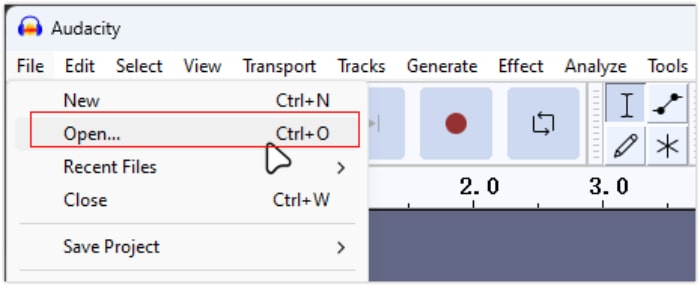
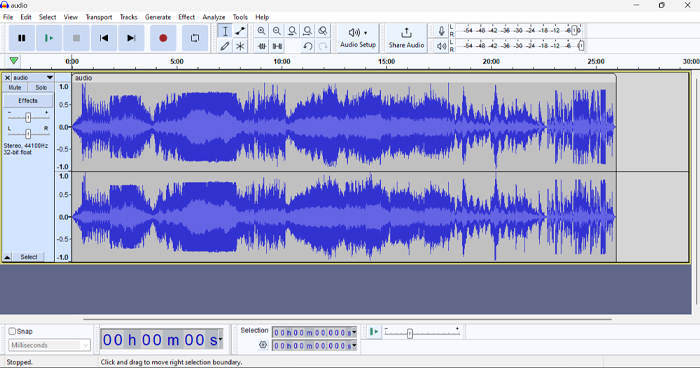
步骤 3。现在,单击音轨,转到 选择(Select) 选项卡,并选择 全部(All),以选中整个音频文件。
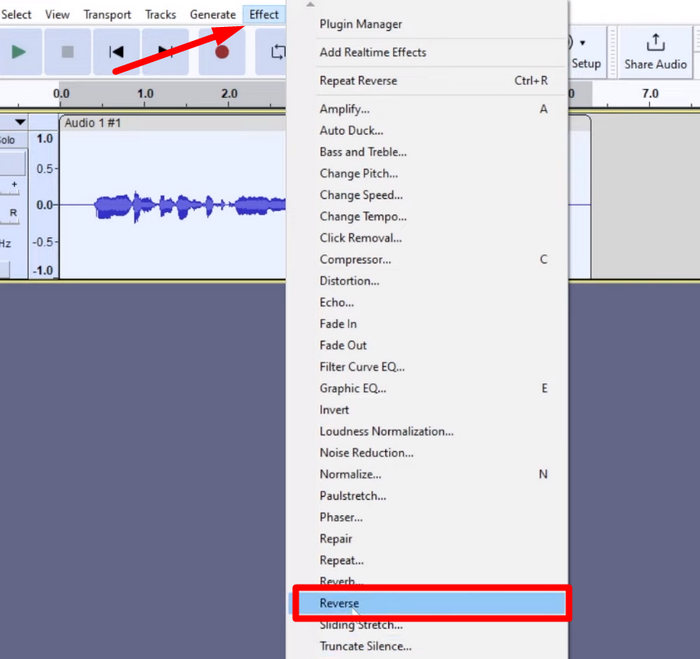
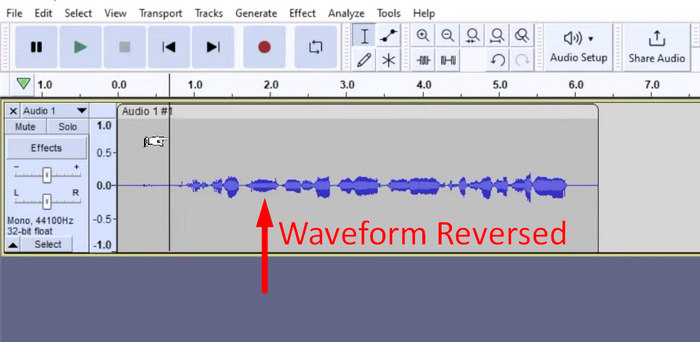
步骤 4。要反转音频,转到 效果(Effect) 选项卡,并在下拉菜单中选择 反转(Reverse)。Audacity 会处理并反转所选的音频片段。
步骤 5。你可以通过按键盘上的空格键来预览反转后的音频。或者,使用 Audacity 窗口左上角的播放控制按钮,点击 播放(Play) 按钮进行预览。
步骤 6。最后,要导出反转后的音频文件,请回到“文件(File)”菜单,在其下选择“导出(Export)”。这样,你的音频会被保存为一个新文件。同时,别忘了在导出前选择你偏好的音频文件格式。
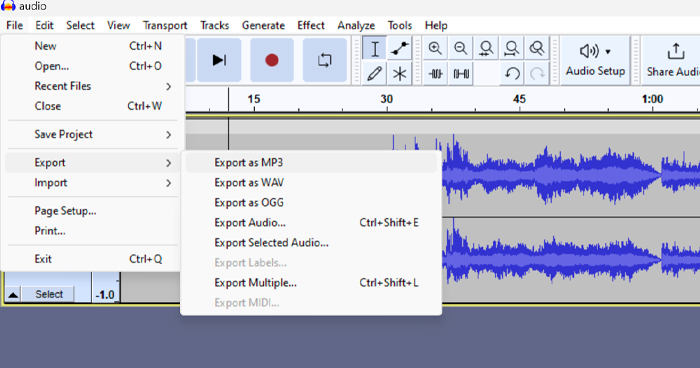
由于存在意外丢失工作成果的问题,请在编辑时定期保存项目,以防止进度丢失。您可以使用 Ctrl + S(Windows 上)或 Cmd + S(Mac 上)快速保存工作成果。此外,请考虑使用描述性文件名并将文件组织在专用文件夹中,以使项目井然有序且易于访问。
第 2 部分。如何在 Audacity 中反转部分音频
在某些情况下,用户只想在 Audacity 中反转音频的一部分,可能是因为他们只想强调特定部分或创建独特的效果。以下步骤与反转整个音轨的步骤几乎相同。但是,选择音频的一部分有点棘手,需要在步骤中强调以避免混淆,尤其是对于初学者而言。
以下是在 Audacity 中只反转部分音频的方法。
步骤 1。在工具的主界面中,转到左上角的 文件(File) 菜单并选择 打开(Open)。然后在电脑中浏览并定位、选择你想要反转的音频文件,或者将该音频文件拖放到程序中。
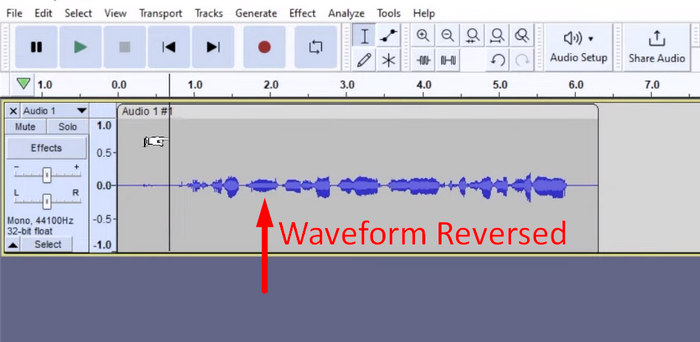
步骤 2。现在,要选择你想要反转的音频片段,可以利用 缩放(Zoom) 功能放大波形轨道,然后拖动鼠标,选中你只想反转的那一段音频。
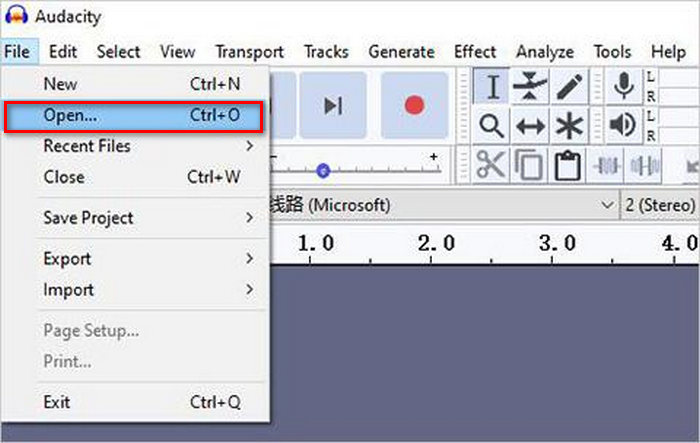
步骤 3。要反转音频,转到 效果(Effect) 选项卡,并在下拉菜单中选择 反转(Reverse)。Audacity 会处理并反转所选的音频片段。
步骤 4。你可以通过按键盘上的空格键来预览反转后的音频。或者,使用 Audacity 窗口左上角的播放控制按钮,点击 播放(Play) 按钮。
步骤 5。最后,要导出反转后的音频文件,在“文件(File)”菜单下选择“导出(Export)”。选择 导出为(Export as),并在最终导出前选择你偏好的音频文件格式。
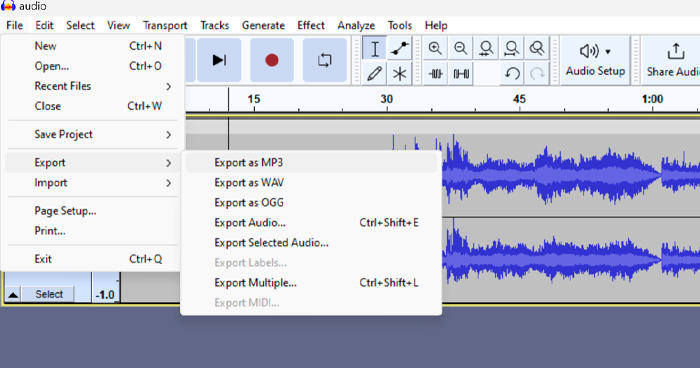
在 Audacity 中选择某一特定部分进行反转时,一定要准确放大波形,以便清晰地看到该片段的起始和结束位置。这有助于进行精确选择,避免将不需要的音频部分包含进去。此外,在反转之前,如有需要,可以使用'剪辑拆分(Clip Split)'工具,将音频分割成多个小片段,例如剪切 MP3 音频,从而更方便地独立操作和编辑特定片段。这种方式能够提升你对编辑的掌控力,并确保反转后的音频能顺畅地达到预期效果。
第 3 部分。使用 Audacity 替代方案反向音频/视频
同时,如果你更倾向于用一种更简单、更易上手的方法来反转音频或视频,你可以使用 Audacity 的替代方案——FVC 精选的 Video Converter Ultimate。这款全能型视频和音频工具虽然以强大的格式转换能力著称,但除此之外,它对于需要便捷地反转音频或视频的用户来说同样非常好用。
步骤 1。在电脑上下载并安装 FVC 精选的 Video Converter Ultimate。
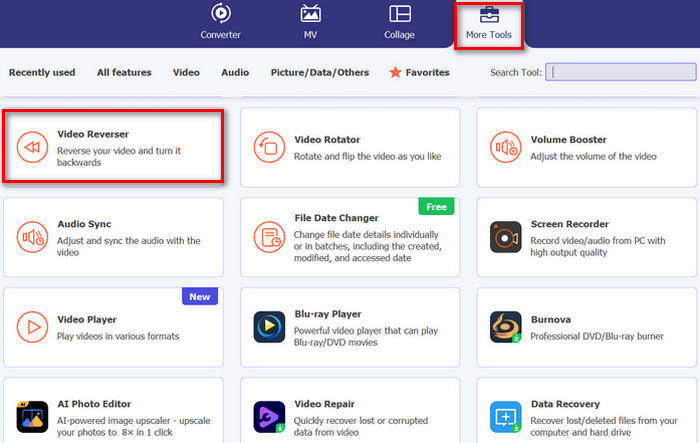
步骤 2。启动该工具并进入“更多工具(Moretools)”选项卡。在那里选择 视频反转器(Video Reverser)。
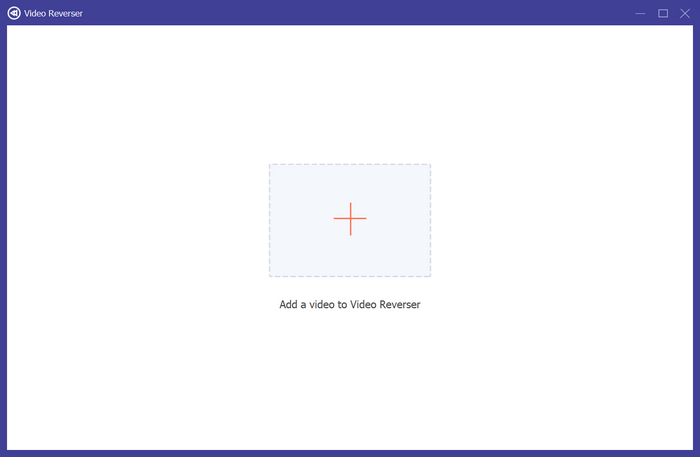
步骤 3。现在,点击 添加视频到视频反转器(Add a Video to Video Reverser) 按钮,导入你想要反转的音频或视频。
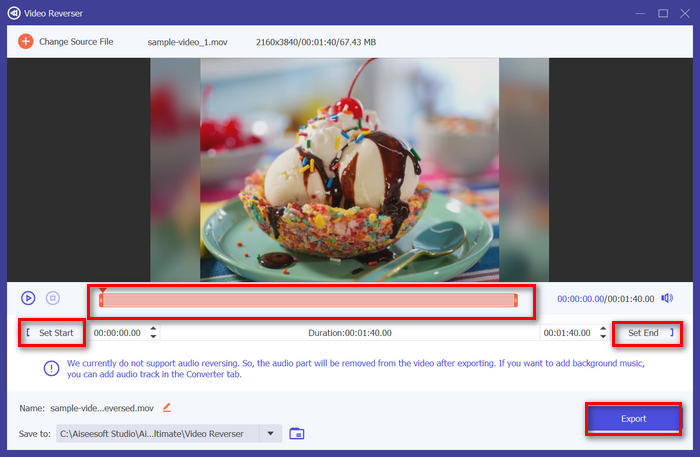
步骤 4。进入 视频反转器(Video Reverser) 界面后,如果你希望反转整个轨道,只需前往“导出(Export)”按钮,即可自动反转你的文件。但如果你只想反转其中一部分,可以拖动时间条,仔细选择你要反转的那段音频或视频。或者,你也可以直接输入要反转片段的起始时间和结束时间。完成选择后,只需点击 导出(Export) 按钮。
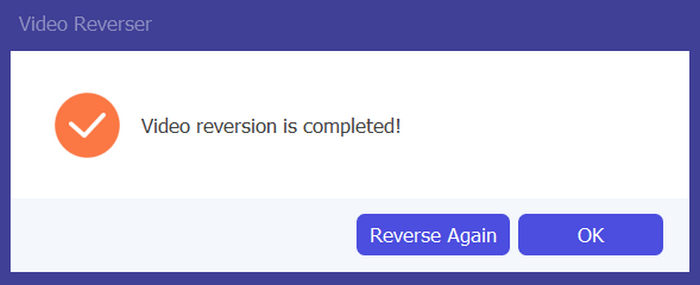
步骤 5。导出完成后,你会看到相关提示信息,你可以在电脑上的相应文件夹中访问你反转后的视频。
就是这样!很简单,对吧?您无需对复杂的界面感到困惑。使用 FVC 精选的 Video Converter Ultimate,您需要的一切都触手可及。
第 4 部分。有关 Audacity 中倒放音频的常见问题
如何撤消 Audacity 中的反向音频效果?
如果您在 Audacity 中反转了某个操作并希望撤消它,您可以轻松恢复到原始音频。只需转到 Audacity 界面左上角的“编辑”菜单,然后选择“撤消反转”即可。此外,您可以使用键盘快捷键 Ctrl + Z(Windows 版)或 Cmd + Z(Mac 版)来撤消上一个操作。这会将音频恢复到应用反转效果之前的原始状态。
Audacity 支持哪些音频格式的反向音频?
Audacity 支持各种流行的音频格式,例如 WAV、MP3、FLAC、AIFF 和 OGG。
你能在 Audacity 中扭曲音频吗?
是的。您可以在 Audacity 中扭曲音频。Audacity 提供了多种效果和工具,可让您对音轨应用失真。要添加此功能,请转到“效果”,单击“失真和调制”,然后选择“失真”。
你能在 Audacity 中转换音频吗?
可以的。Audacity 支持多种音频格式。如果你发现某些音频文件与设备不兼容,例如,你可以使用 Audacity 轻松地将 AIFF 转换为 MP3。
结论
总之,学习如何在 Audacity 中反转音频并不复杂,而且还能为你的音频或视频项目增添独特效果。按照以上详细步骤操作,马上开始反转你的音轨吧。如果你想要一个更简单的选择,不妨试试 FVC 精选的 Video Converter Ultimate。准备好发挥创意了吗?现在就试试这些方法吧!
-
 免费加入MOV –如何将两个MOV文件合并为一个
 对于初学者来说,可能很难将多个MOV视频片段连接在一起。那么,有没有简单快捷的方法来组合MOV文件?如果有,那怎么用呢?这篇文章将帮助您获得这些答案。
-
 在Windows / Mac /在线上免费免费合并视频的4种方式
 这是将视频合并到一个新视频中的4种快速方法。没有视频文件大小或格式限制。您可以成功加入2、3、4甚至更多不同格式和分辨率的视频剪辑。
-
 免费在 Windows 和 Mac 上加入 M4V 文件的具体指南
 如果您正在寻找一种将 M4V 视频文件合并为一个的解决方案,请不要错过这篇文章。在这里,我们将讨论合并 M4V 视频文件的两种最佳方法。
