


 视频转换大师
 屏幕录影大师
 视频修复
视频修复
 安全下载
安全下载如何在 iMovie 中提取视频音频 [最简单的方法]
音频文件有很多用途。除了可以将其作为 MP3 文件收听外,您还可以在编辑视频时将其用作背景音乐。现在,如果您碰巧编辑视频项目并且要使用的音频也来自视频文件,那么您唯一能做的就是提取它。虽然音频是视频不可分割的一部分,但您可以借助 iMovie 和其他工具轻松将其分离。
接下来,本文将一步一步教你如何轻松在 iMovie 中将视频中的音频分离出来,非常适合你下一次的创意视频项目。下面开始吧!

第 1 部分。在 Mac 上将音频与视频 iMovie 分离
iMovie 是一款仅与 Apple 产品兼容的视频编辑器。这款视频编辑工具具有非常友好的用户界面,非常适合任何类型的用户轻松从视频中提取音频。因此,如果您正在创建播客、使用自定义音轨增强视频或重新利用音效,那么此工具非常适合您的编辑需求。
在 Mac 上使用 iMovie 分离视频音频的详细步骤:
步骤 1:首先,在你的 Mac 电脑上启动 iMovie 应用程序。
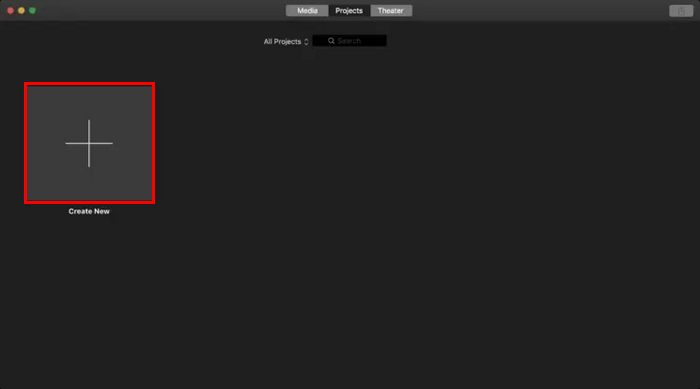
步骤 2:然后,在项目(Projects)选项卡中点击新建(Create New)按钮,开始音频提取流程。
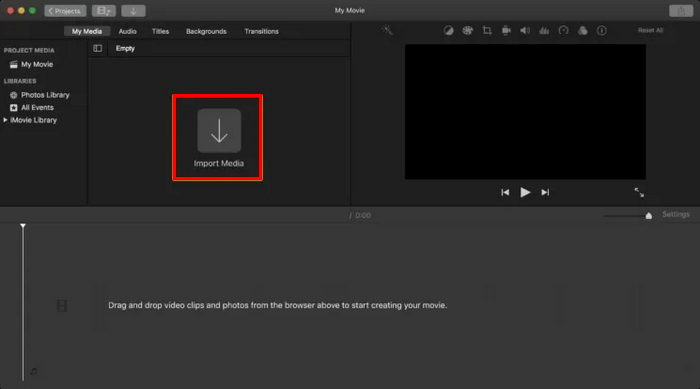
步骤 3:现在,点击导入媒体(Import Media),并将视频拖到时间轴中。
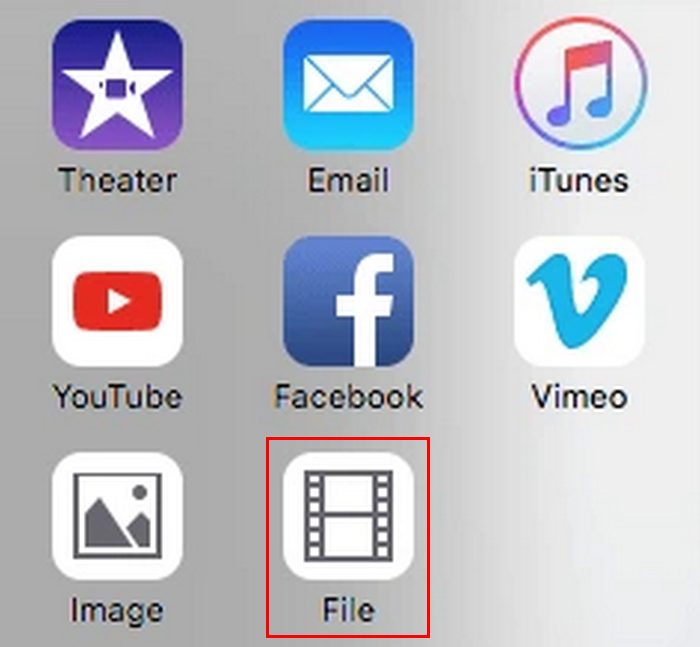
步骤 4:要将音频从视频中分离出来,点击共享(Share)按钮,然后在下拉选项中选择文件(File)。
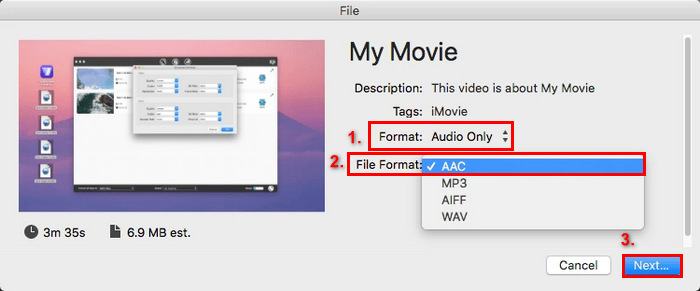
步骤 5:接着,将格式从视频与音频(Video and Audio)更改为仅音频(Audio Only)。然后在文件格式(File Format)下拉选项中选择任意一种音频格式,最后点击下一步(Next)。
步骤 6:最后,为了保存你提取出的音频,稍等几秒,让 iMovie 完成转换并将文件下载到你的电脑中。
在开始提取过程之前,请考虑在 iMovie 中修剪视频,仅提取包含所需音频的部分。这将避免在提取过程中进行不必要的编辑。此外,它将减小提取的音频文件的大小,这在您想要优化项目时非常有用。
第 2 部分。在 iPhone 上的 iMovie 中从视频中提取音频
iPhone 上的 iMovie 也可用于从视频中提取音频。iPhone 上的 iMovie 唯一的区别在于您无法单独保存视频中的音频。但是,在 iPhone 上,您可以使用 iMovie 轻松地从视频中提取音频。它让您可以控制如何将其作为视频项目的音频背景。
在 iPhone 上使用 iMovie 分离视频音频的详细步骤:
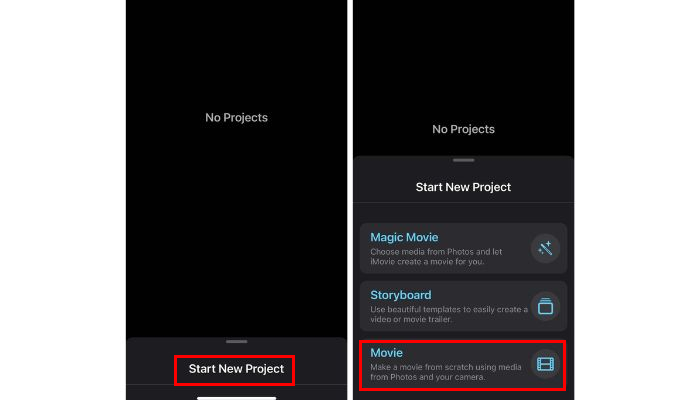
步骤 1:在你的 iPhone 上打开 iMovie 应用。然后点击开始新项目(Start New Project),在选项中选择影片(Movie)来开始一个新的视频编辑项目。
步骤 2:接下来,选择你想要提取音频的视频片段,并将其添加到项目中。之后,点击底部菜单中的创建影片(Create Movie)选项。
步骤 3:然后,在时间轴上选中该片段,以访问更多选项。所选视频会被添加到 iMovie 的时间轴中。
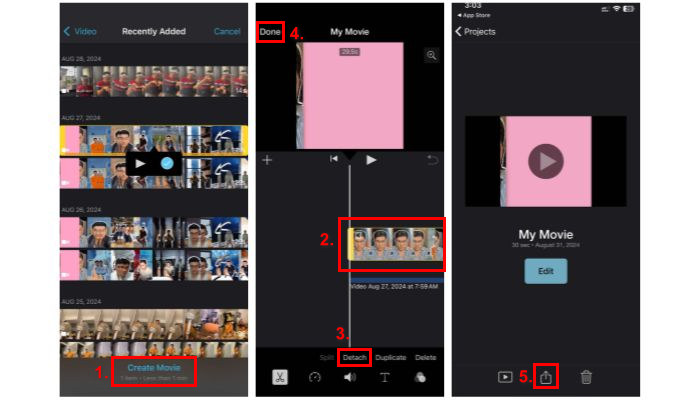
步骤 4:现在,在时间轴中点选该视频轨道,然后点击下方的分离(Detach)。此时,你已经将音频从视频中分离出来,并可以完全自主控制如何将其用作背景音。
步骤 5:最后,点击完成(Done)按钮,并点击共享(Share)按钮以保存该项目。
如果你打算将提取出的音频作为 iMovie 项目的背景音乐,记得在编辑之前先复制一份音频轨道。这样,你在尝试不同的摆放位置或添加各种效果时,可以保留一份原始音频作为备份,从而让整个编辑过程更加灵活。另外,你也可以在这里继续了解如何在 iMovie 中淡入淡出音乐。
第 3 部分。更简单的 iMovie 替代方案来删除音频
如果你觉得在 iMovie 中分离视频音频操作起来比较复杂,可以尝试另一款工具——FVC 精选的 Video Converter Ultimate。这款工具可以让任何用户只需三步就能轻松从视频中提取音频。界面虽然简单易用,但功能却不容小觑。它支持将近 1000 种音频和视频格式,在提取和保存音频时几乎不会遇到任何格式兼容问题。具体操作如下:
步骤 1:在电脑上下载并安装 FVC 精选的 Video Converter Ultimate。
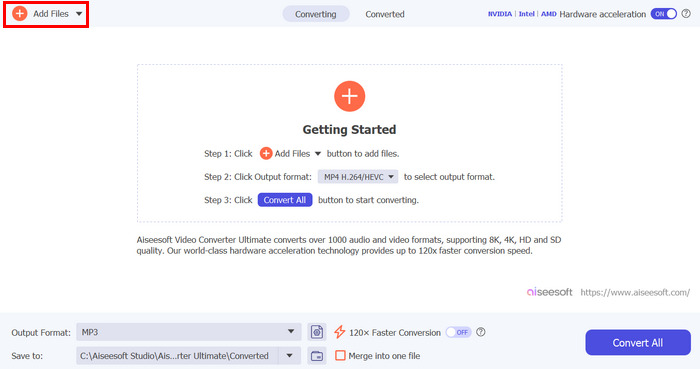
步骤 2:然后点击添加文件(Add Files)按钮,导入你想要提取音频的视频。
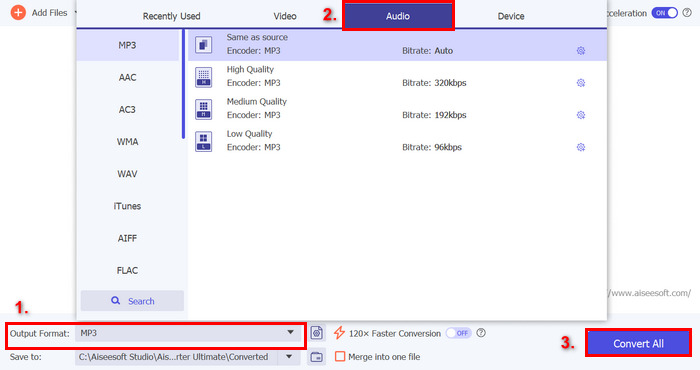
步骤 3:最后,点击下方的输出格式(Output Format),在音频(Audio)选项卡中选择你偏好的音频格式。之后,点击全部转换(Convert All)按钮,即可保存你提取出的音频。
当您有大量视频文件需要提取音频时,您可以利用该工具的批处理功能。只需导入所有文件,更改格式,然后单击“全部转换”按钮。在处理需要提取多个音频文件的大型项目时,此过程非常有用。
第 4 部分。有关在 iMovie 中从视频中提取音频的常见问题
您能仅从 iMovie 导出音频吗?
可以。你可以在 iMovie 中只导出音频。在 Mac 上,将音频从视频中分离之后,可以通过“共享”功能来导出。但有一个关键步骤不能忽略:在保存到电脑之前,一定要将格式从“视频与音频(Video and Audio)”改为“仅音频(Audio Only)”,并选择你偏好的音频格式,如 MP3 或 WAV。
iMovie 有音轨吗?
是的。iMovie 有音轨,可让您在视频项目中添加、编辑和处理音频文件。在时间轴中,您可以使用不同的音频元素(例如画外音、音乐和音效),并调整其音量、淡入/淡出和位置以满足您的项目需求。
我可以在 iMovie 中编辑音频吗?
是的。您可以在 iMovie 中编辑音频。该软件允许您修剪、分割和调整音频剪辑的音量。您还可以添加淡入/淡出等效果并应用均衡器预设来增强音频质量。与 iPhone 上的 iMovie 相比,Mac 版 iMovie 有更多高级选项,包括背景降噪和音频增强,可以优化您的音轨。
结论
现在你已经知道如何在 iMovie 中将视频中的音频分离,不妨动手实践一下,尝试文中提到的这些方法。另外,也可以大胆试试 FVC 精选的 Video Converter Ultimate,作为从视频中更轻松提取音频的替代方案。那么还在等什么?赶快开始吧!
-
 2024 年精彩技巧:如何在 iMovie 上加快视频速度
 您的朋友建议 iMovie 来帮助您解决如何使用 iOS 操作系统加速视频的问题,但您不知道该怎么做?当您阅读本文的更多内容时,请查看更多相关信息。
-
 如何在 iPhone 和 Mac 上的 iMovie 中同步音频和视频
 因音频和视频在 iPhone 和 Mac 上不同步而遇到问题?那么现在,让我们通过阅读这篇文章继续学习如何使用 iMovie。
-
 如何在 Mac 和 iPhone 上的 iMovie 中淡化音乐
 您是否在为在 iMovie 中淡入淡出音频而苦恼?继续阅读,了解使用 Mac、iPhone 或其他软件应用淡入淡出效果的最简单方法。
