用户指南

MTS 转换解决方案

开始使用

FVC Free MTS Converter 可帮助您快速轻松地转换您的 MTS 文件。您可以自由地将索尼、松下、佳能等高清摄像机制作的 MTS 格式转换为流行的视频和音频文件,包括 MP4、AVI、WMV、MOV、VOB、DivX、XviD、M4V、MP3、AAC 等。
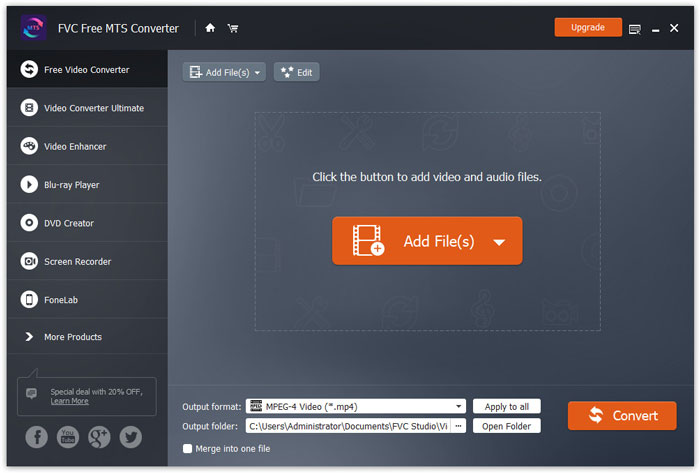
接口

下载并安装

Step 1. Open the Home Page on your computer and click Free Download button.

Step 2. Double-click the installation package to start installing. Follow the instructions to install FVC Free MTS Converter on your computer.

优先

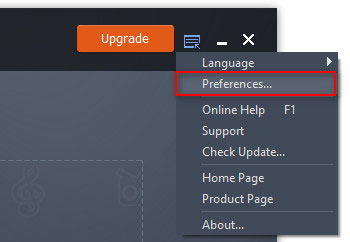
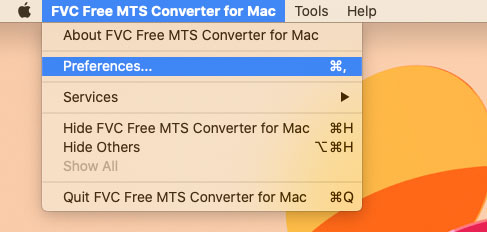
You can adjust preferences on Free MTS Converter and enjoy using it at your convenience. To edit the preferences, you can launch the software, go to Menu and select Preferences... It provides 2 sections where you can choose your preferences.

菜单偏好

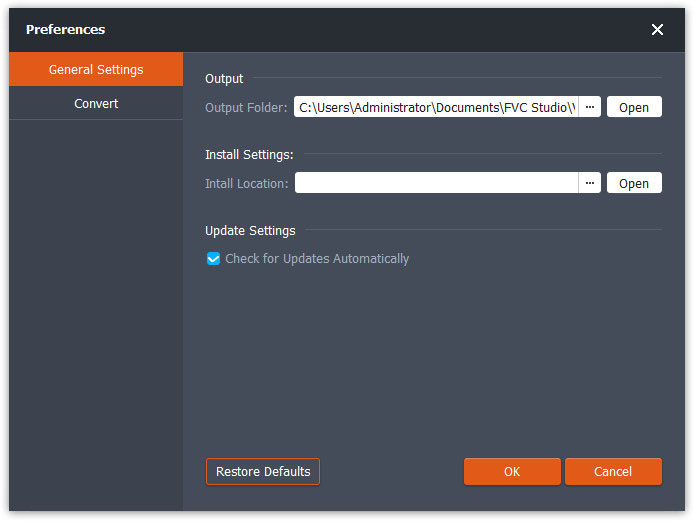
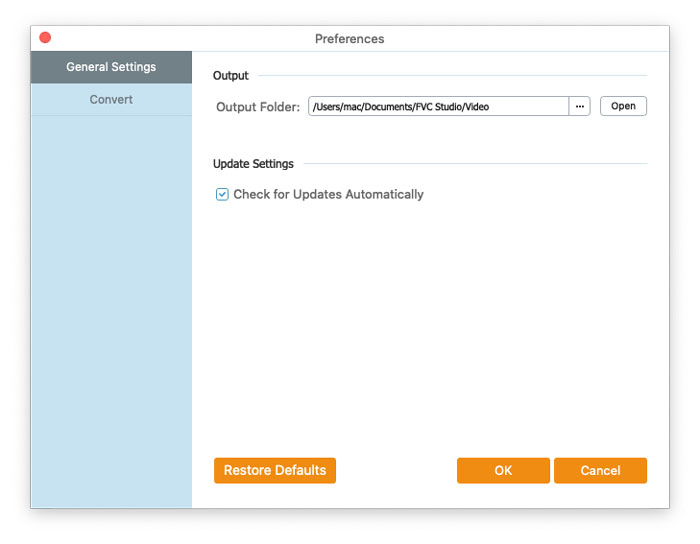
General Settings: You can adjust the output folder, installation settings, and update settings.

首选项一般设置

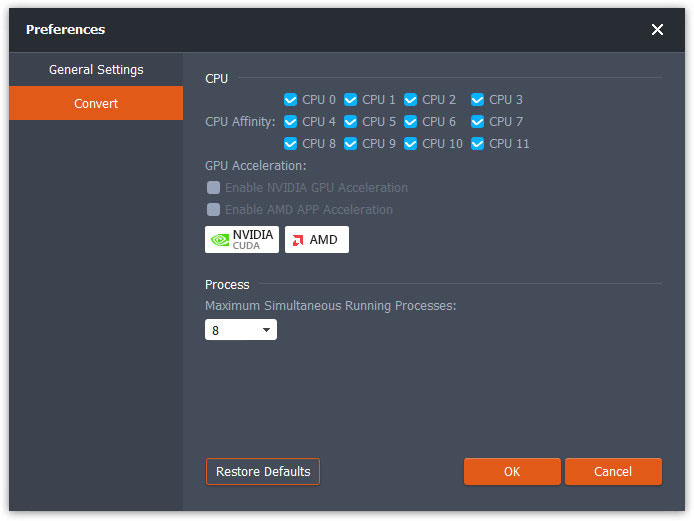
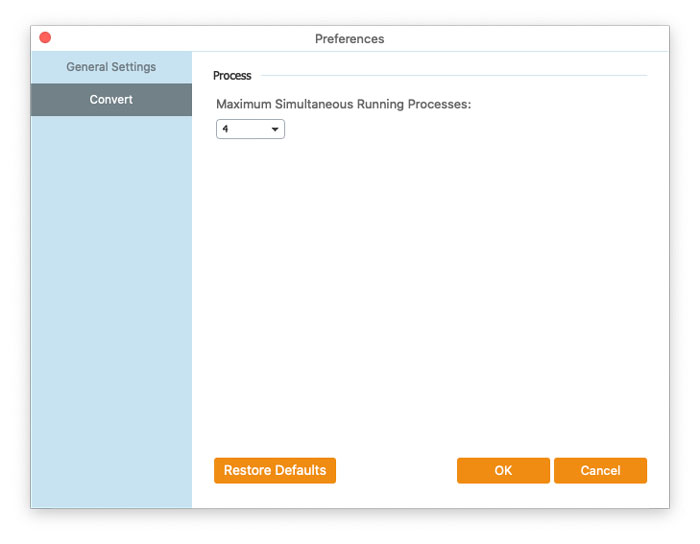
Convert: The GPU acceleration can speed up the conversion. You can select CPU affinity, and set the maximum number for the simultaneous running processes.

偏好转换

转换 MTS 文件

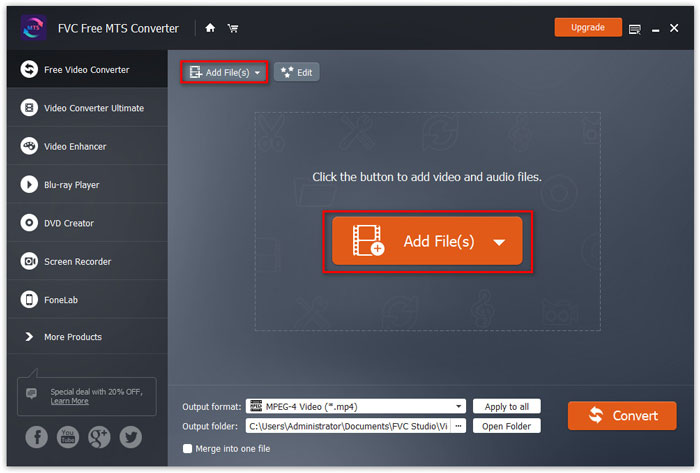
Step 1. Launch Free MTS Converter on your computer. You can add the MTS files into the program through the 3 ways.

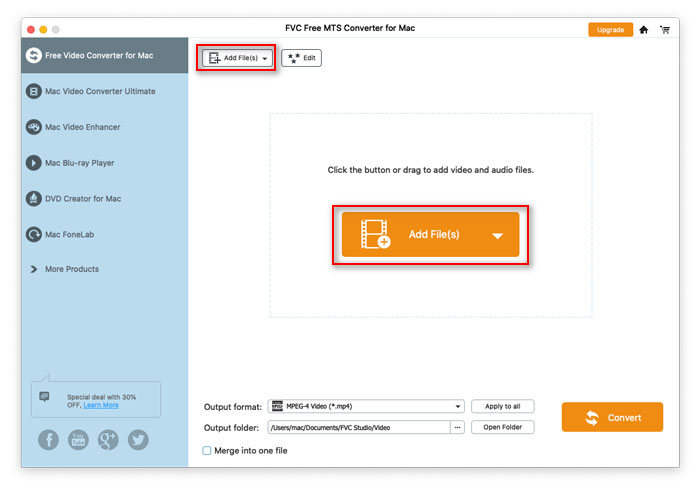
1. Click the Add File(s) button at the top-left side to choose Add File(s) or Add Folder option.

2. Click the Add File(s) button in the middle of the interface to import one or more MTS files.

3. 将视频文件拖放到界面中间的矩形区域。

添加 MTS 文件

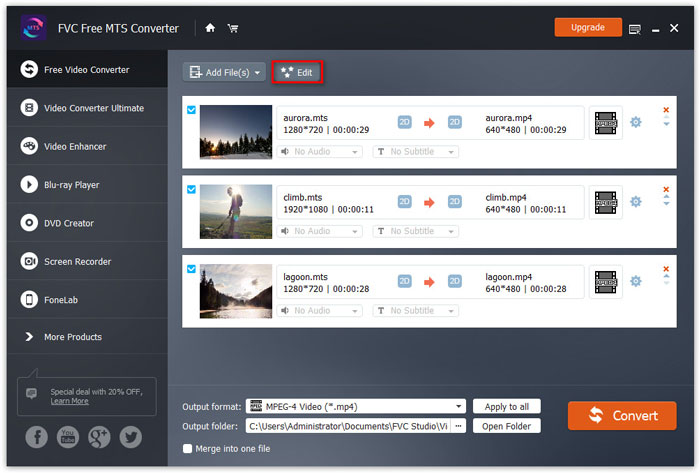
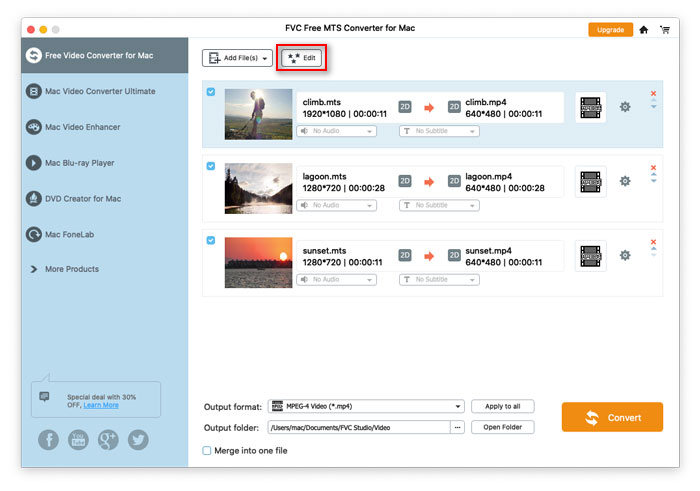
Step 2. Select the MTS file you want to edit and click the Edit button at the top to enter the editing interface.

编辑 MTS 文件

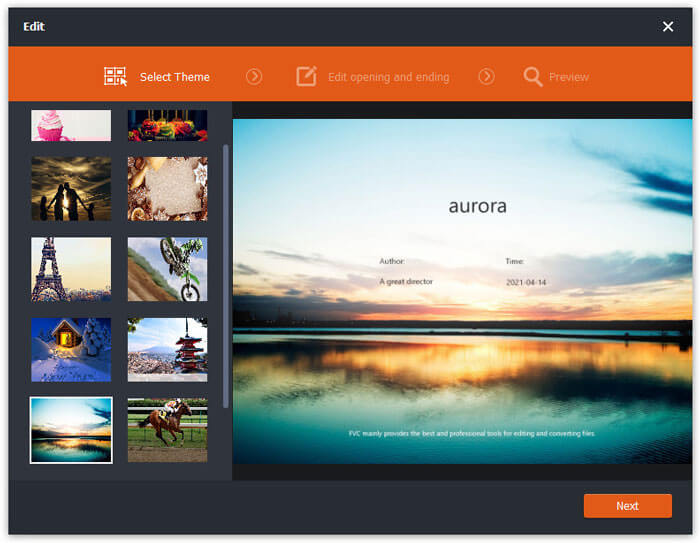
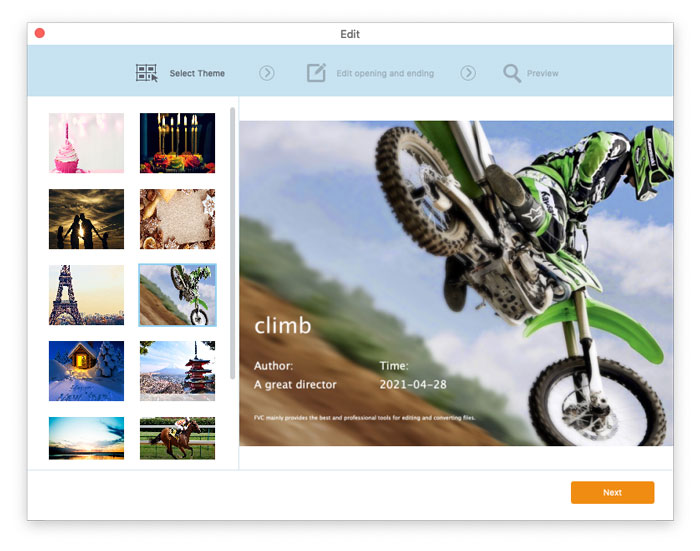
In the edit interface, you can select a theme in the Select Theme tab to customize your MTS files firstly. Click Next button to move on.

选择主题

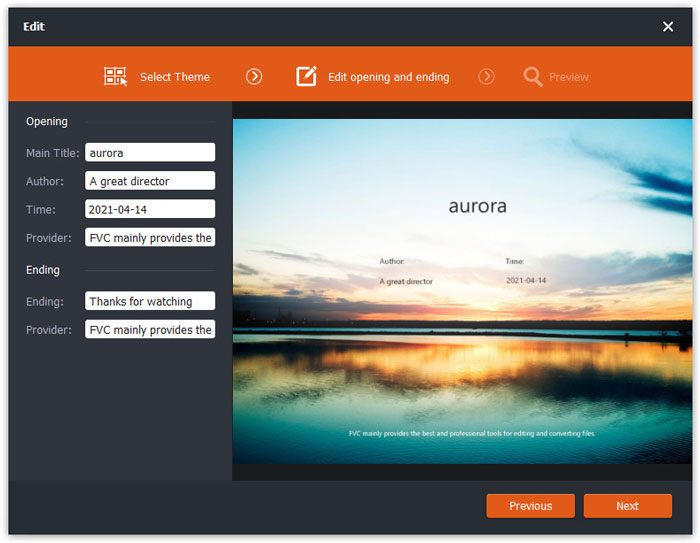
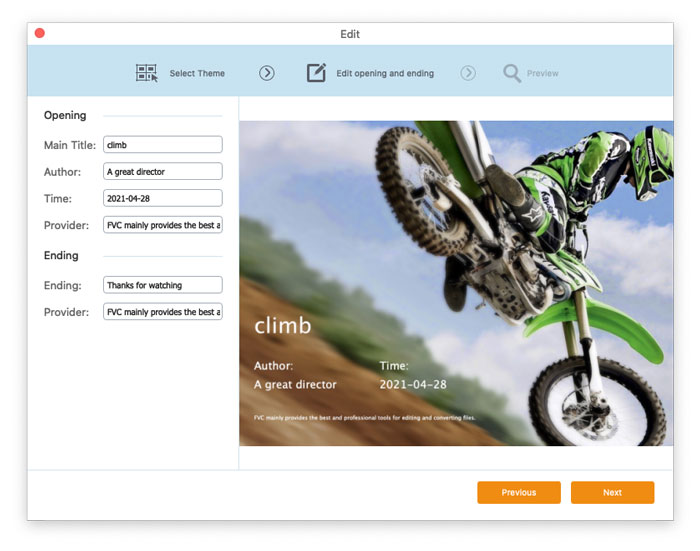
In the Edit opening and ending tab, you can adjust the info at the opening and ending, like main title, author, time, provider, etc. Click Next button to move the next step.

编辑开头结尾

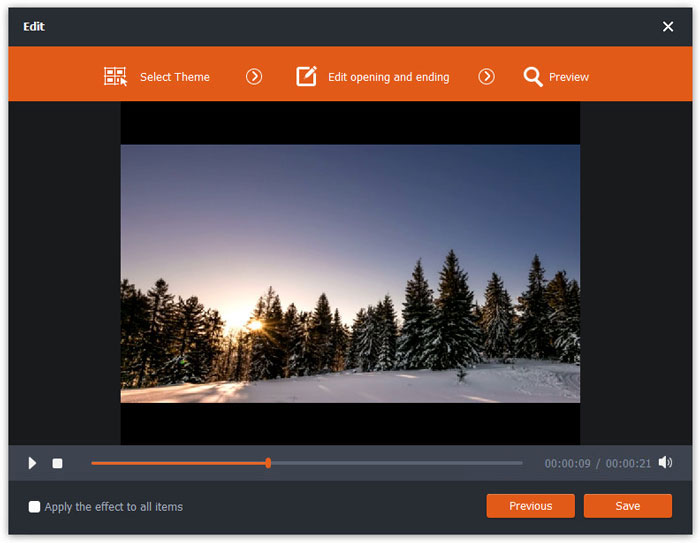
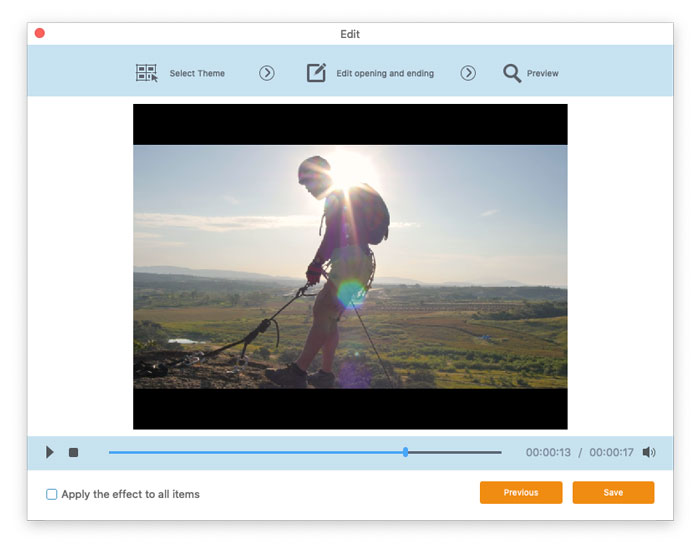
Then you will be taken to the Preview window. Here you can preview the video effects in advance. If you are not satisfied with it, click Previous to readjust the settings.

Finally, click Save button to save the video effects adjustment. If you want to apply the same effect to all the video clips, just tick Apply the effect to all items option.

预览视频效果

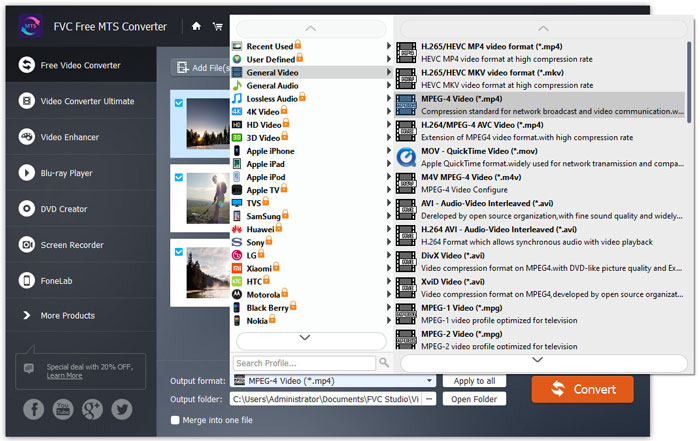
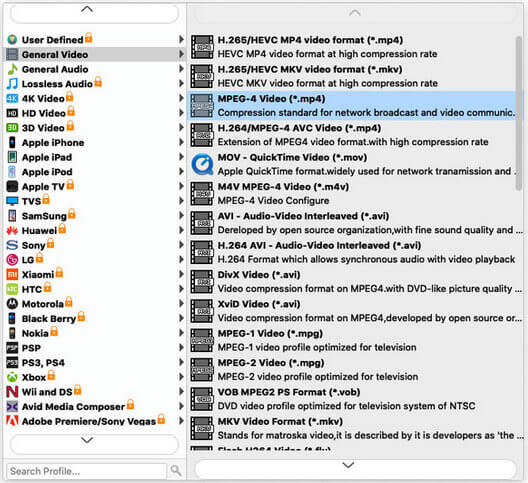
Step 3. Go to the Output format field and choose General Video category, and then select one output format you want to export.

选择输出格式

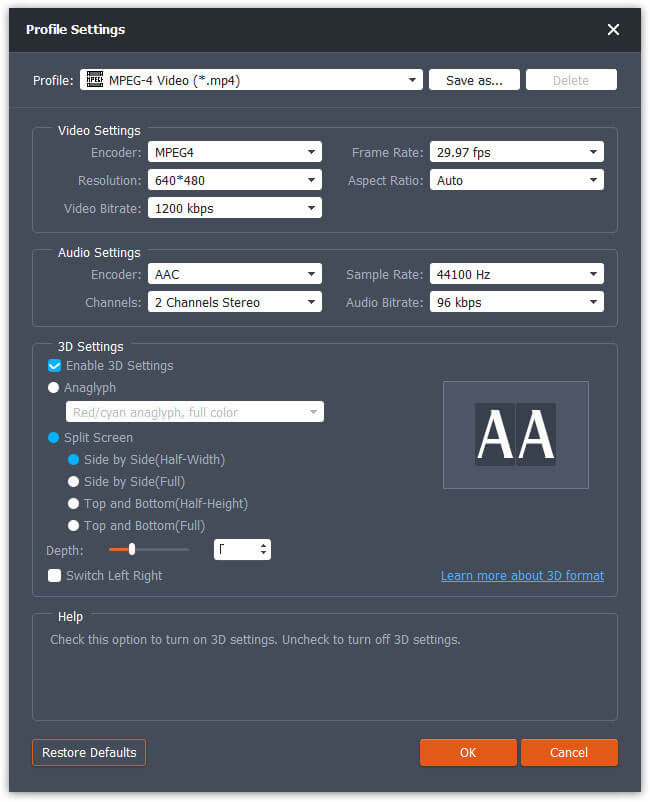
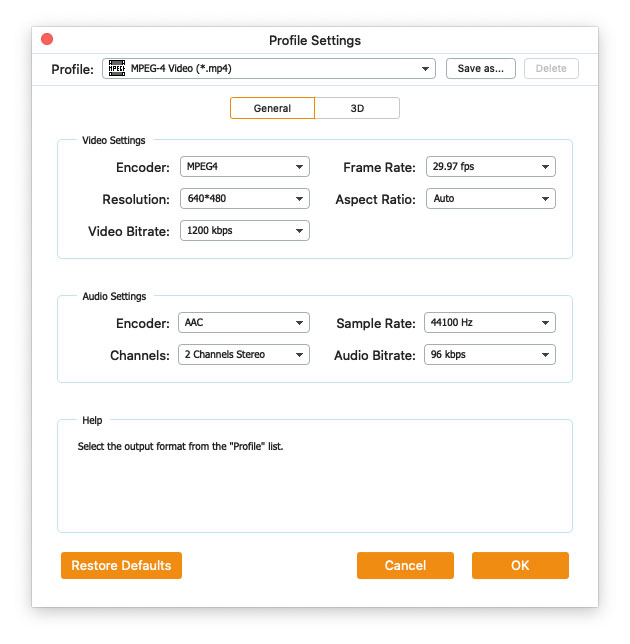
To further customize the preset, you can click the gear icon at the right side of the video. You can adjust settings like encoder, sample rate, resolution, aspect ratio, bitrate. If you want to add 3D effect to your MTS file, you can check Enable 3D Settings option, and select Anaglyph 3D, Side by Side 3D or Top and Bottom 3D.

个人资料设置

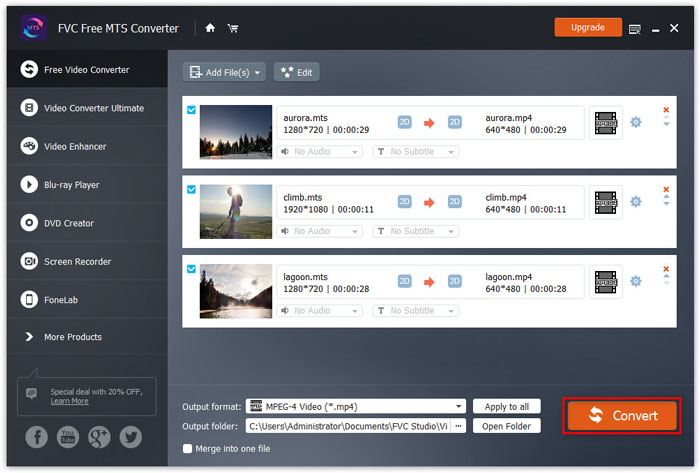
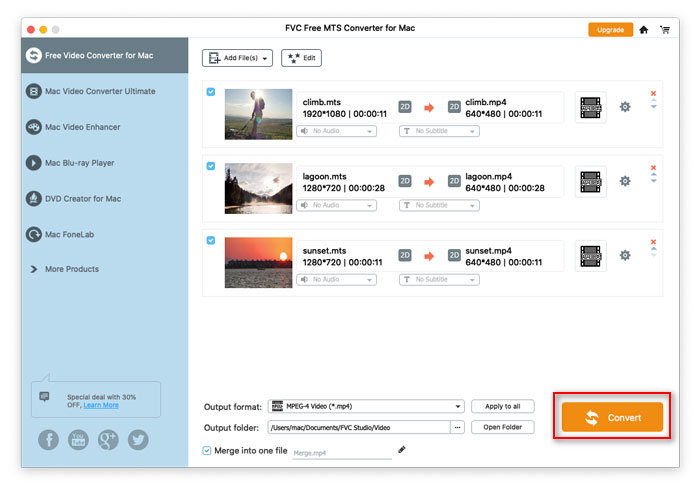
Step 4. Go to the Output folder field and choose the output destination where the converted file will be saved. Then click Convert button to start converting MTS video files.

转换 MTS 文件

用户指南

MTS 转换解决方案

开始使用

FVC Free MTS Converter 可帮助您快速轻松地转换您的 MTS 文件。您可以自由地将索尼、松下、佳能等高清摄像机制作的 MTS 格式转换为流行的视频和音频文件,包括 MP4、AVI、WMV、MOV、VOB、DivX、XviD、M4V、MP3、AAC 等。
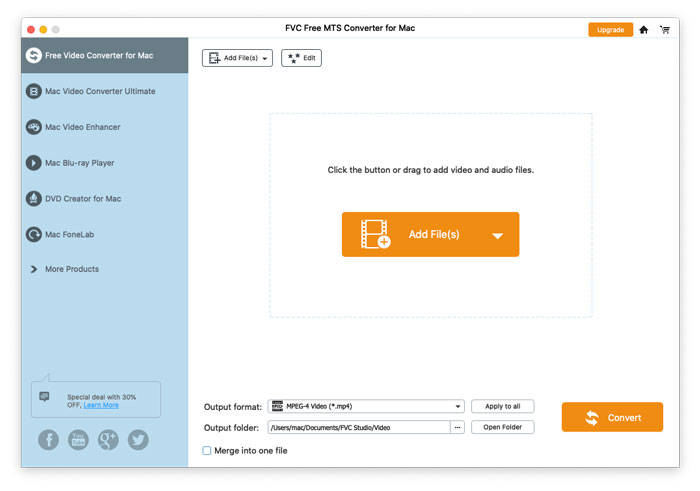
接口

下载并安装

Step 1. Open the Home Page on your computer and click Free Download button.

Step 2. Double-click the installation package to start installing. Follow the instructions to install FVC Free MTS Converter on your computer.

优先

You can adjust preferences on Free MTS Converter and enjoy using it at your convenience. To edit the preferences, you can launch the software, go to Menu and select Preferences... It provides 2 sections where you can choose your preferences.

菜单偏好

General Settings: You can adjust the output folder, installation settings, and update settings.

首选项一般设置

Convert: The GPU acceleration can speed up the conversion. You can select CPU affinity, and set the maximum number for the simultaneous running processes.

偏好转换

转换 MTS 文件

Step 1. Launch Free MTS Converter on your computer. You can add the MTS files into the program through the 3 ways.

1. Click the Add File(s) button at the top-left side to choose Add File(s) or Add Folder option.

2. Click the Add File(s) button in the middle of the interface to import one or more MTS files.

3. 将视频文件拖放到界面中间的矩形区域。

添加 MTS 文件

Step 2. Select the MTS file you want to edit and click the Edit button at the top to enter the editing interface.

编辑 MTS 文件

In the edit interface, you can select a theme in the Select Theme tab to customize your MTS files firstly. Click Next button to move on.

选择主题

In the Edit opening and ending tab, you can adjust the info at the opening and ending, like main title, author, time, provider, etc. Click Next button to move the next step.

编辑开头结尾

Then you will be taken to the Preview window. Here you can preview the video effects in advance. If you are not satisfied with it, click Previous to readjust the settings.

Finally, click Save button to save the video effects adjustment. If you want to apply the same effect to all the video clips, just tick Apply the effect to all items option.

预览视频效果

Step 3. Go to the Output format field and choose General Video category, and then select one output format you want to export.

选择输出格式

To further customize the preset, you can click the gear icon at the right side of the video. You can adjust settings like encoder, sample rate, resolution, aspect ratio, bitrate. If you want to add 3D effect to your MTS file, you can check Enable 3D Settings option, and select Anaglyph 3D, Side by Side 3D or Top and Bottom 3D.

个人资料设置

Step 4. Go to the Output folder field and choose the output destination where the converted file will be saved. Then click Convert button to start converting MTS video files.

转换 MTS 文件