


 视频转换大师
 屏幕录影大师
 视频修复
视频修复
 安全下载
安全下载Adobe 调整图像大小 - 在线和离线调整图像大小的最简单方法
如果你想在 Adobe 上调整图片大小,那我们正好有你需要的解决方案。Adobe 是图像和视频编辑领域的知名品牌,旗下有许多应用程序,可以让你增强、剪辑、编辑等,应有尽有。几乎所有视频和照片编辑相关的应用,Adobe 都能提供。但你是否知道,Adobe 还有专门用来调整图片尺寸的应用?没错!Adobe Express 就是一款在线图片改尺寸工具。而如果你希望离线操作,则可以使用 Adobe Photoshop。下面我们将分别介绍这些工具,并教你如何使用 Adobe Express 和 Adobe Photoshop 来调整图片大小。
第 1 部分。如何在 Adobe Express Online 中调整图像大小
如果您喜欢使用在线图像调整大小,您可以在互联网上搜索大量工具。但是,有时在 Internet 上搜索并不是最佳选择,因为有些工具不能提供高质量的输出。此外,很多人都在搜索 Adobe Photoshop 在线调整图像大小。问题是 Adobe Photoshop 没有在线版本。因此,我们将展示另一个 Adobe 工具来调整图像大小。
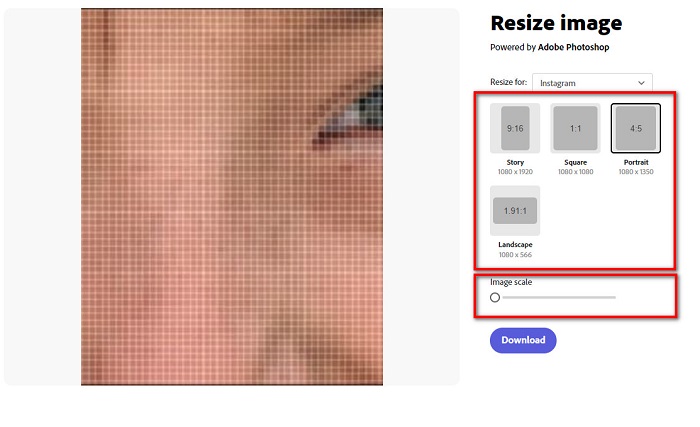
Adobe Express 可能是你在网上能找到的最好用的在线图片缩放工具之一。这个在线应用允许你通过选择预设比例来调整图片大小。你可以在 9:16(故事)、1:1(方形)、4:5(纵向)、1.91:1(横向)之间选择。此外,它的界面简洁,操作友好,十分适合新手使用。你也可以通过按住并拖动滑块来手动缩放图片。另外,如果你想为 Instagram、Facebook、Twitter 或 Pinterest 调整图片大小,Adobe Express 也能帮到你。不过,与其他 Adobe 编辑应用不同的是,这个工具不提供额外的编辑功能。
如何使用 Adobe Express 调整图像大小:
步骤 1。 打开浏览器,在搜索框中搜索 Adobe Express 图片缩放工具。然后,在主界面上点击 Upload your Photo 按钮,上传你想要调整大小的图片。
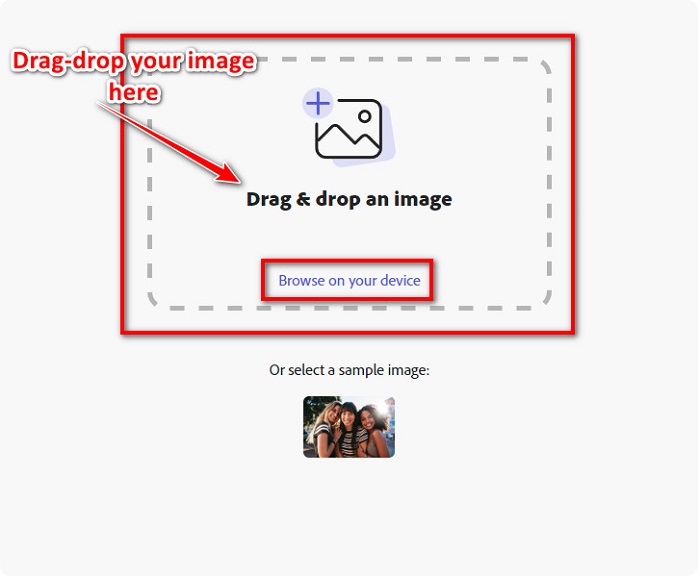
步骤 2。 接着,将图片从电脑文件夹中拖放到网页上。你也可以点击 Browse on your device 按钮来上传图片。
步骤 3。 最后,点击Resize for 旁边的下拉箭头,选择你要适配的平台或用途。然后在界面左侧选择你偏好的尺寸。你也可以通过拖动尺寸预设下方的滑块手动调整图片大小。
步骤 4。 点击 Download 按钮,将调整好尺寸的图片下载到本地。
第 2 部分。 如何使用 Adobe Photoshop 离线调整图像大小
尽管如此,使用在线工具还是不错的,因为它可以节省设备空间,但使用离线工具仍然是最佳选择。大多数离线图像缩放器都包含许多编辑功能。此外,使用离线工具的优点是您无需访问互联网即可调整图像大小。在这一部分中,我们将展示最出色的离线视频缩放器。
Adobe Photoshop 是你能在电脑上使用的最佳图片编辑应用之一。这个图像编辑软件拥有丰富的工具和功能,可以用来处理你的图片。此外,你也可以用它来调整任意图片的尺寸。该应用允许你增强数码照片、插画、绘画和动画等,非常适合商业用途。并且,由于功能强大、输出质量高,很多专业人士都在使用这款图像编辑软件。
更重要的是,您可以使用此应用程序添加文本、创建 3D 并为图像添加清晰度。但 Adobe Photoshop 的缺点是您必须在使用前购买该应用程序。而且它也很难使用,尤其是对于初学者。尽管如此,这个应用程序是物有所值的,你一定会喜欢使用这个应用程序。
如何使用 Adobe Photoshop 离线调整图像大小:
步骤 1。 在你的设备上下载 Adobe Photoshop。然后按照软件提示完成安装,并在设备上运行它。
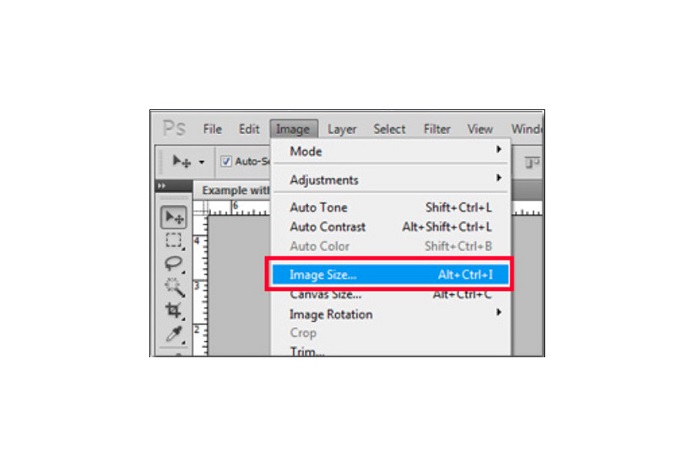
步骤 2。 在 Photoshop 中打开你的图片,然后在界面左上方点击 Image(图像)菜单,再选择 Image Size(图像大小)。
步骤 3。 接着会弹出一个新窗口,在其中勾选 Constrain Proportions(约束比例)选项。
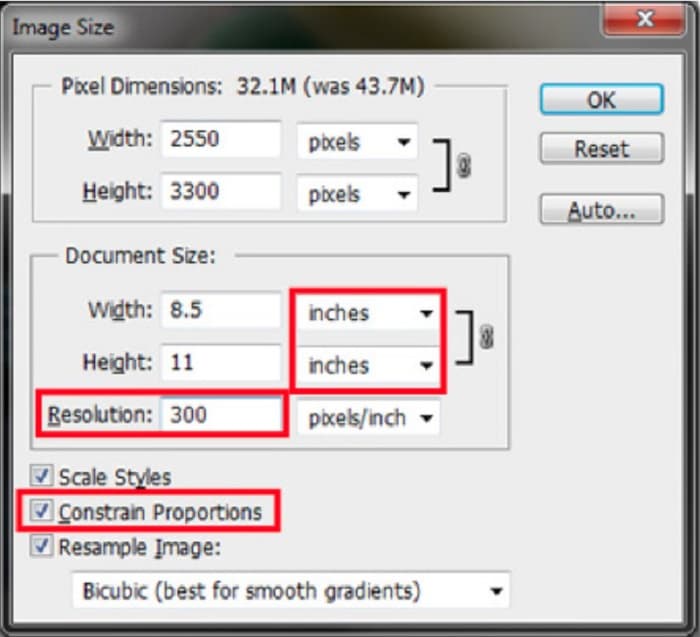
步骤 4。 在“Document Size”(文档大小)下方,选择以英寸为单位的度量方式。确保分辨率不低于每英寸 200 像素。
步骤 5。 输入你希望的图片宽度和高度,然后点击 OK 按钮保存更改。
步骤 6。 最后,将文件保存到你的电脑中。
现在你已经学会了如何使用这些最佳的 Adobe 图片缩放工具来调整图片大小,接下来我们再为你介绍一个可替代的图片缩放工具。
第 3 部分。在调整图像大小时替代 Adobe Photoshop
由于 Adobe Photoshop 不是一个用户友好的工具,因此我们搜索了一种可用于调整图像大小的替代方法。因此,我们将展示一个您可以在 Windows 或 Mac 设备上下载的软件应用程序。我们还将教您如何使用这个终极应用程序调整图像大小。
FVC Free Image Resizer 是另一款功能强大的在线图片缩放工具,当你想调整图片大小时也可以使用它。你还可以借助图片缩放工具来改善照片质量,而这正是 FVC Free Image Resizer 的强项。此在线工具可以将图像放大至 2 倍、4 倍、6 倍或 8 倍。此外,它支持所有常见图片格式,如 JPG、JPEG、PNG 和 BMP。更棒的是,它的软件界面非常易用。而且它采用 AI 技术,能自动检测图像中的模糊区域并进行增强。
如何使用 FVC Free Image Upscaler 调整图像大小:
步骤 1。 在浏览器中搜索 FVC Free Image Upscaler,然后进入其主页。在主界面点击 Upload Photo 按钮,上传你想要调整大小的图片。

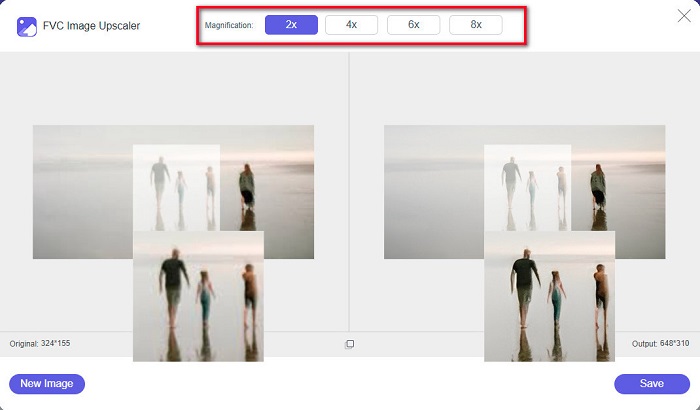
步骤 2。 图片上传后,选择你想要的放大倍数。你可以在 2x、4x、6x 和 8x 之间进行选择。倍数越大,画质越好。
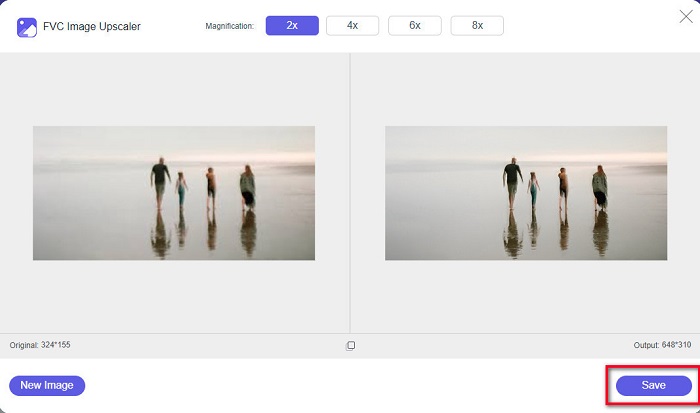
步骤 3。 然后点击 Save 按钮,将处理后的图片保存到你的设备。
第 4 部分。有关如何在 Adobe Photoshop 中调整图像大小的常见问题解答
Adobe 会无损调整图像大小吗?
使用 Adobe Photoshop,您可以调整图像大小而不会降低质量。此外,它还产生高质量的输出。
Adobe Photoshop 支持哪些文件格式?
Adobe Photoshop 接受几乎所有已知的图像格式,如 JPG、JPEG、PNG、BMP、TIFF、EPS、PDF 等。
Adobe Photoshop 的价格是多少?
您可以以每月 $19.99 的价格购买 Adobe Photoshop。您可以先使用其 30 天免费试用版来测试应用程序。
结论
现在关于 Adobe 调整图片大小 的问题已经解决,你可以使用 Adobe Express 或 Adobe Photoshop 来更改图片尺寸。无论你选择上述哪款应用,都可以顺利完成图片缩放。但如果你想用更简单、更高效的方式来调整并增强图片质量,那么就试试 FVC Free Image Upscaler 吧。
-
 如何通过 4 种简单的方法在线和离线锐化图像
 如果要锐化图像,可以使用多种方法。我们将在下面讨论在线和离线锐化图像的最佳和最简单的方法。
-
 线上线下老照片修复【简单步骤】
 想要恢复旧照片?使用这些工具,您将了解旧照片恢复过程。阅读这篇文章以了解最直接的方法。
-
 如何为 Facebook 调整照片大小 [快速简单的步骤]
 如果您在 Facebook 上传大尺寸图片时遇到问题,我们可以为您提供解决方案。完成本文以了解如何为 Facebook 调整照片大小。
