


 视频转换大师
 屏幕录影大师
 视频修复
视频修复
 安全下载
安全下载使用最棒的工具惊人地修复图片质量
拥有一张低质量的图片会让人很困扰。如果你的图片质量也很差,那你就需要提升图片的清晰度。但要怎么做呢?其实有很多电脑端的图片放大工具可以帮你提高图片质量。如果你正在寻找如何修复图片质量的方法,我们可以帮你解决。请通读这篇文章,快速了解如何修复图片质量。

第 1 部分。 如何免费在线修复图片质量
您可以在 PC 上下载大量图像升频器。但是,您需要先购买它们,然后才能提高图像质量。如果您正在寻找免费的图像升频器,那么我们有合适的工具。通读本部分,了解如何使用这两个最出色的在线工具免费提高图像质量。
FVC 免费图像超分
FVC Free Image Upscaler 是一款免费的在线应用,可以帮助你修复图片质量。这个在线工具对新手非常友好,因为它具有易于操作的界面。此外,它可以提供 2 倍、4 倍、6 倍和 8 倍四种放大结果,效果十分出色。而且,你不必担心数据安全问题,FVC Free Image Upscaler 向你保证使用安全。更棒的是,这个工具采用了 AI 技术,能够自动识别图片的模糊部分。除此之外,它还能很好地修复丢失的像素、颜色纹理以及其他细节。如果你想用这个工具提升图片质量,请按照下面的步骤操作。
如何使用 FVC Free Image Upscaler 在线修复照片质量:
步骤 1. 在你使用的浏览器中,在搜索框输入 FVC Free Image Upscaler。也可以直接点击这个链接进入其主页。
步骤 2. 在主界面上,点击 Upload Photo 按钮,上传你想要放大的图片。此时会弹出电脑文件窗口,你可以在其中选择低质量图片并上传。
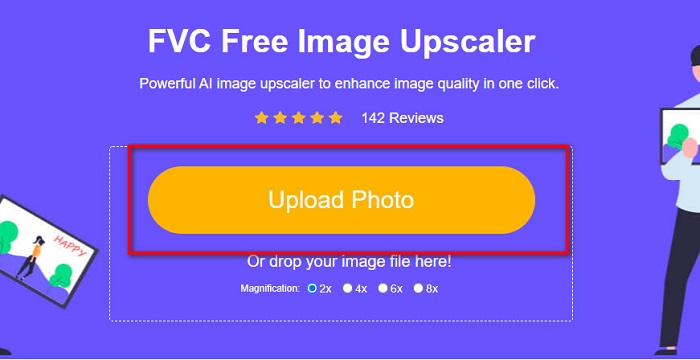
步骤 3. 接着,选择你想要的图片放大倍数(magnification)。放大倍数越大,画质越好。你可以在 2x、4x、6x 和 8x 之间进行选择。
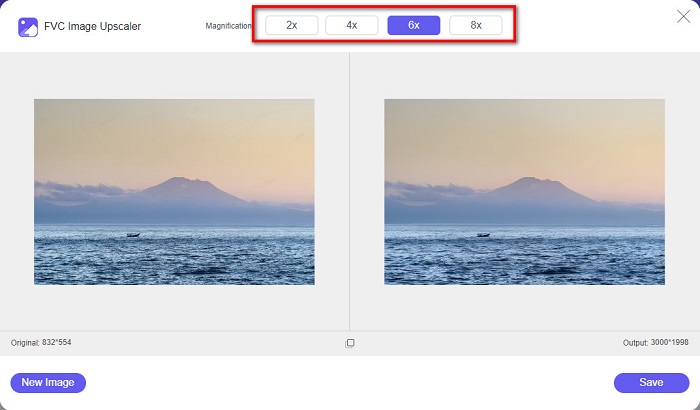
步骤 4. 然后,点击 Save 按钮,把增强后的图片保存到电脑中。
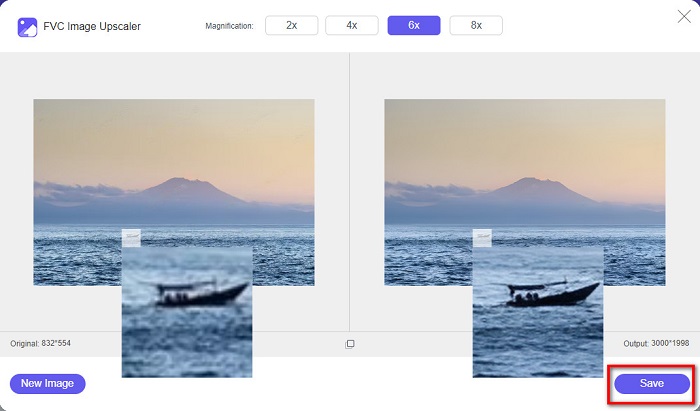
很简单吧?就像 A-B-C 一样容易,你就可以使用 FVC Free Image Upscaler 来修复图片质量。
Icons8.com
Icons8.com 是另一款在线图片放大工具,几乎支持所有主流浏览器,包括 Google、Firefox 和 Safari。这个在线应用操作简单,界面也很直观。同样,它也采用 AI 技术,能够自动检测图片中的模糊区域。此外,你的图片最高可以被放大到 7680 x 7680 像素。但需要注意的是,它输出的图片会带有水印。尽管如此,它仍然是一个非常有效的图片放大工具。
如何修复 Icons8.com 上的低质量图片:
步骤 1. 打开浏览器,在地址栏中输入 Icons8.com。在主界面上点击 Browse 按钮。
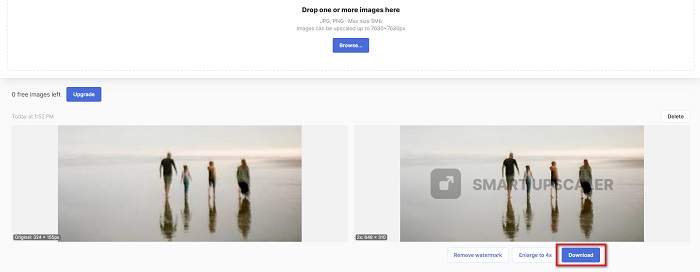
步骤 2. 由于 Icons8.com 同样使用 AI 技术,它会自动检测出图片中模糊的部分。
步骤 3. 最后,点击 Download 按钮,将图片保存到你的电脑中。
第 2 部分。 如何在 Photoshop 中修复质量不佳的图片
提高你的形象质量并不难。但是,由于其界面和功能,使用 Photoshop 来升级您的图像可能非常具有挑战性。但不要担心,因为我们将教您如何使用 Adobe Photoshop 来提高图像质量。
Adobe Photoshop 在照片编辑和图片合成方面表现非常出色,是全球众多专业编辑人员都在使用的编辑软件。此外,它拥有大量高级编辑工具,可以用来编辑你的图片。并且,Adobe Photoshop 支持在 Windows、Mac 和 Linux 等各类平台上下载使用。使用这款软件,你可以编辑横幅、Logo、宣传册等多种视觉素材。而许多用户并不知道的是,它同样可以用来提升图片质量。虽然你需要在下载前购买授权,但 Adobe Photoshop 绝对物有所值。
如何在 Photoshop 中修复低质量图片:
在本教程中,我们将通过放大图像以查看其分辨率来提高图像的质量。
步骤 1. 在电脑上下载 Adobe Photoshop。按照安装流程完成安装,然后在电脑上运行该应用程序。
步骤 2. 在 Adobe Photoshop 中打开你的低分辨率图片。这里有一张放大到 100% 的示例图片,你可以看到,这张图片的分辨率很低。
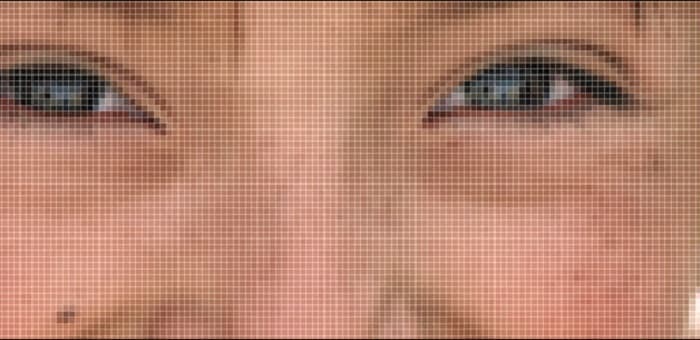
步骤 3. 然后,依次进入 Image > Image Size(图像 > 图像大小)。在 Resample Image(重采样图像) 中,更改抗锯齿(anti-aliasing)的类型,以放大并平滑你的图片。将其更改为 Bicubic Smoother(双三次锐化),这是放大图片时的最佳选择。
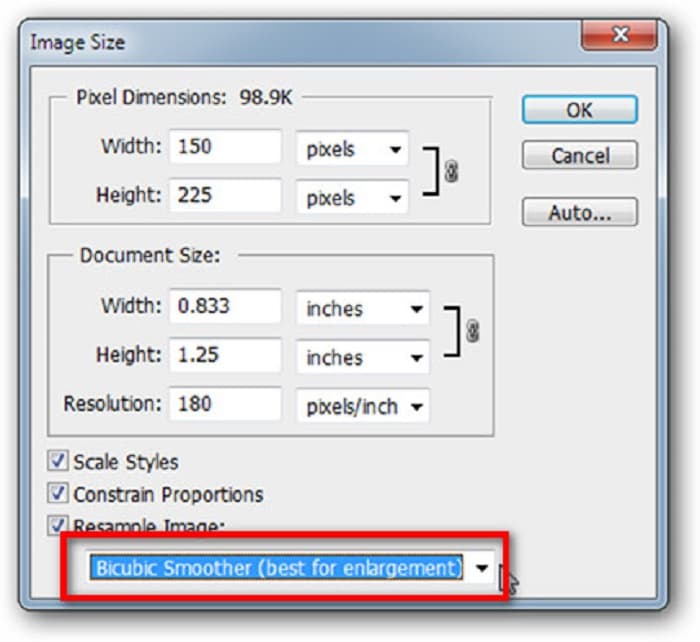
步骤 4. 更改为 Bicubic Smoother 后,你可以在下方看到两张图片的对比。通过调整抗锯齿设置,图像的平滑度会有明显提升。
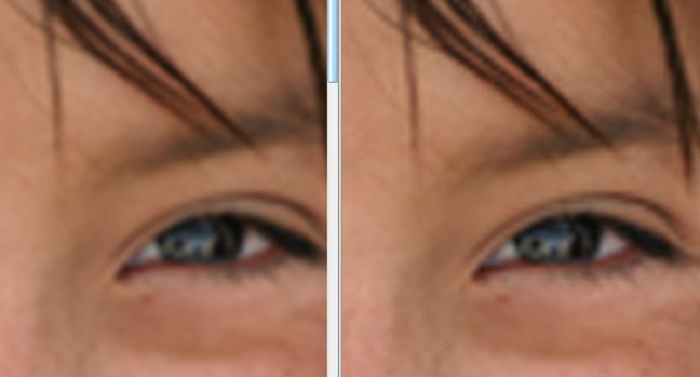
步骤 5. 接下来,我们将通过调整细节来进一步改善放大后的图片。大多数 Photoshop 用户通常只使用 RGB 和 CMYK 色彩模式,而这次我们将使用另一种色彩模式——Lab Color。依次进入 Image > Mode > Lab Color(图像 > 模式 > Lab 颜色)。
步骤 6. 然后,通过 Windows > Channels > Lightness 通道打开面板,确保点开 Lightness(亮度)通道。你也可以点击 a 和 b 通道旁的隐藏图层图标将其隐藏。
步骤 7. 在选中 Lightness 通道的情况下,依次进入 Filter > Smart Sharpen > Sharpen,添加 Smart Sharpen(智能锐化)滤镜。
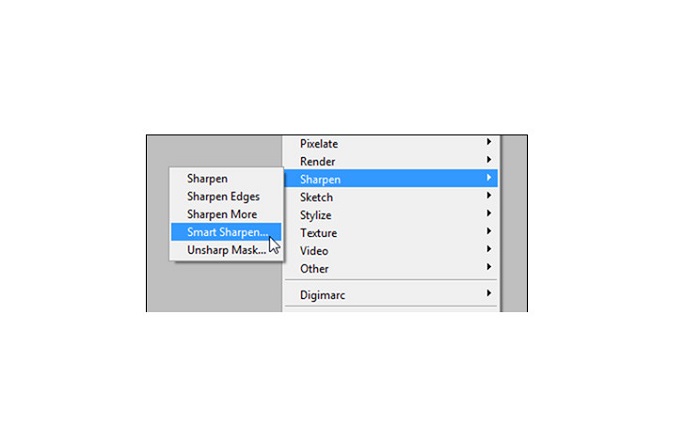
步骤 8. 接着,你可以根据需要调整照片的设置,直到得到理想的输出效果。请务必记住,需要将 Remove 选项保持为 Gaussian Blur(高斯模糊)。
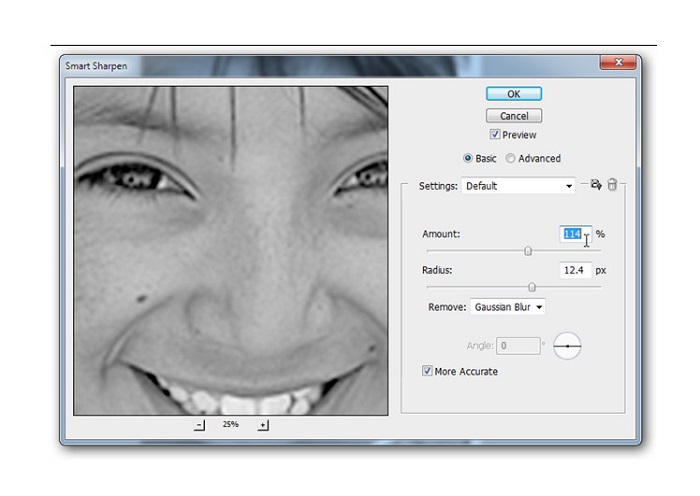
步骤 9. 你可以选择将图片保持在 Lab 颜色模式,也可以将其转换回 RGB。就这样,大功告成!这是最终的图像效果。你会注意到,图片质量得到了提升,纹理也更加细腻丰富。
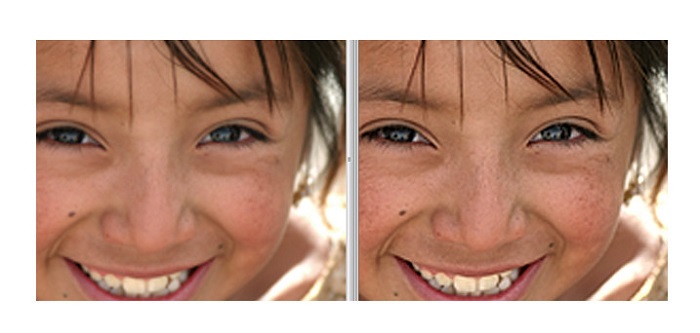
瞧!按照上面关于如何在 Photoshop 中修复劣质图片的指南,您可以提高图像质量。
第 3 部分。有关如何修复图片质量的常见问题解答
我可以改善 iPhone 上的劣质图片吗?
是的。您可以在 iPhone 上下载许多有助于提高图像质量的应用程序。最好的图像放大应用程序之一是 Remini,一个用户友好的应用程序。
我可以更改 JPEG 图像的分辨率吗?
您可以更改要升级的任何图像格式的分辨率。您可以使用上述工具来提高 JPEG 图像的质量。
如何修复 Instagram 上的图片质量?
如果你想修复 Instagram 中图片的质量,可以把插件(plug-in)的Image Resolution(图像分辨率)设置调大,让图片以正确分辨率显示。你可以按照以下路径进行设置:Instagram Feed > Customize > Posts > Photos > Image Resolution。
结论
希望我们已经解答了你关于如何修复图片质量的疑问。你可以从上面介绍的工具中选择最适合自己的。Adobe Photoshop 虽然更加专业,但并不是一款对新手友好的工具。如果你想使用一款简单易上手且免费的图片放大工具,可以选择 FVC Free Image Upscaler。
-
 如何在线将低分辨率图像转换为高分辨率图像
 如果您想学习如何在线将低分辨率图像转换为高分辨率图像,那么本文适合您。完整阅读以了解如何操作。
-
 使用完整教程删除导出视频上的 DaVinci Resolve 水印
 要删除 Davinci Resolve 水印,您需要使用工具或购买它的官方版本,请继续阅读以了解更多信息。
-
 如何免费去除威力导演水印[完成]
 如何免费去除威力导演水印?消除水印的最佳工具在这里,所以通过阅读来学习它们。
