


 视频转换大师
 屏幕录影大师
 视频修复
视频修复
 安全下载
安全下载如何使用 GIMP 调整图像大小的完整过程
在编辑图像时,调整图像大小是必不可少的。有时,您需要更改图片的高度和宽度,以便获得您喜欢的尺寸。此外,调整图像大小由其他照片编辑器完成,以减小其图像的大小或提高质量。幸运的是,我们找到了一个允许您调整图像大小的应用程序。
GIMP 是一款在线图像处理软件,你可以用它来编辑图片。此外,GIMP 还能让你更改图像的高度和宽度,从而提升图像质量。因此,如果你想用 GIMP 调整图片大小,可以立即查阅这篇文章。

第 1 部分。如何使用 GIMP 调整图像大小
GIMP 是一个图形处理应用程序平台,允许图形设计师创建出色的输出。它使用户能够制作设计元素、脚本图像、图标等。此外,它是一个免费的开源应用程序,您可以在几乎所有媒体平台上使用,例如 Windows、Mac 和 Linux。许多人在寻找 Adobe Photoshop 的替代品时推荐此应用程序。
尽管它的界面比 Photoshop 更简单,但有些人仍然很难使用 GIMP。 GIMP 更有趣的是它允许您编辑图片的像素。如果您正在寻找最佳的图像调整器,您可能需要考虑将 GIMP 作为您的偏好。
在这一部分中,我们将向您展示使用 GIMP 调整图像大小(尺寸和大小)的两种方法。
如何使用 GIMP 调整图像尺寸
步骤 1. 首先,在你的设备上下载并安装 GIMP 应用程序。安装完成后,在设备上打开该应用,然后在 GIMP 中打开你要编辑的图像。
请注意,当您在 GIMP 上打开图像时,图像将被缩放,以便整个图像适合您的图像画布。您将在窗口的右上角看到图像的当前大小。
步骤 2. 若要调整图像的尺寸,请点击 图像(Image),然后选择 缩放图像(Scale Image)对话框。在“缩放图像”对话框中,你可以更改图像的宽度和高度。输入你想要的尺寸,然后继续下一步。在高度和宽度设置旁,你会看到一个链条图标,表示图像的高度和宽度是联动的,也就是说当你更改高度时,宽度会自动跟着变化。
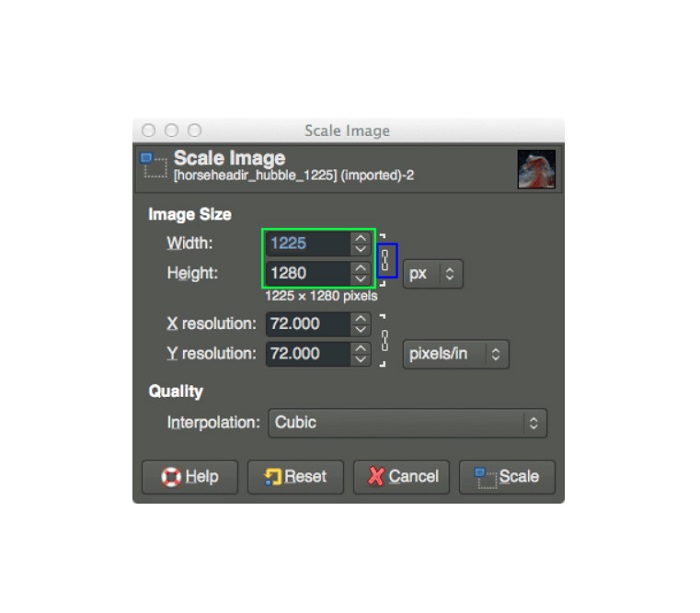
步骤 3. 当你调整完照片的尺寸后,就可以导出图像了。要导出图像,依次点击 文件(File)> 导出(Export)。如果你想用新的文件名导出结果,则选择 文件(File)> 覆盖(Overwrite),然后输入文件名。
如何使用 GIMP 调整图像大小而不损失质量(文件大小):
在本教程中,我们将使用 JPEG 图像,因为这种格式是有损压缩,这意味着在压缩此图像的大小时,我们将牺牲其质量。但是通过使用 GIMP,可以在不影响其质量的情况下调整图像大小。
步骤 1. 使用上面同一张图片,我们将把图像调整为 200 像素宽,并以不同的 JPEG 压缩级别导出文件。你会在下方示例中看到,在质量设置为 80 时,图像的文件大小比质量为 100 时更小,但画质几乎相同。
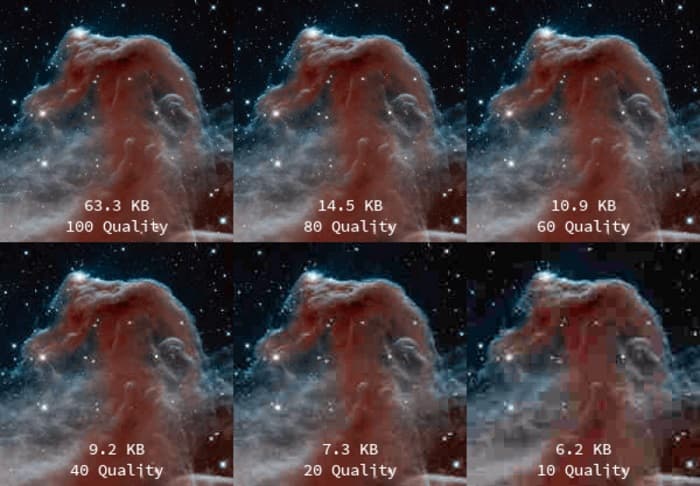
步骤 2. 当你修改完图像的尺寸后,我们就来导出结果。点击 文件(File) 按钮并选择 导出(Export)。
步骤 3. 在 导出图像(Export Image) 选项卡中,输入图像的新名称。如果你担心输出会保存成什么格式,GIMP 会自动按原始文件格式导出。在我们的示例中,你会看到输出格式仍然是 .jpg。
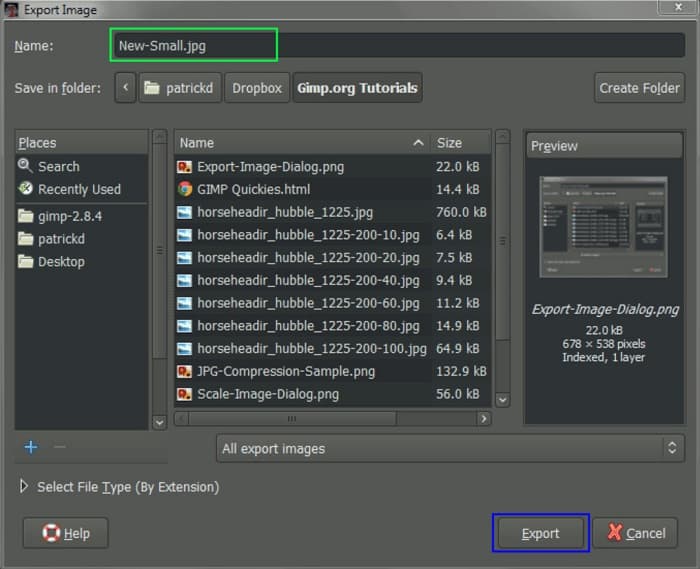
步骤 4. 点击 导出(Export) 按钮后,会弹出 将图像导出为 JPEG(Export Image as JPEG) 的选项卡,你可以在这里调整要导出的图像质量。如果你勾选“在图像窗口中显示预览(Show preview in image window)”,就可以在窗口中预览图像效果。你还会看到文件大小(File size)信息,以便了解图像最终的文件大小。
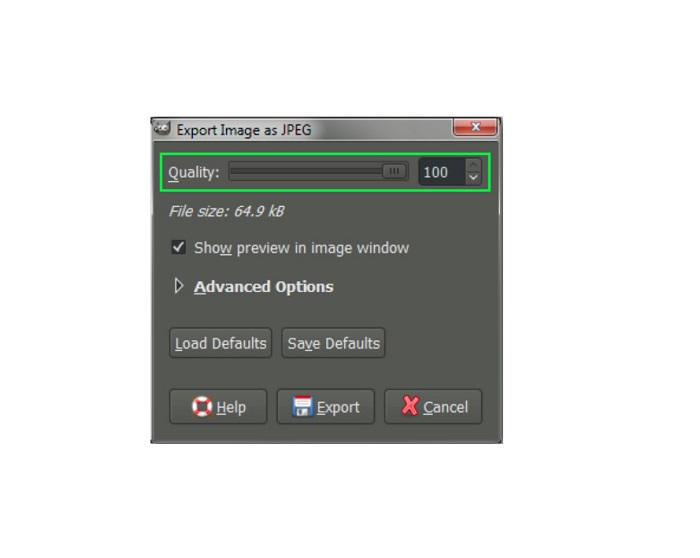
步骤 5. 最后,勾选(点击)“导出(Export)”按钮,即可导出你的图像并将其保存到设备中。
这就是使用 GIMP 调整图像尺寸和文件大小的方法。您可以对图像进行更多编辑,例如旋转图像、翻转照片和裁剪图像。如果您仍然想要调整图像大小或提高图片质量的选项,请阅读下一部分。
第 2 部分。 GIMP 的替代方案
GIMP 是许多专业人士使用的最标准的照片编辑应用程序之一。但是,一些用户在使用此软件编辑照片时遇到困难,例如调整图像大小。如果您是想要使用更直接的应用程序的用户之一,那么我们可以为您提供解决方案。
FVC 免费图片放大器 是一款免费的在线应用,拥有简洁的用户界面,对初学者非常友好,如果你正在寻找最佳图片放大工具来提升图像质量,它会是一个不错的选择。它采用 AI 放大技术,可自动检测图像模糊区域并对其进行增强。此外,你可以将照片最高放大至 8 倍。它还支持最常见的图像格式,如 JPEG、JPG、PNG 和 BMP。与其他编辑应用不同,FVC 免费图片放大器可以在不损失画质的情况下调整图像大小。因此,如果你想用这款工具来调整和增强图片大小,请按照下面的简单步骤操作。
如何在不损失质量 GIMP 替代方案的情况下调整图像大小:
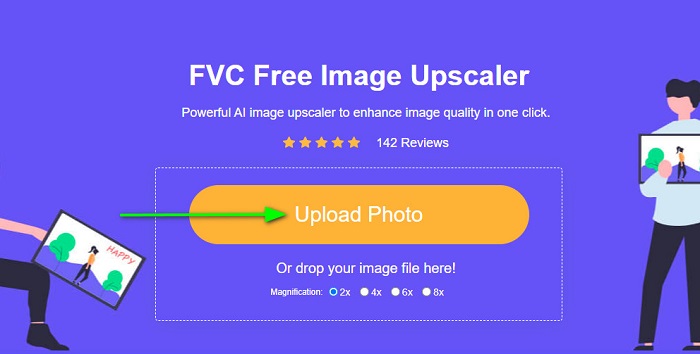
步骤 1. 打开你的网页浏览器,在搜索框中搜索 FVC 免费图片放大器。你也可以直接点击链接进入主页。在该软件的主界面上,点击 上传照片(Upload Photo) 按钮,在你的设备上启动该应用。
步骤 2. 然后,在主界面中点击 上传照片(Upload Photo) 按钮,添加你想要调整大小/放大的图片。
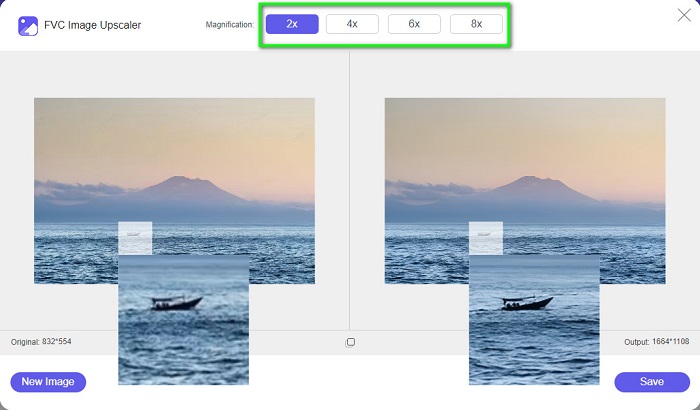
步骤 3. 上传文件后,从预设的放大倍率中进行选择。你可以在 2x、4x、6x 和 8x 之间进行选择。接着,你可以通过在图像上拖动光标来查看效果预览。
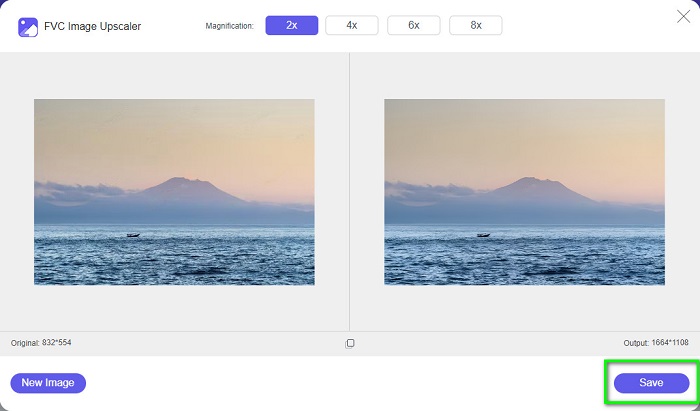
步骤 4. 最后,点击界面右下角的 保存(Save) 按钮,将结果保存到你的设备。
相关内容:
第 3 部分。有关如何使用 GIMP 调整图像大小的常见问题解答
GIMP 有在线版本吗?
是的,它确实。 GIMP 不仅仅是一个离线照片编辑应用程序;它也有一个在线版本。但是,在线 GIMP 并不包含桌面版 GIMP 等所有功能。
GIMP 是最好的免费 Photoshop 吗?
GIMP 无法与 Photoshop 相提并论。 Photoshop 仍然是最优秀的桌面照片编辑软件。然而,GIMP 是 Adobe Photoshop 的最佳替代品之一。
GIMP 是否支持 PNG 文件?
是的。 GIMP 允许您将输出保存为 JPEG、JPG、PNG 和其他格式。
结论
以上就是使用 GIMP 调整图像大小 的全过程。尽管 GIMP 的界面略显复杂,但按照上文的步骤操作,你就能调整图片的尺寸和文件大小。如果你更愿意使用能够提升图像质量的免费在线图片缩放工具,可以尝试 FVC 免费图片放大器。
-
 6 种方法在 Web 和离线上 Reize 图像 [100% 工作]
 通过我们在此处添加的教程,您现在可以根据您喜欢的大小轻松调整图像大小。在这里学习如何做!
-
 2022 年你必须知道的事实 PicResize 评论
 您想知道 PicResize 是否是编辑图像的最佳选择吗?在我们回顾整个工具时阅读这篇文章。
-
 您需要了解的有关 Waifu2x 和替代方案的所有信息
 需要了解更多关于 Waifu2x 的信息?本文提供了需要在此应用程序及其替代方案中突出显示的信息。
