


 视频转换大师
 屏幕录影大师
 视频修复
视频修复
 安全下载
安全下载使用 Photoshop 从图像中删除文本的终极方法
你是否有一张漂亮的照片,却因为上面有文字而无法分享到社交媒体?你可以使用 Adobe Photoshop 来处理。另外,你也可以用其他工具来移除图片上的文字。本文将分享几种终极方法,帮你轻松、即时地擦除图像中的文字,这样你就不用再到处寻找解决方案了。如果你已经来到这里,就别错过这个机会。请阅读全文,了解如何使用 Photoshop 从图片中去除文字,以及其他实用应用程序的用法。

第 1 部分:如何在没有 Photoshop 的情况下在线删除图片中的文本
使用 FVC Free Watermark Remover
有很多应用程序可以帮你在不使用 Photoshop 的情况下去除图片上的文字。你可以使用 FVC 免费水印去除器。只要使用这个在线工具,就可以轻松移除图片中的文字。FVC 免费水印去除器提供两种方式:使用水印去除工具和裁剪工具。而且,与其他工具不同的是,很多工具在使用前都需要登录账户,但这个工具不需要账号。你就可以直接清除图片上的文字,并将处理后的图片保存到电脑上。就操作难度而言,任何人都可以使用,因为这个工具非常简单,甚至小学生也能轻松上手。请按照下面的简单步骤,分别用这两种方法来删除图片上的文字。
使用水印去除工具
如果图片中的文字位于中间,请按照以下步骤操作。您可以使用这三个工具。
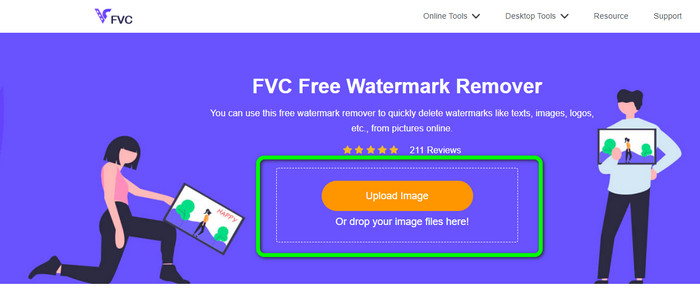
步骤 1: 进入 FVC 免费水印去除器 网站后,点击 上传图片 来上传带有文字的照片。你也可以直接将图片文件拖拽到框中。
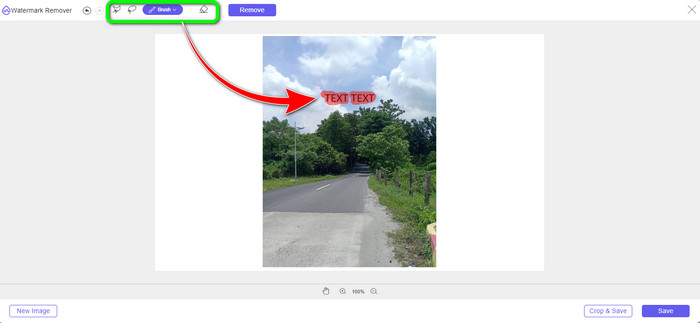
步骤 2: 使用去除工具高亮选择图像中的文字。你可以使用三种去除工具:套索、多边形和画笔工具。如果要高亮大段或小段文字,请使用画笔工具,因为你可以调整画笔大小。多边形工具用来以多边形形状框选文字,套索工具用来手动圈选你想删除的文字。
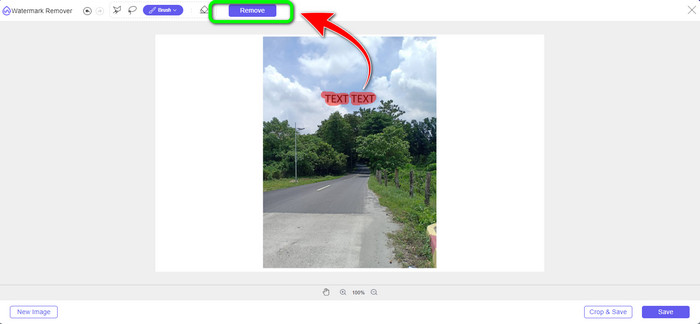
步骤 3: 当你已经高亮选择完图片中的所有文字后,点击 去除 按钮。等待处理完成后继续下一步。
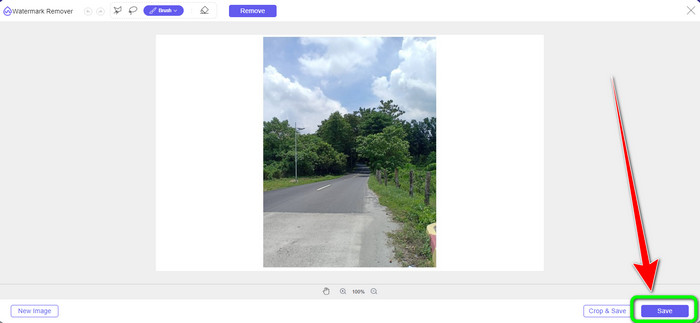
步骤 4: 如果你对结果满意,可以点击 保存 按钮,将图片保存下来。
水印去除在线
Watermark Remover Online 是另一个可用于从图像中删除文本的程序。免费的在线水印去除器可供您使用,通过进行所有必要的调整(包括从照片中去除不需要的东西)为您提供最佳图像。在短短几秒钟内,它会生成令人惊叹的照片。每天,全世界的用户都在线使用水印去除器来从他们的图像中生成记忆。人们不再观看带有水印的视频,而是选择观看更感兴趣的理想视频。此水印去除工具可在保持文件格式的同时完美保留视频/电影。它包括一个易于使用的用户界面,任何人都可以使用。您还可以在几乎所有平台上访问这个基于 Web 的应用程序,例如 Mozilla Firefox、Google Chrome、Safari、Microsoft Edge、Opera Mini 等。这个应用程序最好的地方在于,您还可以从视频中删除令人不安的元素,这使它更加方便。
然而,这个基于网络的程序偶尔会出现问题。有时,即使在删除后,文本仍保留在图像中。为了使用此水印去除功能,还建议使用互联网连接。上传和删除过程非常耗时。文件上传需要一分钟。按照下面的简单步骤使用 Watermark Remover Online 从您的照片中删除文本。
步骤 1: 进入 Watermark Remover Online 网站,并点击 Photo Watermark Remover 选项。
步骤 2: 点击或拖拽你想要编辑的图片文件。
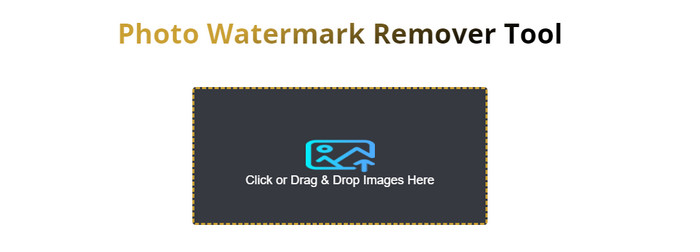
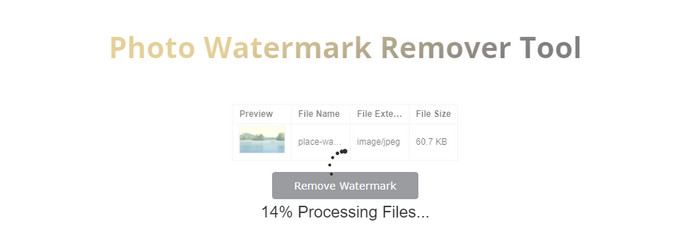
步骤 3: 等待上传完成。之后,点击中间界面上的 Remove Watermark 按钮开始去除水印。然后,你就可以将最终结果保存到你的设备上。
第 2 部分:如何使用 Photoshop 从图像中删除文本
从图像中删除文本时,建议使用应用程序。这部分将向您展示如何使用 Photoshop 从图像中删除文本。 Adobe Photoshop 是一款具有多种功能的工具。您可以删除图片中不需要的任何对象。通过这种方式,您可以让您的照片整洁且赏心悦目。除了从照片中删除文字。 Adobe Photoshop 提供了许多功能。如果您想制作小册子,可以使用此工具。如果你想改善你的照片,你也可以使用这个工具。此应用程序的功能比您想象的要多得多。因此,如果您想要一个一体化的编辑应用程序,您可以使用 Adobe Photoshop。
但是,使用此应用程序需要高级技能。您必须知道如何使用它,因为它有许多您可能会遇到的选项、工具和功能。如果您是非专业用户,需要一个月或一年的时间来熟悉它。此外,它只有 7 天的免费试用期。如果您想更长时间地操作它,您必须购买该应用程序。让我们使用 Adobe Photoshop 从您的照片中删除文本。
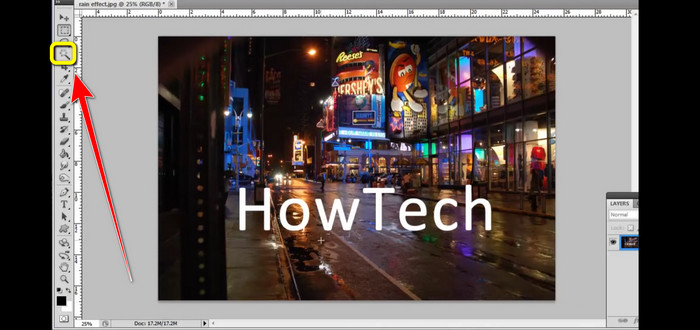
步骤 1: 选择 魔棒(Magic Wand) 工具。你可以在界面左侧的工具栏中找到它。按住 shift 键,依次选择文字的每一个字母。
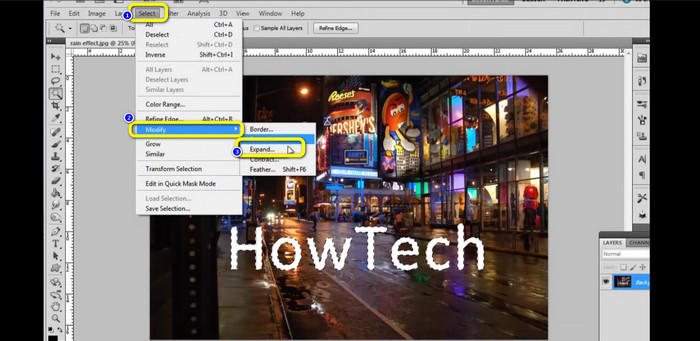
步骤 2: 在选中所有字母之后,进入“选择”(Select)菜单,然后选择 Modify > Expand。接着输入 3 像素,并确定。
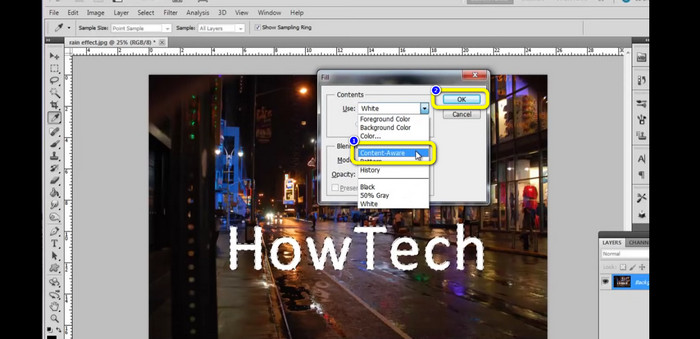
步骤 3: 接下来,在键盘上按下 shift+backspace。此时会弹出“填充”(Fill)窗口。选择 内容识别填充(Content-aware),然后点击 确定(OK)。你就会看到文字已经消失。
相关:
在 Mac 和 iPhone 上用 iMovie 给视频添加文字的简单方法
第 3 部分:有关使用 Photoshop 从图像中删除文本的常见问题解答
1. 如何从照片中删除某些内容?
从你的照片中删除一些东西很容易。使用 FVC Free Watermark Remover。这可以帮助您从照片中删除不需要的对象,包括水印、徽标、文本、图像等。
2. 如何在 Photoshop 中删除文本而不更改背景?
选择你想要编辑的图片并选择“选区工具”。
选择“选区并修改”。
扩展选区以移除文字。
用背景填充,你就完成了!
3. 如何在没有新图层的情况下在 Photoshop 中编辑文本?
您必须选择横排文字工具。然后,双击要编辑的文本。这样,无需创建新图层即可编辑文本。
结论
使用 Adobe Photoshop 从图片中去除文字 确实非常出色。但众所周知,这个工具更适合高级用户。如果你是初学者,可以使用 FVC 免费水印去除器。它对所有用户都完全开放、易于使用。
-
 去除 Getty Images 水印的绝妙方法
 如何去除 Getty Images 水印?如果这是你的问题,这篇文章有最好的答案。不要眨眼,学习你可以尝试的最佳程序
-
 如何从照片中删除 Canva 水印]完整方法]
 照片中的 Canva 水印有时很烦人。如果你想删除它们,请转到这篇文章。我们将指导您学习如何去除 Canva 水印
-
 从图片中删除徽标的无故障方法
 充分了解您可以使用计算机学习的有关如何从图片中删除徽标的最佳过程。阅读更多以找出答案!
