


 视频转换大师
 屏幕录影大师
 视频修复
视频修复
 安全下载
安全下载使用 6 个有效的软件从照片中删除对象 [免费]
数以百万计的摄影师——哪怕只是有志成为摄影师的人——都会对日落、海滩、旅游景点、月亮等各种景色连拍多张照片。通过图像,我们可以表达真正的自我。只需按下一次快门,你就能激发每个人的创造力,唤醒他们内心的艺术灵感。当然,并不是每一次拍摄都能得到完美无瑕的照片;有时,我们需要删掉照片中某个本不该出现的物体。你是否需要一个工具来从照片中移除物体?下面我们将介绍多种方法和工具,帮你即时去除照片中多余的元素。

第 1 部分。使用最佳对象移除器 [Web 服务] 从照片中移除对象
FVC Free Watermark Remover 是我们首推的免费在线照片去物体工具。借助它,你可以无需在电脑上下载软件,就能瞬间抹除破坏完美画面的任何内容,即使你完全没有此类编辑经验也没关系。你只需框选目标物体,工具就会自动将其从图片中清除,而且几乎不留痕迹。我们认为这个工具在去除画面中多余内容方面既有趣又高效;如果你想使用它,可以照着下面的步骤操作。
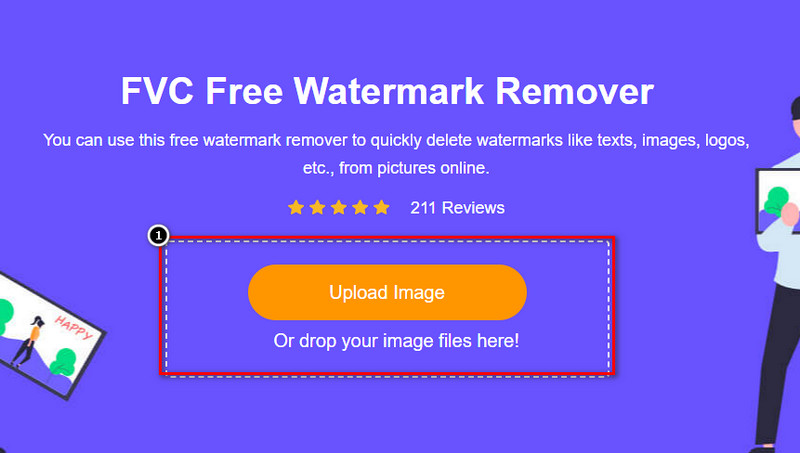
步骤一: 若要打开图片并移除 FVC 标记,可以点击这个链接进入官网。
步骤二: 点击Upload Image(上传图片),导入你拍摄且含有多余物体的照片。
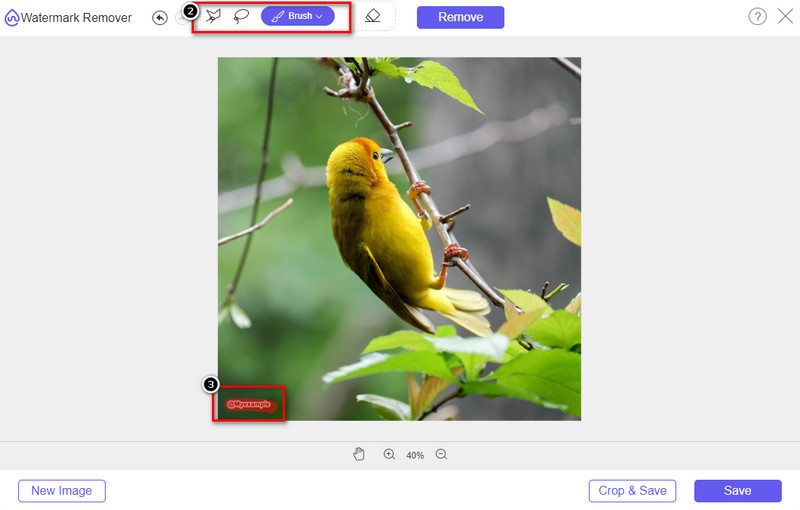
步骤三: 利用此处提供的工具,高亮标出要移除的物体。
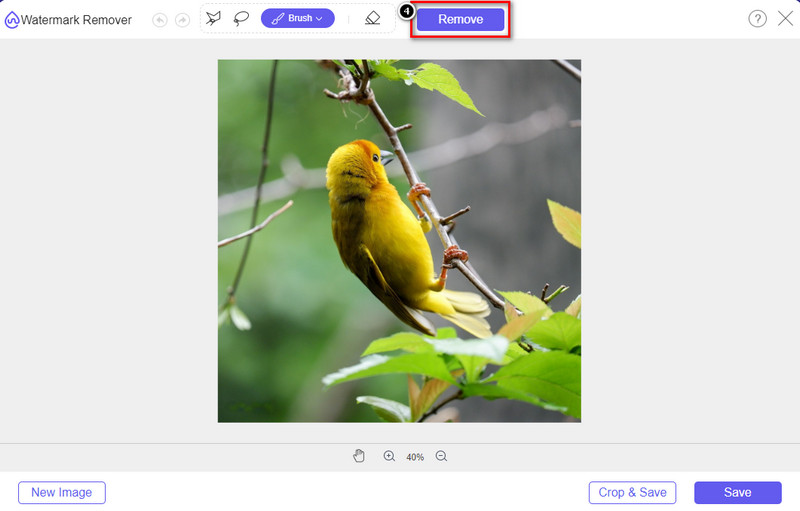
步骤四: 按下Remove(移除)按钮,在本工具所支持的 AI 技术帮助下,将物体删除。
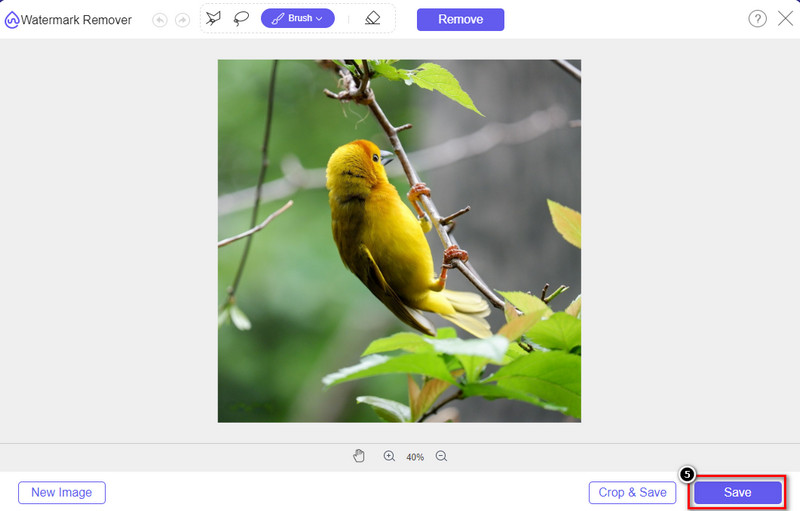
步骤五: 若要下载你在这里编辑好的完美图片,点击Save(保存)。
第 2 部分。使用桌面程序专业地从照片中删除对象 [Windows 和 Mac]
Photoshop
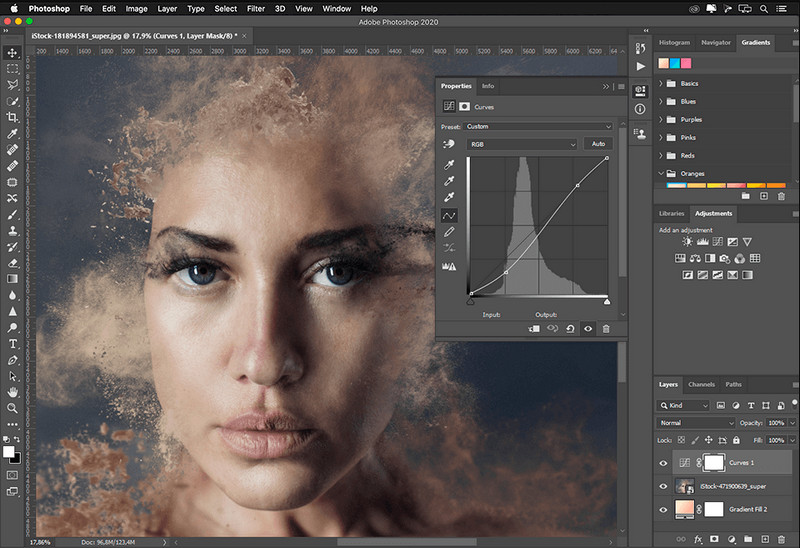
如果您需要专业的工具从照片中删除对象,那么 Photoshop 就是您的最佳选择!该工具是 Adobe 自豪地向我们展示的完整图像编辑器。没有什么能阻止您通过其特性和功能使图像看起来令人难以置信。由于它在专业人士中的流行,许多初学者尝试使用该软件来编辑和创建他们的图像。因此,如果您想知道如何使用这个专业工具,那么您可以按照我们在下面添加的教程进行操作。
步骤一: 打开 Adobe 官网,然后在桌面端下载并安装 Photoshop。
步骤二: 点击File(文件),再点击 Open(打开),将需要编辑的图片导入软件。
步骤三: 在左侧工具栏中选择Magic Wand Tool(魔棒工具),自动选中图片中的目标物体。
步骤四: 前往Edit(编辑)菜单,并在其下方选择Content-Aware Fill(内容识别填充)。
步骤五: 打开此功能后,软件会自动去除水印,然后点击OK(确定)。
GIMP
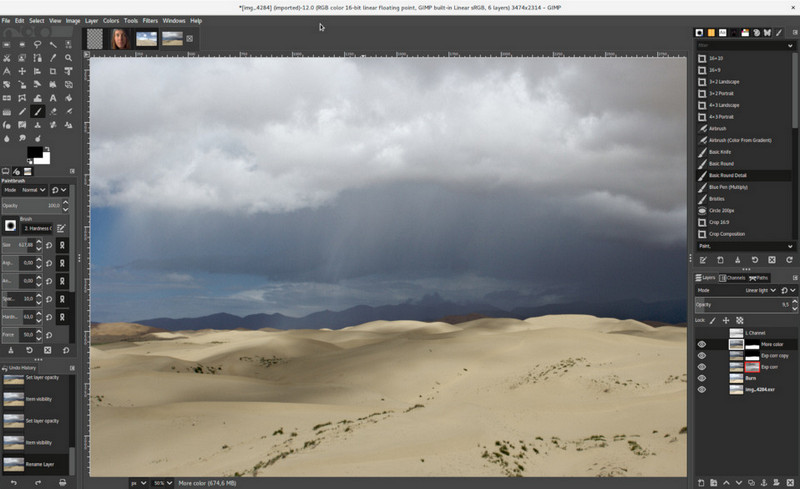
GIMP 是一款功能完整的图像编辑器,你可以在 Mac、Linux 和 Windows 上免费用它从照片中移除物体。它是一款堪比 Photoshop 的可靠工具。尽管在谈到 Adobe Photoshop 替代品时,这个工具常常位居前列,但它目前仍在持续开发中。借助它,你可以对图像进行深入处理,让画面在观众眼中更具吸引力。同时,你还可以自定义界面,以便让工作流程更加顺手。如果你正在考虑下载该工具来进行专业级的编辑,我们可以告诉你:用它是可以实现专业效果的。虽然它是开源编辑器,其图形界面仍在完善中,尚未完全定型。如果你想用它来操作,下面的步骤将会教你如何在 GIMP 中从照片中移除物体。
步骤一: 下载并启动该软件,以便上传你想要编辑的图片。同时,下载其插件 Resynthesizer(重合成)插件。
步骤二: 在左侧工具栏中选择Free Select(自由选择)工具,并将模式更改为Add Current Selection(添加到当前选区)。
步骤三: 沿着你想要移除的物体进行勾画;成功勾勒出物体后,在键盘上按下Enter键。
步骤四: 要使用刚才下载的插件,请依次点击Filter(滤镜) → Enhance(增强) → Heal Selection(修复选区)。
步骤五: 随后会弹出一个对话框,如有需要可修改采样宽度,将采样范围设置为all-around(全方位),将填充顺序设为random(随机)。按下OK即可开始对图像中该物体区域进行合成填充。
Mac 上的照片应用程序
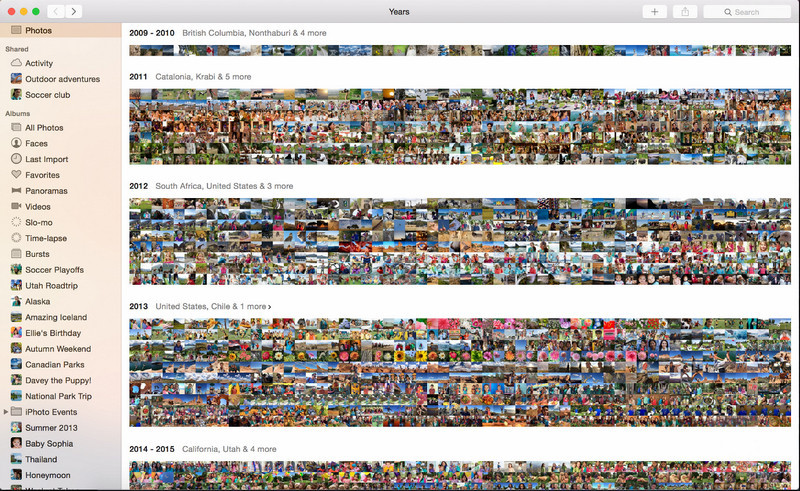
照片 App(Photo App)是苹果产品(如 Mac)上内置的功能之一。该应用已预装在系统中,因此你可以跳过下载步骤,直接使用。严格来说,这款软件并不是专业图像编辑器,它的主要用途是作为 Mac 或 iOS 设备上的照片图库和查看器。不过,即使你在 Mac 上没有专业的图像编辑软件,也可以借助它的一些功能,仅需轻轻一点就能得到近乎专业的效果。所以,如果你想在照片 App 中去除画面中的物体,可以按照我们下面列出的步骤来操作。
步骤一: 在 Mac 上打开“照片”App,选择含有多余物体的那张图片。
步骤二: 在右上角点击编辑(Edit)按钮,开始对图片进行编辑。
步骤三: 在右侧你会看到修饰(Retouch)选项;点击它以启用该功能。
步骤四: 用鼠标点击并拖动,涂抹你想要去除的区域。
步骤五: 按下完成(Done)按钮,保存你对图片所做的更改。
第 3 部分。使用 Android 和 iOS 上的应用程序从照片中删除对象
Photoshop 修复
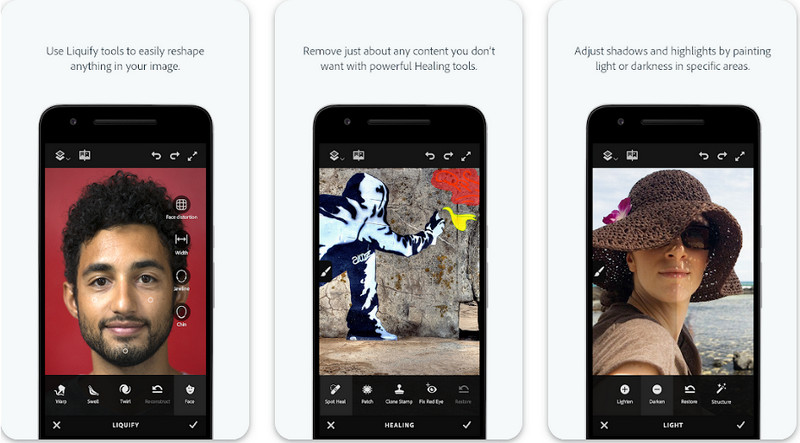
Photoshop FIX 是一款高效的 Android 去物体应用,操作简单却具备专业级的处理能力。这是一款可以在 Play 商店中下载的免费应用。尽管它是开放源代码应用,但其物体移除功能的表现依然十分出色、毋庸置疑。它是 Android 设备上完成此类任务时下载量颇高的应用之一。如果你想了解如何使用这款应用,可以继续往下看。
步骤一: 在你的 Android 设备上下载并安装该应用。
步骤二: 点击On My Phone,显示你图库中的所有图片,然后选择你想要编辑的那张。
步骤三: 若要使用本应用的物体移除功能,请点击Healing(修复)。
步骤四: 这里你可以用两种方式来去除物体:如果你想直接涂抹删除物体,选择 Spot Heal(污点修复);若想克隆像素进行覆盖,则需选择 Clone Stamp(仿制图章)。根据你的选择,在水印或物体上进行标记。
步骤五: 将编辑好的图片保存到手机相册即可,大功告成!
照片润饰
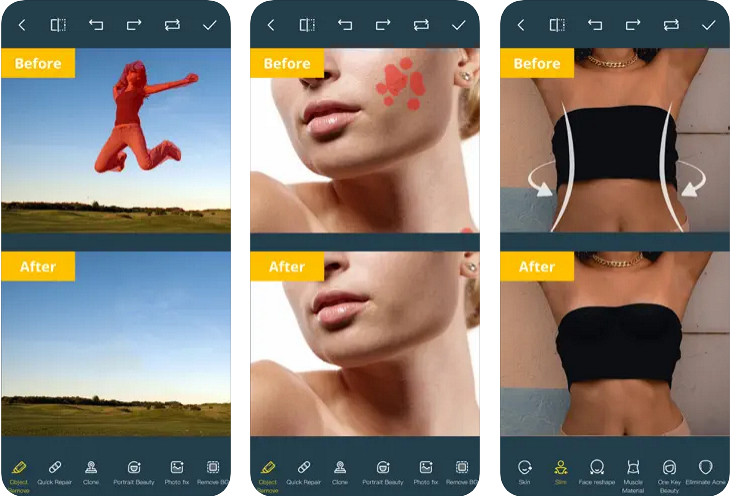
Photo Retouch 是一款在 iPhone 上轻松去除照片中物体的可靠应用。即使你并不是图像处理老手,也能借此高效地移除画面中的多余元素。你可以在 App Store 上免费下载并体验这款应用。此外,如果你有需要,它也支持去除照片背景和水印。如果你已经准备好使用这款应用来删除图片中的物体,可以参考下列步骤进行操作。
步骤一: 下载并启动这款官方应用。
步骤二: 点击Photo Eraser(照片橡皮擦),再点击Photo(照片)。选择你想要移除多余背景的图片,并确保该图片已保存在 iPhone 的“照片”中。
步骤三: 在底部选项中选择Object Removal(对象移除)功能。
步骤四: 使用本应用提供的画笔工具勾勒你想要去除的物体,然后点击GO 即可完成移除。
相关内容:
第 4 部分。有关如何从照片中删除对象的常见问题解答
为什么我需要从照片中删除对象?
有很多次我们捕捉到了一些东西,并且有 Photobombers。对于大多数专业人士来说,这个对象是一个问题,因为它不会突出您捕获的图像。因此,您可以阅读以下理想方法来移除照片上的对象,而不是重新拍摄图像。
我可以裁剪图像以删除对象吗?
是的你可以。如果您想在照片的一侧删除它,那么您可以尝试使用内置编辑器裁剪图像。但是,此选项不是一个选项,尤其是当对象位于您捕获的图像的中间部分或附近时。裁剪图像会剪掉照片,因此如果您想尝试此选项,最好三思而后行。
为什么我不能上传图片来移除对象?
不能上传图片;图像已损坏,或者图像扩展名不受支持。如果您的图像已损坏,有办法修复它。如果您搜索它们,您可以在网络上找到它们。通常,它可能是图像的文件扩展名;要解决此问题,您需要对其进行转换。
结论
由于我们在本文中使用的工具和应用程序,从照片中删除对象很容易。那么,您最喜欢哪个工具呢?我们希望我们添加的本指南可以帮助您轻松解决问题。
-
 如何在线将低分辨率图像转换为高分辨率图像
 如果您想学习如何在线将低分辨率图像转换为高分辨率图像,那么本文适合您。完整阅读以了解如何操作。
-
 如何去除防拍水印的简单方法
 按照这些简单的方法删除防拍水印。使用这些神奇的水印去除剂轻松从图像中去除防拍水印。
-
 如何轻松去除 Bandicam 水印【3 种有效方法】
 如何去除 Bandicam 水印?使用这些工具,我们在这里添加您将知道如何有效地处理它!
