


 视频转换大师
 屏幕录影大师
 视频修复
视频修复
 安全下载
安全下载如何从照片中删除人物以获得干净的效果
捕捉难忘的瞬间从未像今天这样轻松,但要把这些珍贵时刻完好地保留下来却并不总是容易。有时,一些不受欢迎的人会闯入我们的照片中,分散了原本的视觉焦点。无论是在拥挤的旅游景点、车水马龙的城市街景,还是珍贵的全家福中,我们往往需要从照片中移除人物,以获得更干净、更具美感的画面效果。
在本文中,我们将深入探讨如何使用这些工具有效地从照片中删除人物。从用户友好的在线工具到第三方应用程序,阅读本文可以保证您找到可靠的工具,满足您从照片中删除人物或物体的需求。您还在等什么?探索本文列出的这些在线工具和应用程序,并了解如何获得专业效果。

第 1 部分。从照片中删除人物的在线方法
FVC免费水印去除
FVC 免费去水印工具是一款基于网页的工具,可以在本地任何浏览器中免费使用。该免费去水印工具不仅能去除照片中的水印,还能解决你从照片中去除人物的需求。FVC 免费去水印工具支持 JPG、PNG、BMP 等常见图片格式。你可以使用它的套索工具手动擦除图片中的文字、人物或其他不需要的物体,从而获得精确、准确的处理效果。要从照片中移除人物,只需四个步骤。你只需要一条可用的网络连接,无需下载程序或订阅套餐,对专业人士和新手用户都非常友好。
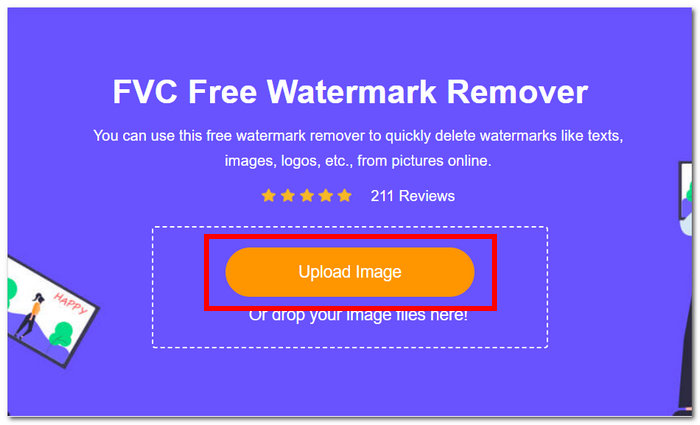
步骤 1. 访问 FVC 免费去水印网站,并在指定的图片上传区域上传你的图片。
步骤 2. 图片加载完成后,在屏幕上方选择套索(Lasso)工具,手动勾勒出你想要从照片中移除的物体或人物。
步骤 3. 被选中的物体或人物会被标记为红色区域,表示已被锁定为待移除对象。点击位于导航工具栏上的Remove(移除)按钮,开始处理。
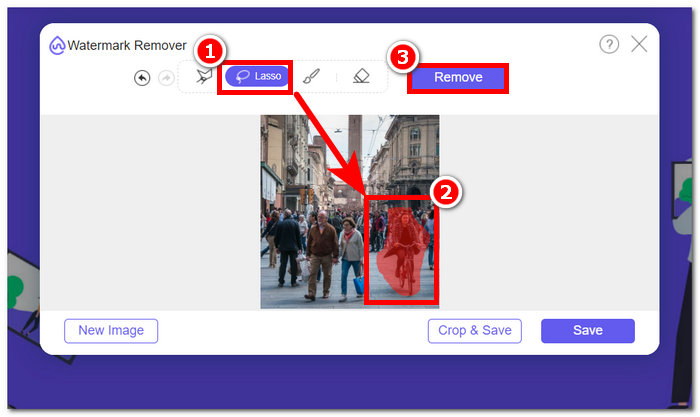
步骤 4. FVC 免费去水印工具会自动移除选中的物体或人物,然后点击保存(Save)按钮,将处理好的照片下载到电脑上。
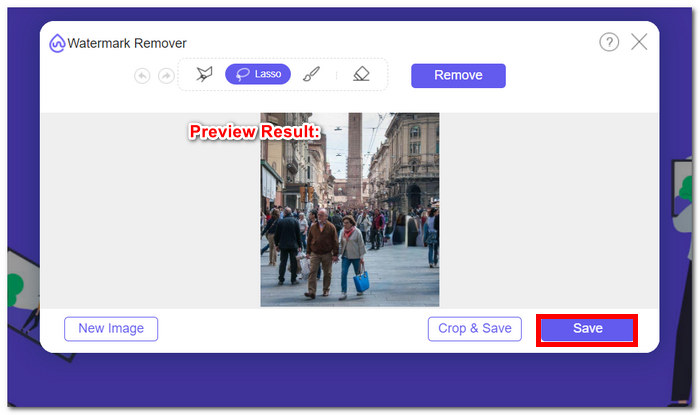
使用 FVC 免费水印去除器,您无需花费时间执行从照片中删除人物等任务。事实上,这些工具优先考虑您的时间来创建高质量的图像,导出结果时不会损失质量。
摄影室
PhotoRoom 提供了一款功能强大的网络服务工具,专门用于轻松从照片中删除不想要的人物。这款工具可以依靠其 AI 功能,只需单击几下即可快速删除不想要的物体和人物。借助其神奇画笔,即使您没有高级照片编辑技能,也可以从您珍爱的照片中删除物体。
步骤 1. 前往PhotoRoom官网,点击“Start from Photo(从照片开始)”,拖放你想要移除人物的图片。
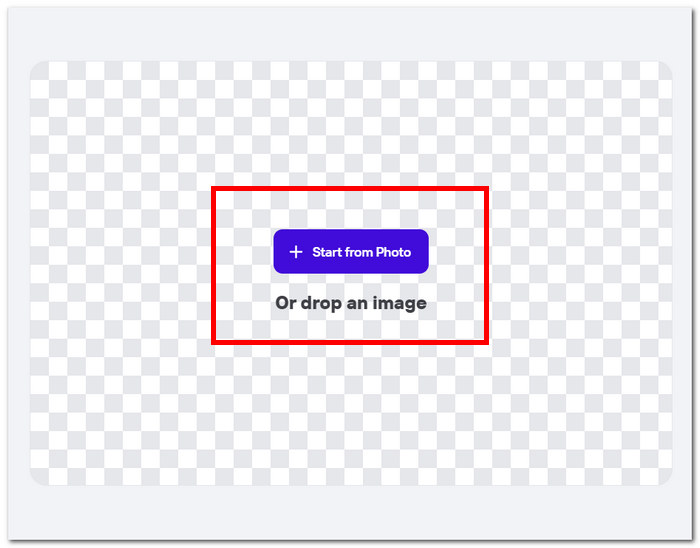
步骤 2. 照片加载到工具后,点击你希望移除的人物;在你勾画出包含不需要物体或人物的区域后,工具会自动开始处理。
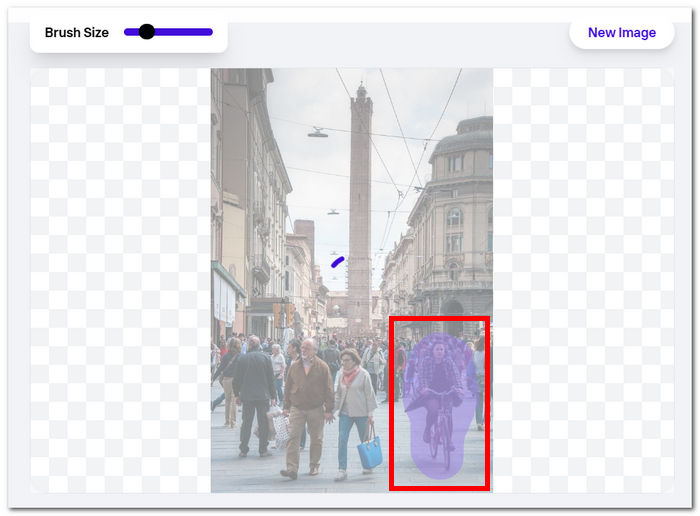
步骤 3. 工具会智能地移除你选中的物体或人物,之后你只需点击Download(下载)按钮即可。
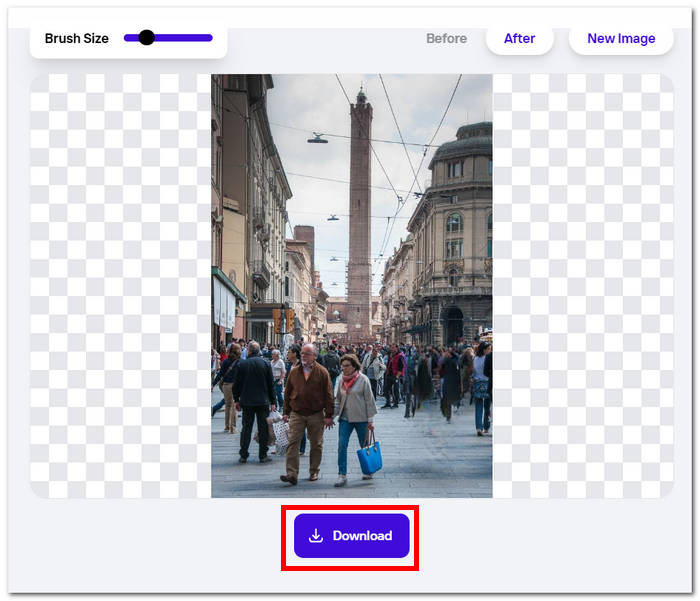
有了 PhotoRoom,您总能拍出干净、无干扰的照片,它提供了一种简单的解决方案,可从您的图片中消除任何不想要的内容。要从在线照片中删除人物,您应该了解您的工具,而 PhotoRoom 就是一个值得考虑的工具。
Hotpot.ai
Hotpot.ai 可轻松移除人物、不需要的物体和模糊的主体。它利用先进的 AI 技术,在上传照片后立即处理照片,确保快速而精确地编辑。这一简化流程使清理照片变得轻而易举,让您在短时间内获得完美的效果。使用 AI 从照片中删除人物是此工具的得意之作之一。
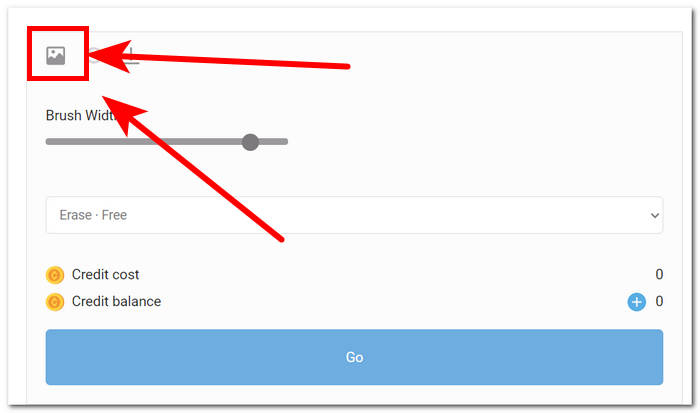
步骤 1. 访问 Hotpot.ai 网站,点击设置界面左上角的Media(媒体)图标上传你的图片。
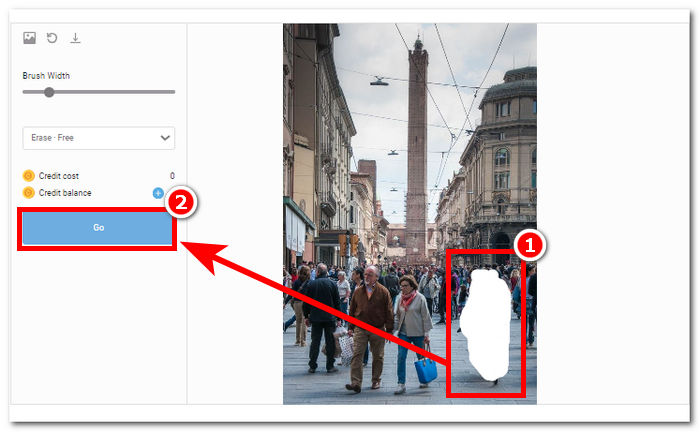
步骤 2. 将鼠标悬停在想要移除的不需要人物上,用白色高亮将其涂抹遮盖。将不需要的人物全部覆盖后,点击Go按钮开始处理图片。
步骤 3. 工具处理完成后会显示结果,若你对效果满意,点击设置界面左上角的Download(下载)按钮即可保存。
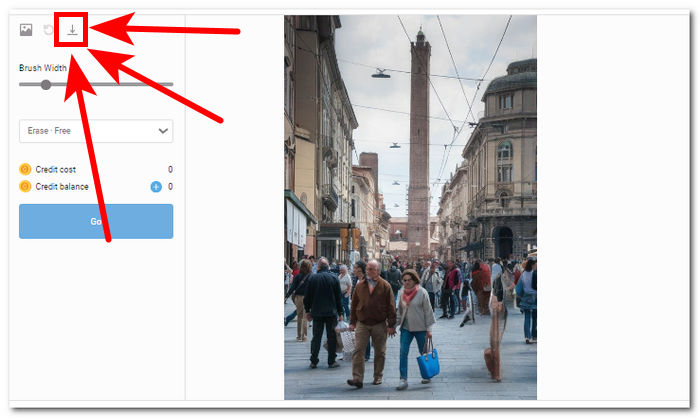
借助 Hotpot.ai,你可以获得具有专业水准的图片,显著提升摄影作品的整体质感。告别画面干扰,让照片更加纯净,同时还能配合使用图像增强工具进一步优化。
照片编辑器.ai
Photoeditor.ai 提供准确的结果,因为它不仅提供基本的照片编辑器,还可以删除破坏照片的不想要的物体或人物。其效果可与互联网上提供的付费在线工具相媲美。此工具是那些可让您免费使用其服务的可信赖工具之一;您所需要的只是互联网连接和您的照片。
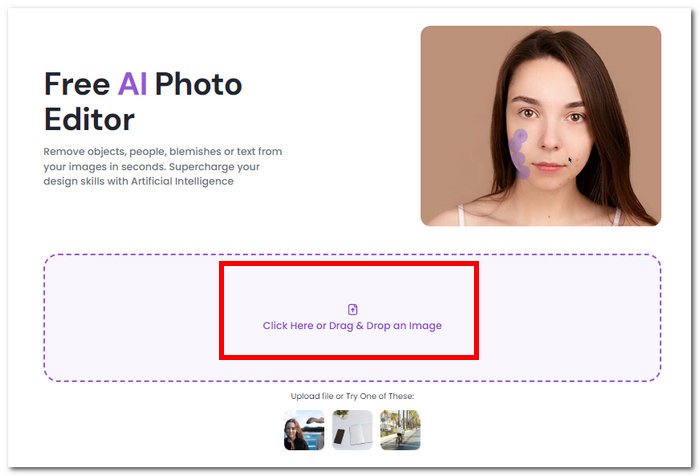
步骤 1. 打开 Photoeditor.ai 网站,在工具界面点击Drop an Image(拖放图片)区域加载你的照片。
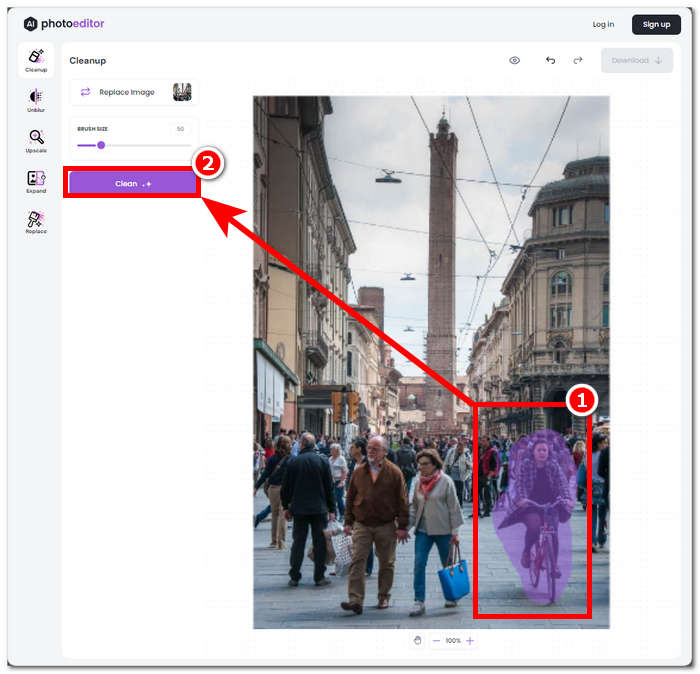
步骤 2. 照片加载后,手动框选并勾勒出画面中不需要的人物,然后点击界面左上角的Clean(清理)按钮开始处理。
步骤 3. 处理完成后,你可以预览照片;如果满意效果,点击Download(下载)按钮所在区域将图片保存下来。
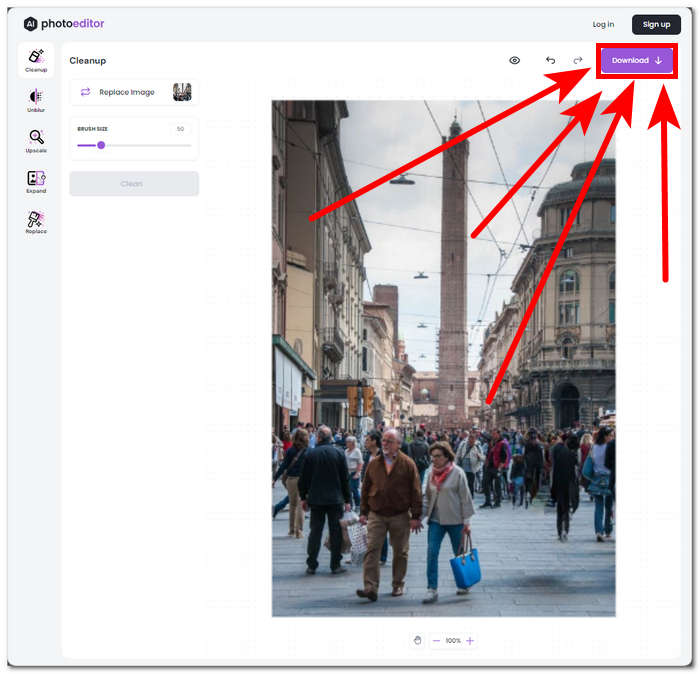
Photoeditor.ai 是一款简单易用的工具,可让您立即删除不想要的物体和人物,而不必担心质量下降。这款工具非常适合那些寻找提供基本照片编辑功能(例如文本删除器和面部增强器)的人。
第 2 部分。如何从 iOS 和 Android 上的照片中删除人物
修复照片编辑器并修饰
如何在 iPhone 上从照片中删除人物?这款应用具有出色的基础级到专业级照片编辑服务,例如对象或人物移除器。该应用可在您的移动设备上下载,包含高级对象移除和背景增强器、面部和身体增强器。这款应用使用专业照片编辑器来处理您的照片;因此,这将使该应用无法离线访问,最终需要您付费。
步骤 1. 在 App Store 或 Play 商店中下载Fix The Photo Editor & Retouch应用。
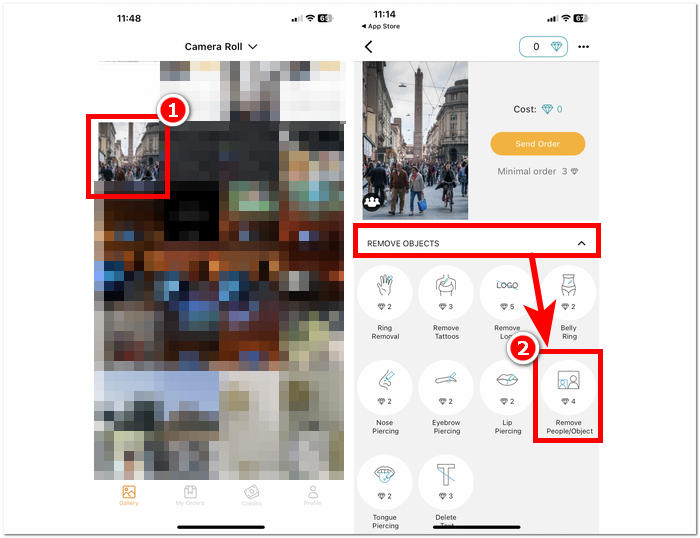
步骤 2. 打开 Fix The Photo Editor & Retouch 应用,选择你要编辑的照片,然后进入Remove Objects(移除物体)板块,并点击“Remove People/ Object(移除人物/物体)”。
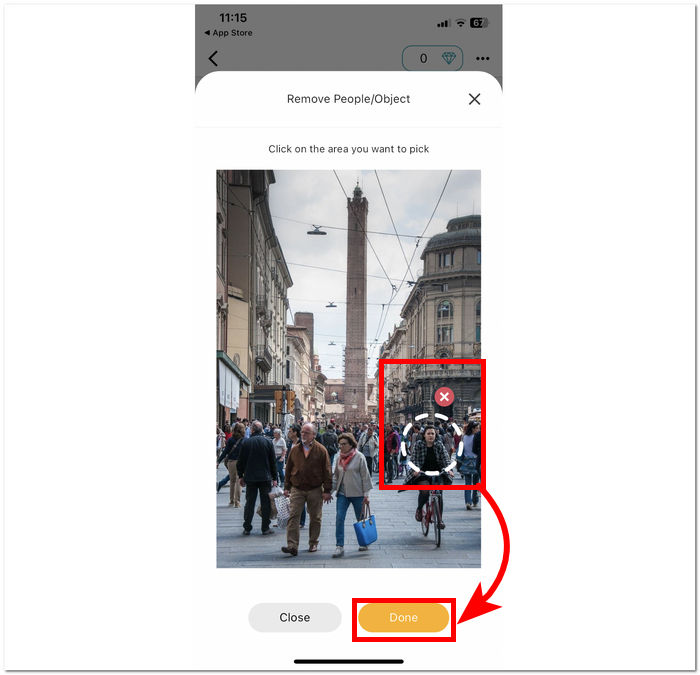
步骤 3. 点击并选中包含你想要移除人物的区域,完成所有不需要物体或人物的选取后,点击“Done(完成)”以确认处理。
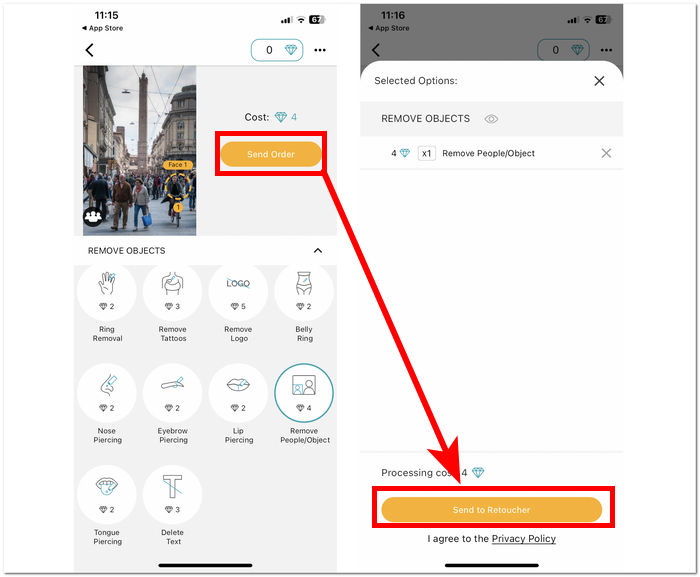
步骤 4. 点击Send Order(提交订单)并支付相应费用,即可完成处理并下载编辑后的照片。
除了能从照片中移除人物之外,Fix The Photo Editor & Retouch 还是一款备受信赖的应用,因为它并非依赖 AI 自动处理,而是由真正的修图师为你优化图片。正因如此,该服务并非完全免费,但你可以通过试用免费体验其服务效果。
相片大师
PhotoDirector 应用程序界面简洁,功能强大,可让您轻松从照片中删除人物或任何不想要的物体。此应用程序可在您的移动设备上快速删除物体,并具有多种效果,允许使用图层编辑照片。此应用程序不仅专注于删除物体,而且其 AI 具有专业级风格,可让此应用程序精确删除和编辑您的照片。
步骤 1. 在 iOS 或 Android 设备上免费下载并打开PhotoDirector应用。
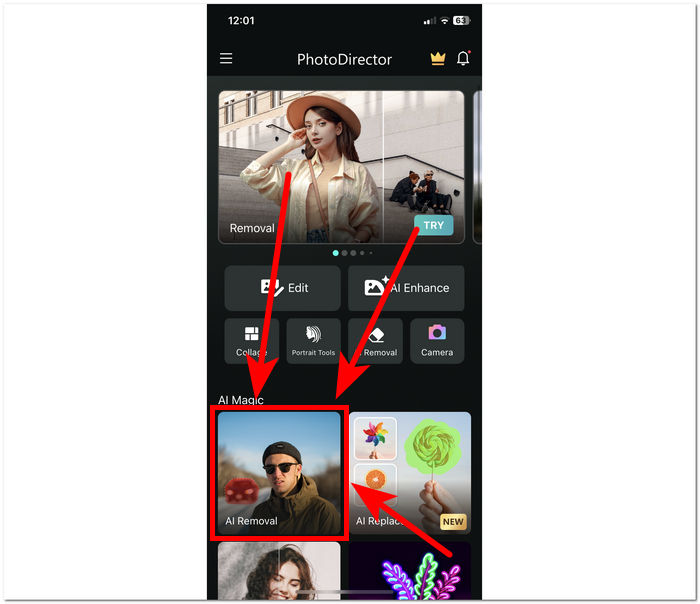
步骤 2. 在应用界面中点击AI Removal(AI 移除),然后选择你想编辑的照片。
步骤 3. 照片加载完成后,手动勾勒出你想从照片中移除的物体或人物。
步骤 4. 当物体或人物被标记为红色后,点击Remove(移除)按钮。处理完成后,点击位于 Remove 按钮下方的勾选图标,即可将编辑好的图片保存到手机相册中。
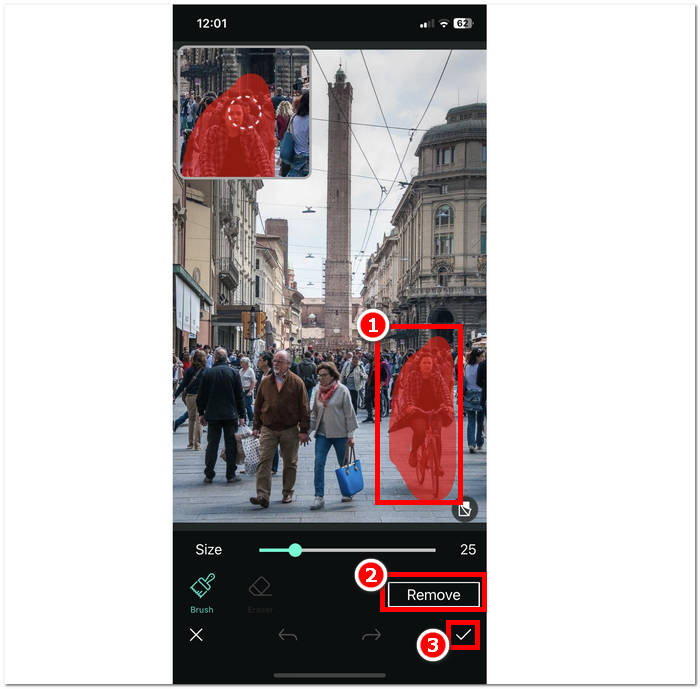
PhotoDirector 应用程序具有多种便捷功能,让用户有理由选择该应用程序来完成除删除人物之外的其他任务。诸如如何从 iPhone 上的照片中删除人物之类的问题?当此应用程序擅长轻松删除不需要的对象时,这不是问题。应用程序中功能的变化有时会影响性能,因为它会阻碍处理速度。
移除不需要的对象
这款应用可轻松从照片中删除不想要的人物,让您轻松删除不想要的人物。删除不想要的人物不仅可以删除人物,还可以删除照片中的物体、贴纸和文字。这款应用可在 Android 设备上免费下载,界面简单易懂,非常适合新手使用。
步骤 1. 在 Android 设备的 Play 商店中下载并打开Remove Unwanted Object应用。
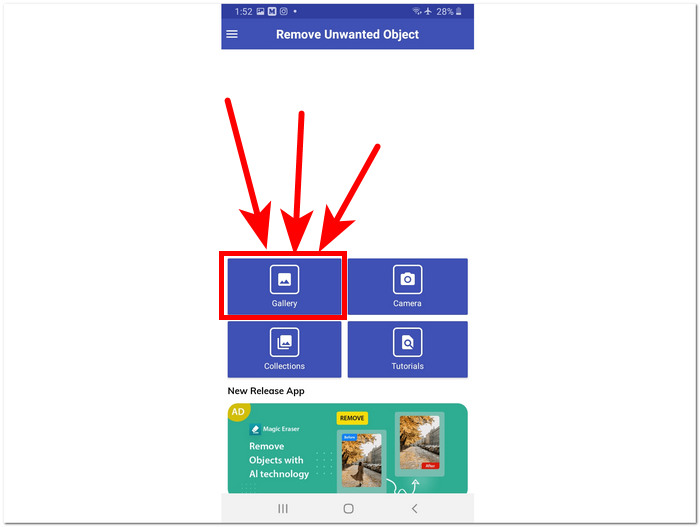
步骤 2. 进入应用界面后,点击界面中的Gallery(相册)图标,选择你要编辑的照片。
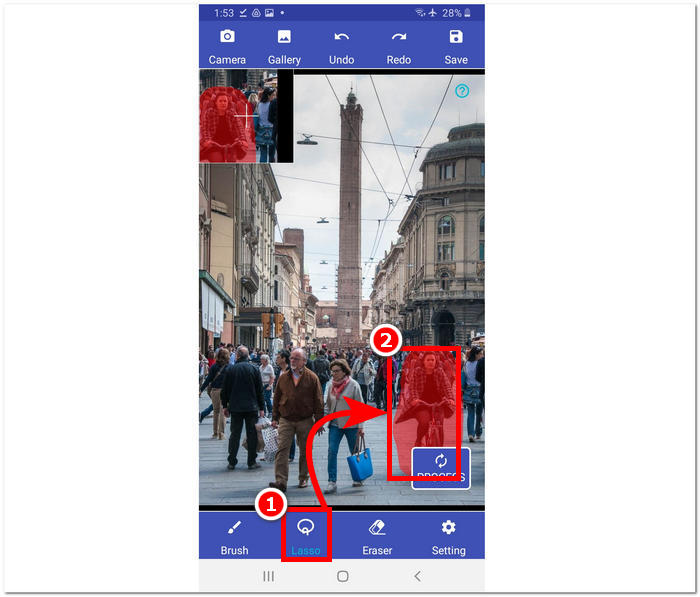
步骤 3. 照片加载到应用后,点击界面底部的Lasso(套索)工具,然后勾画出你希望移除的人物或物体区域。
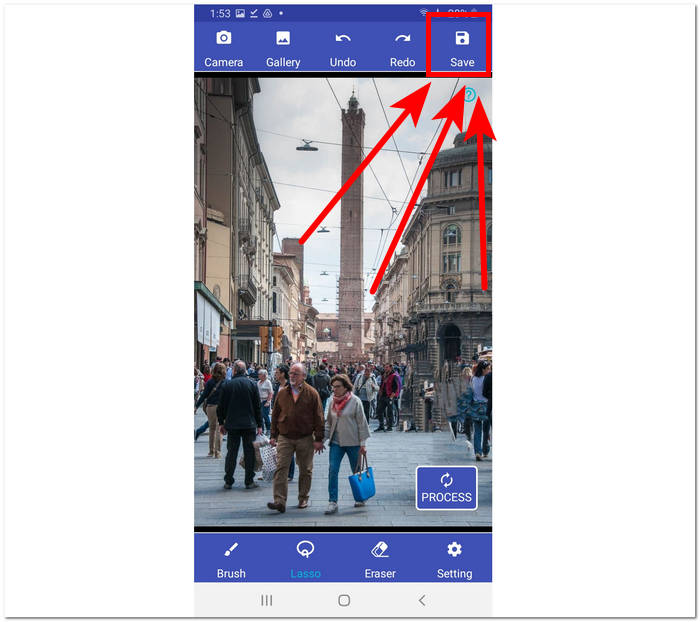
步骤 4. 点击Process(处理)按钮移除选中的区域,然后点击右上角的保存按钮,将处理好的照片下载到手机相册。
移除不需要的对象提供了移除不需要的对象的一种简单解决方案。但是,需要注意的是,该应用程序带有广告,这可能会影响用户体验。
修饰 - 移除对象
您可以在移动设备上免费下载 Retouch - Remove Objects,它提供一系列强大的功能。这款创新的应用程序利用尖端的人工智能技术以及精确的画笔工具,使对象移除比以往更加轻松高效。凭借其直观的界面和快速的结果,实现无缝编辑从未如此简单。
步骤 1. 在 Android 设备上下载Retouch - Remove Objects应用,安装完成后打开应用。
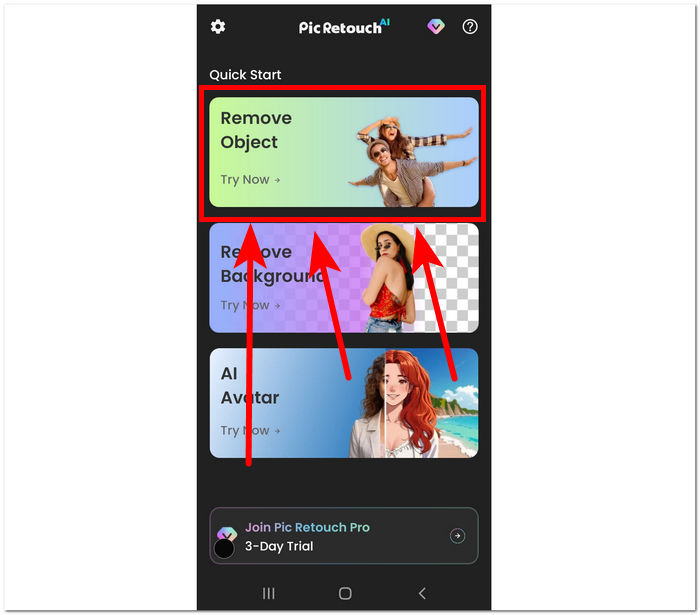
步骤 2. 在应用界面中点击Remove Object(移除物体)功能,从相册中选择你要编辑的照片。
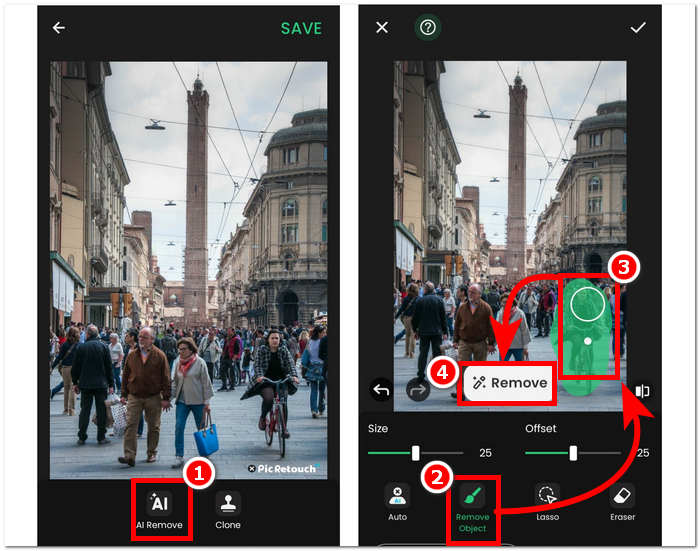
步骤 3. 照片上传到应用后,点击AI Remove(AI 移除)选项。在界面底部选择“Remove object(移除物体)”,然后沿着你希望移除的物体或人物勾画轮廓,最后点击“Remove(移除)”按钮开始处理。
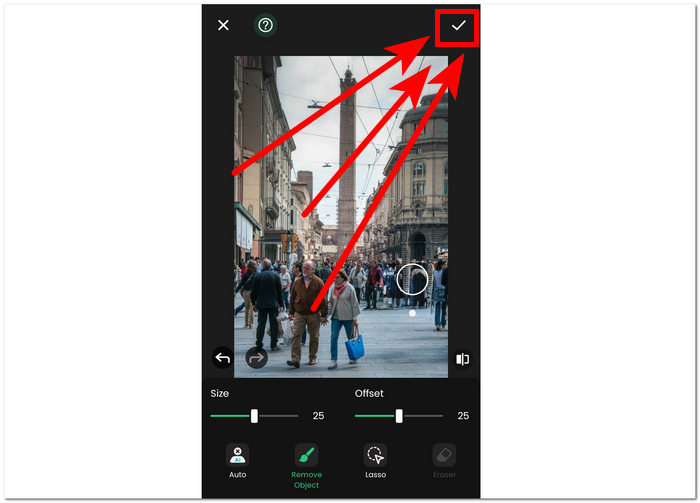
步骤 4. 处理完成后,点击右上角的勾选图标,将编辑后的照片保存到你的相册中。
Retouch - Remove Objects 是一款可在 Android 设备上免费使用的应用,使用时会在界面中显示广告。尽管如此,该应用在物体移除、背景移除、表情符号移除以及 AI 头像生成等任务上依然提供了十分简洁直观的操作方式。
第 3 部分。有关从照片中删除人物的常见问题解答
iPhone 有对象橡皮擦吗?
不,iPhone 的最新型号没有内置对象橡皮擦功能。但是,您可能需要检查并研究可用的第三方应用程序,它们提供类似的功能来从照片中删除对象。
是否可以使用 Photoshop 把照片中的人物抹去?
是的,可以使用 Adobe Photoshop 或其他照片编辑软件将人物从照片中移除。通过仔细选择和编辑人物周围的区域,您可以无缝地将其从图像中移除,同时保持背景的完整性。
iPhone 的剪切功能会保留整个背景吗?
iPhone 的剪切功能在某些编辑应用中可用,通常旨在去除背景的同时保持主体完整。然而,能否成功保留整个背景取决于背景的复杂性和剪切工具的精确度等因素。
从照片中去除人物很难吗?
难度取决于背景的复杂程度、照片的质量以及用户的编辑技巧等因素。但是,只要使用正确的工具和技术,就可以获得无缝的结果。
我可以从集体照中删除多个人吗?
是的,您可以使用与删除单人照片相同的技术从合影中删除多个人。但是,这可能需要更多时间和精度才能确保最终结果看起来天衣无缝。
结论
总之,从照片中移除人物为修复与提升珍贵照片带来了无限可能。无论你选择使用在线工具还是手机应用,这一过程都为你打造更干净、更具吸引力的图片提供了便捷途径。只要手边有合适的工具,你就能轻松获得接近专业水准的效果,让照片始终聚焦在真正重要的主体上。不妨尝试本文介绍的各种方案,开启你的图片清理与美化之旅,打造干净、惊艳、无干扰的视觉作品。
-
 排名前 9 的图像背景去除工具,可快速获得准确的结果
 体验性能最佳的背景图像擦除器的快速和准确性。告别复杂的背景去除器,立即采用九种高效方法!
-
 如何在 Windows/Mac/在线上从图像中删除文本
 告别图像中分散注意力的文字!探索如何使用这些专为文本删除而设计的流畅解决方案从图像中删除文本。
-
 如何从图片中删除背景:无忧工具
 发现六种工具,轻松去除任何图像的背景。告别复杂的编辑,轻松擦除图像背景!
