


 视频转换大师
 屏幕录影大师
 视频修复
视频修复从 Photoshop 图像中删除文本的 3 种方法
在图像中添加文本可以显着提升沟通和创造力,使其更直观、更轻松地传达信息。然而,可能会出现由于各种原因而必须删除文本的情况。无论您是使用 Photoshop 等专业级工具、选择 PicsArt 的多功能性,还是探索 FVC 在线水印去除器等在线解决方案。不用担心,本文旨在帮助您有效地从图像中消除文本,无论是对于软件还是基于网络的工具。
在思考如何从图片中去除文字吗?本文分章节为你提供针对各个平台的逐步图文操作指南,帮助你轻松掌握整个流程,从而顺畅完成操作并获得精美的视觉效果。继续阅读本文即可快速移除文字,体验便捷的文字去除过程,全面提升你的视觉内容质量!

第 1 部分:如何在 Photoshop 中从图像中删除文本
Adobe Photoshop 被誉为强大的图像编辑工具。在 Photoshop 中从图像中删除文本时,记住处理重复图层等至关重要。这可确保保留原始图像,使您可以在不更改源文件的情况下进行试验和更改。但在本例中,您将学习 Photoshop 中内容识别填充工具的功能,以从图像中删除不需要的文本。
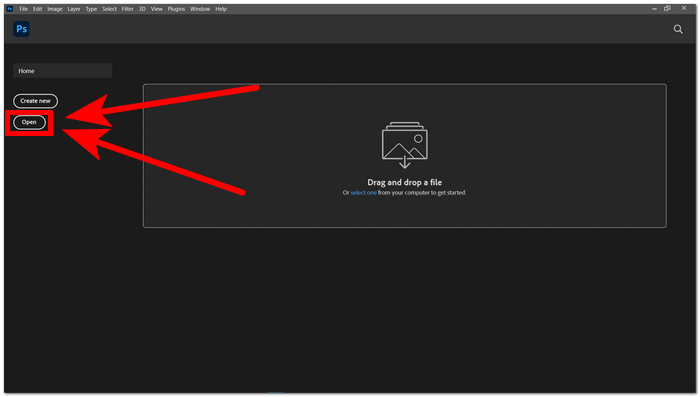
步骤 1. 在桌面上打开 Adobe Photoshop。如果你还没有安装该软件,可以前往其官方网站进行下载和安装。安装完成后,启动软件,在界面中打开你想要移除文字的图片。
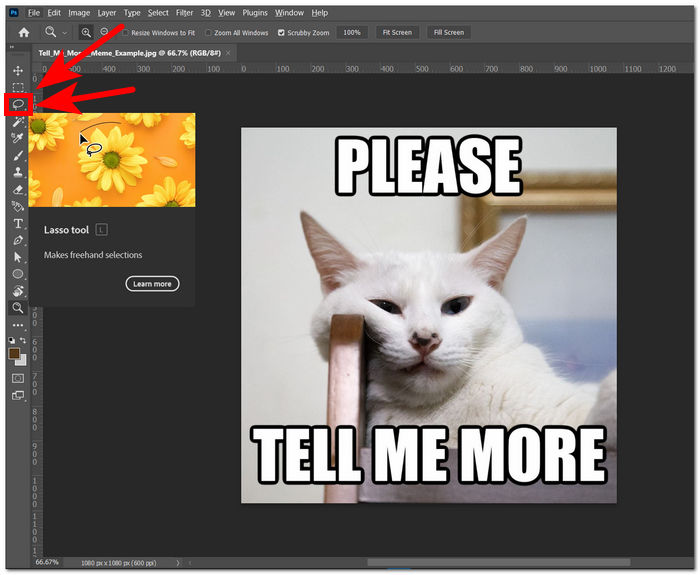
步骤 2. 当图片成功载入软件后,在左侧工具栏中选择套索工具(Lasso Tool)。
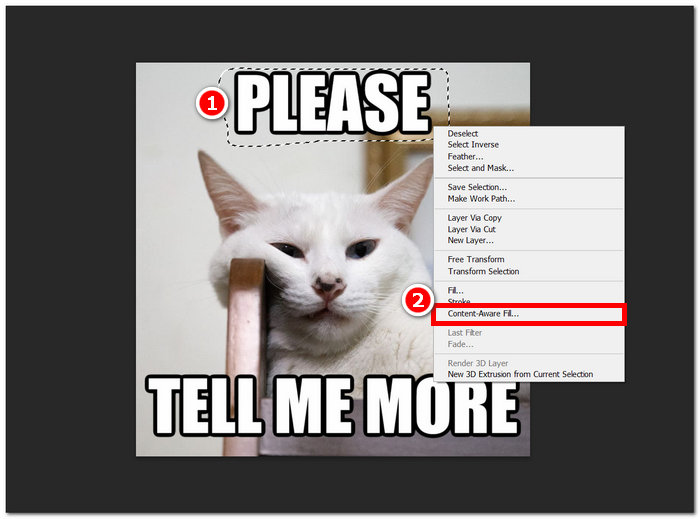
步骤 3. 使用套索工具勾勒或圈出图片中你不想要的文字。选中不需要的文字后,右键单击,在选项中选择内容识别填充(Content-Aware Fill)。
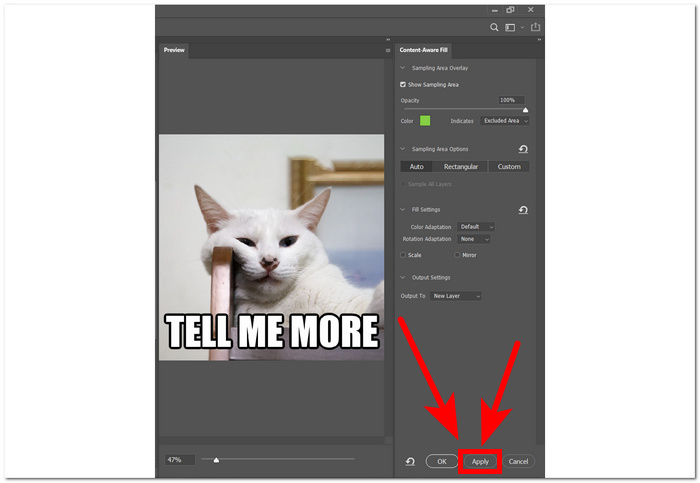
步骤 4. 选择内容识别填充后,你可以预览移除文字后的效果。若对结果满意,点击应用(Apply)以保存更改。
在 Photoshop 中执行这一预防性步骤,体现了专业的图片编辑态度,为你的创意探索提供了安全且灵活的环境。此外,在移除文字后,你还可以使用 Photoshop 更换图片背景。
第 2 部分:如何在线删除图像中的文本
思考如何免费从图像中删除文本的问题? FVC Online Watermark Remover 是一款基于 Web 的文本或水印去除工具,可快速删除图像中不需要的文本,并且是免费的。该工具支持最有可能在任何图像中使用的格式。该工具与人工智能集成,可以快速、安全地从图像中删除文本,从而实现结果的准确性。
步骤 1. 访问 FVC 在线水印去除工具官方网站。
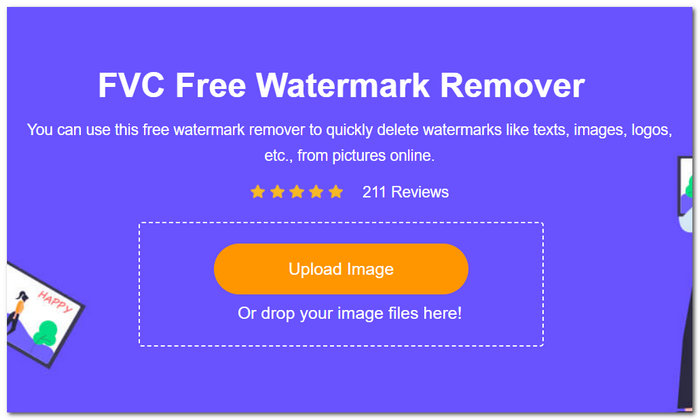
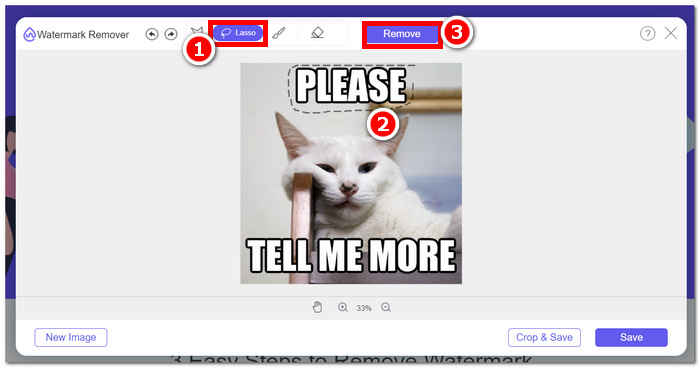
步骤 2. 在网站中,将图片上传到上传图片区域。图片上传完成后,选择位于屏幕上方的套索(Lasso)工具,用该工具沿着你想要移除的文字描绘一圈。
步骤 3. 描绘完不需要文字的区域后,点击移除(Remove)按钮,即可自动从图片中抹除文字。
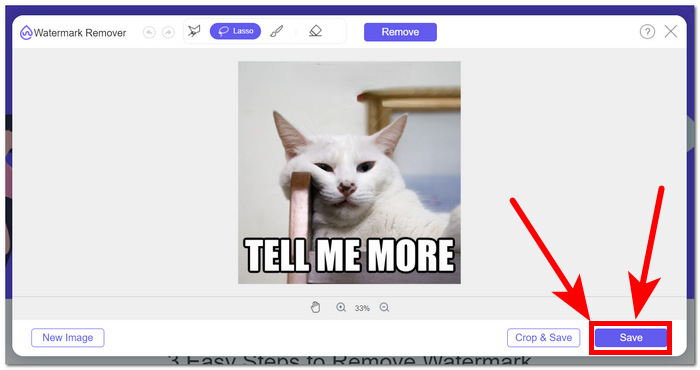
步骤 4. 工具完成对文字的去除后,点击保存(Save),将处理好的图片下载到你的电脑。
总之,像 FVC Online Watermark Remover 这样的在线工具对于数字编辑领域的新手以及想要删除文本而无需下载软件和使用大量工具的人来说是一个很大的帮助。也就是说,使用方便、节省时间的工具才是正确的。这是使用在线工具的优点之一。
第 3 部分:如何使用 Adobe Illustrator 从图像中删除文本
Adobe Illustrator 主要被认为是矢量图形编辑器,具有将其实用性扩展到特定图像编辑任务的多功能性。这将其适用性扩展到矢量图形领域之外。特别是,当遇到文本和矢量元素交织在一起的图像时,Illustrator 被证明非常有用。矢量和文本编辑功能的无缝集成使用户能够在单个平台内处理不同的设计元素。这使得 Illustrator 成为那些需要图形精度和文本元素相结合的项目的人的首选。
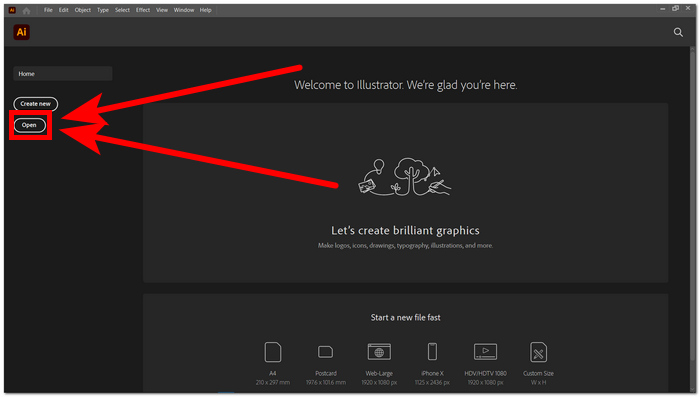
步骤 1. 在 Adobe Illustrator 中打开你的图片。如果你还没有 Adobe Illustrator,请先前往其官方网站下载并安装。安装完成后,启动软件并载入你的图片。
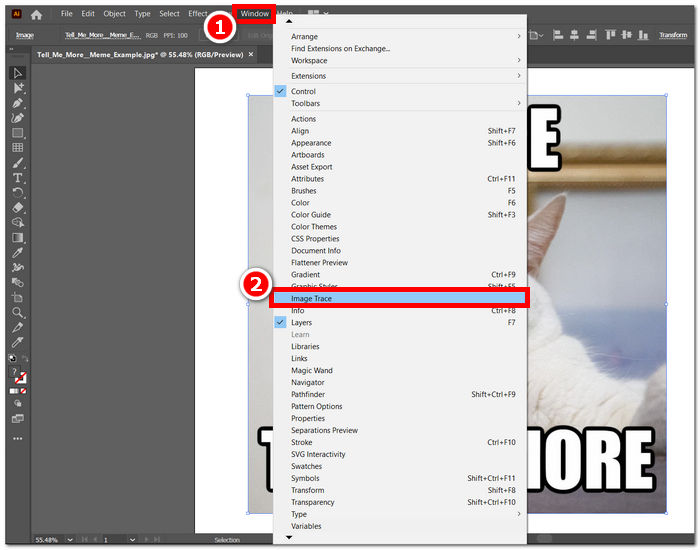
步骤 2. 图片载入后,点击屏幕左上角的窗口(Windows)菜单,在下拉菜单中选择图像描摹(Image Trace)。
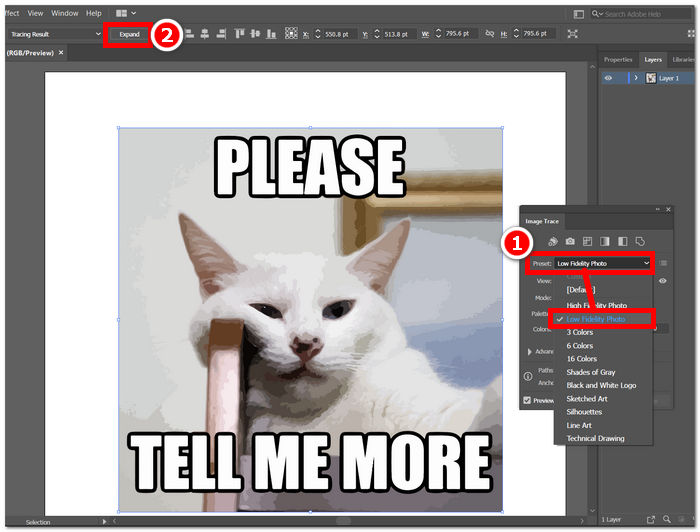
步骤 3. 会弹出图像描摹的设置窗口,在“预设”选项中选择低保真照片(Low Fidelity Photo)。随后,界面左上角会出现“扩展(Expand)”按钮,点击该按钮继续。
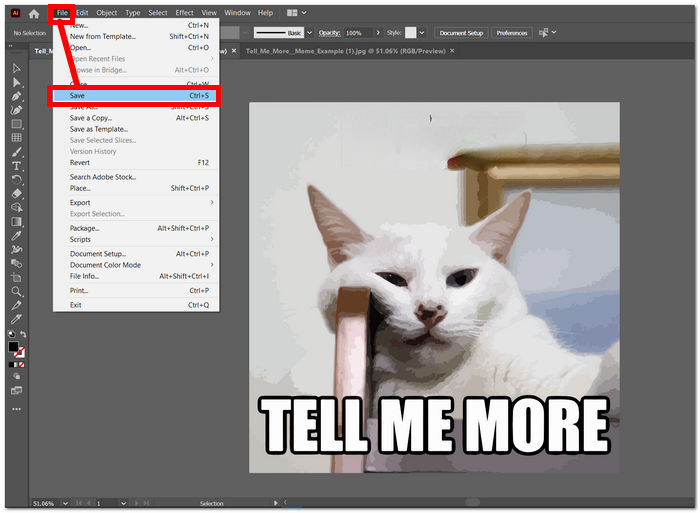
步骤 4. 现在你可以通过双击图片中的具体文字对象,然后按键盘上的Del键,手动删除图片中的文字。将所有文字手动删除完成后,即可将图片保存到电脑中。只需在屏幕左上角点击“文件(File)”,然后选择“保存(Save)”。
在 Adobe Illustrator 中从图片中删除文字并不是它的主要用途,它主要擅长处理矢量图形。你也可以很方便地在 Illustrator 中调整图片尺寸。Illustrator 的优势在于图形和形状的尺寸处理,它无法完全依靠自身彻底抹除或移除图片中的文字,要想彻底去除文字,还需要配合其他 Adobe 软件一起使用。
第 4 部分:如何使用 PicsArt 从图像中删除文本
PicsArt 以其创意编辑多功能性而闻名,是一个移动和基于网络的平台。要使用 PicsArt 消除图像中的文本,用户可以利用其用户友好的功能。用户可以在 PicsArt 应用程序中打开图像,并使用橡皮擦或画笔工具等工具仔细擦除不需要的文本。调整透明度和混合选项可确保无缝结果,从而提高整体图像质量。
步骤 1. 进入PicsArt 在线文字移除工具页面。你可以使用任意本地浏览器来完成此操作。
步骤 2. 网站加载完成后,在“文字移除”区域上传你的图片。
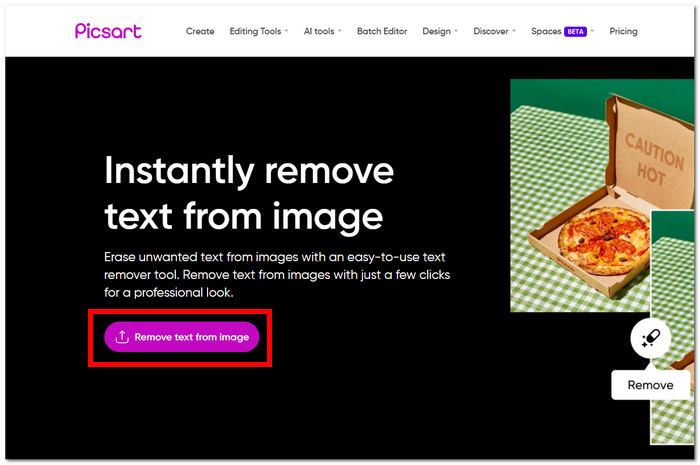
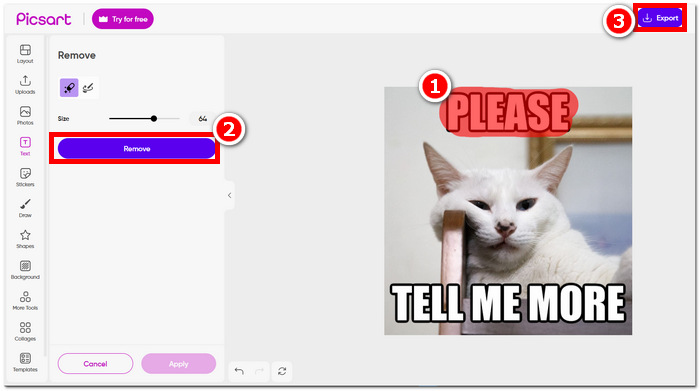
步骤 3. 在工具界面中,选择移除(Remove)工具,通过勾画不需要的文字区域来擦除图片上的文字。
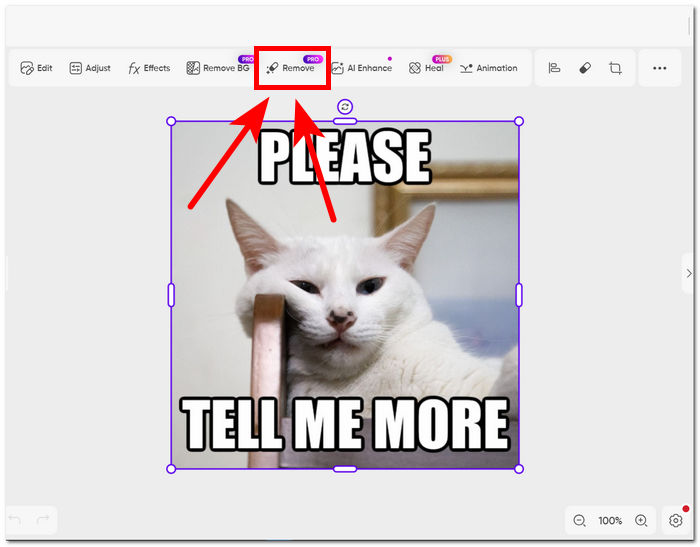
步骤 4. 勾画完需要移除的文字后,点击“Remove”按钮,从图片中删除文字,然后点击导出(Export),将去除文字后的图片保存到你的电脑。
另一方面,该平台可能提供了一种方便而直接的方法来删除图像中的文本;它仍然需要订阅才能完全导出没有 picsart 水印的图像。利用该平台的功能,用户可以获得干净、优美的图像,而不会破坏不需要的文本。
第 5 部分:有关从图像中删除文本的常见问题解答
可以从 iPhone 上的图像中删除文本吗?
是的,您可以使用 TouchRetouch 或 Adobe Photoshop Express 等应用程序从 iPhone 上的图像中删除文本,这两个应用程序都可以在 App Store 上找到。只需安装所选的应用程序,打开图像,然后利用提供的工具即可轻松删除不需要的文本。使用这些用户友好的应用程序增强您的移动编辑体验。
如何从 MS Word 中的图像中删除文本?
在 MS Word 中,从图像中删除文本非常简单:选择图像,导航至“格式”菜单,然后选择“删除背景”。然后,根据需要手动裁剪或调整图像,以消除不需要的文本并达到所需的结果。这个简单的过程允许直接在熟悉的 MS Word 环境中高效地删除文本。
如何在 Illustrator 中删除文本的填充?
要消除 Illustrator 中文本的填充,只需选择文本并导航到“外观”面板即可。从那里,单击不透明度选项并减少它以使文本透明。这个简单的过程使您可以在 Illustrator 中为所选文本实现所需的透明度级别。
如何从图像中删除文字?
从图像中删除文本可以通过 Adobe Photoshop 等照片编辑软件来实现。只需打开图像并使用适当的工具即可无缝删除文本。此过程可以精确有效地从图像中删除不需要的文本。
如何从图片中删除文字而不使其模糊?
要从图片中删除文本而不使其模糊,请使用 Photoshop 等照片编辑软件中的克隆图章或修复画笔等工具。这些功能使您能够将文本无缝替换为周围的背景,从而保持图像的清晰度和完整性。这种方法可确保获得干净且专业的结果,而不会影响整体质量。
结论
无论你是专业的平面设计师,还是日常修图爱好者,掌握如何从图片中移除文字都是一项很有价值的技能。借助 Photoshop、FVC、Adobe Illustrator 和 PicsArt 等工具,你可以根据自己的偏好和工作流程,选择最适合的方式。多多尝试这些方法,就能在不受多余文字干扰的前提下,获得干净、精致的图片效果。
-
 如何使用 GIMP 从图像中删除背景
 开始使用 GIMP 以及从图像中删除背景的分步过程。立即探索使用 GIMP 创建透明图像的有效方法!
-
 使用 GIMP 去除图像水印的好方法
 您必须同意,没有水印的图像更能吸引观众的眼球。阅读这篇文章,了解如何使用 GIMP 去除水印。
-
 Photoshop去除图片文字的方法
 试试这个关于如何在 Photoshop 中从图像中删除文本的惊人技术。这将帮助您成为删除这些不需要的元素的专家。
