


 视频转换大师
 屏幕录影大师
 视频修复
视频修复
 安全下载
安全下载如何轻松将 MP3 转换为 iPhone 上的铃声
你是否觉得 iPhone 自带的默认铃声并不是你的菜,并希望能把某个 MP3 文件设成 iPhone 铃声?如果我们告诉你,其实完全可以在 iPhone 上把 MP3 转换成铃声,你会不会很心动?
在本文中,您将了解将 iPhone 上的 MP3 音乐文件转换为铃声的 3 种不同方法。转换它们有点棘手,但使用正确的工具和方法,我们可以让这一切变得尽可能简单和方便。您还在等什么?让我们开始吧!

第 1 部分。在 Mac/Windows 上将 MP3 转换为 iPhone 铃声
在 Windows 或 macOS 电脑上使用 FVC 精选的 Video Converter Ultimate,是将 MP3 转换为 iPhone 铃声最简单、最快捷的方法之一。这个一体化转换工具支持多达 300 种格式,其中就包括 M4R 格式,因此非常适合把 MP3 音乐文件转换成 iPhone 铃声。此外,该转换器的转换速度最高可比其他工具快 120 倍,让你的转换过程既快速又省心。
以下是使用 FVC 精选的 Video Converter Ultimate 将 MP3 转换为铃声的步骤:
步骤 1:首先在电脑(Windows 或 Mac)上下载并安装此工具。
步骤 2:启动工具,在主界面上点击 添加文件(Add Files) 按钮。然后导入你想要转换为 iPhone 铃声的 MP3 文件。
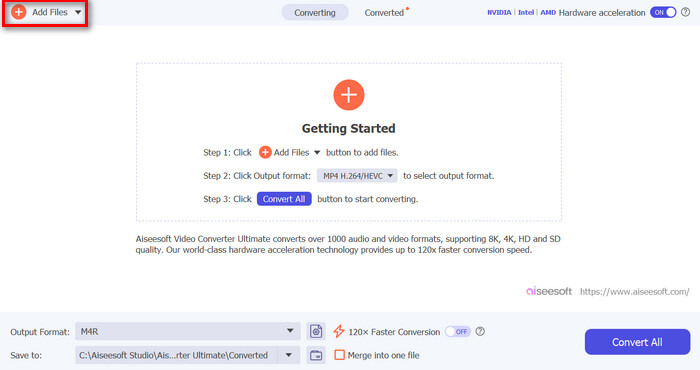
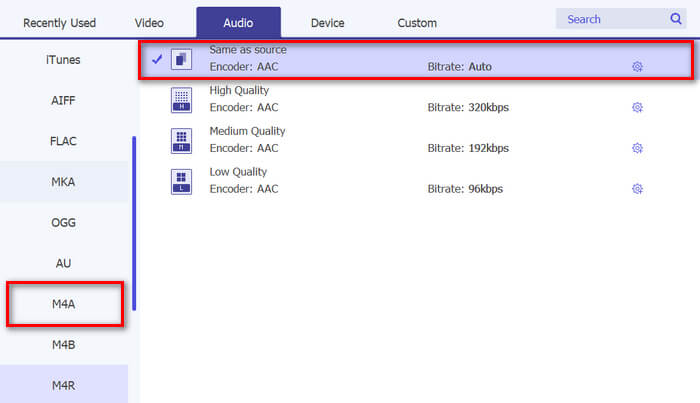
步骤 3:接着,前往 输出格式(Output format) 选项,从众多音频格式中选择 M4R。M4R 是 iPhone 铃声使用的文件格式。
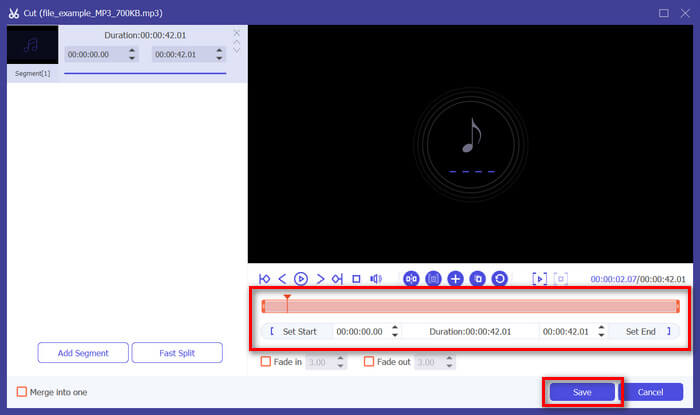
步骤 4:然后,确保你的 MP3 文件时长不超过 30 秒。如果超过了这个时长,点击 剪辑(Cut) 按钮,通过拖动时间轴上的进度条或手动将结束时间设为 30 秒来调整音频长度。
步骤 5:现在点击 全部转换(Convert All) 按钮,开始将 MP3 文件转换为 iPhone 铃声。转换完成后的文件会直接保存到你电脑上的目标文件夹中。
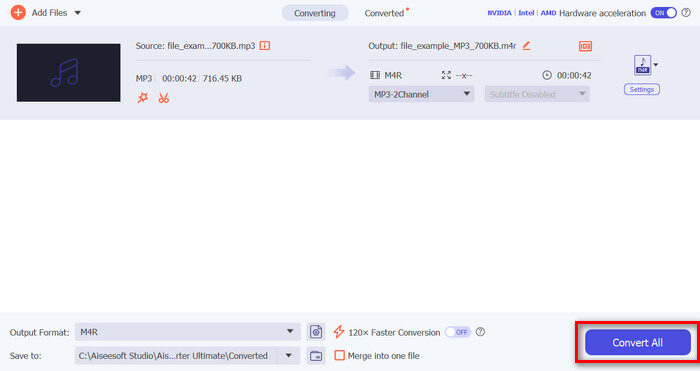
真快,对吧?这款 FVC 精选的 Video Converter Ultimate 工具让 MP3 轻松快速地转换为 iPhone 铃声,这真是令人难以置信。因此,如果您正在寻找一款可以节省时间的转换工具,请立即试用此工具。
第 2 部分。在 iPhone 上将 MP3 转换为铃声
如果您更喜欢不使用电脑的直接方法,GarageBand 提供了一种方便的解决方案,可以直接在 iPhone 上将 MP3 转换为铃声。此工具是一款功能强大的音乐创作应用程序,大多数 iPhone 上都预装了该应用程序。此工具不仅用户友好,还提供各种功能来有效地自定义您的音频文件。
以下是使用 GarageBand 将 MP3 转换为铃声的步骤:
步骤 1:首先在 iPhone 上启动 GarageBand 应用。如果你尚未安装,请前往 App Store 下载并安装。
步骤 2:点击 工程(Project) 图标,然后点击右上角附近的 循环(Loop) 图标。
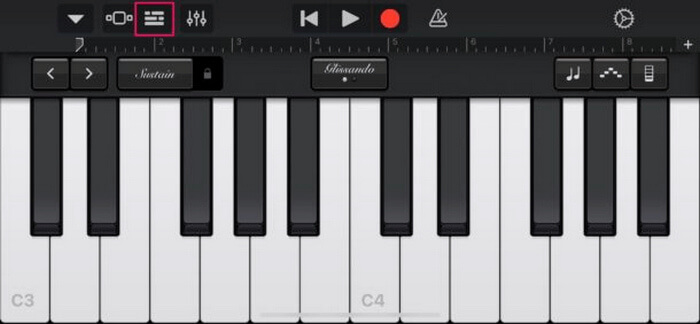
步骤 3:接着,点击 音乐或文件(Music or Files) 以选择 MP3 文件,长按该文件将其导入 GarageBand。
步骤 4:导入后,点击音轨并拖动两端以裁剪音频。请确保铃声时长少于 30 秒。
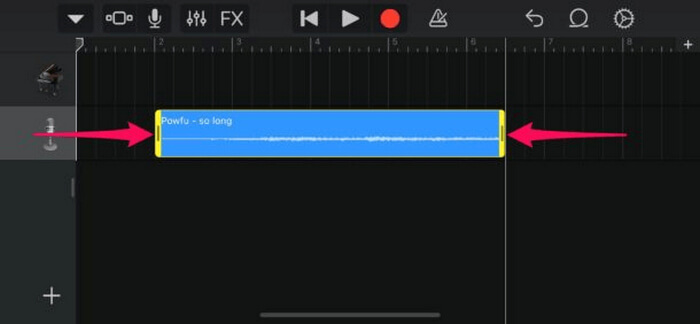
步骤 5:你会在左上角看到向下的箭头图标。点击它,然后选择“我的乐曲(My Songs)”以保存剪辑。
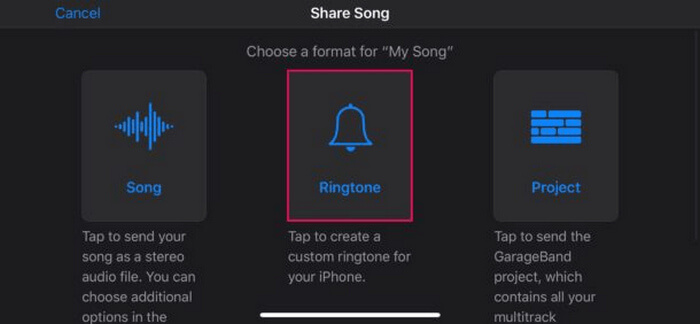
步骤 6:找到你刚刚制作的剪辑,长按它,点击 共享(Share),再选择 铃声(Ringtone) 选项。别忘了为铃声命名,然后点击 导出(Export)。
步骤 7:要在 iPhone 上使用转换好的 MP3 文件作为铃声,点击“用声音作为(Use Sound As)”,即可将其设为默认来电或为特定联系人设定来电铃声。你也可以前往 设置(Settings) → 声音与触感(Sounds & Haptics) → 铃声(Ringtone) 中更改 iPhone 的铃声。
如果您更喜欢将 MP3 文件直接转换为 iPhone 上的铃声,这种方法非常适合您。但是,新用户需要一些时间来学习,因为它包含复杂的功能,一开始可能会让他们不知所措。
第 3 部分。将 MP3 转换为 iPhone 铃声 [在线免费]
如果你更喜欢使用免费的在线方式把 MP3 转换成 iPhone 铃声,那么 FVC Free Audio Converter 就非常适合你。借助该工具,你可以轻松转换各种格式的音频文件,尤其是从 MP3 转为 M4R。它支持 MP3、AAC、AC3、WMA、WAV、AIFF、FLAC、MKA、M4A、M4B 和 M4R 等多种音频格式。此外,由于界面极其直观、简单,这款工具非常适合需要“随时随地”转换音频的用户。
以下是使用 FVC Free Audio Converter 将 MP3 转换为铃声的步骤:
步骤 1:点击“Add Files(添加文件)”按钮,导入你想转换为铃声的 MP3 文件。
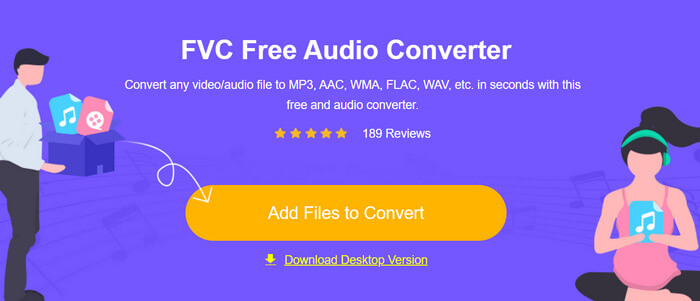
步骤 2:选择 M4R 作为音频输出格式。
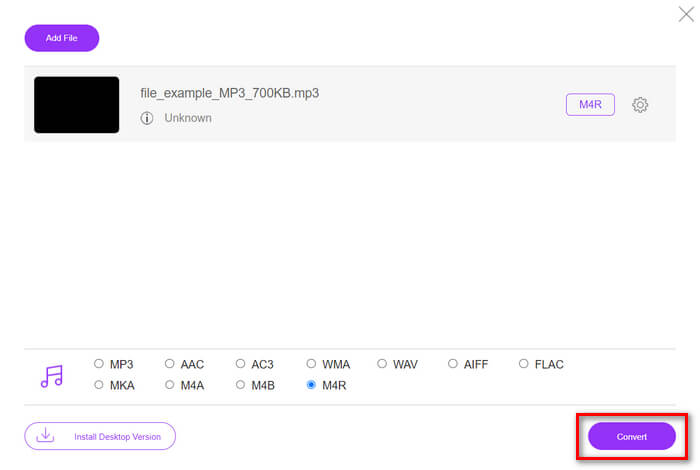
步骤 3:最后,点击 Convert(转换) 按钮,开始将 MP3 文件转换为铃声。转换完成的文件会直接保存到你的电脑。
如果你在寻找一种免费的在线方式,将 MP3 转换为 M4R iPhone 铃声,那么 FVC Free Audio Converter 是一个非常理想的选择。其直观的界面大大简化了转换流程,并支持多种音频格式,确保能够兼容不同类型的音频文件。
第 4 部分。如何将转换后的铃声从计算机传输到 iPhone
现在您终于可以在计算机上将 MP3 文件转换为铃声,将它们传输到 iPhone 的最快方法就是使用 iTunes。
以下是通过 iTunes 将转换好的铃声传输到 iPhone 的方法:
步骤 1:在电脑上打开 iTunes,用 USB 数据线连接你的 iPhone。
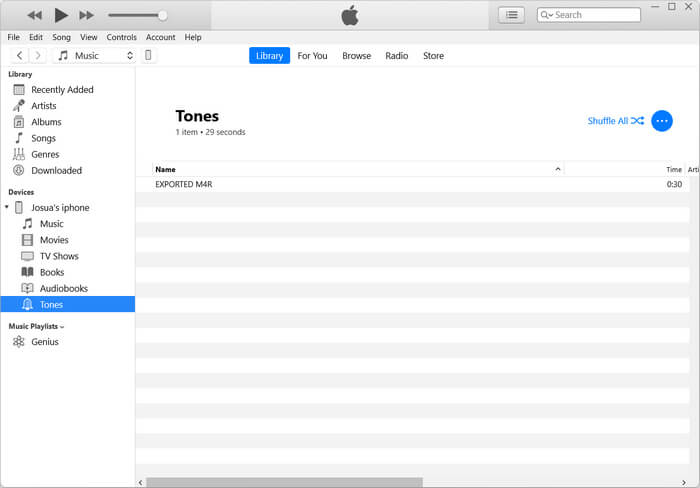
步骤 2:将转换后的铃声文件拖入 iTunes 媒体库,确认它出现在“铃声(Tones)”栏目下。
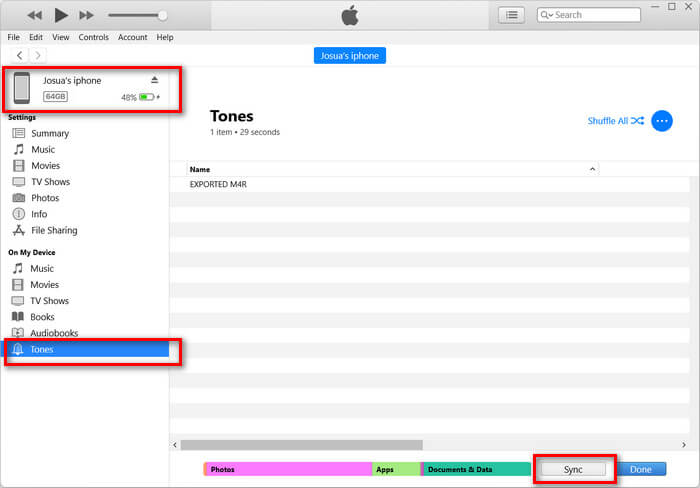
步骤 3:在 iTunes 中选择你的 iPhone 图标,进入 铃声(Tones) 选项卡,勾选 同步铃声(Sync Tones)。然后选择你导入的铃声文件,点击“应用(Apply)”进行同步。
步骤 4:现在,在你的 iPhone 上进入“设置”,选择“声音与触感”,点“铃声”,再选中你新的铃声即可。
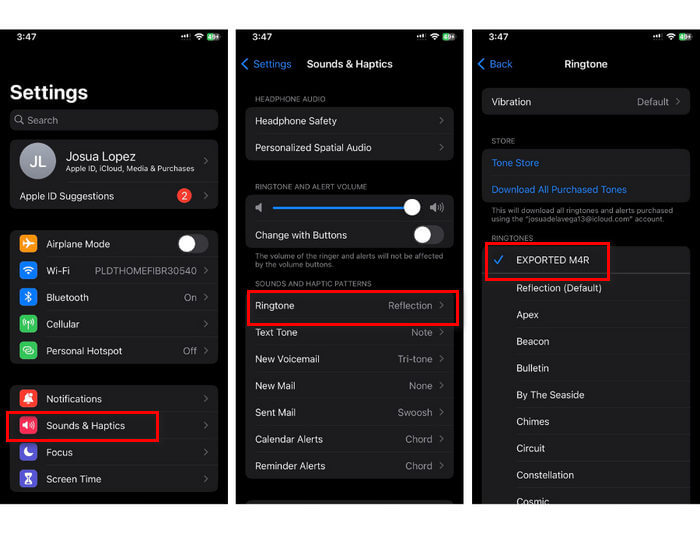
就是这样。现在您可以轻松传输并使用转换后的 MP3 铃声作为 iPhone 铃声,让您的设备拥有您喜爱的声音的个性化色彩。
第 5 部分。关于将 MP3 转换为铃声的常见问题
最好的免费铃声网站是什么?
许多网站都提供免费铃声,但一些流行且可靠的网站包括 Zedge、Mobile9 和 Tones7。这些网站提供各种铃声,您可以下载并在手机上使用。
MP3 转 iPhone 铃声是什么格式?
iPhone铃声格式为M4R,将MP3文件转换为iPhone铃声时,必须保存为M4R格式。
如何将 MP3 添加到 iPhone 铃声?
要将 MP3 添加到 iPhone 铃声,您必须先使用转换工具(如 FVC 精选的 Video Converter Ultimate)将 MP3 文件转换为 M4R。转换 MP3 文件后,使用 iTunes 将其传输到 iPhone 并将其用作新铃声。
结论
现在,你可以使用自己喜爱的 MP3 文件来为 iPhone 制作铃声了。只要选择最符合你需求的转换工具即可。每一种方法都能让你轻松地把 MP3 转换成 iPhone 铃声。还在等什么?立刻动手制作属于你的专属铃声,让你的 iPhone 真正体现你的个人风格吧!
-
 MOV VS MP4 –您选择哪一个?
 MOV VS MP4,哪个更好?这篇文章讲述了MP4和MOV之间的区别,以便您可以更好地选择用于视频文件。
-
 FLAC 与 MP3:哪种音频文件格式占主导地位
 这篇文章将比较 FLAC 与 MP3 之间的主要区别。这包括它们的音质、文件大小、兼容性等。
-
 如何将 MP3 转换为 M4A 以提高音质
 借助我们的专家提示和技巧,将 MP3 转换为 M4A,从而提高音乐文件的质量。我们的指南提供分步说明和推荐的软件。
