


 视频转换大师
 屏幕录影大师
 视频修复
视频修复
 安全下载
安全下载使用 3 种有效方法将 PPT 转换为 MP4
无论是在学校、工作等场合,PPT 都是进行演示的绝佳工具。有时,演示结束后,有些人可能会要求提供一份 PPT 材料的副本以供参考。
然而,必须承认的是,有些人无法访问该文件,因为他们的设备上没有安装应用程序或软件工具。有了这个,大多数演示者都有转换后的 MP4 版本的演示文稿,可以轻松地与所有人共享材料。
所以,如果你正在寻找一种方法将你的PPT 转换为 MP4,以便快速分享并让他人更方便地查看文件内容,那么你就来对地方了。继续阅读本文,深入了解将 PPT 文件转换成视频的三种不同方法。

第 1 部分:如何在 PPT 中将 PowerPoint 转换为 MP4
使用 PowerPoint 演示文稿,用户可以轻松将 PPT 转换为 MP4。这是一项非常方便和灵活的内置功能。
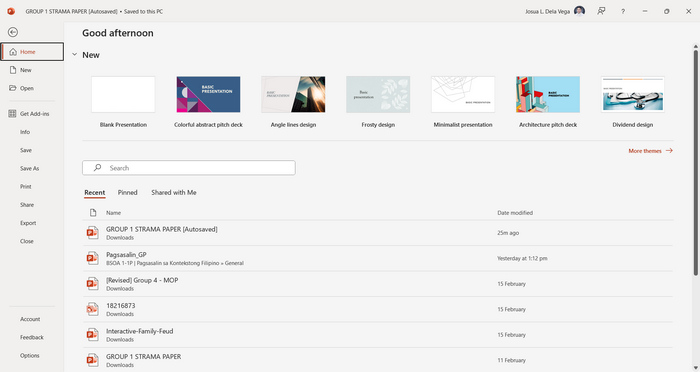
步骤 1:在你的设备上使用 PowerPoint 演示文稿软件打开你的演示文稿。
步骤 2:进入 文件(File) 选项卡,找到 导出(Export) 按钮并点击。
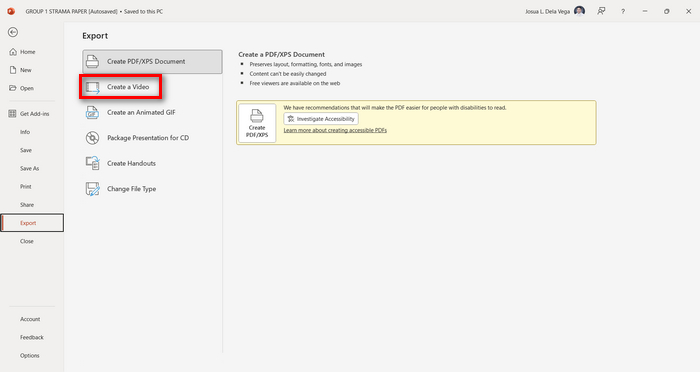
步骤 3:进入 导出(Export) 选项卡后,点击 创建视频(Create a Video) 选项。
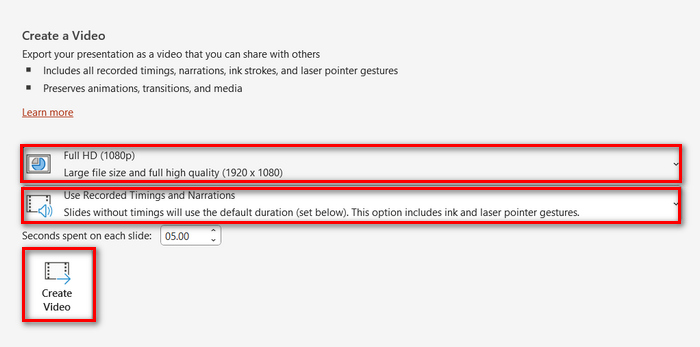
步骤 4:设置你偏好的视频分辨率,你可以在 480p 到 4K 之间进行选择。同时,在 使用录制的计时和旁白(Use Recorded Timings and Narrations) 选项中,你可以手动设置每一张幻灯片的播放时间。完成后,点击 创建视频(Create Video) 按钮。
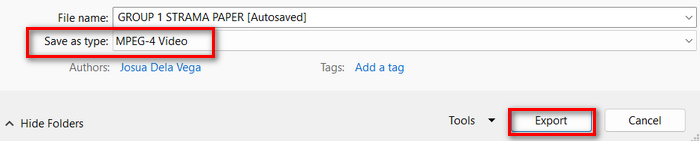
步骤 5:点击 创建视频(Create a Video) 按钮后,会弹出一个新窗口,你可以在其中检查文件导出格式以及选择保存位置。设置完成后,只需点击 导出(Export) 按钮,并等待转换完成。
使用 PowerPoint 内置功能将 PowerPoint 转换为 MP4 的确很方便。不过,如果你想添加背景音乐等更多自定义效果,它就略显不足了。不过,如果你的目的只是为了方便分享,那这点限制对你来说并不成问题。
第 2 部分:免费在线将 PPT 转换为带音频的 MP4
如果您有 PPT 文件,并且由于您的设备上没有 PowerPoint 演示软件应用程序或工具而想要在线转换它,则可以使用 MagicSlides。此在线转换器工具允许您轻松地将 PowerPoint 转换为 MP4,只需将文件导入他们的系统即可。
步骤 1:点击 Upload your source file(上传源文件) 按钮,上传你想要转换为 MP4 的 PPT 文件。
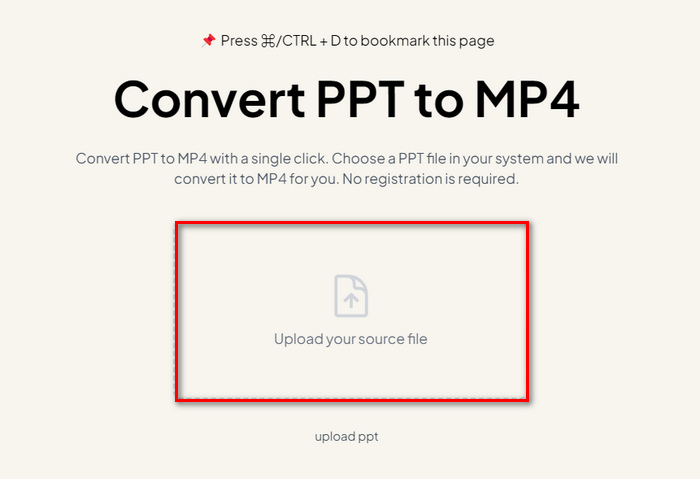
步骤 2:文件导入完成后,点击 Create MP4 按钮开始转换过程。
步骤 3:转换完成后,你可以先预览转换好的 PPT 文件,如果对结果满意,直接点击 Download 按钮将其保存到你的设备。
虽然此工具提供了将 PPT 转换为 MP4 的非常简单的步骤,但导入 PPT 文件需要花费大量时间,这可能会令人不安,尤其是在您匆忙的时候。此外,它没有任何自定义选项。它只是将 PPT 文件转换为视频。
第 3 部分:如何将 PPT 转换为具有效果和音频的 MP4
如果你想把 PPT 转换成 MP4,同时还要添加特效和音频,那么这一方法非常适合你。借助 FVC Screen Recorder,你可以利用其编辑功能,将 PowerPoint 演示文稿制作成创意十足、互动性更强的 MP4 视频。此外,你完全不用担心画质问题,因为它最高支持 4K 分辨率输出。要使用此工具,请按照下面的步骤操作:
步骤 1。首先,下载该软件工具并将其安装在你的电脑上。
步骤 2:打开你的 PowerPoint 演示文稿,并确保将其切换为全屏播放模式。
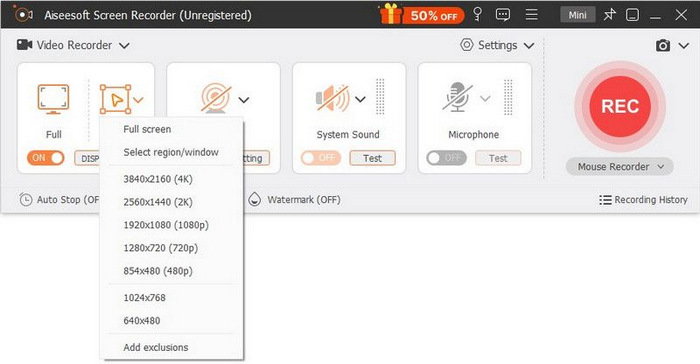
步骤 3:在录屏工具中选择 视频录制(Video Recorder) 功能,并将录制区域设置为 全屏(Full)。
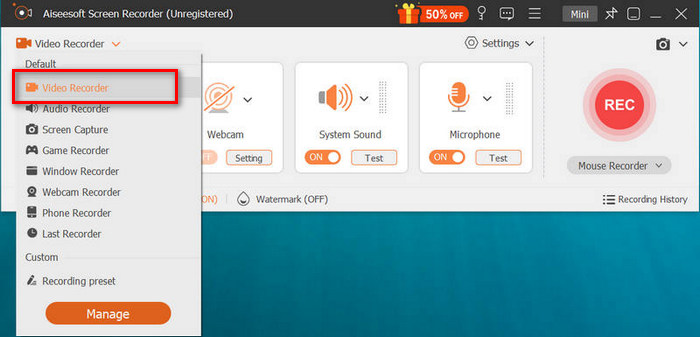
步骤 4:随后,开始播放 PowerPoint 幻灯片。同时,点击 REC 按钮开始录制你的 PowerPoint。
步骤 5:录制完成后,点击 停止(Stop) 按钮,工具会跳转到预览界面。在界面底部角落,你可以找到编辑功能,用于在将 PPT 转换为 MP4 时进一步编辑音频和效果。

步骤 6:最后,点击 打开文件夹(Open Folder) 按钮就可以访问已保存的视频文件。
使用 FVC 屏幕录像机将 PowerPoint 转换为 MP4 的好处是,您可以控制幻灯片的时间和节奏。此外,与其他仅提供基本转换的工具不同,此工具具有编辑功能,可用于进一步增强转换后的 MP4 文件。
第 4 部分:有关将 PPT 转换为 MP4 的常见问题解答
将 PPT 转换为 MP4 需要多长时间?
转换过程的时间取决于转换文件的大小。但通常简单的演示文稿在转换过程中不会花费太多时间。
在PPT中将PPT转换为MP4时可以保留动画和过渡吗?
是的。内置功能允许用户在转换过程中保留动画和过渡。这是为了确保在转换为 MP4 格式时保留演示文稿中的视觉元素(例如过渡和动画)。但是,需要注意的是,动画和过渡的兼容性可能会因使用的 PowerPoint 版本和应用效果的复杂性而异。
转换为 MP4 后,我的 PowerPoint 演示文稿的质量会保留吗?
是的。PowerPoint 演示文稿支持高达 4K 的视频分辨率。因此,选择更高的分辨率将有助于保持演示文稿的质量。此外,当您选择使用一些高级转换器工具将 PPT 转换为 MP4 时,这些工具提供调整比特率和压缩设置的选项以进一步优化视频质量,您可以保证高质量的输出。
结论
将PPT 转换为 MP4格式,确实能大大提升文件在不同平台和设备上的分享便利性和可访问性。现在你已经了解了多种转换方法,是时候把这些知识付诸实践了。立即开始转换,让你的演示文稿获得更广的传播范围和更强的展示效果吧!
-
 如何在 PowerPoint 中调整图片大小 [更改大小的最快方法]
 学习如何在 PowerPoint 中调整图片大小至关重要,尤其是如果您想在演示文稿中使用它。阅读本文以了解如何操作。
-
 Apowersoft Watermark Remover 评测 – 功能、优缺点和价格
 Apowersoft Watermark Remover是最好的水印去除器之一,支持在线和离线,点击了解更多!
-
 如何修复 PowerPoint 中视频无法播放的问题快速指南
 您的 PowerPoint 视频无法播放吗?使用我们最好的五种解决方案,轻松解决嵌入式视频无法播放的问题。
