


 视频转换大师
 屏幕录影大师
 视频修复
视频修复
 安全下载
安全下载如何将M4V转换为MP4
在iTunes和QuickTime Player中打开M4V文件很容易。但是,当涉及iMovie,Final Cut Pro,Android手机,Windows Media Player,VLC等时,M4V文件变得不兼容。
要解决这个问题,你需要将M4V 转换为 MP4,MP4 是几乎所有播放器和编辑器都支持的最常见格式。
这就是我们在这篇文章中要谈到的,用转换器将M4V转换为MP4的6种方法。
[
第1部分。什么是M4V?
M4V与MP4类似,是Apple开发的用于在iTunes Store中对视频文件进行编码的视频容器。可以在使用iTunes通过iTunes和QuickTime授权的计算机上播放受FairPlay保护的M4V文件。未经授权的M4V作品将被阻止播放。
相反,M4V 文件可以用许多播放器打开,如 VLC、Media Player Classic、MPlayer 等。
第 2 部分。如何将 M4V 更改为 MP4
要在一些可以识别的视频播放器上播放 M4V 文件,最简单的方法是将扩展名从 .m4v 更改为 .mp4。
只需右键点击 M4V 视频文件名,再点击重命名,然后直接更改文件扩展名即可。
之后,只需尝试播放器即可直接播放MP4文件。
当然,如果视频播放器无法识别MP4的扩展名,则您需要采取额外的步骤在下一部分中将M4V转换为MP4。
第 3 部分。将 M4V 转换为 MP4 的 4 种方法
对于那些 M4V 文件,您应该找到 M4V 转换器将 M4V 转换为 MP4,以便在 VLC、Zoom Player、RealPlayer 等上播放。
使用桌面软件在线将M4V转换为MP4
FVC FLV to MP4 Converter 是一款易于使用的转换器,可以快速将 M4V、FLV、MOV 或其他常见格式转换为 MP4。它完全免费使用,并且支持批量转换,为你节省时间。
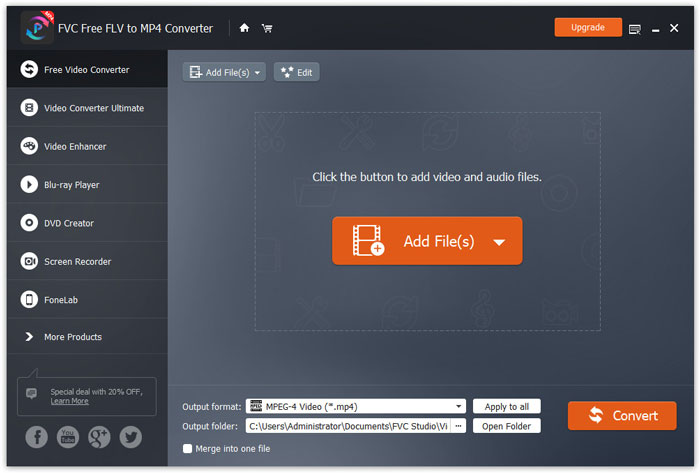
步骤 1: 在电脑上免费下载并安装该软件。安装完成后打开程序,点击添加文件按钮,把你的 M4V 文件加入到程序中。
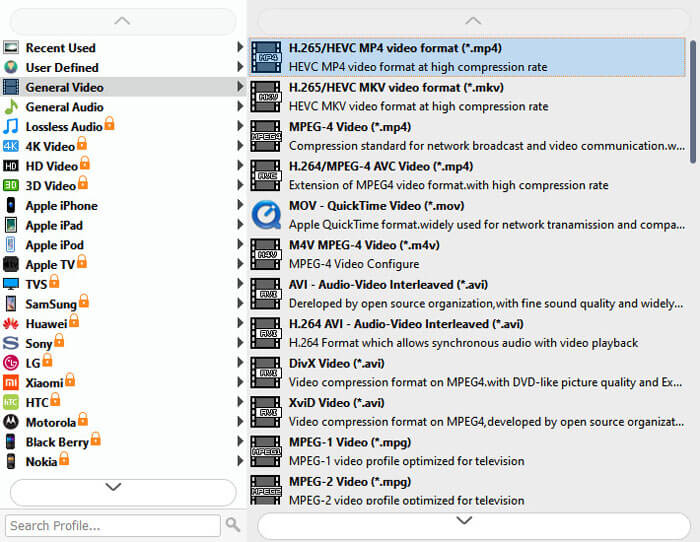
步骤 2: 前往输出格式栏,在'常规视频'选项卡中选择MP4格式。
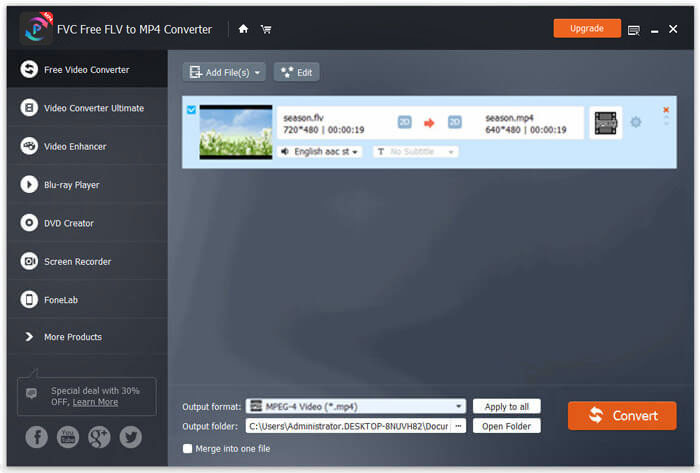
步骤 3: 最后,点击打开文件夹选择保存转换后文件的目标位置,然后点击转换按钮,开始将 M4V 转换为 MP4。
免费在线将M4V转换为MP4
将M4V转换为MP4的最简单方法是使用免费的在线转换器。
Free Online Video Converter 是一款免费的在线 M4V 转 MP4 转换工具。它可以批量转码未受保护的 M4V 文件为 MP4 视频。此外,它还允许你调整输出视频和音频编码器,并根据你的设备选择分辨率。只需 3 个步骤,你就能在 Windows 和 Mac 电脑上完成整个转换过程。
步骤 1. 访问这个免费的在线 M4V 转 MP4 转换器网站,然后点击添加文件进行转换按钮,在电脑上下载转换器启动器。
下载桌面版以批量转换文件。
步骤 2. 启动器成功安装后,会弹出“打开资源”窗口,在其中选择你电脑上的 M4V 文件。
步骤 3. 勾选MP4选项,然后点击“转换”,选择保存转换后 MP4 文件的位置,即可开始将 M4V 转换为 MP4。
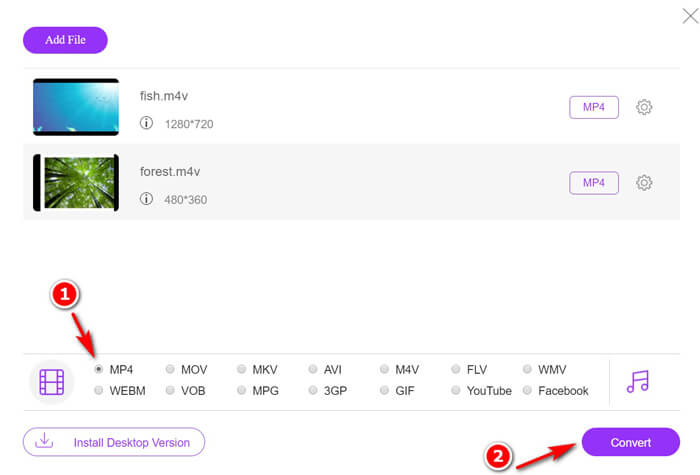
转换过程完成后,转换后的MP4文件将自动下载到您的计算机中。
通过VLC免费将M4V转码为MP4
VLC是流行的媒体播放器,可以直接播放M4V文件。此外,可以使用M4V到MP4转换器将不受保护的M4V文件更改为计算机上的MP4。
步骤 1. 在电脑上下载 VLC。它兼容 Windows、Mac 和 Linux,你可以根据系统下载相应版本。
点击顶部菜单中的媒体,然后选择转换 / 保存…选项。
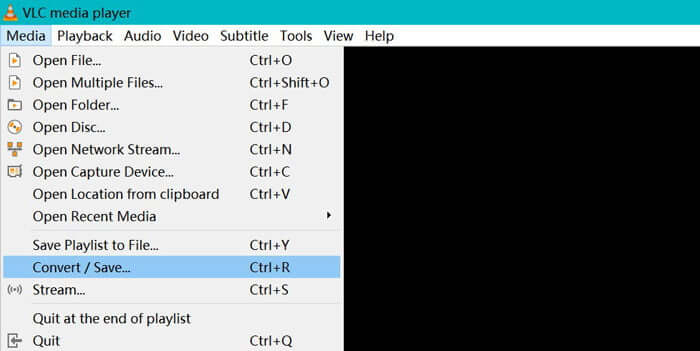
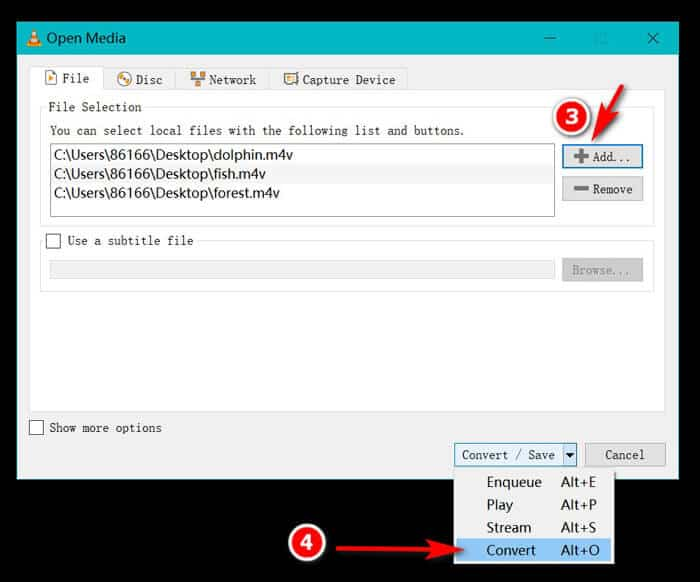
步骤 2. 点击添加按钮,从电脑硬盘中导入 M4V 文件。
之后,在底部的转换 / 保存下拉选项中选择转换。
步骤 3. 在配置的下拉列表中选择MP4作为输出格式。然后点击“开始”,即可在 VLC 中立即将 M4V 转换为 MP4。
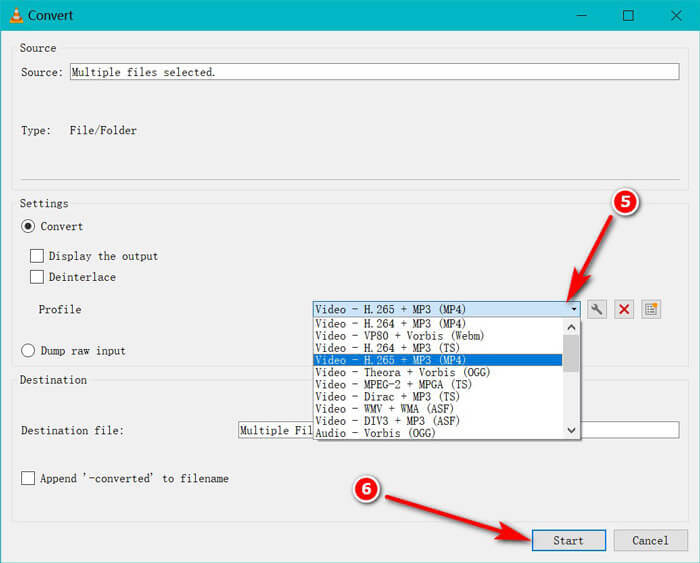
您可以检查VLC中的进度条,以查看是否完成了从M4V到MP4的转换。
使用HandBrake免费将M4V转换为MP4
用于Mac,Windows和Linux计算机的另一个免费的M4V到MP4转换器是HandBrake。
HandBrake是开源DVD,蓝光和视频转换器。它可以将几乎任何视频转换为MKKV和MP4。
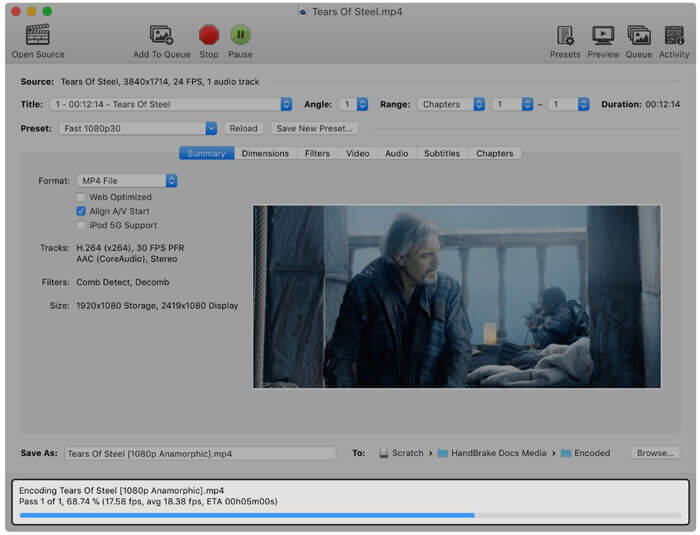
步骤 1. 在电脑上下载 HandBrake 软件。默认情况下,启动软件时会自动弹出打开源对话框,允许你选择要打开的 M4V 视频。
步骤 2. 接着,点击摘要选项卡,并在格式下拉菜单中选择MP4作为输出格式。滤镜、视频编码器及其他文件参数均可根据需要自行调整。
步骤 3. 在目标部分设置保存转换后 MP4 文件的路径,然后点击工具栏上的开始按钮,即可将 M4V 转换为 MP4。
您可能会注意到,有时转换后的文件将是Mac计算机上.m4v的扩展名。为什么HandBrake将MP4保存为M4V?
第 4 部分。如何将 M4V 转换为 MP4
以上 M4V 到 MP4 转换器可以解决 M4V 转换。此外,您可以使用录制方式将 M4V 文件保存为 MP4 视频或其他流行的文件格式。
有许多在线屏幕录像机可以记录计算机上正在播放的内容并导出MP4视频。
这里以FVC Free Screen Recorder为例,向你展示如何录制 M4V 视频并导出为 MP4 视频。
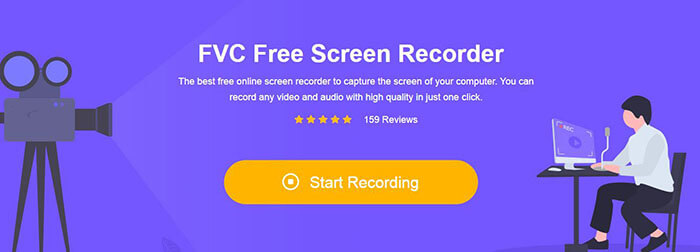
步骤 1. 在浏览器中访问 https://www.free-videoconverter.net/free-screen-recorder/ ,点击“开始录制”,此时会弹出需要你安装的启动器。
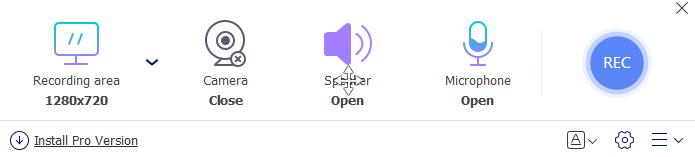
步骤 2. 成功安装后,你会看到主界面。在这里,你需要选择录制区域,开启系统声音并关闭麦克风,以便只录制 iTunes 视频的声音。
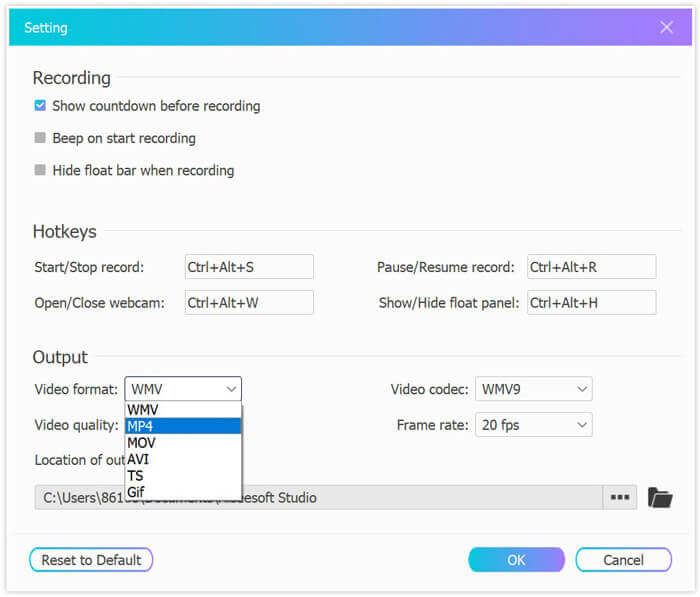
点击设置为录制配置快捷键,选择 MP4 作为输出格式,调整视频质量、视频编码器、帧率等,并设置保存录制 MP4 视频的目标位置。
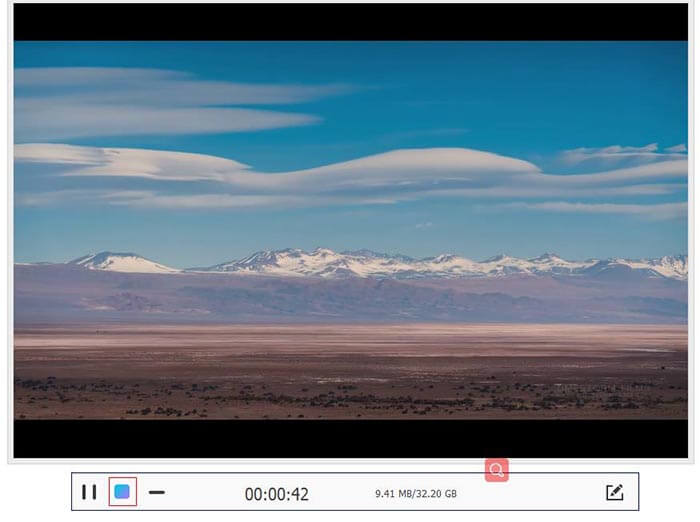
步骤 3. 当所有设置都完成后,通过 QuickTime 或 iTunes 播放 iTunes 视频,然后点击REC按钮开始录制 iTunes 视频。点击停止按钮即可结束录制,并将 M4V 视频保存为 MP4 文件。
M4V 与 MP4
第5部分。将M4V转换为MP4的常见问题解答
M4V兼容什么?
受DRM保护的M4V文件仅与iTunes和QuickTime兼容。对于那些不受保护的M4V文件,您可以在Media Player Classic,K-Multimedia Player,RealPlayer,Zoom Player,VLC Media Player,MPlayer,DivX Plus Player,Nero Showtime,可在Palm Pre上使用的网络视频播放器上播放它们。以及Palm Pixi智能手机和Android手机。 HandBrake制作的M4V视频可以在具有完整杜比数字5.1环绕声支持的PlayStation 3上播放。
M4V和MP4之间有区别吗?
M4V和MP4之间的主要区别在于,DRM复制保护可能会选择M4V文件,而MP4未加密。
您可以将M4V上传到YouTube吗?
是。 YouTube允许您上传不受DRM保护的M4V文件,而DMR保护的M4V文件不被接受。
为什么HandBrake将MP4保存为M4V?
默认情况下,当您输出MP4文件时,它们使用AC3编码,并带有SRT或启用的章节标记作为副标题,.mp4的扩展名将变为.m4v。
结论
M4V文件受DRM保护,您只能通过iTunes帐户授权通过iTunes或QuickTime播放器播放它们。此外,M4V文件不如MP4流行。将M4V转换为MP4是在任何播放器或编辑器上打开M4V文件的聪明方法。此帖分享了6种将M4V转换为MP4的方法。您可以使用免费的在线视频转换直接在线更改它。此外,您可以下载桌面软件以在Windows,Mac和Linux上将M4V转换为MP4。
您最喜欢哪种解决方案?
在下面留下您的评论,让我知道。
-
 如何在Windows / Mac上将M2TS转换为MOV(在线/离线)
 是否需要将M2TS转换为MOV才能在许多播放器和平台上播放视频文件?本文将帮助您找到最佳的在线/离线方法,以在Windows / Mac上将M2TS转换为MOV。
-
 如何在不损失质量的情况下将MP4视频文件转换为GIF动画图像
 寻找将MP4视频转换为GIF动画的最佳方法吗?这是在Photoshop,Windows Movie Maker,在线视频转换器等中执行此操作的详细指南。
-
 如何在不支付一分钱的情况下将FLV视频文件转换为MP4
 本指南共有四种免费方法,可将您的FLV视频文件在Windows 10/8/7 / XP和Mac OS X上转换为MP4格式,因此您可以在任何设备上欣赏视频。

