


 视频转换大师
 屏幕录影大师
 视频修复
视频修复
 安全下载
安全下载从 MP4 到 QuickTime (MOV):免费转换的快速指南
在处理视频无法播放等问题或其他视频相关需求时,将 MP4 文件格式转换为其他格式(例如 QuickTime 的 MOV 文件)有时是必要的。这个任务非常简单,不需要具备任何媒体文件转换的专业知识。本文将帮助从初学者到普通用户,找到一款MP4 转 QuickTime 转换器,且不含任何隐藏收费。因此,阅读本指南后,用户将获得由 FVC 评测推荐的三款可靠工具,让转换过程变得轻松简单。

第 1 部分。将 MP4 转换为 QuickTime (MOV) 的最佳方法,不会造成质量损失
在 MP4 转 MOV 的转换过程中,阻碍用户获得完美结果的一个问题,有时是因为使用了不可靠的工具。幸运的是,FVC 亲自测试了一款特定软件工具,在将 MP4 转换为 QuickTime(MOV)时,能够保证用户获得完全无损的导出质量。这款FVC 精选的 Video Converter Ultimate是一个可靠的工具,可用于将 MP4 文件转换为 QuickTime(MOV)文件,并能轻松处理各种视频格式。请按照下方步骤操作,自行体验这款软件的强大功能,并获得无损画质的转换效果。
步骤 1:通过下方链接下载并安装这款 FVC 精选软件。
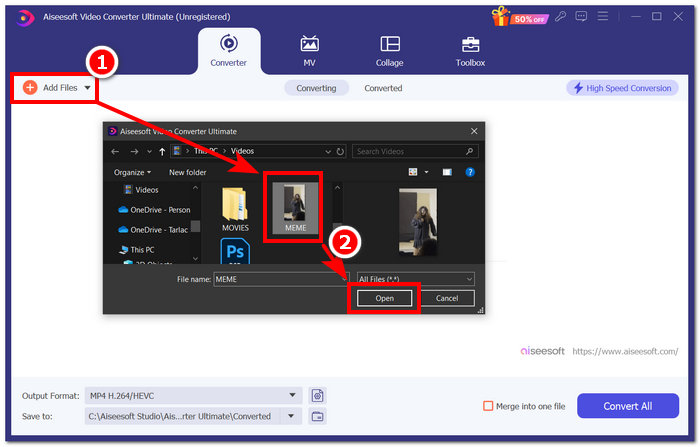
步骤 2:在电脑上启动 Video Converter Ultimate,点击“添加文件”(Add Files),导入你想转换为 QuickTime(MOV)格式的 MP4 视频。
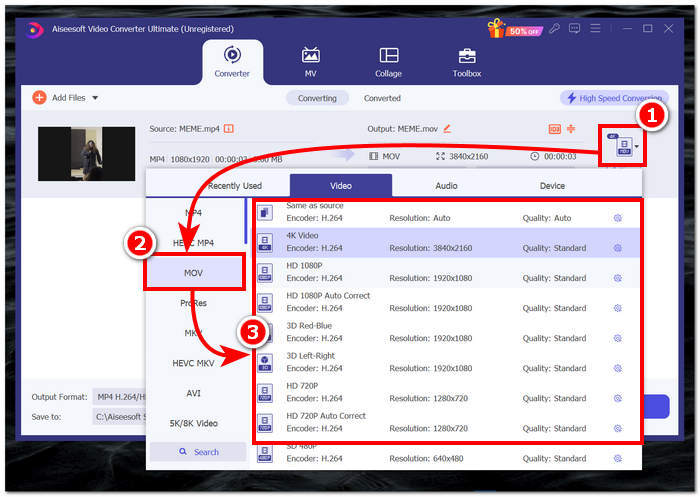
步骤 3:当 MP4 文件上传到软件后,点击工具界面右侧的“文件格式”(File Format)按钮。然后点击 MOV 选项,并选择你所需的分辨率。
选择分辨率对于确定转换后的视频文件的质量至关重要。选择 4K 视频是一个不错的选择,但您必须考虑其尺寸可能更大。否则,请选择与源相同选项,以使您的 MOV 视频文件具有与原始视频相同的质量。
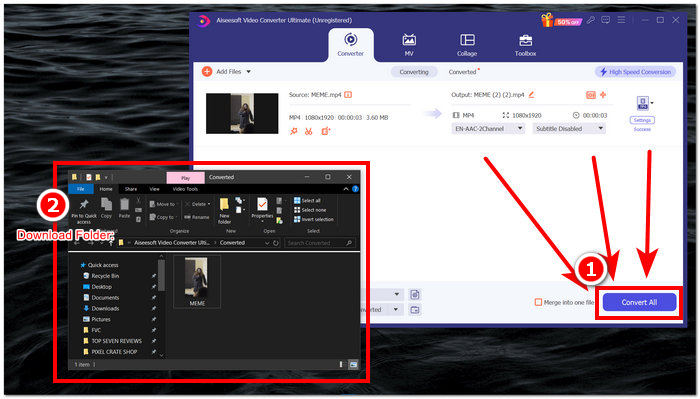
步骤 4:最后,要将 MP4 文件转换为 QuickTime(MOV)格式,点击“全部转换”(Convert All)按钮。随着 MOV 文件开始转换,视频会自动保存到预设的目标文件夹中。
使用该工具后,我们发现它不仅是将 MP4 文件转换为 QuickTime (MOV) 的可靠软件,而且在其他媒体任务(如视频增强和图像转换)中也表现出色。令人惊讶的是,该软件的 MP4 转换工具可供所有用户免费使用。最后,与我们尝试过的其他软件不同,Video Converter Ultimate 提供了大量自定义设置,可在将视频转换为其他文件格式之前提高视频质量。
第 2 部分。免费在线将 MP4 转换为 QuickTime (MOV)
当你在电脑端软件中将 MP4 转 MOV 时遇到不顺利的情况时,你或许会考虑改用在线工具。FVC Free Video Converter Online可以通过其网站几乎即时地转换视频/音频文件格式。这个基于网页的工具允许用户以最高质量转换视频和音频文件,拥有高达 30 倍的处理速度,因此十分可靠。此外,这款多功能工具支持将文件格式转换并导出为 MP4、MOV,以及 M4V、MTS、TS、M2TS 等多种格式,从而高效满足各类媒体转换需求。为了证明这款在线工具的流程确实毫无繁琐之处,只需按照下方提供的步骤操作,亲自体验即可。
步骤 1:访问 FVC Free Video Converter Online 的官网页面。
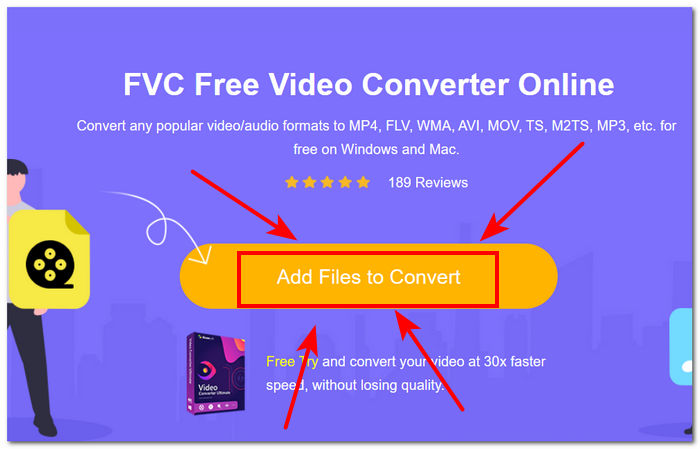
步骤 2:点击“添加待转换文件”(Add Files to Convert)按钮,加载你想转换的 MP4 视频文件。
该工具要求您先下载启动器,然后才能添加文件。单击“添加要转换的文件”按钮后,将显示启动器的下载链接。
步骤 3:当 MP4 视频文件加载到工具界面后,点击界面下方的 MOV 文件选项。此举表示你已选择 QuickTime(MOV)作为输出的转换格式。
步骤 4:最后,点击“转换”(Convert)按钮开始转换流程。工具会自动将 MP4 文件转换为 QuickTime(MOV)文件,并自动将其保存到你的电脑中。
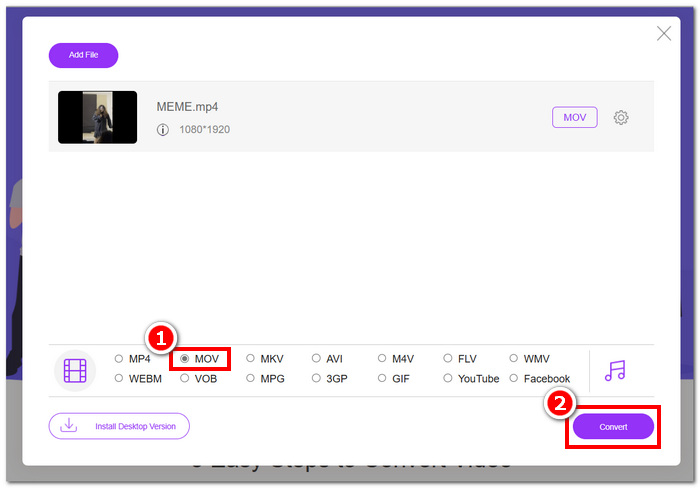
我们使用 FVC 挑选的在线工具转换 MP4 文件的经验让我们可以立即免费使用其服务,这要归功于其直观的界面和可用性。此外,它在转换视频文件时节省时间的功能和快速处理速度远远超出了我们的预期;因此,这款在线工具是一款有前途且所有用户必用的工具。
第 3 部分。使用 HandBrake 将 MP4 转换为 QuickTime (MOV)
要有效且免费地将 MP4 转换为 QuickTime (MOV),您还可以使用 HandBrake,这是一款流行的开源视频转换器。它可以下载到您的 Windows、Mac 或 Linux 上,并且可以将 MP4 转换为 QuickTime (MOV),并提供多种编解码器供您选择。要将 MP4 转换为 QuickTime (MOV),请按照以下步骤正确执行。
步骤 1:访问 HandBrake 官方网站并下载该工具。
步骤 2:启动 HandBrake,然后在界面中将 MP4 文件拖拽到“拖拽文件到此处”(drop-a-file)区域进行上传。
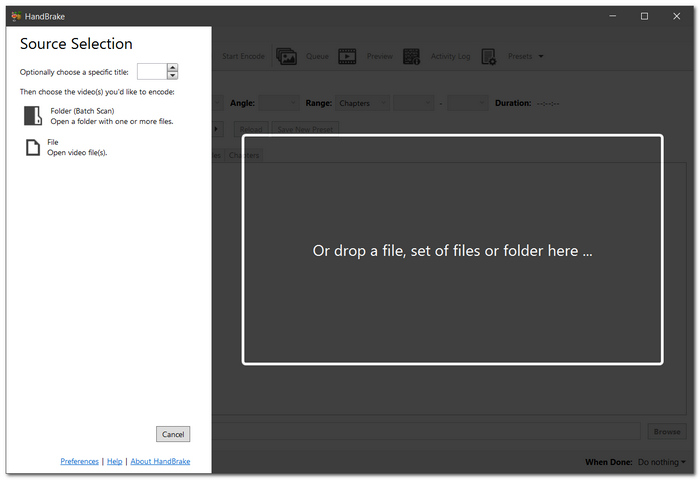
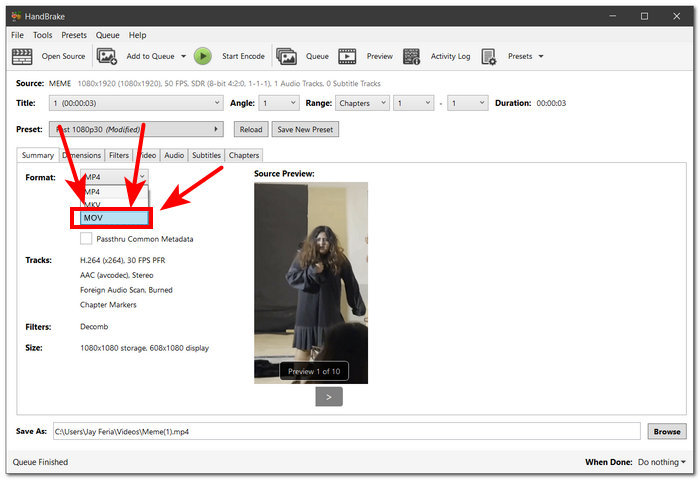
步骤 3:当 MP4 视频文件上传到软件界面后,点击格式(Format)下拉列表,并选择你想要的文件格式 MOV。
步骤 4:点击 HandBrake 界面上方的“开始编码”(Start Encode)按钮。软件会自动将你的 MP4 视频转换为 QuickTime(MOV),并将其保存到软件界面下方“保存为”(Save as)字段中所显示的文件夹路径中。
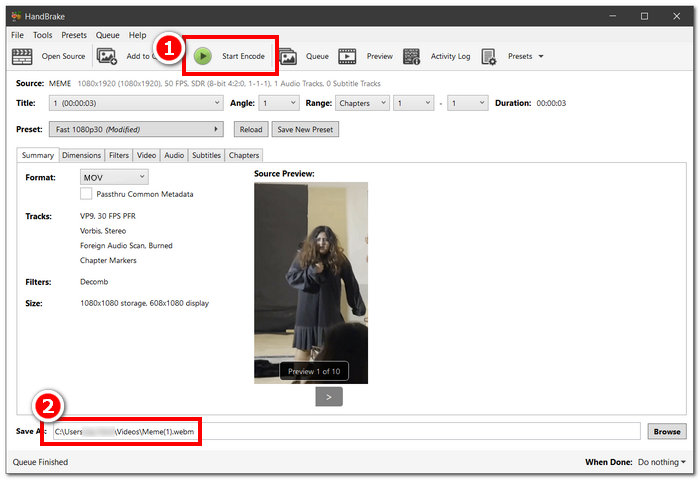
通过使用 HandBrake 工具将 MP4 文件转换为 QuickTime (MOV),FVC 得出了关于该工具性能的一些正面和负面评价。积极的一面是,该工具确实可以免费下载,并且不需要用户支付隐藏费用。另一方面,软件界面可能会让新手感到困惑,因为它提供了广泛的设置和按钮。总的来说,它仍然是一款很棒的工具,但使用它可能需要用户先熟悉其界面。
第 4 部分。有关如何将 MP4 转换为 QuickTime 的常见问题解答
MP4 与 MOV格式有什么区别?
MP4 格式通常用作多媒体文件,适用于各种系统和设备。它通过有效的压缩将文件大小保持在最小,同时保持质量。另一方面,MOV 格式适用于经常使用 Apple 为 QuickTime 播放器创建的格式观看高质量视频的 Mac 用户。虽然它可以处理更高的质量,但会导致文件大小更大。
为什么我需要将 MP4 转换为 MOV?
将 MP4 视频文件转换为 MOV 是必要的,以使其与 Apple 软件和某些平台兼容,并保留更高的视频质量以供查看和编辑。
我可以使用什么软件将 MP4 转换为 MOV?
在考虑将 MP4 文件转换为 QuickTime (MOV) 文件格式时,有大量的工具和选项。对于免费选项,用户可以依靠 Aiseesoft Video Converter Ultimate、FVC Free Video Converter Online 和 HandBrake,对于付费选项,可以依靠 Adobe Media Encoder、Wondershare UniConverter 等。
将 MP4 转换为 MOV 时质量会损失吗?
当用户使用不可靠的转换工具时,视频质量可能会下降。此外,为了避免在将 MP4 视频转换为 QuickTime (MOV) 时视频质量下降,您可以信赖 Aiseesoft Video Converter Ultimate。
将 MP4 文件转换为 MOV 需要多长时间?
将 MP4 转换为 MOV 的速度可能取决于文件的长度和大小、计算机的功能以及互联网的速度。总体而言,更高质量的设置和更大的文件通常需要更长时间。
使用在线工具将 MP4 转换为 MOV 安全吗?
大多数在线MP4 转 MOV 转换器在你使用可信网站(如 FVC Free Video Converter Online)时是安全的。为避免安全风险和对设备造成潜在损害,在处理体积较大或较为敏感的视频文件时,请务必保持谨慎。
使用在线工具将 MP4 转换为 MOV 安全吗?
大多数在线MP4 转 MOV 转换器在你使用可信网站(如 FVC Free Video Converter Online)时是安全的。为避免安全风险和对设备造成潜在损害,在处理体积较大或较为敏感的视频文件时,请务必保持谨慎。
结论
总之,将 MP4 转换为 QuickTime 格式(或与其高度兼容的格式)是为了避免播放问题、获得更好的视频质量等。本文已为用户详细梳理并提供了操作步骤,帮助你轻松完成转换过程,无需为此感到压力。
-
 5 款最佳 YouTube 视频摘要 AI 工具,助您缩短内容
 自动压缩长篇 YouTube 视频以生成内容摘要,并选择可供您使用的最佳 YouTube 视频摘要 AI 工具。
-
 6 种用于无缝音频制作的最佳 AI 音乐工具
 借助 AI 音乐工具轻松制作音乐,帮助您减少项目所花费的时间,同时拥有业界的音频质量。
-
 2025 年排名前 5 的 AI 动画视频生成器(包括免费)
 阅读并了解 5 个最佳 AI 动画生成器,它们可以有效地创建专为无缝视频工作流程而设计的即时动画。
