


 视频转换大师
 屏幕录影大师
 视频修复
视频修复
 安全下载
安全下载在 Mac 上压缩 PDF 文件大小的 3 种快速简便的方法
有没有遇到过这种情况:想上传一个 PDF,却被烦人的“文件大小超限”错误信息拦住?或者打开一份图片很多的 PDF,要加载半天?如果你是在 Mac 上遇到这些问题,那你绝对不是一个人。带有大量嵌入图片的 PDF 很快就会变得臃肿。但别担心!本指南将介绍 3 种有效方法,教你如何在 Mac 上减小 PDF 文件大小。
这样,您就可以无缝共享和处理 PDF,而不会牺牲图像清晰度。让我们探索这些解决方案,找到最适合您需求的解决方案!

第 1 部分:使用简单的在线工具在 Mac 上减小 PDF 文件大小 [最适合初学者]
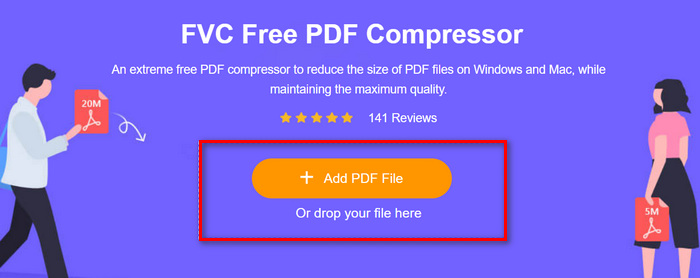
在 Mac 上减小 PDF 文件大小最简单直接的方法,就是使用 FVC Free PDF Compressor。这款在线工具完全免费,任何用户都可以通过其良好的可访问性和友好的界面轻松使用。借助它,你可以在尽量保持画质的前提下,将 PDF 文件压缩到 100 KB 以下。
步骤 1:在其主界面上,点击Add PDF File按钮,导入你想要压缩的 PDF 文件。
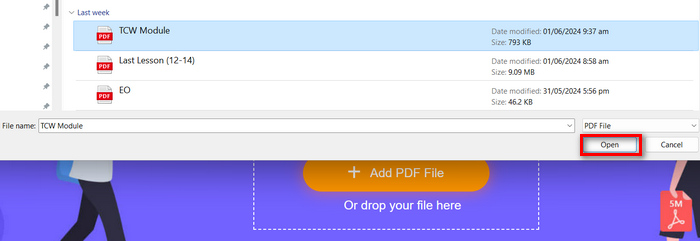
步骤 2:选择好需要压缩的 PDF 后,点击Open开始处理压缩。
步骤 3:完成后,你可以先预览压缩后的 PDF 文件,然后点击Download the PDF按钮将其保存到本地。
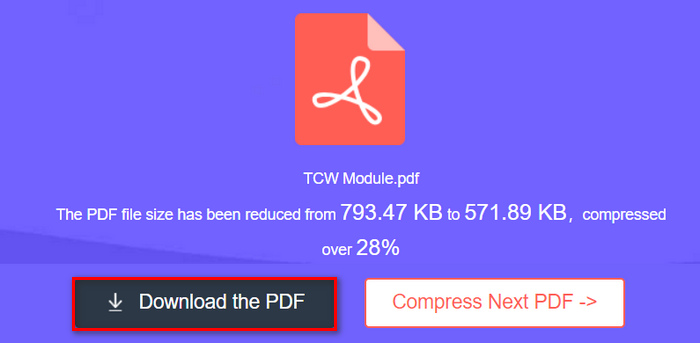
事实上,使用 FVC 免费 PDF 压缩器,您只需单击一下即可在 Mac 上压缩 PDF 文件的大小。此外,它适用于跨平台,因此您可以在 Windows、移动设备等上压缩 PDF。
此外,该工具的在线特性使其可以通过任何操作系统访问,从而提供了最大的便利。
第 2 部分:使用内置照片编辑器在 Mac 上减小 PDF 文件大小
如果您是 Mac 用户,您可以尝试使用 Preview 来缩小计算机上的 PDF 文件大小。Mac 上的这个内置应用程序实际上可以充当基本的 PDF 压缩器!它不具备专用 PDF 压缩工具的所有必要功能,但它是简单缩小尺寸的便捷选项。
步骤 1:在“预览”中,首先需要导入要减小体积的 PDF 文件。前往File菜单选项卡并点击Open按钮。
步骤 2:之后,再次进入File选项卡,选择Export。
步骤 3:在弹出的窗口中向下滚动,点击Quartz Filter,并选择Reduce Size file。最后点击Save导出已经压缩好的 PDF。
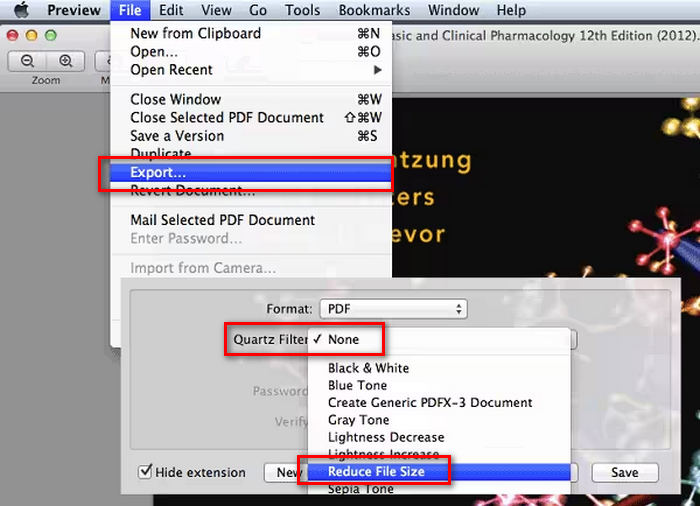
如果您是 Mac 用户,您绝对可以享受使用预览压缩 PDF 文件的便利。但是,请记住,使用此工具可能会降低 PDF 中嵌入图像的质量。
第 3 部分:使用专业软件减小 Mac 上的 PDF 文件大小
如果您想要一款专业的工具来减少 Mac 上的 PDF 文件大小,那么最好的工具就是 Adobe Acrobat。此工具是一款全面的 PDF 管理工具,可让用户在保持高质量的情况下显着减少 PDF 的文件大小。它提供高级压缩选项和设置,让用户更好地控制文件大小和质量之间的平衡。Adobe Acrobat 因其强大的功能和在管理和优化 PDF 文档方面的有效性而广受认可。
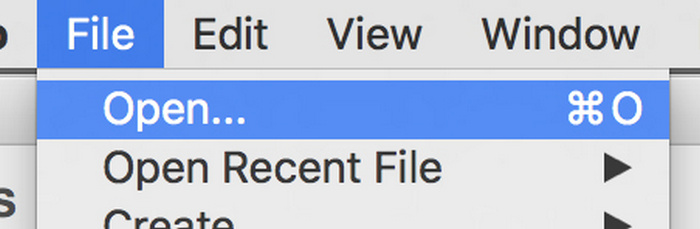
步骤 1:首先启动该工具,进入File选项卡,点击Open导入你想压缩的 PDF。
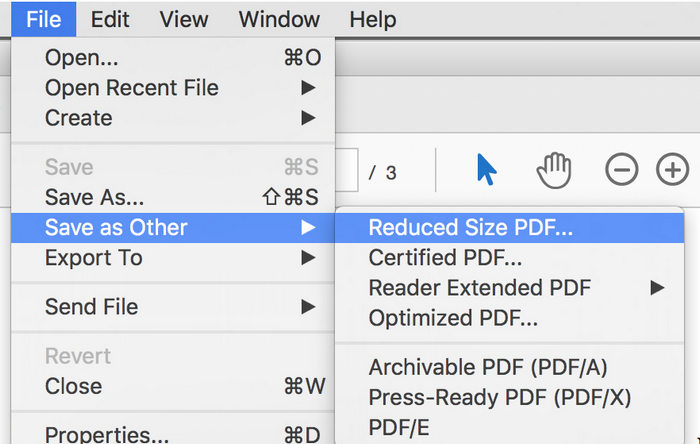
步骤 2:PDF 打开后,前往File选项卡,点击Save as Other,然后选择Reduced Size PDF。
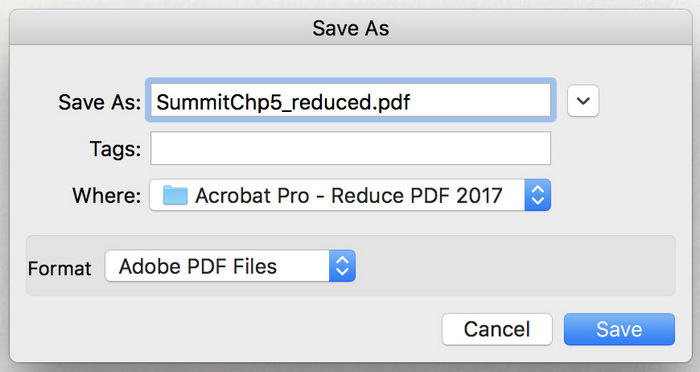
步骤 3:重新命名你的 PDF,然后点击Save。压缩后的 PDF 会直接保存到你的电脑中。
对于需要专业解决方案来在 Mac 上压缩 PDF 文件的用户来说,Adobe Acrobat 是一个绝佳的选择。它提供高级压缩选项并保持高质量,非常适合需要精确控制 PDF 的用户。但是,它是一种复杂的工具,需要订阅,可能并不适合所有人。
第 4 部分:在 Mac 上减小 PDF 文件大小的 3 种方法的比较
| PDF压缩工具 | 支持的平台 | 压缩时间 | 压缩率 |
| FVC Free PDF压缩 | 线上 | 快速 | 20-70% |
| 预习 | 苹果系统 | 缓和 | 10-30% |
| Adobe Acrobat | macOS、Windows 和 Linux | 快速 | 10-30% |
每种 PDF 压缩工具都有其独特的优势。FVC Free PDF Compressor 是一款在线工具,其压缩速度快,压缩率范围广,是注重速度和可访问性的用户的理想选择。Preview 是 macOS 的原生工具,提供适中的压缩时间和压缩率,可满足追求简单和方便的用户的需求。另一方面,Adobe Acrobat 的跨平台兼容性和快速压缩能力令人印象深刻,适合 macOS、Windows 和 Linux 平台的用户。
第 5 部分:有关在 Mac 上减小 PDF 文件大小的常见问题解答
如何在 Mac 上查看 PDF 文件大小?
要在 Mac 上查看 PDF 的文件大小,首先,您需要在 Finder 中找到 PDF 文件,然后单击该文件并选择获取信息。从那里,将出现一个新窗口,您可以在其中查看有关该文件的各种详细信息,包括其大小。
PDF 文件大小是多少?
PDF 文件的大小会因内容不同而有很大差异。简单的基于文本的 PDF 可能只有几千字节,而包含大量图像或复杂文档则可能有几兆字节甚至更多。文件大小受页数、文本量以及包含的图像或其他媒体的影响。
有适用于 Mac 的 PDF 程序吗?
是的,Mac 用户可以使用多种 PDF 程序。内置选项包括 Preview,它提供基本的 PDF 查看和编辑功能。对于更高级的功能,Adobe Acrobat 是一个受欢迎的选择,它提供了用于创建、编辑和压缩 PDF 的综合工具。最后,如果您想要方便且免费的在线工具来在 Mac 上压缩 PDF,FVC Free PDF Compressor 是一个不错的选择。
我可以压缩 PDF 而不损失质量吗?
是的。可以缩小 PDF 而不会显著降低质量,尤其是使用 FVC Free PDF Compressor 和 Adobe Acrobat 等专业工具时。这些工具允许您压缩 PDF 文件,同时确保文本保持清晰,图像尽可能保持其分辨率。
结论
当打开和上传文件变得困难时,将 PDF 压缩为更易于管理的大小至关重要。现在您知道了在 Mac 上压缩 PDF 文件大小的 3 种不同方法,是时候解决这个问题了。但首先,尝试哪种方法最适合您,然后立即压缩它们。
-
 如何在Mac / Windows上将MP4转换为WMV
 这篇文章分享了如何在Mac或Windows上将MP4视频转换为WMV格式。我们还将为您提供多种选择,包括桌面软件和基于Web的在线转换器。准备知道最好的MP4到WMV转换工具了吗?
-
 如何在不损失质量的情况下将MP4视频文件转换为GIF动画图像
 寻找将MP4视频转换为GIF动画的最佳方法吗?这是在Photoshop,Windows Movie Maker,在线视频转换器等中执行此操作的详细指南。
-
 MOV VS MP4 –哪个更好
 MOV VS MP4,哪个更好?这篇文章讲述了MP4和MOV之间的区别,以便您可以更好地选择用于视频文件。
