


 视频转换大师
 屏幕录影大师
 视频修复
视频修复
 安全下载
安全下载VLC 翻录 DVD:如何使用 VLC 轻松转换 DVD [2024]
肯定,用 DVD 播放器看电影曾经是你生活的一部分?告诉我们,你小时候在哪里看的第一部动画片或电影?怀旧的感觉,对吧?如今,随着 Netflix 压倒所有媒体流媒体平台,看电影从未像现在这样容易和方便。因此,许多光盘现在被忽视,等待随着时间的推移而腐烂。
现在,如果你正在寻找一种保存光盘收藏的方法,目前你唯一能做的就是借助 VLC 将每一张光盘进行抓取。VLC 是一款免费的多媒体播放器,用户可以用它来播放、转换以及修复多种视频格式。除此之外,这款工具还可以抓取 DVD,将其中的媒体内容提取出来。基于此,本文为你准备了一份指南,帮助你使用 VLC 抓取 DVD。另外,在文章末尾我们还提供了一个 VLC 的替代方案,可能会带来更简单、更强大的功能。还在等什么?马上往下滑,开始阅读吧。

第 1 部分。在 VLC 上翻录 DVD
VLC 是一款适用于 Windows、macOS 和 Linux 用户的媒体播放器软件应用程序。该工具因其多面功能而广为人知,它不仅允许用户通过它播放各种视频,还可以翻录 DVD,使其更易于在不同设备上访问和播放。该工具的作用是从光盘中提取内容,然后将其转换为可以轻松存储或共享的数字化视频文件。
价格:100% 免费
下面是使用 VLC 抓取 DVD 的详细步骤说明:
步骤 1: 首先,你需要在设备上下载并安装 VLC。完成后,将光盘放入光驱。
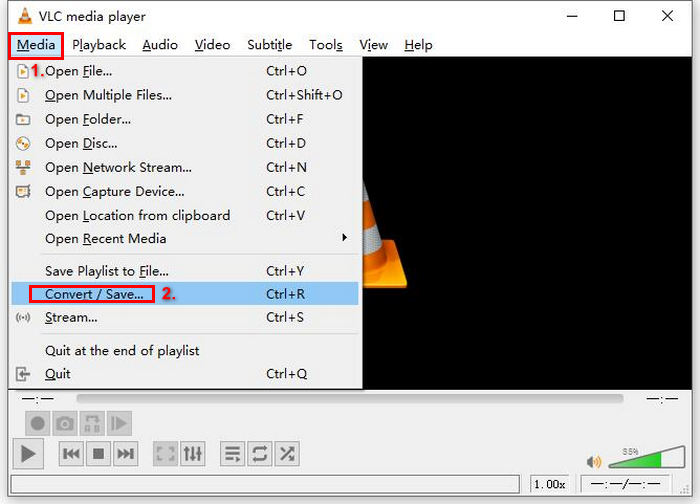
步骤 2: 接着,前往 媒体(Media) 选项卡,并在列表中选择 转换/保存(Convert/Save) 选项。
步骤 3: 然后,点击顶部的 光盘(Disc) 选项卡,勾选 DVD 选项,并在 光盘设备(Disc device) 中选择你想要抓取的那张 DVD。
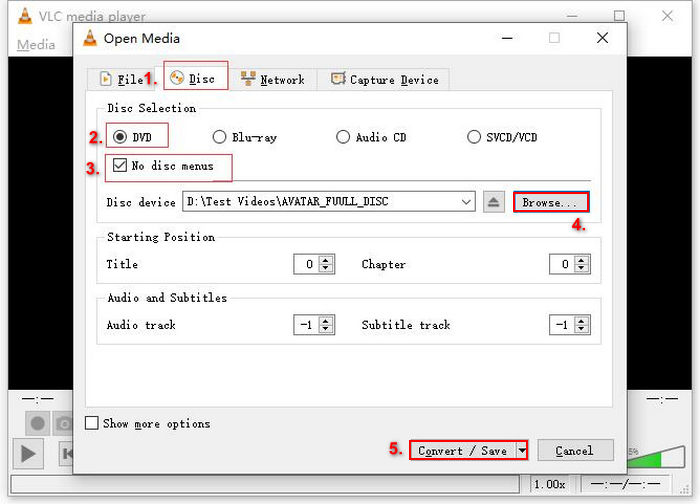
步骤 4: 现在,点击 转换/保存(Convert/Save) 按钮,通过下方的配置文件下拉菜单将输出格式设置为 MKV。
步骤 5: 接下来,在下方的 目标(Destination) 部分点击 浏览(Browse),选择一个文件夹,并为输出文件命名。
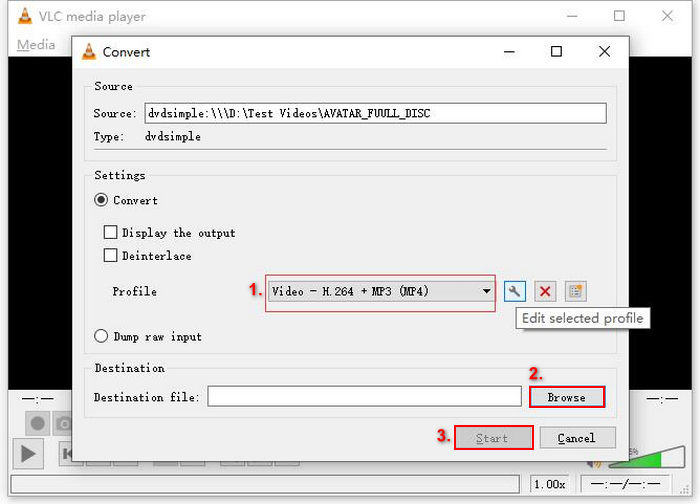
步骤 6: 当一切设置完成后,点击 开始(Start) 按钮即可使用 VLC 抓取 DVD。
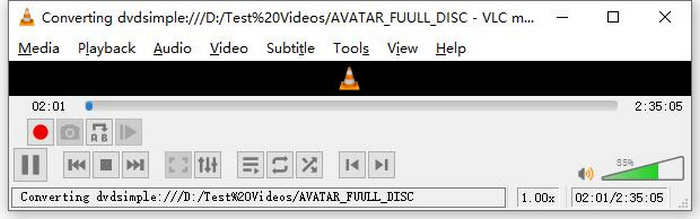
提示:你可以在底部看到“正在转换(Converting)”的进度条。只需耐心等待 VLC 完成抓取过程。
评论:
我们喜欢 VLC Media Player 的原因是它非常可靠且功能多样,尤其是对于寻找免费 DVD 翻录选项的用户来说。然而,尽管有这个功能,它的界面对于初学者来说可能有点技术性,而且与更专业和专用的 DVD 翻录软件相比,这个过程似乎很长。此外,它可能难以处理一些受版权保护的光盘,从而限制了它在这些情况下的有效性。尽管如此,仍然建议在 VLC 上翻录 DVD。
第 2 部分。VLC DVD 翻录器替代品
如果您正在寻找 VLC 之外的 DVD 翻录工具,AnyMP4 DVD Ripper 就是您的理想之选。这款 VLC DVD 翻录软件功能齐全,支持多种常用视频输出格式,包括 MP4、MOV、AVI、MKV 等。有了它,您可以轻松地将 DVD 转换为数字格式,以便在各种设备上播放,且不会损失画质。它的 DVD 翻录功能非常出色,支持转换任何类型的 DVD,例如自制 DVD、商业 DVD、健身 DVD 以及包含 99 个标题的 DVD。
使用 AnyMP4 DVD Ripper 翻录 DVD 的步骤:
步骤 1: 首先,你需要在设备上下载并安装这款工具。记得将 DVD 插入电脑的 DVD 光驱,稍等几分钟直至系统识别到光盘。
步骤 2: 现在,启动该工具并点击"Load DVD"(加载 DVD)以载入光盘。
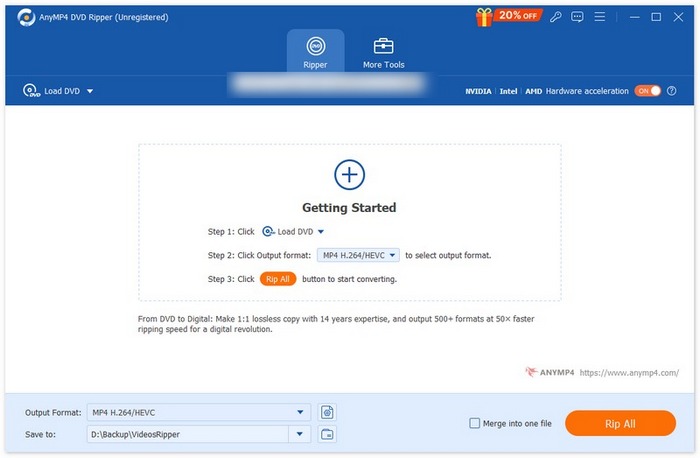
步骤 3: 接着,点击下方的"Output Format"(输出格式),在"Video"(视频)选项卡中选择你想要的视频格式。通过这一操作,你就可以将 DVD 转换为一种更通用、在各种设备上都更容易播放的视频文件格式。完成设置后,只需点击"Rip All"(全部抓取)按钮即可开始抓取你的 DVD。

是不是方便多了?AnyMP4 DVD Ripper 确实是 VLC DVD Ripper 的绝佳替代品。从界面、转换过程到其他必要功能,这款工具彻底改变了游戏规则,远胜 VLC 的 DVD 转换方式。
第 3 部分。关于在 VLC 上翻录 DVD 的常见问题
翻录 DVD 的最佳格式是什么?
翻录 DVD 的最佳格式取决于用户的设备。但是,MP4 是一种广泛使用的视频格式。因此,翻录 DVD 时,您可以选择的最安全的格式是 MP4。
我可以在 Windows 7 上翻录 DVD 吗?
是的。您可以使用 VLC Media Player 在 Windows 7 上翻录 DVD。VLC 支持多种操作系统,包括 Windows 7。在 VLC 上翻录 DVD 时,只需按照与其他版本的 Windows 相同的过程进行操作即可。但请确保您的 DVD 驱动器正常运行,并且 VLC 是最新的,以避免出现兼容性问题。
翻录一张 DVD 需要多长时间?
抓取一张 DVD 所需的时间会因多种因素而有所不同。你必须考虑 DVD 的大小、DVD 光驱的读盘速度,以及你在抓取时选择的设置,例如分辨率、格式等。通常情况下,抓取一张标准 DVD 可能需要 20 分钟到一个多小时。画质越高、文件越大的抓取过程,一般耗时也会更长。如果你想了解 VLC 的播放速度,可以在这里查看。
我可以使用 VLC 翻录受版权保护的 DVD 吗?
不可以。由于加密和数字版权管理保护,任何软件都很难翻录受版权保护的 DVD。
结论
既然你已经知道如何使用 VLC 抓取 DVD,那就没有必要再一直保留所有的 DVD 光盘了。只要按照本指南操作,你就可以把所有光盘转换成可在任意地点、任意设备上播放的数字文件。与此同时,如果 VLC 在你的设备上无法正常工作,你可以尝试使用 AnyMP4 DVD Ripper 作为替代方案。心动了吗?那就马上开始,一起来抓取光盘吧。
-
 如何通过 Chromecast 将 DVD 电影从 PC/Mac 流式传输到电视
 不知道如何通过 Chromecast 在电视上观看 DVD 电影?本文介绍了通过 Chromecast 将 DVD 电影从 PC 投射到电视的最简单方法。
-
 Android DVD 播放器 – 如何在 Android 手机上播放 DVD 视频
 如何在 Android 手机上播放 DVD 文件?有没有安卓 DVD 播放器?在本文中,您将了解在有或没有外部驱动程序的情况下在 Android 手机上播放 DVD 视频的 3 种方法。
-
 在 PC 上播放 DVD 视频的 DVDFab 播放器的最佳 3 替代品
 DVDFab Player 值得购买吗?可以播放4K视频吗?它的付费版本怎么样?本文将详细介绍其功能,并提供 DVDFab Player 的 3 种最佳替代品供您选择。
